Verify Hotfix Applied to Cisco FirePower Threat Defender (FTD) via CLI

Installed firmware hotfix to a Cisco FirePower will not change the display base version in the FirePower Device Manager (FDM).

To verify that the hotfix is applied, it will need to be checked via the CLI which is tracked in the patch history.

Connect to the FirePower using SSH to the IP address of the firewall.

After logging in, run the following commands:

> expert
firewall# cat /etc/sf/patch_history

The hotfix is identified by the version with HK pre-pended.

reference: https://www.cisco.com/c/en/us/support/docs/security/secure-firewall-management-center/226216-clarify-the-fmc-hotfix-version-display.html


Recovering from a Cisco 9500 Firmware ISSU Upgrade

Today, I had a activity to execute an IOS XE upgrade on a Cisco 9500 switch using from the current version to a newer version which is running in SSO mode.

I started by performing pre-checks on the verify that the switch is in the correct state and working as expected.

The pre-checks included:

  • Check the switch current IOS XE version

    C9500# show versions | in IOS XE
  • Check the switches connection

    C9500# show switch
  • Check the Flash free space

    C9500# dir flash: | in free
  • Check the state of switch ISSU

    C9500# show issu state detail
  • Check the install state

    C9500# show install summary

  • Check the switch is in SSO mode

    C9500# show redundancy
  • Check the switch that auto-boot is enabled

    C9500# show boot system
  • Check the exiting boot file on flash

    C9500# dir flash: | in bin


    Once the pre-checks has been completed. It is time to clean up the previous installation files.
    Use the following commands to perform this activity:
  • Copy the old image and backup current configuration to TFTP or USB drive

    C9500# copy bootflash:<old_image.bin> usbflash
    C9500# copy running_config usbflash

    OR

    C9500# copy bootflash:<old_image.bin> tftp:
    C9500# copy running_config tftp:
  • Remove any old image installation files from the flash (note that if you copy new image before this command, it will be included in the list of files to be removed)

    C9500# install remove inactive
  • Copy new image to be switch flash

    C9500# copy usbflash:<new_image.bin> bootflash:
    C9500# copy tftp:new_image.cfg bootflash:
  • Verify new image hash with Cisco website

    C9500# verify /md5 flash:<new_image.bin>
  • Start the ISSU to upgrade IOS XE

    C9500# install add file flash:<new_image.bin> activate issu commit

My colleague had recommended and experiencing switch upgrades first hand, it is a good practice to monitor the switch’s IOS XE upgrades from the console port while the switch is reloading.
You have visibility of any errors that shows on the console.
It is worth having the console session logged during the activity for reference that may be used for troubleshooting and support.

Recovering from the standby switch that booted into ROMMON mode with the error failed to Boot URL not found or incorrect.

  • Executed these commands on the standby switch in SSO mode

    ROMMON 1> dir flash:
    ROMMON 1> boot flash:<image-name.bin>
    OR
    ROMMON 1> boot flash:package.conf00-

The standby switch booted into the previous state.

  • Aborted the ISSU state on the active switch before standby switch loaded

    C9500# install abort issu

  • If ISSU failed to abort, these are other useful commands that was not necessary in my case. Enable service install that is required to clear install state

    C9500# configure terminal
    C9500(config)# service internal
    C9500(config)# end

    C9500# clear install state

I hope these commands were useful for managing switch upgrades.

reference:

https://www.cisco.com/c/en/us/support/docs/interfaces-modules/catalyst-6000-backplane-clock-modules/223261-troubleshoot-issu-upgrade-failures-on.html

https://www.cisco.com/c/en/us/td/docs/switches/lan/catalyst9500/software/release/17-18/configuration_guide/ha/b_1718_ha_9500_cg/configuring_issu_on_stackwise_virtual.html

https://www.cisco.com/c/en/us/support/docs/switches/catalyst-9500-series-switches/214406-in-service-software-upgrade-issu-on-ca.html#toc-hId–458892867

https://www.cisco.com/c/en/us/support/docs/switches/catalyst-9500-series-switches/222279-upgrading-catalyst-9500-switches.html

Social Engineering Mitigation Techniques

I was thinking about the social engineering techniques of spear phishing especially whale phishing and I asked myself the question:

What is the benefit of the C-suite of an organization requiring high level access privilege to computer systems?

The executives has no need to access backend server infrastructure since they are only consumers of the technology.

How does infecting or installing ransomeware on the C-suite devices affects the other work force?

To mitigate and minimize the impact of phishing and ransomware attack on our vulnerable users, we should serious consider applying the Zero Trust strategy:

  • Utilize least privilege
  • Separation of duties
  • Accountability

Let me break it down each concepts and demonstrate how to apply it.

Least privilege – it is the technique of assigning only the required rights or permission to perform only the task done by the individual.

Separation of Duties – it is sharing or dividing the task between two or more individuals for it to be complete. It is a method that is applied in the financial industry to prevent fraudulent activities. This principle is similiar to how MultiFactor authentication works to log into a systems. You need more than one components to gain access to the system.

Accountability –

It is an important considerations that the organization must be protected to prevent malicious attackers negatively affecting the business operations. The old saying is “Prevention is better than cure” especially when it comes to the organizations reputation which is sometimes ireversable and restoring stakeholder’s confidence.

is a method to migitate the impact of these vulnerable targeted users.

As security professionals, we may have to assess the way our users operate to determine the best mode of action.

Please share your thoughts and comment…

GNS3 VM startup error with Intel VT-x/EPT or AMD-V/RVI enabled – Resolved

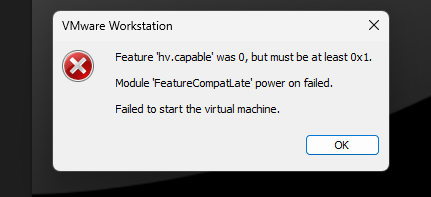
I have spent many days setting up my GNS3 LAB on my high spec laptop, only to be disappointed at the end of all that effort suddenly with a startup error “Feature ‘hv.capable’ was 0, but must be at least 0x1. Module ‘FeatureCompatLate’ power on failed. Failed to sart the virtual machine”

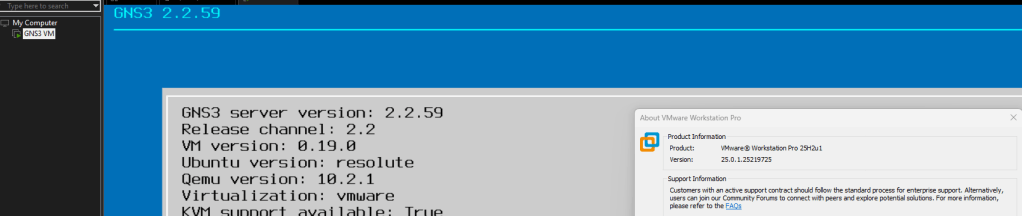
I have the GNS3 VM version 2.2.59 running on VMware Workstation version 25H2u1 which was working during the setup.

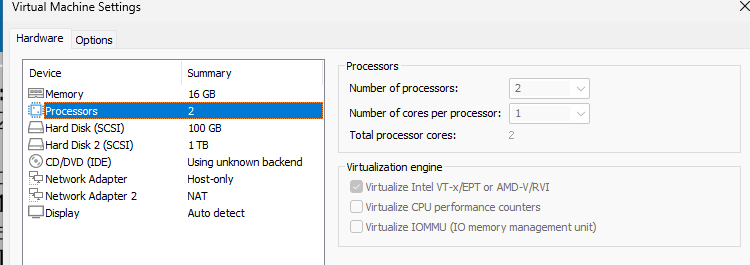
The GNS3 VM uses nested virtualization which requests the vCPU processor feature Virtualize Intel VT-x/EPT or AMD-V/RVI enabled for KVM to function in GNS3.

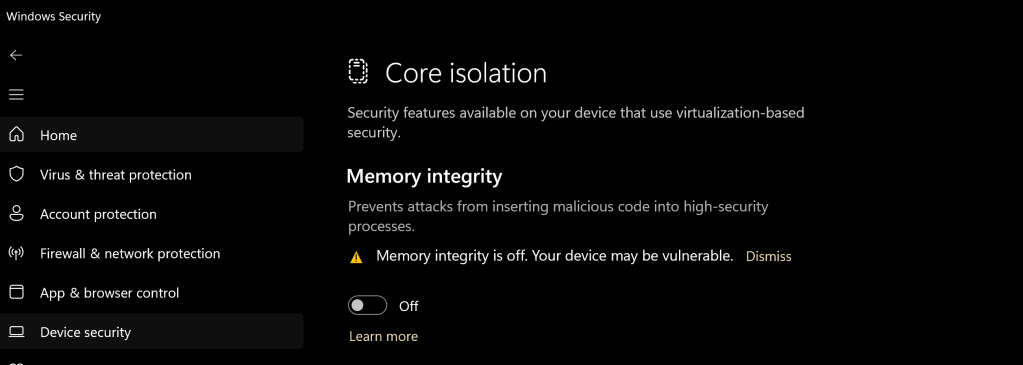
I started to investigate and research the error and it was identified that in Windows 11, the Core Isolation (Memory Integrity) feature in Windows Security –> Device Security was the cause of the error.

Resolution

In Windows Security -> Device security -> Core Isolation -> Disable Memory Integrity

Research

I did some digging to find out the root cause of the memory integrity causing error in the VMware workstation. I found out that the memory integrity is using hardware-based virtualization security which forces the CPU to grant exclusive access to the virtualization technology features to Windows restricting this features to other virtualization platform.

reference:

Virtualization applications don’t work together with Hyper-V and Hyper-V-based features

Core isolation

Multi-Cloud Architect Study Guide and Resources

Introduction

I have created this article to reflect the title which is to provide study resources to prepare for the various Cloud Architect certifications for Oracle, Google Cloud, Amazon Web Services and Microsoft Azure. Each of them brings their own dynamics to the architecture space and has difference focus and value. When you combine the information together, it will make you a well rounded Architect. The only missing piece is the business side because these resources only bring the technology perspective and focus. To fill this gap, I have included other resources from my references who I believe are enlightening the technical community on how to approach Architects with soft skills which is more important than the technical skills (the know how). Resources are from difference sources:

Technical Skills for Cloud Architects from different Cloud Service Providers:

Oracle Cloud Infrastructure 2023 Architect Associate

Oracle Cloud Infrastructure 2023 Architect Professional

Google Cloud Professional Cloud Architect

AWS Solutions Architect Professional

Azure Solutions Architect Expert

AZ-305 – Microsoft Azure Solution Architect Study Resources

I wanted to share the resources that I used to prepare for the AZ-305 Microsoft Certified: Azure Solutions Architect Expert.

  1. Microsoft Learn
  2. AZ-305 Microsoft Learn Case Study
  3. Thomas Maurer AZ-305 Study Guide
  4. Microsoft Cloud Workshop
  5. Microsoft AZ-305 Official Exam Prep
  6. John Savill’s AZ-305 Video Study Playlist

I will update this list as I gather more resources.

AZ-104 – Microsoft Azure Administrator : Deploy and manage Azure compute resources – Create and configure Azure App Service

This article will show the configuration commands required to complete the objectives on the exam guide for the AZ-104. The article information is updated as I complete the respective tasks.

Create and configure Azure App Service

Azure CLI

# Replace the following URL with a public GitHub repo URL

gitrepo=https://github.com/Azure-Samples/php-docs-hello-world webappname=mywebapp$RANDOM

# Create a resource group.

az group create –location eastus –name myRG

# Create an App Service plan in `FREE` tier.

az appservice plan create –name $webappname –resource-group myRG –sku FREE

# Create a web app.

az webapp create –name $webappname –resource-group myRG –plan $webappname

# Deploy code from a public GitHub repository.

az webapp deployment source config –name $webappname –resource-group myRG \

–repo-url $gitrepo –branch master –manual-integration

# Copy the result of the following command into a browser to see the web app.

echo http://$webappname.azurewebsites.net

PowerShell

# Replace the following URL with a public GitHub repo URL

$gitrepo=”https://github.com/Azure-Samples/app-service-web-dotnet-get-started.git&#8221;

$webappname=”mywebapp$(Get-Random)”

$location=”West Europe”

# Create a resource group.

New-AzResourceGroup -Name myRG -Location $location

# Create an App Service plan in Free tier.

New-AzAppServicePlan -Name $webappname -Location $location -ResourceGroupName myRG `

-Tier Free

# Create a web app.

New-AzWebApp -Name $webappname -Location $location -AppServicePlan $webappname `

-ResourceGroupName myRG

# Configure GitHub deployment from your GitHub repo and deploy once.

$PropertiesObject = @{ repoUrl = “$gitrepo”; branch = “master”; isManualIntegration = “true”; }

Set-AzResource -Properties $PropertiesObject -ResourceGroupName myRG `

-ResourceType Microsoft.Web/sites/sourcecontrols `

-ResourceName $webappname/web -ApiVersion 2015-08-01 -Force

Azure CLI

# Variables

appName=”AppServiceManualScale$random”

location=”WestUS”

# Create a Resource Group

az group create –name myRG –location $location

# Create App Service Plans

az appservice plan create –name AppServiceManualScalePlan –resource-group myRG –location $location –sku B1

# Add a Web App

az webapp create –name $appName –plan AppServiceManualScalePlan –resource-group myRG

# Scale Web App to 2 Workers

az appservice plan update –number-of-workers 2 –name AppServiceManualScalePlan \

–resource-group myRG

PowerShell

# Comment

# Generates a Random Value

$Random=(New-Guid).ToString().Substring(0,8)

# Variables

$RG=”myResourceGroup$random”

$AppName=”AppServiceManualScale$random”

$Location=”WestUS”

# Create a Resource Group

New-AzResourceGroup -Name $RG -Location $Location

# Create an App Service Plan

New-AzAppservicePlan -Name AppServiceManualScalePlan -ResourceGroupName $RG `

-Location $Location -Tier Basic

# Create a Web App in the App Service Plan

New-AzWebApp -Name $AppName -ResourceGroupName $RG -Location $Location `

-AppServicePlan AppServiceManualScalePlan

# Scale Web App to 2 Workers

Set-AzAppServicePlan -NumberofWorkers 2 -Name AppServiceManualScalePlan `

-ResourceGroupName $RG

Azure CLI

# Comment

az noun verb –name variable

PowerShell

# Comment

Verb-Noun -Parameters variable

Azure CLI

# Comment

az noun verb –name variable

PowerShell

# Comment

Verb-Noun -Parameters variable
  • Configure custome domain names

Azure CLI

# Variable

fqdn=<Replace with www.{yourdomain}>

webappname=mywebapp$RANDOM

# Create a resource group.

az group create –location westeurope –name myResourceGroup

# Create an App Service plan in SHARED tier (minimum required by custom domains).

az appservice plan create –name $webappname \

–resource-group myResourceGroup –sku SHARED

# Create a web app.

az webapp create –name $webappname –resource-group myResourceGroup \

–plan $webappname

echo “Configure a CNAME record that maps $fqdn to $webappname.azurewebsites.net” read -p “Press [Enter] key when ready …”

# Before continuing, go to your DNS configuration UI for your custom domain and follow the

# instructions at https://aka.ms/appservicecustomdns to configure a CNAME record for the

# hostname “www” and point it your web app’s default domain name.

# Map your prepared custom domain name to the web app.

az webapp config hostname add –webapp-name $webappname \

–resource-group myResourceGroup \

–hostname $fqdn

echo “You can now browse to http://$fqdn&#8221;

PowerShell

# Variable

$fqdn=”<Replace with your custom domain name>”

$webappname=”mywebapp$(Get-Random)”

$location=”West Europe”

# Create a resource group.

New-AzResourceGroup -Name $webappname -Location $location

# Create an App Service plan in Free tier.

New-AzAppServicePlan -Name $webappname -Location $location `

-ResourceGroupName $webappname -Tier Free

# Create a web app.

New-AzWebApp -Name $webappname -Location $location -AppServicePlan $webappname `

-ResourceGroupName $webappname

Write-Host “Configure a CNAME record that maps $fqdn to $webappname.azurewebsites.net” Read-Host “Press [Enter] key when ready …”

# Before continuing, go to your DNS configuration UI for your custom domain and follow the

# instructions at https://aka.ms/appservicecustomdns to configure a CNAME record for the

# hostname “www” and point it your web app’s default domain name.

# Upgrade App Service plan to Shared tier (minimum required by custom domains)

Set-AzAppServicePlan -Name $webappname -ResourceGroupName $webappname `

-Tier Shared

# Add a custom domain name to the web app.

Set-AzWebApp -Name $webappname -ResourceGroupName $webappname `

-HostNames @($fqdn,”$webappname.azurewebsites.net”)

The offline backup is a full backup each time and not an incremental copy.

Azure CLI

#

groupname=”myResourceGroup”

planname=”myAppServicePlan”

webappname=mywebapp$RANDOM

storagename=mywebappstorage$RANDOM

location=”WestEurope”

container=”appbackup”

backupname=”backup1″

expirydate=$(date -I -d “$(date) + 1 month”)

# Create a Resource Group

az group create –name $groupname –location $location

# Create a Storage Account

az storage account create –name $storagename \

–resource-group $groupname –location $location \

–sku Standard_LRS

# Create a storage container

az storage container create –account-name $storagename –name $container

# Generates an SAS token for the storage container, valid for one month.

# NOTE: You can use the same SAS token to make backups in App Service until –expiry sastoken=$(az storage container generate-sas –account-name $storagename –name $container \ –expiry $expirydate –permissions rwdl –output tsv)

# Construct the SAS URL for the container sasurl=https://$storagename.blob.core.windows.net/$container?$sastoken

# Create an App Service plan in Standard tier. Standard tier allows one backup per day.

az appservice plan create –name $planname –resource-group $groupname –location $location \

–sku S1

# Create a web app

az webapp create –name $webappname –plan $planname –resource-group $groupname

# Create a one-time backup

az webapp config backup create –resource-group $groupname –webapp-name $webappname \

–backup-name $backupname –container-url $sasurl

# List statuses of all backups that are complete or currently executing.

az webapp config backup list –resource-group $groupname –webapp-name $webappname

PowerShell

# Variables

$webappname=”mywebapp$(Get-Random -Minimum 100000 -Maximum 999999)” $storagename=”$($webappname)storage”

$container=”appbackup”

$location=”West Europe”

$backupname=”backup1″

# Create a resource group.

New-AzResourceGroup -Name myResourceGroup -Location $location

# Create a storage account.

$storage = New-AzStorageAccount -ResourceGroupName myResourceGroup `

-Name $storagename -SkuName Standard_LRS -Location $location

# Create a storage container.

New-AzStorageContainer -Name $container -Context $storage.Context

# Generates an SAS token for the storage container, valid for one month.

# NOTE: You can use the same SAS token to make backups in Web Apps until -ExpiryTime

$sasUrl = New-AzStorageContainerSASToken -Name $container -Permission rwdl `

-Context $storage.Context -ExpiryTime (Get-Date).AddMonths(1) -FullUri

# Create an App Service plan in Standard tier. Standard tier allows one backup per day.

New-AzAppServicePlan -ResourceGroupName myResourceGroup -Name $webappname `

-Location $location -Tier Standard

# Create a web app.

New-AzWebApp -ResourceGroupName myResourceGroup -Name $webappname ` -Location $location -AppServicePlan $webappname

# Create a one-time backup

New-AzWebAppBackup -ResourceGroupName myResourceGroup -Name $webappname `

-StorageAccountUrl $sasUrl -BackupName $backupname

# List statuses of all backups that are complete or currently executing.

Get-AzWebAppBackupList -ResourceGroupName myResourceGroup -Name $webappname

  • Configure networking settings

Azure CLI

# Comment

az noun verb –name variable

PowerShell

# Comment

Verb-Noun -Parameters variable
  • Configure deployment settings

Azure CLI

# Comment

az noun verb –name variable

PowerShell

# Comment

Verb-Noun -Parameters variable
AZ-104 – Microsoft Azure Administrator : Deploy and manage Azure Compute resources – Configure VMs

This article will show the configuration commands required to complete the objectives on the exam guide for the AZ-104. The article information is updated as I complete the respective tasks.

Configure VMs

  • Configure Azure Disk Encryption

Azure CLI

# Create a Key Vault

az keyvault create –name myKV –resource-group myRG –location eastus –enabled-for-disk-encryption

# Update Key Vault to allow the storing of disk encryption key

az keyvault update -n myKV -g myRG –enabled-for-disk-encryption

#Encrypt an existing VM disk

az vm encryption enable -n myVM -g myRG –disk-encryption-keyvault myKV –volume-type all

# View the status of Disk encryption

az vm encryption show -n myVM -g myRG

#Decrypt the VM disk

az vm encryption disable -n myVM -g myRG

PowerShell

# Create Azure KeyVault

New-AzKeyVault -VaultName myKV `

-ResourceGroupName myRG `

-Location EastUS `

-EnabledForDiskEncryption

# Change the KeyVault Policy Access

Set-AzKeyVaultAccessPolicy -VaultName myKV -ResourceGroupName myRG `

-EnabledForDiskEncryption

# Encrypt the VM disk

Set-AzVMDiskEncrytpionExtension -VMname myVM -ResourceGroupName myRG `

-VolumeType [All|OS|Data] -DiskEncryptionKeyVaultID myKV.id `

-DiskEncryptionKeyVaultUri myKV.uri -SkipVMBackup

#View the Disk Encryption Status

Get-AzVMDiskEncryptionStatus -VMname myVM -ResourceGroupName myRG

#Decrypt VM disk

Disable-AzVMDiskEncryption -VMname myVM -ResourceGroupName myRG

  • Manage VM sizes

Azure CLI

# Check the VM current size

az vm show –name myVM –resource-group myRG –query hardwareProfile.vmSize

#List the available size to the VM

az vm list-vm-resize-options –resource-group myRG –name myVM

#Resize the VM to the size of choice from the list generate from command

az vm resize –name myVM –resource-group myRG –size Standard_B1s

#Deallocate VM if the size desired is not listed to be made available

az vm deallocate –name myVM –resource-group myRG

az vm stop –name myVM –resource-group myRG

PowerShell

Get-AzVmSize -VMName myVM -ResourceGroupName myRG

$vm = Get-AzVM -VMName myVM -ResourceGroupName myRG

$vm.HardwareProfile.VmSize = “Standard_B1ls”

Update-AzVM -VM $vm -ResourceGroupName myRG

#Deallocate VM

Stop-AzVM -Name myVM -ResourceGroupName myRG

#Only Stop VM but does not deallocate it

Stop-AzVM -Name myVM -ResourceGroupName myRG -StayProvisioned

  • Add Data Disks

Azure CLI

# Create the disk and attached it to the VM in one command

az vm disk attached -g myRG -vm-name myVM –name myDisk –new –size-gb 32 \

–sku Standard_LRS

PowerShell

# Set the data disk configuration

$diskConfig = new-AzDiskConfig -SkuName “Standard_LRS” -Location “EastUS” `

-CreateOption Empty -DiskSizeGB 32

# Create the data disk

$dataDisk1 = new-AzDisk -DiskName myDisk -Disk $diskConfig -ResourceGroupName myRG

# Get the Virtual Machine information

$vm = Get-AzVM -Name myVM -ResourceGroup myRG

# Add the Disk information to VM

$vm = Add-AzVMDataDisk -VM $vm -Name myDisk -CreateOption Attach `

-ManagedDiskId #dataDisk1.Id -Lun 1

#Update the VM with the data disk

Update-AzVM -VM $vm -ResourceGroupName myRG

# The second phase is to intialize the disk within the VM.

  • Redeploy VMs

Azure CLI

# Redeploy a virtual machine

az vm redeploy –name myVM –resource-group myRG

PowerShell

# Redeploy a virtual machine

Set-AzVM -Redeploy -ResourceGroupName “myRG” -Name “myVM”

  • Move Resource to another Resource group

Azure CLI

# Comment

az resource move –destinationresourcegroupname myRG2 –ids myVMid myStorageid

PowerShell

# Move resource to another resource group

$webapp = Get-AzResource -ResourceGroupName myRG -ResourceName mySite

$vm = Get-AzResource -ResourceGroupName myRG -ResourceName myVM

Move-AzResource -DestinationResourceGroupName myRG2 -ResourceId $webapp.ResourceId, $vm.ResourceId

  • Configure Networking

Azure CLI

# Comment

az noun verb –name variable

PowerShell

# Comment

Verb-Noun -Parameters variable
  • Configure High Availability

Azure CLI

# Comment

az noun verb –name variable

PowerShell

# Comment

Verb-Noun -Parameters variable

  • Deploy and configure scale sets

Azure CLI

# Comment

az noun verb –name variable

PowerShell

# Comment

Verb-Noun -Parameters variable

Microsoft: SysInternals Suite PS Exec Command Usage

I was given a task to install a agent on computers and servers using command line as during my research I discovered this tool calls PSExec from the SysInternals Suite tools.

You may ask what is PSExec? According to Microsoft, it launches interactive command-prompts on remote systems and remote-enabling tools like IpConfig that otherwise do not have the ability to show information about remote systems. In other words, PSExec tool allows the execution of commands on a system remotely as if it is on the direct system console.

There are a number of features that I love about the PSExec tool which are as follows:

  1. It can run the command as another user remotely on the local system using user interaction
  2. It allows the execution of the command on multiple computers from a list in a text file

I was given the task to install the SAP Single Sign On add-in and it was difficult because it required that it is run under a network user locally in an interactive mode.

The PSExec tool gave me the power to overcome this difficulty.

Here is the syntax of the command and the parameters I used:

psexec.exe @[file-name.txt] -u [domain\username] -p -i -h [\\server\path\batch-files.bat]

explaining each switch:

@   execute the command on each computer in the file. Each computer must be in a new line

-u   username

-p  prompt for password

-i  run command in interactive mode

-h run the command with account elevated privilege

This command will execute the script on each computer return the result as it is completed.

Please ensure it is executed on a computer that is running since it cannot be execute without the computer being on.

Setting up a Cisco AP using the command line

This article is to document the CLI commands used to configure an Autonomous Cisco Access Point.

To configure the AP management IP address use the following command:

Interface BVI1

ip address [ip] [subnetmask]

no shutdown

Next, define the SSID properties including Name, Key method and password.

This particular configuration is using WPA2 to authenticate the users.

dot11 ssid [SSIDName]

authentication open
authentication key-management wpa version 2
guest-mode
wpa-psk ascii [password]

Next you will push this SSID on the 2.4 Ghz which is on interface dot1Radio 0 and if you want it to be available on 5 Ghz band as well, you will configure it on dot1Radio 1. The radio will be using the AES-CCM encryption mode.

interface dot1radio0

encryption mode ciphers aes-ccm

ssid [SSID-name]

no shutdown

Once you are done, you can save the configuration and test you wireless device.