Blog

Multi-Cloud Architect Study Guide and Resources

Introduction

I have created this article to reflect the title which is to provide study resources to prepare for the various Cloud Architect certifications for Oracle, Google Cloud, Amazon Web Services and Microsoft Azure. Each of them brings their own dynamics to the architecture space and has difference focus and value. When you combine the information together, it will make you a well rounded Architect. The only missing piece is the business side because these resources only bring the technology perspective and focus. To fill this gap, I have included other resources from my references who I believe are enlightening the technical community on how to approach Architects with soft skills which is more important than the technical skills (the know how). Resources are from difference sources:

Technical Skills for Cloud Architects from different Cloud Service Providers:

Oracle Cloud Infrastructure 2023 Architect Associate

Oracle Cloud Infrastructure 2023 Architect Professional

Google Cloud Professional Cloud Architect

AWS Solutions Architect Professional

Azure Solutions Architect Expert

Verify Hotfix Applied to Cisco FirePower Threat Defender (FTD) via CLI

Installed firmware hotfix to a Cisco FirePower will not change the display base version in the FirePower Device Manager (FDM).

To verify that the hotfix is applied, it will need to be checked via the CLI which is tracked in the patch history.

Connect to the FirePower using SSH to the IP address of the firewall.

After logging in, run the following commands:

> expert
firewall# cat /etc/sf/patch_history

The hotfix is identified by the version with HK pre-pended.

reference: https://www.cisco.com/c/en/us/support/docs/security/secure-firewall-management-center/226216-clarify-the-fmc-hotfix-version-display.html


Recovering from a Cisco 9500 Firmware ISSU Upgrade

Today, I had a activity to execute an IOS XE upgrade on a Cisco 9500 switch using from the current version to a newer version which is running in SSO mode.

I started by performing pre-checks on the verify that the switch is in the correct state and working as expected.

The pre-checks included:

  • Check the switch current IOS XE version

    C9500# show versions | in IOS XE
  • Check the switches connection

    C9500# show switch
  • Check the Flash free space

    C9500# dir flash: | in free
  • Check the state of switch ISSU

    C9500# show issu state detail
  • Check the install state

    C9500# show install summary

  • Check the switch is in SSO mode

    C9500# show redundancy
  • Check the switch that auto-boot is enabled

    C9500# show boot system
  • Check the exiting boot file on flash

    C9500# dir flash: | in bin


    Once the pre-checks has been completed. It is time to clean up the previous installation files.
    Use the following commands to perform this activity:
  • Copy the old image and backup current configuration to TFTP or USB drive

    C9500# copy bootflash:<old_image.bin> usbflash
    C9500# copy running_config usbflash

    OR

    C9500# copy bootflash:<old_image.bin> tftp:
    C9500# copy running_config tftp:
  • Remove any old image installation files from the flash (note that if you copy new image before this command, it will be included in the list of files to be removed)

    C9500# install remove inactive
  • Copy new image to be switch flash

    C9500# copy usbflash:<new_image.bin> bootflash:
    C9500# copy tftp:new_image.cfg bootflash:
  • Verify new image hash with Cisco website

    C9500# verify /md5 flash:<new_image.bin>
  • Start the ISSU to upgrade IOS XE

    C9500# install add file flash:<new_image.bin> activate issu commit

My colleague had recommended and experiencing switch upgrades first hand, it is a good practice to monitor the switch’s IOS XE upgrades from the console port while the switch is reloading.
You have visibility of any errors that shows on the console.
It is worth having the console session logged during the activity for reference that may be used for troubleshooting and support.

Recovering from the standby switch that booted into ROMMON mode with the error failed to Boot URL not found or incorrect.

  • Executed these commands on the standby switch in SSO mode

    ROMMON 1> dir flash:
    ROMMON 1> boot flash:<image-name.bin>
    OR
    ROMMON 1> boot flash:package.conf00-

The standby switch booted into the previous state.

  • Aborted the ISSU state on the active switch before standby switch loaded

    C9500# install abort issu

  • If ISSU failed to abort, these are other useful commands that was not necessary in my case. Enable service install that is required to clear install state

    C9500# configure terminal
    C9500(config)# service internal
    C9500(config)# end

    C9500# clear install state

I hope these commands were useful for managing switch upgrades.

reference:

https://www.cisco.com/c/en/us/support/docs/interfaces-modules/catalyst-6000-backplane-clock-modules/223261-troubleshoot-issu-upgrade-failures-on.html

https://www.cisco.com/c/en/us/td/docs/switches/lan/catalyst9500/software/release/17-18/configuration_guide/ha/b_1718_ha_9500_cg/configuring_issu_on_stackwise_virtual.html

https://www.cisco.com/c/en/us/support/docs/switches/catalyst-9500-series-switches/214406-in-service-software-upgrade-issu-on-ca.html#toc-hId–458892867

https://www.cisco.com/c/en/us/support/docs/switches/catalyst-9500-series-switches/222279-upgrading-catalyst-9500-switches.html

Social Engineering Mitigation Techniques

I was thinking about the social engineering techniques of spear phishing especially whale phishing and I asked myself the question:

What is the benefit of the C-suite of an organization requiring high level access privilege to computer systems?

The executives has no need to access backend server infrastructure since they are only consumers of the technology.

How does infecting or installing ransomeware on the C-suite devices affects the other work force?

To mitigate and minimize the impact of phishing and ransomware attack on our vulnerable users, we should serious consider applying the Zero Trust strategy:

  • Utilize least privilege
  • Separation of duties
  • Accountability

Let me break it down each concepts and demonstrate how to apply it.

Least privilege – it is the technique of assigning only the required rights or permission to perform only the task done by the individual.

Separation of Duties – it is sharing or dividing the task between two or more individuals for it to be complete. It is a method that is applied in the financial industry to prevent fraudulent activities. This principle is similiar to how MultiFactor authentication works to log into a systems. You need more than one components to gain access to the system.

Accountability –

It is an important considerations that the organization must be protected to prevent malicious attackers negatively affecting the business operations. The old saying is “Prevention is better than cure” especially when it comes to the organizations reputation which is sometimes ireversable and restoring stakeholder’s confidence.

is a method to migitate the impact of these vulnerable targeted users.

As security professionals, we may have to assess the way our users operate to determine the best mode of action.

Please share your thoughts and comment…

GNS3 VM startup error with Intel VT-x/EPT or AMD-V/RVI enabled – Resolved

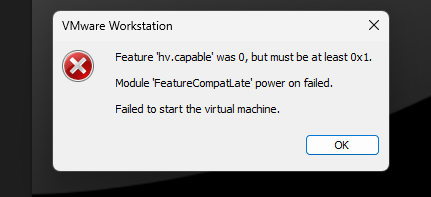
I have spent many days setting up my GNS3 LAB on my high spec laptop, only to be disappointed at the end of all that effort suddenly with a startup error “Feature ‘hv.capable’ was 0, but must be at least 0x1. Module ‘FeatureCompatLate’ power on failed. Failed to sart the virtual machine”

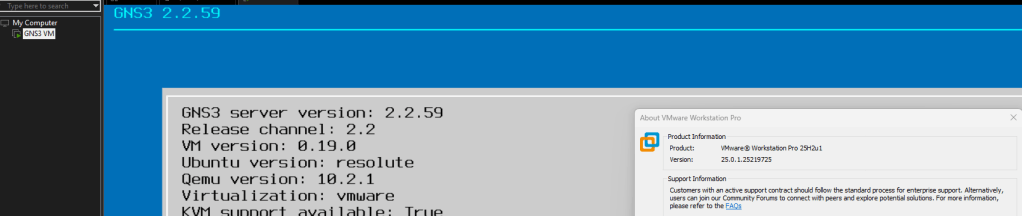
I have the GNS3 VM version 2.2.59 running on VMware Workstation version 25H2u1 which was working during the setup.

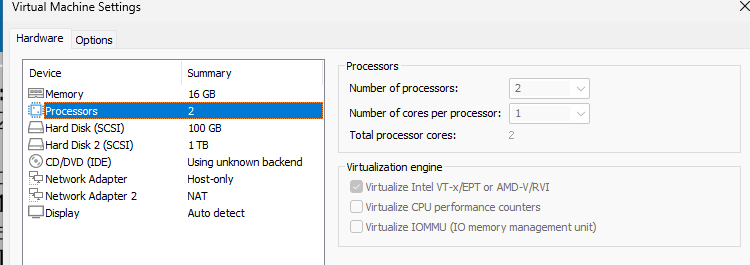
The GNS3 VM uses nested virtualization which requests the vCPU processor feature Virtualize Intel VT-x/EPT or AMD-V/RVI enabled for KVM to function in GNS3.

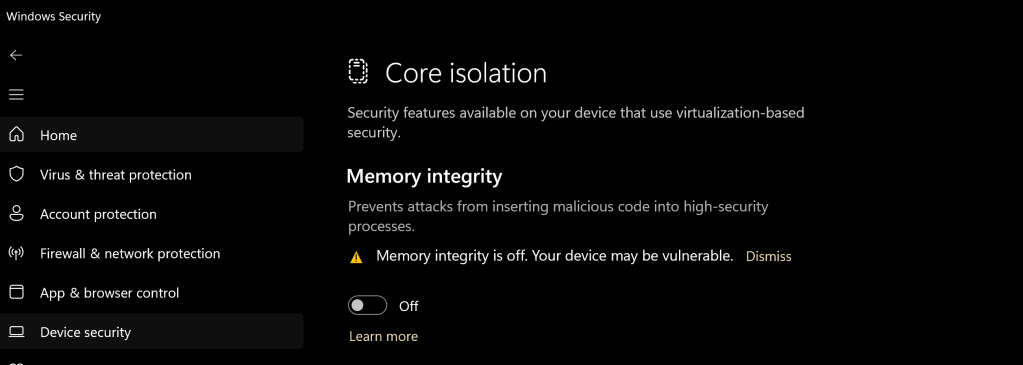
I started to investigate and research the error and it was identified that in Windows 11, the Core Isolation (Memory Integrity) feature in Windows Security –> Device Security was the cause of the error.

Resolution

In Windows Security -> Device security -> Core Isolation -> Disable Memory Integrity

Research

I did some digging to find out the root cause of the memory integrity causing error in the VMware workstation. I found out that the memory integrity is using hardware-based virtualization security which forces the CPU to grant exclusive access to the virtualization technology features to Windows restricting this features to other virtualization platform.

reference:

Virtualization applications don’t work together with Hyper-V and Hyper-V-based features

Core isolation

Disable IE Enhanced Security Configuration in Windows Server via script

I have always want to use a script to disable Internet Explorer Enhanced Security Configuration (IE ESC) in Windows Server. It is an annoying activity when it is required to perform tasked using the IE in older versions of windows servers.

It is important to note that IE ESC is very important to the security of legacy servers from common past vulnerabilities which is not a risk in current versions of server OS.

This activity must be taken with precaution and on servers with access restriction to the Internet. It is encouraged that IT professional implement all measures to secure the legacy application running on these servers that must be maintained in an segmented or isolated environment. It is the responsibility of the IT professional to use a secure alternative browser after this activity has been performed.

Now here is a batch script to the rescue taken from this Microsoft FAQ that can be runned on all your servers. Save the script in a batch file and run it from the command line.

The script must run as an administrator or a logon script to work since it is making changes to the registry.

Note: The script was created for Windows Server 2003 and 2008. However, it will work for other versions such as Windows Server 2019.

ECHO OFF
REM  IEHarden Removal Project
REM  HasVersionInfo: Yes
REM  Author: Axelr
REM  Productname: Remove IE Enhanced Security
REM  Comments: Helps remove the IE Enhanced Security Component of Windows 2003 and 2008(including R2)
REM  IEHarden Removal Project End
ECHO ON
::Related Article
::933991 Standard users cannot turn off the Internet Explorer Enhanced Security feature on a Windows Server 2003-based terminal server
::http://support.microsoft.com/default.aspx?scid=kb;EN-US;933991
:: Rem out if you like to Backup the registry keys
::REG EXPORT "HKEY_LOCAL_MACHINE\SOFTWARE\Microsoft\Active Setup\Installed Components\{A509B1A7-37EF-4b3f-8CFC-4F3A74704073}" "%TEMP%.HKEY_LOCAL_MACHINE.SOFTWARE.Microsoft.Active Setup.Installed Components.A509B1A7-37EF-4b3f-8CFC-4F3A74704073.reg"
::REG EXPORT "HKEY_LOCAL_MACHINE\SOFTWARE\Microsoft\Active Setup\Installed Components\{A509B1A7-37EF-4b3f-8CFC-4F3A74704073}" "%TEMP%.HKEY_LOCAL_MACHINE.SOFTWARE.Microsoft.Active Setup.Installed Components.A509B1A8-37EF-4b3f-8CFC-4F3A74704073.reg"
REG ADD "HKEY_LOCAL_MACHINE\SOFTWARE\Microsoft\Active Setup\Installed Components\{A509B1A7-37EF-4b3f-8CFC-4F3A74704073}" /v "IsInstalled" /t REG_DWORD /d 0 /f
REG ADD "HKEY_LOCAL_MACHINE\SOFTWARE\Microsoft\Active Setup\Installed Components\{A509B1A8-37EF-4b3f-8CFC-4F3A74704073}" /v "IsInstalled" /t REG_DWORD /d 0 /f
::x64
REG ADD "HKEY_LOCAL_MACHINE\SOFTWARE\Wow6432node\Microsoft\Active Setup\Installed Components\{A509B1A8-37EF-4b3f-8CFC-4F3A74704073}" /v "IsInstalled" /t REG_DWORD /d 0 /f
::Disables IE Harden for user if set to 1 which is enabled
REG ADD "HKEY_CURRENT_USER\Software\Microsoft\Windows\CurrentVersion\Internet Settings\ZoneMap" /v "IEHarden" /t REG_DWORD /d 0 /f
REG ADD "HKEY_LOCAL_MACHINE\Software\Microsoft\Windows\CurrentVersion\Internet Settings\ZoneMap" /v "IEHarden" /t REG_DWORD /d 0 /f
REG ADD "HKEY_CURRENT_USER\Software\Wow6432Node\Microsoft\Windows\CurrentVersion\Internet Settings\ZoneMap" /v "IEHarden" /t REG_DWORD /d 0 /f
::Removing line below as it is not needed for Windows 2003 scenarios. You may need to enable it for Windows 2008 scenarios
::Rundll32 iesetup.dll,IEHardenLMSettings
Rundll32 iesetup.dll,IEHardenUser
Rundll32 iesetup.dll,IEHardenAdmin
Rundll32 iesetup.dll,IEHardenMachineNow
::This apply to Windows 2003 Servers
REG DELETE "HKEY_LOCAL_MACHINE\SOFTWARE\Microsoft\Windows\CurrentVersion\Setup\OC Manager\Subcomponents" /v "iehardenadmin" /f /va
REG DELETE "HKEY_LOCAL_MACHINE\SOFTWARE\Microsoft\Windows\CurrentVersion\Setup\OC Manager\Subcomponents" /v "iehardenuser" /f /va
REG ADD "HKEY_LOCAL_MACHINE\SOFTWARE\Microsoft\Windows\CurrentVersion\Setup\OC Manager\Subcomponents" /v "iehardenadmin" /t REG_DWORD /d 0 /f
REG ADD "HKEY_LOCAL_MACHINE\SOFTWARE\Microsoft\Windows\CurrentVersion\Setup\OC Manager\Subcomponents" /v "iehardenuser" /t REG_DWORD /d 0 /f
::REG DELETE "HKEY_LOCAL_MACHINE\SOFTWARE\Microsoft\Active Setup\Installed Components\{A509B1A7-37EF-4b3f-8CFC-4F3A74704073}" /f /va
::REG DELETE "HKEY_LOCAL_MACHINE\SOFTWARE\Microsoft\Active Setup\Installed Components\{A509B1A8-37EF-4b3f-8CFC-4F3A74704073}" /f /va
:: Optional to remove warning on first IE Run and set home page to blank. remove the :: from lines below
:: 32-bit HKCU Keys
REG DELETE "HKEY_CURRENT_USER\Software\Microsoft\Internet Explorer\Main" /v "First Home Page" /f
REG ADD "HKEY_CURRENT_USER\Software\Microsoft\Internet Explorer\Main" /v "Default_Page_URL" /t REG_SZ /d "about:blank" /f
REG ADD "HKEY_CURRENT_USER\Software\Microsoft\Internet Explorer\Main" /v "Start Page" /t REG_SZ /d "about:blank" /f
:: This will disable a warning the user may get regarding Protected Mode being disable for intranet, which is the default.
:: See article http://social.technet.microsoft.com/Forums/lv-LV/winserverTS/thread/34719084-5bdb-4590-9ebf-e190e8784ec7
:: Intranet Protected mode is disable. Warning should not appear and this key will disable the warning
REG ADD "HKEY_CURRENT_USER\Software\Microsoft\Internet Explorer\Main" /v "NoProtectedModeBanner" /t REG_DWORD /d 1 /f
:: Removing Terminal Server Shadowing x86 32bit
REG DELETE "HKEY_LOCAL_MACHINE\SOFTWARE\Microsoft\Windows NT\CurrentVersion\Terminal Server\Install\Software\Microsoft\Windows\CurrentVersion\Internet Settings\ZoneMap" /v "IEHarden" /f
:: Removing Terminal Server Shadowing Wow6432Node
REG DELETE "HKEY_LOCAL_MACHINE\SOFTWARE\Wow6432Node\Microsoft\Windows NT\CurrentVersion\Terminal Server\Install\Software\Microsoft\Windows\CurrentVersion\Internet Settings\ZoneMap" /v "IEHarden" /f

The script may display errors for some commands depending on the versions of Windows servers due the registry keys not used in that versions.

Most importantly, ensure to verify the settings changed for the Internet Explorer ESC.

Improving the Resilence of Azure VM Disk

In Microsoft Azure there are many features available to improve the resilience of your Azure resources. In this article, I am going to focus on the resilience of an Azure VM Disk.

Let me paint a scenario where a Azure VM was created with a disk as LRS (locally redundant storage). The risk with the LRS is the disks are only protected against physical failures within a single datacenter such as server rack or drive failure. However, to increase the resilience of the VM disk against datacenter failures, I recommend that it is configure as ZRS (zone-redundant storage).

To convert a disk from LRS to ZRS, the correct procedure must be followed based on whether the disk is zonal or regional. To check this state, run the following command:

Azure CLI:

az disk show –name [DiskName] –resource-group [RGName]

If the zone parameter is empty, it is an indication that it is regional otherwise it is zonal.

The disk locality will be determine which method is applied to convert the disk from LRS to ZRS. Once verified as regional continue to the next steps to start the process.

For regional disk, it is necessary to only deallocate(shutdown) the Azure VM and then convert the disk using the commands:

Firstly, gather the Azure VM and disk information and create variables to store these values:

$RGName='ResourceGroupName'

$vmDiskName='VMDiskName'

$vmSize='Standard_DS_v2'

$diskSKU='Premium_ZRS'

Get the Parent VM Id (required for sizing of the VM if disk type is changed from Premium to Standard)

$vmId= $(az disk show \

–name$vmDiskName \

–resource-group $RGName \

–query manageBy \

–output tsv)

Stop the Azure VM in preparation for disk conversion

az vm deallocate --ids $vmId

Upgrade the Azure VM size (this step is critical that VM size can support the disk SKU or the disk conversion may fail)

az vm resize –ids $vmId –size $vmSize

Convert the disk from LRS to ZRS:

az disk update –name $vmDiskName –sku $diskSKU –resource-group $RGName

Start up the VM:

az vm start –ids $vmId

If the disk is zonal:

  • a snapshot of the original disk will need to be created.
  • Then a new disk will be created from the snapshot.
  • when the disk is created, a new VM will be provisioned with this new disk atached.

I hope this article assist with the steps to convert a disk from LRS to ZRS.

Reference:

Disk Migration LRS to ZRS

Securing the Microsoft OneDrive share

Microsoft has provided a method to easily and conveniently share documents with other persons that are stored within your OneDrive.

How?

This capability creates a shared link which can be sent via email or shared with the person directly.

Security

With this capability, it is important that users takes precaution when sharing their information with others, especially if it is company related.

I recommend the following guidelines when using these capabilities:

1. Verify the email address of the person you are sharing the files with. This email address will be used to validate the access to that share link using access code to the email.

2. Set the correct level of access such as “can view” (which is read-only). If they don’t need to edit the files, then apply the least privilege, which is read only. It protects the files from getting modified uncessarily.

3. Establish a timeline that the person will be assessing the information and set it on the shared link. This ensures the expiration of access without human’s intervention.

4. Dont share the entire drive, all the files should be placed in a folder and the shared link created from there. It limits the access to only that folder and even if it is compromised, it is restricted to that folder only. An additional benefit is that it gives you the flexibility to share additional information with the same party. You can simply drop that files in that folder, and it is readily available to them.

It is important to note that this shared link  from OneDrive is publicly accessible, which means that it will be accessed from the internet. The only safeguard is the access permissions configured as recommended.

Why?

The OneDrive is a public file storage service which provides local access on the computer.

Other OneDrive features for Business

The OneDrive for Business or organizations that uses SharePoint, there is an additional settings for restricting access based on location using the location-based policy. This setting is only configurable by administrators, and it is set on a wider scale.

There are more features which will not be discussed in this article. You can check out the Mircrosoft Learn for further details.

Resizing a Ubuntu Linux VM in Hyper-V

I had a Ubuntu VM with disk size of 12GB running in an Hyper-V environment on the physical server with limited disk space. I discovered that the VHDX disk space was not enough to run the applications I was installing on it.

In order to resolve this challenge, I had to increase the disk size of the VHDX disk and then increase the disk partition within the VM.

  1. To increase the virtual disk size, I use the powershell command:

Resize-VHD -Path "VHDX disk location" -SizeBytes 60GB

2. Then I proceed to log into to Ubuntu VM

3. Open a bash shell

4. To view the partition to increase, run the command as a root:

sudo fdisk -l

if the command is not installed, you need to run the following command first:

sudo apt install cloud-guest-utils

5. When the partition is identified, use it in the next command to expand partition into free space:

sudo growpart /dev/sda 1

Note: space between the partition and id

6. Then this command will resize the partition:

sudo resize2fs /dev/sda1

Note: no space between partition and id

    7. Dont forget the final step to reboot the ubuntu VM for the command to take effects. This is critical because it did not work until I did this step.

    I hope this helps someone who support linux.

    Oracle Cloud Infrastructure 2023 Architect Associate Study Resources

    I have created this blog to share resources used to prepare for my Oracle Cloud Infrastructure Architect Associate Exam. The exam will be done using Online proctoring which will be my first time. Unfortunately, I am unable to take advantage of the test center option because it is not available using the Race to Certification program. As a result, I end up scheduling the exam at my work office because I have no proper enclosed sound proof room in my house to do a proctored exam.

    Exam Number: 1Z0-1072-23

    https://education.oracle.com/oracle-cloud-infrastructure-2023-architect-associate/pexam_1Z0-1072-23

    https://mylearn.oracle.com/ou/learning-path/become-an-oci-architect-associate/122195

    Passing this exam is required to earn these certifications. Select each certification title below to view full requirements.
    Oracle Cloud Infrastructure 2023 Certified Architect Associate

    Exam Format: Multiple Choice

    • Duration: 90 Minutes
    • Exam Price: $245 
    • Number of Questions: 55
    • Passing Score: 65%
    • Validation: This exam has been validated against Oracle Cloud Infrastructure 2023
    • Policy: Cloud Recertification

    Review exam topics

    The following table lists the exam objectives and their weightings.

    Objectives% of Exam
    Compute20%
    Networking28%
    Storage22%
    Observability and Management8%
    Identity and Access Management10%
    Security12%

    Compute [20%]

    • Select appropriate computing choices
    • Configure compute instances
    • Configure Autoscaling
    • Describe OCI compute image options
    • Describe and configure OS Management
    • Understand Infrastructure Maintenance

    Networking [28%]

    Storage [22%]

    Observability and Management [8%]

    • Understand Observability and Management platform
    • Configure Monitoring and set alarms
    • Configure Logging

    Identity and Access Management [10%]

    • Understand AuthN and AuthZ
    • Implement compartments
    • Implement conditional and advanced policies
    • Configure Dynamic Groups and Tag based access control

    Security [12%]