
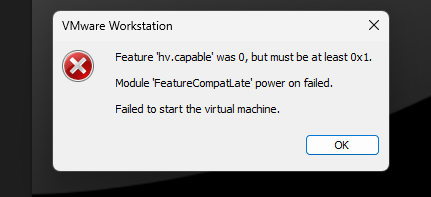
I have spent many days setting up my GNS3 LAB on my high spec laptop, only to be disappointed at the end of all that effort suddenly with a startup error “Feature ‘hv.capable’ was 0, but must be at least 0x1. Module ‘FeatureCompatLate’ power on failed. Failed to sart the virtual machine”
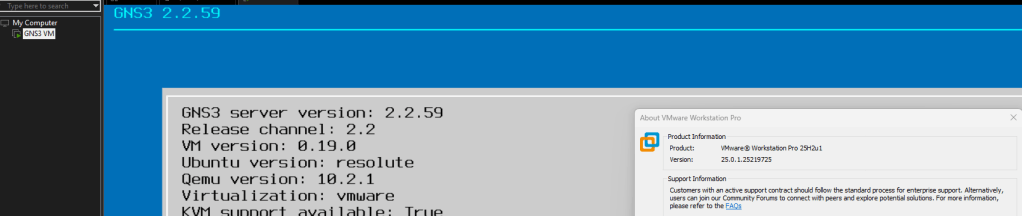
I have the GNS3 VM version 2.2.59 running on VMware Workstation version 25H2u1 which was working during the setup.
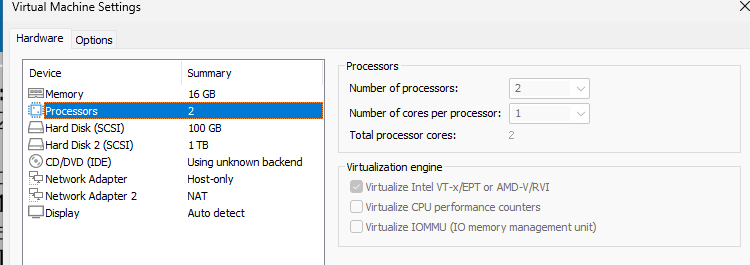
The GNS3 VM uses nested virtualization which requests the vCPU processor feature Virtualize Intel VT-x/EPT or AMD-V/RVI enabled for KVM to function in GNS3.
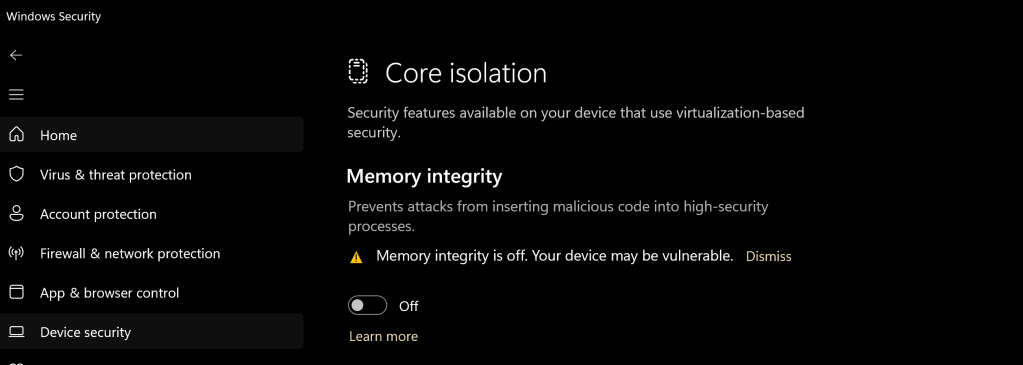
I started to investigate and research the error and it was identified that in Windows 11, the Core Isolation (Memory Integrity) feature in Windows Security –> Device Security was the cause of the error.
Resolution
In Windows Security -> Device security -> Core Isolation -> Disable Memory Integrity
Research
I did some digging to find out the root cause of the memory integrity causing error in the VMware workstation. I found out that the memory integrity is using hardware-based virtualization security which forces the CPU to grant exclusive access to the virtualization technology features to Windows restricting this features to other virtualization platform.
reference:
Virtualization applications don’t work together with Hyper-V and Hyper-V-based features
 IT Wiz Technology Blog