Common Switch Commands for the HP FlexNetwork

I have recently had to interact with an HP FlexNetwork 5510 switches and the command syntax was totally different from the HP-Aruba 2530. This article is to document the common switch commands that I use on a daily basis.

  • Show (Display) the list of interfaces and their status

display interfaces brief

  • list the directly connected devices using LLDP

display lldp neighbor-information list

  • Enter enable mode or exec privilege mode

system-view

  • Save switch startup configuration

write

  • Show the running configuration

display current-configuration

  • Configure IP helper on an interface

interface [interface_type]

dhcp select relay

dhcp relay server-address [dhcp_ip_address]

  • Configure NTP Service

ntp-service enable
ntp-service unicast-server 10.71.152.229
ntp-service unicast-server 10.220.0.35

  • Configure SSH

ssh server enable

ssh client source interface [interface]

service-type ssh terminal

  • Configure the default gateway

ip route-static 0.0.0.0 [gateway_ipaddress]

  • Configure interface as layer 2

port link-mode bridge

  • Configure interface as layer 3

port link-mode route

  •  Configure the interface as a trunk

port link-type trunk

port trunk permit vlan [vlan-id]

  • Configure the local user account to manage the switch

local-user [username] class manage
password simple [password]
service-type [options: ssh telnet terminal]
authorization-attribute user-role [role-name]

I will be adding more command as time goes by and I get familiar with the CLI.
Cisco: Converting an Cisco AP 2600 from Lightweight AP to Autonomous mode

This article is about converting a Cisco AP version CAP2602E from a lightweight to Autonomous. (This can apply to other APs of similar models)

The tools that you will need to do the job:

  1. A TFTP server application…I am using Pumpkin (link here)
  2. Telnet tool…I am using Putty (link here)
  3. The Autonomous image for the Cisco AP (note: that the image file name will contain “k9w7“)
  4. Console cable
  5. Network cable
  6. Power adapter for the AP. (If you have a PoE switch to power the AP, then you can skip the adapter)

Now let us begin the process:

  1. Install the TFTP server application and start it up
  2. Install the PUTTY telnet tool
  3. Copy the image to the tftp folder path set in the TFTP server application. The image required for my Cisco AP CAP2602E is “ap3g2-k9w7-tar.153-3.JAB.tar”. Note when you get the image, it will need to be renamed from the image type “.tar” to “.default“. Example in my case, it will be ap3g2-k9w7-tar.default. Please ensure to follow this same syntax.
  4. Connect your AP directly to your computer.
  5. The static IP address of the computer on which your TFTP server software runs should be between 10.0.0.2 and 10.0.0.30.
  6.  Disconnect power from the access point.
  7. Press and hold MODE while you reconnect power to the access point.
  8. Hold the MODE button until the status LED turns red (approximately 20 to 30 seconds) and then release.
  9. The AP will start to broadcast to the tftp server for the image file. When the tftp server get a prompt from the AP, select Grant Access. (Note if the another image is requested, make a note of the image and try to get it.
  10. Once the image is correct, it will start to pull the image from the TFTP server and it takes about 10 minutes to load.
  11. Once the image has loaded, the AP will reboot.
  12. Then you can use the PUTTY to connect to the console and configure the AP as desired by assigning an IP address to the BVI interface. (default password Cisco/Cisco)
  13. Once the IP address is set, you can access it using the Web GUI.

I hope this article was helpful.


reference: https://community.cisco.com/t5/wireless-security-and-network/converting-the-air-lap1242ag-e-k9-from-lightweight-to-autonomous/td-p/632837


Configuring AWS CLI using Python and pip on Windows

This article was created to document the steps to configure and utilize the AWS CLI on a Windows machine.

There are multiple ways of installing the AWS CLI but I choose the method of using the Python with pip3 since I already have the tool install on my Windows 10 machine.

  1. After you install the python on your windows system from python.org

2.  You will run the following command to ensure it is working from the command prompt

python –version

3. You will then use the python utility pip3 and check if it is installed using the following command:

pip3 –version

4. Once the version is displayed without any errors, you can proceed to installing the AWS CLI using pip3. You will do this by using the command below:

pip3 install awscli

5. After the installation is complete. proceed to test that the AWS CLI is working:

where aws

Once the folder path of the AWS CLI is shown, then you have successfully installed the CLI.

Now the next step is to configure it for use with your AWS service. This can be done by running the following aws command:

aws configure

It will prompt you for the AWS Access key ID, Secret Access Key,  default Region and default output format. This allows you to connect to the AWS without authenticating each time. I would recommend that you setup an IAM user account to authenticate with the AWS CLI and limit the access to only the features that will be accessed using this method.

For further details, please consult the AWS CLI documentation here.

Fortinet: Publishing a Server access to the Internet via HTTP

This article is providing instructions on how to public a server/device to the internet using http. This article will go through the basic configuration.

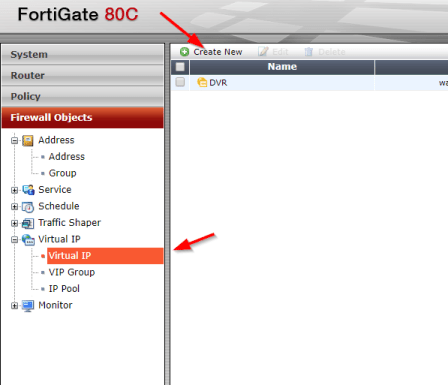
After logging into to the Fortinet portal, got to Firewall Objects –> Virtual IP –> Virtual IP, select Create New

create_virtual_ip

There are number of parameters:

Name: Short description of services e.g. DVR HTTP-80

External Interface: this is the port connected to the internet link with the public IP address.

External IP Address/Range: this use only need if you have more that one IP address configured on the port. If not, you can leave the default 0.0.0.0

Mapped IP Address/Range: Enter the internal server IP address of device. e.g. our DVR 192.168.0.12

Port Forwarding: tick this option if you are using custom ports from the default e.g. external service port is 5000 from the outside connecting to (map to) port 80 on the internal server.

virtual_ip_info

Go to Policy –>Policy –> Create New

create_policy

Select the Source Interface/Zone to external port.

Select destination Address to the Virtual IP created earlier and select Service to HTTP since we are using port 80. If the service is not list add it with the custom ports. Select Enable NAT to allow external IP address to access the internal device through the fortinet.

policy_settings

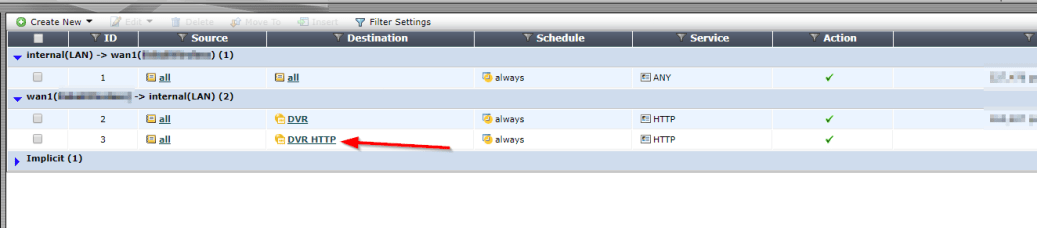
Once save by clicking ok, it will be listed under the external port source port column in the Policy section.

policy_listed

Setting up a Read-only Domain Controller (RODC) using the Staging method

In this article, the steps required to setup a Read-only Domain Controller (RODC) for a remote office to authenticate users.

The demonstrataction of this configuration is done using the Active Directory Users and Computers (ADUC) console and performing the same task using Powershell.

The first set of instructions is using Powershell to install the RODC:

Step 1 – Create a normal AD user account

Logon to a writeable Domain Controller and open the Powershell commandline to execute the following commands.

This command is to add a new user account that will perform this task but if a user already exist, this step can be skipped.

New-ADUser -Name Sam -SamAccountName Sam -UserPrincipalName Sam -AccountPassword (Convertto-SecureString -AsPlainText ‘Pa$$w0rd’ -Force)

The command adds user Sam with password and setting the principal name and account to Sam.

Step 2 – Pre-create the Read-only Domain Controller computer account

To pre-create the RODC computer account, run the command below which adds the account to AD. The user account Sam which has no Administrative privileges will be delegated to join the RODC server to the domain.

Add-ADDSReadOnlyDomainControllerAccount -DomainControllerAccountName DC-RO -SkipPreChecks -delegatedAdministratorAccountName Sam -DomainNam ‘mydomain.com’ -SiteName ‘Default-First-Site-Name‘

Let the user run the following Powershell commands on the prospective RODC server which should not be on the domain.

Step 3 – Install the Active Directory Domain Services on the prospective RODC

Install-WindowsFeature -Name AD-Domain-Services -IncludeManagementTools

Step 4 – Promote the server to the role of a RODC

Install-ADDSDomainController -DomainName ‘mydomain.com’ -Credential (Get-Credential) -UseExistingAccount

The command will prompt for the delegated account create earlier or the account that was delegated and the Directory Service Restore Mode password (SafeModeAdministratorPassword) to perform this task. Once, the process is completed, the server is going to restart and then the RODC is ready for use.

Reference: https://docs.microsoft.com/en-us/windows-server/identity/ad-ds/deploy/rodc/install-a-windows-server-2012-active-directory-read-only-domain-controller–rodc—level-200-

VCP65-DCV Objective 1.1 – Configure and Administer Role-based Access Control

To effectively master Objective 1.1 of the VCP65-DCV (2V0-622/D) exam guidelines which covers the topic Configure and Administer Role-based Access Control, it is important to know the following information:

(you can click on the heading to go directly to the VMware vSphere 6.5 online documentation  where these information are stored.)

  1. Multiple Permission Settings
  2. Required Privileges for Common Tasks
  3. vCenter Server System Roles
  4. Example 3: User Role Overriding Group Role
  5. Prerequisites and Required Privileges for Encryption Tasks
  6. Configuring vCenter Single Sign-On Identity Sources
  7. Understanding the vCenter Server Permission Model
  8. Permission Validation
  9. Using Roles to Assign Privileges

Setting Up iSCSI in VMware ESXi 5.5

To begin this article, let me first discuss what is iSCSI and then the reason for requiring an iSCSI.

I love the definition of iSCSI provided by searchstorage.techtarget.com which stands for Internet Small Computer System Interface, that works on top of the Transport Control Protocol (TCP) and allows the SCSI command to be sent end-to-end over local-area networks (LANs), wide-area networks (WANs) or the Internet.

According to the same site, iSCSI works by transporting block-level data from an iSCSI initiator on a server and a iSCSI target on a storage device. The iSCSI protocol encapsulates SCSI commands and assembles the data in packets for the TCP/IP layer. Packets are sent over the network using a point-to-point connection.

The one of the main reason for using iSCSI connections is that it allows for the utilization of existing network resources such as NICs and network switches to present storage devices to servers once it has the iSCSI initiator software. this result in cost saving and it is is easily configured and it is available for both LAN, WAN and internet which mean easily access if it is relocated to the cloud

Now, let us go to the fun part…configuration of iSCSI in Vmware ESXi 5.5

It is important to note that there are two type of iSCSI initiator/target:

  1. Software
  2. Hardware

In this article, we are only going to go through the configuring of the Software iSCSI initiator from within the VMware Esxi 5.5 hypervisor.

Log into vSphere Web client

Select Host and Clusters

hostandcluster.png

Select the host you want you want to setup the the iSCSI Software adapter on.

Under the Host pane, select the Manage

Under Manage, Select Storage then Storage Adapters

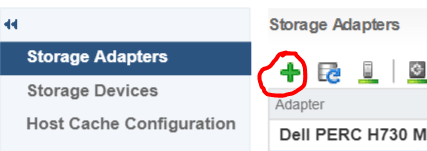
ManageStorage_StorageAdapter

Select the Plus button

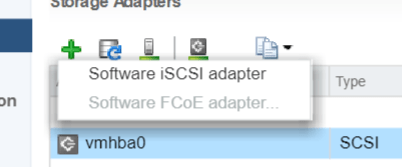
Storage-menu

Select Software iSCSI Adapter

software iscsi

Select OK to the following message

software-iscsi-msg-e1503502080853.png

Under Storage Adapters list, look for iSCSI Software Adapter and you will see the iSCSI Software Adapter listed.

software-iscsi-adapter.png

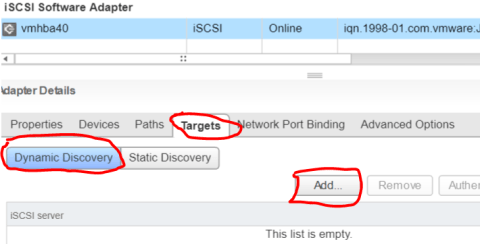
Highlight the adapter vmhbaXX (e.g. vmhba40) and under Adapter Detail, select Target –> Dynamic –> Add

AddDynamicTarget

Note: this allows you to add the primary IP address of the SAN or storage which allows the device LUNs to be discovered.

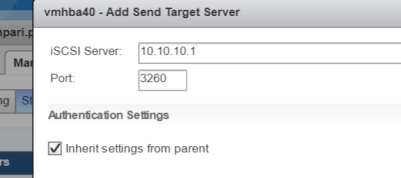
Enter the IP address of the target and leave the default port of 3260 for ISCSI communication. Then Select OK. For every iSCSI target, the IP address should be added.

SendTargetServer


CIA – Confidentiality, Integrity and Availability

Confidentiality – is the method of ensuring that only authorized persons are able to view the company data.

Integrity – is the method of ensuring that only authorized persons are allowed to modify the company data.

Availability – is the method of ensuring that the authorized persons are able to access the company data when it is need.

Almost caught by Spam

I had receive the following spam email which seems to come from Paypal:

Spam_email_paypalMarch132018_edit

At first glance, it looks very legitimate but after close inspection, it was discovered to be a spam. This provides the opportunity to highlight some indications that the email received is a spam and how to mitigate against it.

  • Check the email address that it is coming from. Not the one that is displayed at first glance but when it is opened, the email address that is between these symbols <>. In the example above, it says it is coming from service@paypal-int.co.uk. (Paypal correct address is service@intl.paypal.com).


  • Check where the link that you are asked to click on is point to by just hovering the mouse pointer over the hyperlink and look at the bottom of the browser. The spam email said the following:

    If you did not initiate this payment, we recommend that you go to Manage/Cancel Payment

    The Manage/Cancel payment was pointing to an unknown URL and not to the Paypal website so you know that it is a malicious website it is asking you to click on.


  • Usually the greeting will include the email address it is sent to. In this case, I was address by my email address (*****@gmail.com) and not by my full name which the Paypal will have on record.

Now for those who are unsure if this event actually happened that the email is stating. Verify the transaction by logging on directly to your website or portal (not using the email links) in my case Paypal.com and check if any such event has occurred.

I hope this is helpful and don’t be fooled by well crafted spam emails.

Keep safe…Keep secure

Error opening default Windows 10 App

When Windows 10 came out with a free option to upgrade, I took the liberate to take up the offer to do it later when I had the time. This selection allowed me to download the Windows 10 ISO file so that I can installed it at a later time during my free time.

After completing the upgrade to Windows 10, I noticed that I had the issue of not able to open native windows applications such as the Calculator as it would generate the following error seen below:

Windows Calculator

Doing my investigation, I realized that the issue was as a result of the MUI language pack (English US) not installed on my computer completely.

Solution: To fix this problem, you had to first find out what Windows version build you had installed (my own was 10240) and then you would search on the Microsoft website to download the package for you built.

After you have gotten the MUI langauge pack (lp), you will run the following command to install it from RUN:

  1. To access RUN, use shortcut key Win + R or type run in the Start menu
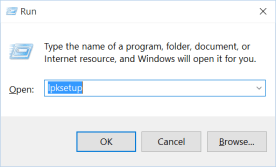
  2. enter the command lpksetup.exe  lpksetup_run
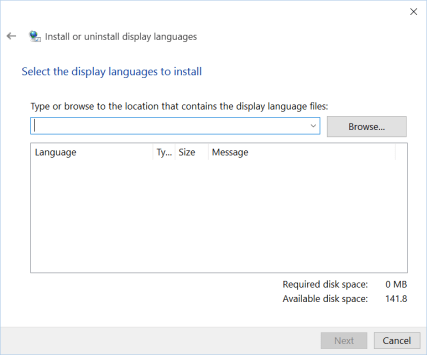
  3. Select Install display languages  lpksetup_win1
  4. Browse for the lp file and select Next (note if it say it is incorrect then you downloaded the incorrect version for your OS build)lpksetup_win2
  5. Wait for it to complete and then you are done.

After you have applied the solution then restart your computer and you are good.