Configuring AWS CLI using Python and pip on Windows

This article was created to document the steps to configure and utilize the AWS CLI on a Windows machine.

There are multiple ways of installing the AWS CLI but I choose the method of using the Python with pip3 since I already have the tool install on my Windows 10 machine.

  1. After you install the python on your windows system from python.org

2.  You will run the following command to ensure it is working from the command prompt

python –version

3. You will then use the python utility pip3 and check if it is installed using the following command:

pip3 –version

4. Once the version is displayed without any errors, you can proceed to installing the AWS CLI using pip3. You will do this by using the command below:

pip3 install awscli

5. After the installation is complete. proceed to test that the AWS CLI is working:

where aws

Once the folder path of the AWS CLI is shown, then you have successfully installed the CLI.

Now the next step is to configure it for use with your AWS service. This can be done by running the following aws command:

aws configure

It will prompt you for the AWS Access key ID, Secret Access Key,  default Region and default output format. This allows you to connect to the AWS without authenticating each time. I would recommend that you setup an IAM user account to authenticate with the AWS CLI and limit the access to only the features that will be accessed using this method.

For further details, please consult the AWS CLI documentation here.

Securing the Web management for the HP 2530 switch

Whenever you get a HP/Aruba 2530 switch out of the box, it comes default with web management enabled using http. You can easily go to the IP address of the switch to view the switch details. To secure the web portal of the switch, do the following:

  1. Log into the switch
  2. Go into configuration mode
  3. Create a self-signed certificate for secure http access
    1. crypto pki enroll-self-signed certificate-name [SWITCHNAME] subject

    2. Enter each information requested
  4. To enable secure http, use command
    1. web-management ssl

  5. To disable http for web management, use command
    1. no web-management plaintext
  6. To added a login for the web portal, use the command:
    1. password manager user-name [loginname] plaintext [loginpassword]

I hope this was useful.

Microsoft: Enabling Recycle Bin feature in Windows Server 2016 Active Directory Domain Services

There is a new feature available in Active Directory Administrative Center (ADAC) in the Windows Server 2016 that allows you restore deleted AD objects from the Recycle Bin (although it could be activated from Windows server 2008 R2 using Powershell). It allows you to enable it at the Domain or Forest level. The only caveat is once it is enabled, it cannot be disabled. The default lifetime for a deleted object to remain in the AD Recycle Bin is 180 days.

To enable the feature using Powershell:

Enable-ADOptionalFeature –Identity ‘Recycle Bin Feature’ –Scope ForestOrConfigurationSet –Target ‘domain.com’ –Server DC1

To enable the feature in Active Directory Administrative Center:

Go to Server Manager –> Tools –> Active Directory Administrative Center

servermgr_Adac

Highlight the domain or forest on the left pane and then under the Task pane on the right under the domain, select Enable Recycle Bin.

Enable_recycleBin_ADAC

You will get the warning that once it is enabled it cannot be disabled, select Ok.

rc_warn

Fortinet: Publishing a Server access to the Internet via HTTP

This article is providing instructions on how to public a server/device to the internet using http. This article will go through the basic configuration.

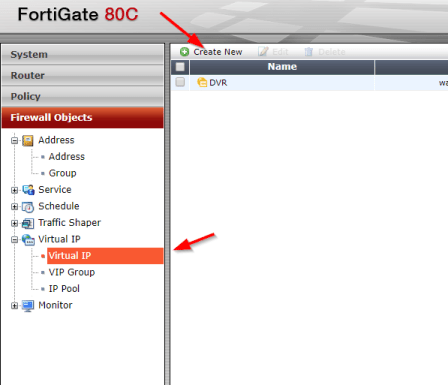
After logging into to the Fortinet portal, got to Firewall Objects –> Virtual IP –> Virtual IP, select Create New

create_virtual_ip

There are number of parameters:

Name: Short description of services e.g. DVR HTTP-80

External Interface: this is the port connected to the internet link with the public IP address.

External IP Address/Range: this use only need if you have more that one IP address configured on the port. If not, you can leave the default 0.0.0.0

Mapped IP Address/Range: Enter the internal server IP address of device. e.g. our DVR 192.168.0.12

Port Forwarding: tick this option if you are using custom ports from the default e.g. external service port is 5000 from the outside connecting to (map to) port 80 on the internal server.

virtual_ip_info

Go to Policy –>Policy –> Create New

create_policy

Select the Source Interface/Zone to external port.

Select destination Address to the Virtual IP created earlier and select Service to HTTP since we are using port 80. If the service is not list add it with the custom ports. Select Enable NAT to allow external IP address to access the internal device through the fortinet.

policy_settings

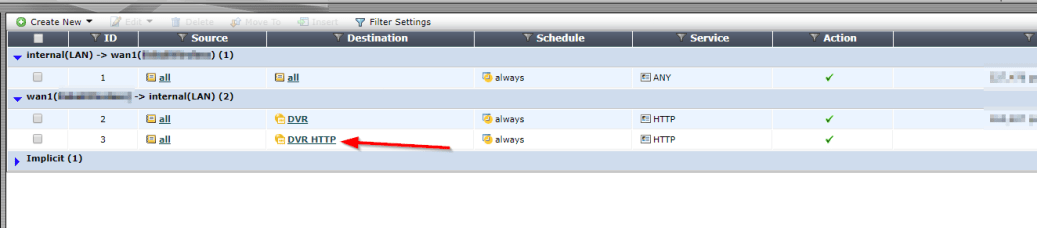
Once save by clicking ok, it will be listed under the external port source port column in the Policy section.

policy_listed

Microsoft Powershell – Install and Configure AD Certificate Services (Windows Server 2016)

This article will demonstrate how to install and configure the Active Directory Certificate Services (AD CS) and the Certification Authority (CA) using both the Server Manager and corresponding Powershell cmdlet.

Using Powershell method

Check if the Active Directory Certificate Service is installed

Get-WindowsFeature AD-Certificate


To install the Certification Authority features, run the following cmdlet:

Install-WindowsFeature ADCS-Cert-Authority -IncludeManagementTools


Configuring the Active Directory Certificate Services with a Standalone Root CA on Host1.

Install-ADcsCertificationAuthority –Credential (Get-Credential) -CAType [StandaloneRootCA] –CACommonName“domain-Host1-CA-1” –CADistinguishedNameSuffix “DC=domain,DC=com” –CryptoProviderName“RSA#Microsoft Software Key Storage Provider” -KeyLength 2048 –HashAlgorithmName SHA1 –ValidityPeriod Years –ValidityPeriodUnits3 –DatabaseDirectory “C:\windows\system32\certLog” –LogDirectory “c:\windows\system32\CertLog” –Force

You can select the CA Type by setting the parameter for –CA Type to either StandaloneRootCA, StandaloneSubordinateCA, EnterpriseRootCA or EnterpriseSubordinateCA. For the CA options like the Cryptographic Provider, Hash Algorithm and Key length will have to be known so that it is selected correctly.

Example for the key length, the values can be 512, 1024, 2048, 4096 which has to be typed out.

For Hash Algorithm, the options are: SHA256, SHA384, SHA512, SHA1, MD5, MD4, MD2.

For the Cryptographic Provider, the parameter -CryptoProviderName can be:

  • RSA#Microsoft Software Key Storage Provider
  • ECDSA_P521#Microsoft Software Key Storage Provider
  • ECDSA_P256#Microsoft Software Key Storage Provider
  • ECDSA_P384#Microsoft Software Key Storage Provider
  • DSA#Microsoft Software Key Storage Provider

and any other…


Removing the AD CS and CA feature from the server.

Remove-WindowsFeature ADCS-Cert-Authority


Using the Server Manager


Go to Server Manager–> Manage –> Add Role and Features

servermgr

Select Role-based or feature-based installation

role-based

Select the Server to install it on

server

Tick the Active Directory Certificate Services

adcs_server_role

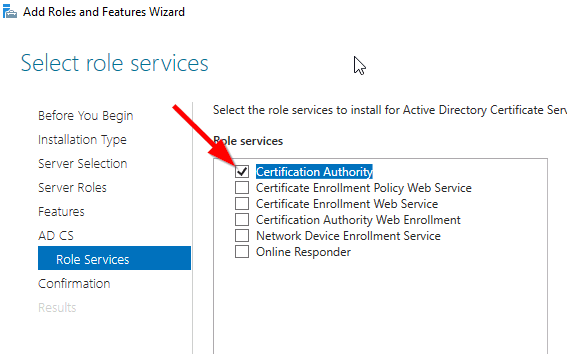
Tick the Certification Authority

CA_role

The feature will be installed and then you can select Configure Active Directory Certificate Services to setup the CA.

configure_ADCS_CA

Enter the Credential that have permission to configure the CA. Note the following:

For Standalone CA: you need local administrator rights

For Enterprise CA: you need Enterprise Admin rights

ca_credential

Select  role services: Certification Authority (CA)

configure_CA

select Standalone CA. Once you know how to configure Standalone CA then you can easily configure Enterprise CA.
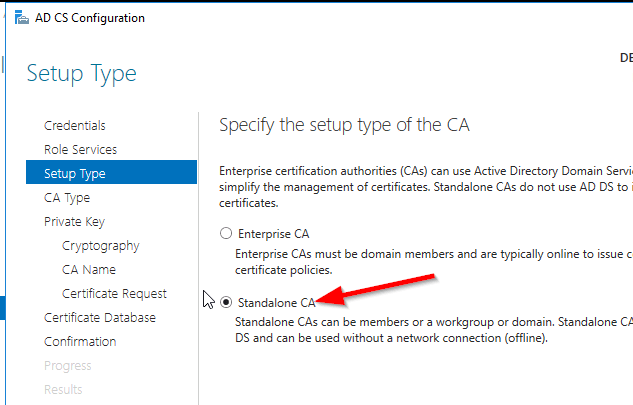
select_StandaloneCA

Select Root CA (this is the first CA)
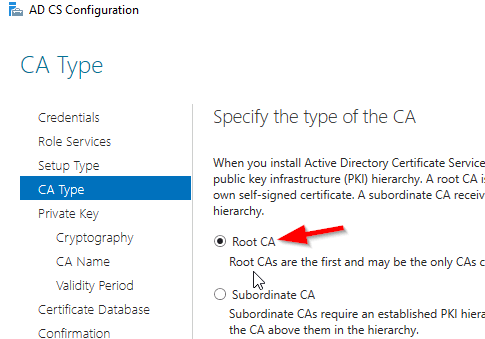
select_RootCA

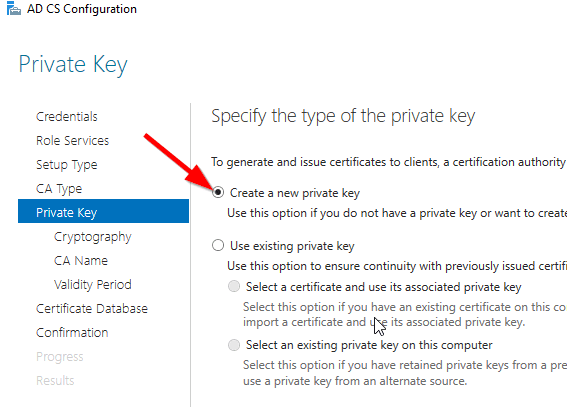
Select Create a new private key.

create_key

Select your preferred cryptographic provider, key length and hash algorithm
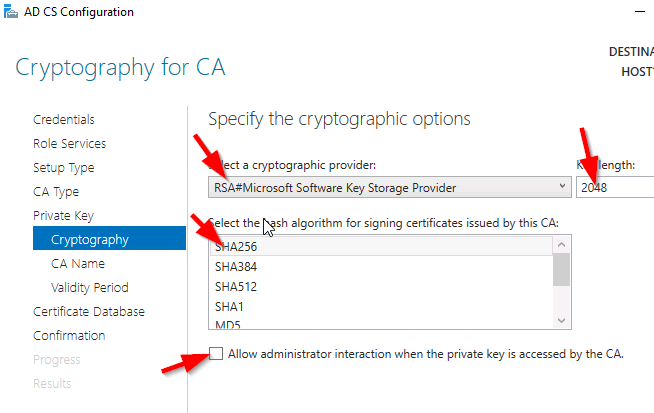
crypto_options

The Common Name and distinguished name suffix will be generated but you can enter your own name.

CA_CommonName

Select the validity period for the Certificate generated.

CA_Period

You can change certificate database and log path or let it remain at the default path

CA_DB-log

Confirm configuration settings of CA.

CA_result_page

Once the CA installation is complete, you can go to Server Manager –> Tools –> Certification Authority to view CA server in the MMC.


Cisco 2960 Error: %ILPOWER-3-CONTROLLER_PORT_ERR: Controller port error: Power Controller reports power supply VEE under voltage and lockout

I got a report that all our VoIP phone were down in a particular area that were connected to a Cisco 2960 switch. Upon investigation,

Initially, I ran the following show commands to check the status of the ports and power:

show power inline

The switch output:

showpowerinline

It was indicating that there was no device drawing power from the switch which was strange because there were VoIP phones connected to this switch.

With further checks, I came across these errors in the event logs:

poe_error

This error was telling me either the switch power module failed or some device caused a surge in power that causes the port power module to overload.

My resolution: Restart the switch which restored the switch to normal operations.

Being curious about the error, I researched it and came across this Cisco report:

https://quickview.cloudapps.cisco.com/quickview/bug/CSCsw18530

It was stating that this error is due to a bug in a particular version of IOS for 2960 switches.

The solution is:

Workaround:

Longer cable (>50ft) seems to fix the issue in most cases.

Solution

This issue is fixed in 12,2(55)SE3 , 12.2(58)SE1 and later releases. The
following interface configuration commands have to be applied to resolve the
issue,

Switch(config)# int x/y
Switch(config-if)# power inline port 2x-mode
Switch(config-if)# shut
Switch(config-if)# no shut

The fix is present in the following platforms :

3750-E,3560-E, 3750-X, 3560-X, 3560-C, 2960S, 2960,2960C,2960X

The other platforms do not support 2X power mode and the workaround would be to
use a longer cable.

PowerShell: Get a List of AD Groups a specific user is a member of

Powershell is very versatile and with this wonderful tool, I will share how to get the subject result.

There are two ways of doing this:

  1. Using the cmdlet

Get-ADPrincipalGroupMembership [username] | Format-Table Name -AutoSize

I used the cmdlet with Format-table to output property Name in a table format

2. Using the cmdlet

Get-ADUser [username] -Properties memberof | Select -ExpandProperty memberof | Get-ADGroup | Format-Table Name -AutoSize

I used the additional parameter -Properties to get the variable MemberOf then use the Select cmdlet to expand the array then pipe it to the Get-ADGroup to get the name of group to list it in a table format.

Manipulating VMware vSphere using PowerCLI

I enjoying using powershell so I started to explore the possibility of using it for manipulating vSphere. Low and behold, welcome to PowerCLI with similar syntax as powershell or it can be called powershell in vSphere.

Firstly, before the vCenter server can be manage, a connection is required. To do so, this command can be executed. It can also be used to connect to a single ESXi Host.

Connect-VIServer [vCenterServer or ESXiHost] -Credential(Get-Credential)

I prefer to use the Get-Credential cmdlet because it will prompt me with a windows dialog box requesting the username and password (It is a very useful cmdlet).

Once connected, to get the List of Cluster , VM or Host the following respective commands can be used:

Get-Cluster

Get-VM

Get-VMHost

To get specific details the name of the object can be added to the cmdlet. The pipe (|) can also be used to get details from specific area.

Example to retrieve all the Virtual machines within Cluster A

Get-Cluster ClusterA | Get-VM

To Get all VMs on ESXi Host A

Get-VMHost ESXiA | Get-VM

Putting an ESXi Host A in Maintenance mode

Set-VMHost ESXiA -State Maintenance

Shutting down the ESXi Host A

Stop-VMHost ESXiA-Force

Startup Virtual machine VM1 and VM2

Start-VM VM1,VM2

Exit Maintenance Mode for ESXi Host A

Set-VMHost ESXiA -State Connected

To get more cmdlet from the VMware PowerCLI, use the get-command [*keyword*] to list all commands with the keyword.

I will update this list as time progress.

Setup Cisco Router 1841 for NATing over two interface with Dynamic address.

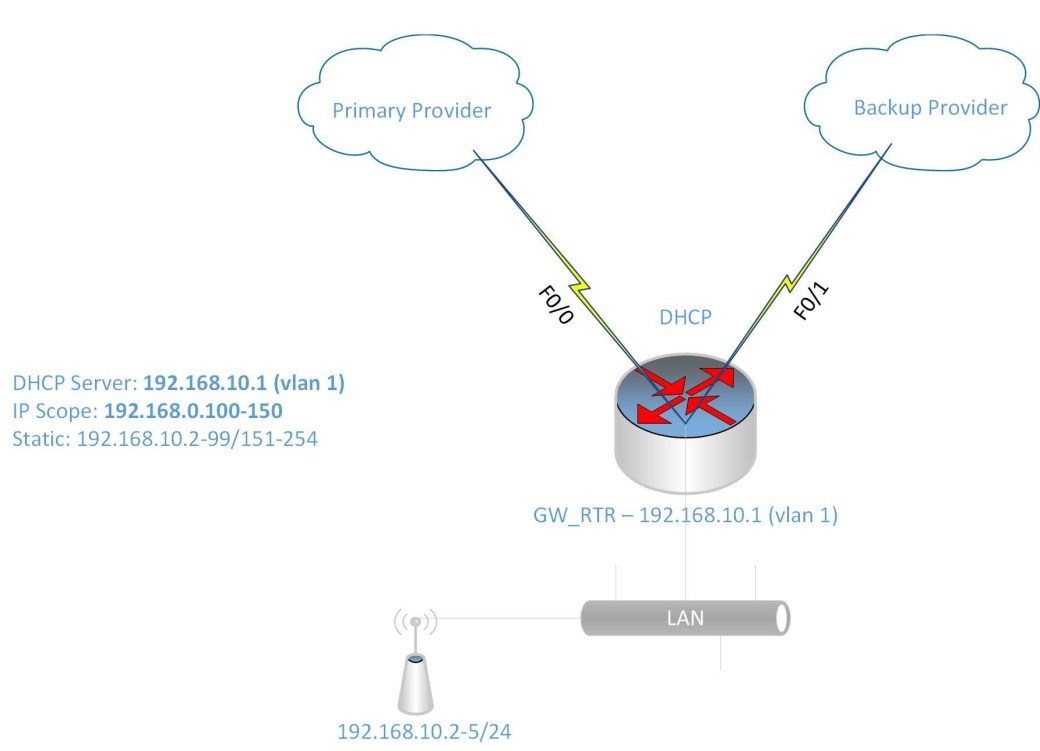
I was given the challenge to setup a Cisco 1841 router with two Fast Ethernet interface and a four Fast Ethernet-port switch module to configure redundancy across two Internet Service Providers (ISP).

RouterRedunantLink

I know that to accomplish this task, I will need  to do the following:

  • Configure the interfaces to get DHCP IP address from the two ISPs
  • Configure NATing from the LAN to the two ISPs for internet access
  • Configure IP SLA or Tracking to detect when the primary link goes down
  • Configure DHCP for the LAN devices
  • Configure Switch Virtual Interface (SVI) as the gateway for the LAN
  • There are also other features included to make the configuration easier such as IP access-list and route-map to link the IP address to the ISP interface for the NATing process.

Configure IP SLA for detecting failure of primary ISP link:

ip sla monitor 1

type echo protocol ipIcmpEcho 8.8.8.8 source-interface f0/0

timeout 1000

threshold 1000

frequency 6

ip sla monitor schedule 1 life forever start-time now

track 10 rtr 1 reachability

delay up 10

The command track 10 rtr is similiar to track 10 ip sla in newer router IOS. If the rtr parameter is not listed then use ip sla. Also some router IOS may not have ip sla monitor, instead it only has ip sla with the monitor parameter.

Now to configure the ISP interfaces and set the primary link tracking:

interface Fa0/0

ip dhcp client route track 10

ip address dhcp

ip nat otside

no shutdown

description PrimaryLink

interface f0/1

ip address dhcp

ip nat outside

description BackupLink

no shutdown

Using the command ip dhcp client route track 10 helps to track the ISP network status using the IP SLA configured previously.

Creating the SVI for the LAN:

interface VLAN 1

ip address 192.168.10.1 255.255.255.0

ip nat inside

description LAN_GWY

Setting  up the DHCP scope for the LAN (IP range 192.168.10.100-150):

ip dhcp pool LAN10

network 192.168.10.0 /24

default-router 192.168.10.1

dns-server 8.8.8.8 4.2.2.2

ip dhcp excluded-address 192.168.10.1 192.168.10.99

ip dhcp excluded-address 192.168.10.151 192.168.10.254

Setup the switch module ports as access ports for the LAN:

interface range f1/0 – 3

switchport mode access

Configure NATing for Internet access:

Please note that from previously entered command for the interfaces and SVI, there is an command ip nat inside and ip nat outside telling NAT which direction are the IP address translated.

Setup Access list for LAN Subnet (192.168.10.0/24)

ip access-list standard LAN-Subnet

permit 192.168.10.0 0.0.0.255

Setup Route-map to match LAN subnet to the two ISP interface:

route-map NAT_TO_PrimaryLink

match ip address LAN-Subnet

match interface f0/0

route-map NAT_TO_BackupLink

match ip address LAN-Subnet

match interface f0/1

Using route-map allows for the same source subnet to be map to two interfaces for the NATing.

Setup NATing for each ISP link to LAN Subnet

ip nat inside route-map NAT_TO_PrimaryLink interface f0/0 overload

ip nat inside route-map NAT_TO_BackupLink interface f0/1 overload

Change the administrative distance for Primary link

ip route 0.0.0.0 0.0.0.0 f0/0 dhcp 10

ip route 0.0.0.0 0.0.0.0 f0/1 dhcp 20

The default route 0.0.0.0 are set to ensure that they are setup with the specified administrative distance 10 and 20 for Primary and Backup link respectively.