Microsoft: Manipulating Windows Network Adapter using PowerShell

This article is about configuring the network adapter using PowerShell cmdlet:

To get a list of the names of physical network adapter, the following command was used:

Get-NetAdapter -Physical

To get the IP address assigned to the network adapter:

Get-NetIPAddress | Format-Table

To enable/disable the network adapter:

Enable-NetAdapter [-Name] “NetAdapterName”

Disable-NetAdapter [-Name] “NetAdapterName”

Restart-NetAdapter [-Name] “NetAdapterName”

To set dynamic IP address assignment for network adapter:

Set-NetIPAddress -AddressFamily IPv4 -PrefixOrigin Dhcp

To set static IP address for network adapter:

New-NetIPAddress -InterfaceIndex [NetAdapterIndex] -IPAddress 192.168.0.1 -PrefixLength 24 -DefaultGateway 192.168.0.5

Set-NetIPAddress -InterfaceIndex [index] -IPAddress 10.0.0.9 -PrefixLength 24

To set DNS IP address for network adapter:

Set-DnsClientServerAddress -InterfaceIndex 12 -ServerAddresses(“10.0.0.1”,“10.0.0.2”)

Or

Set-DnsClientServerAddress -InterfaceIndex 12 -ResetServerAddresses

For more commands and help on this topic, you can visit the Microsoft documentation site here.

Manipulating Windows Network Adapter using Network Shell

This adventure of configuring the network adapter started when I required admin rights to modify the settings because UAC (User Access Control) was disabled which prevented the prompting of admin privilege. The challenge was that I did not want to log off or switch user account hence I had to resort to using elevated privilege for the command prompt and utilize the network shell.

To get a list of the names of network adapter, the following command was used:

netsh interface show interface

To get the IP address assigned to the network adapter:

netsh interface ipv4 show addresses

To enable/disable the network adapter:

netsh interface set interface name=”NameOfInterface” admin=[ENABLED/DISABLED]

To set dynamic IP address assignment for network adapter:

netsh interface ipv4 set address source=dhcp

To set static IP address for network adapter:

netsh interface ipv4 set address static 10.0.0.9 255.255.255.0 10.0.0.1

To set DNS IP address for network adapter:

netsh interface ipv4 set dnsservers source=dhcp

Or

netsh interface ipv4 set dnsservers static 10.0.0.10 primary

For WLAN network adapter:

netsh wlan show interfaces

Show the Wireless networks broadcasting:

netsh wlan show networks

Show the WLAN profiles on computer:

netsh wlan show profiles

Connect to one of the WLAN profile configured on computer:

netsh wlan connect name=[ProfileName]

Disconnect from the currently connected WLAN SSID

network wlan disconnect name=[InterfaceName]

For more commands and help on this topic, you can visit the Microsoft documentation site here.

Manipulating the DHCP Server using Powershell

This article will go through the cmdlet to successfully configure DHCP services on a Windows server using Powershell.

Firstly you can start a Powershell session on the DHCP server using the following command: It will prompt for the credential using the Get-Credential command.

Enter-PSSession -ComputerName [DHCPServerName] -Credential (Get-Credential)

Create an IPv4 DHCP Scope for 10.10.10.0 name Ground Floor with range 10-200 on server DC1.domain.com

Add-DhcpServerv4Scope -StartRange “10.10.10.10” -EndRange “10.10.10.200” -SubnetMask “255.255.255.0”-Name “Ground Floor” LeaseDuration [day.hrs:mins:secs]-ComputerName “DC1.domain.com” -Description “Subnet for Data VLAN on Ground Floor” -State [Active/InActive]

Configure the Scope 10.10.10.0 DHCP server DNS, Domain, Gateway, WINS and wpad settings

Add-DhcpServerv4OptionValue -ScopeId 10.10.10.0 -Router 10.10.10.1 -DnsDomain “domain.com” -DnsServer 10.10.10.250 WinsServer 10.10.10.251 -Wpad “http://proxy.domain.com/wpad.dat” -ComputerName “DC1.domain.com”

Note: To configure the options above at the reservation level replace the parameter ReservedIP and for setting it at the server level, exclude both ReservedIP and ScopeId parameters.

Show the DHCP server IPv4 Scope

Get-DhcpServerv4Scope [-ComputerName “DC1.domain.com”] [[-ScopeId] 10.10.10.0]

Change a DHCP Server Scope Settings

Set-DhcpServerv4Scope [-Type [DHCP|Bootp|Both]] [-ScopeId] 10.10.10.0 [-Description “Scope for data vlan for 10.10.10.0“] [-LeaseDuration day.hrs:mins:secs] [-Name “Ground Floor”]  [-ComputerName “DC1.domain.com”]  -StartRange 10.10.0.20  -EndRange 10.10.10.200

Remove a DHCP server IPv4 Scope

Remove-DhcpServerv4Scope [-ScopeId] 10.10.10.0 [-Force] [-ComputerName “DC1.domain.com”]


Create a reservation for IP address 10.10.10.100 on DHCP server DC1.domain.com

Add-DhcpServerv4Reservation -ScopeId 10.10.10.0 -IPAddress 10.10.10.100 -ClientId [usually-MAC-address] -ComputerName DC1.domain.com -Description “Reservation for Kiosk PC”

Listing the DHCP Server Scope

Get-DhcpServerv4Scope -ComputerName [DHCPServerName] -ScopeId [IPAddress]

Get the List of DHCP Server Options

Get-DhcpServerv4OptionValue -ScopeId [IPAddress][-All -Brief] -ReservedIP [SpecificIP]

Note: Exclude the ReservedIP parameter to list the values at the scope level and exclude ScopeId parameter to list the values at the server level.

Get the interface and IP address that the DHCP server service is bound

Get-DhcpServerv4Binding -ComputerName “DC1.domain.com”

Set the interface that the DHCP server service will be bound

Set-DhcpServerv4Binding -ComputerName “DC1.domain.com” -BindingState $true -InterfaceAlias “Wired Ethernet Connection”

Set the Boot server Host Name (option id ) for the DHCP server scope of 192.168.0.0 

Set-DhcpServerv4OptionValue -OptionId 3 -Value 192.168.0.1 -ScopeId 192.168.0.0

List the DHCP server IPv4 address lease

Get-DhcpServerv4Lease -ScopeId 10.10.10.0 [-IPAddress 10.10.10.25] [–ClientId 00-00-fe-3e-b0-01] [-BadLeases] [-AllLeases] -ComputerName “DC1.domain.com”

Note: Using the IPAddress parameter return lease for specific IP address. Using the ClientId parameter returns only lease for client mac. Using the BadLeases returns only bad leases. Using the AllLeases parameter includes all leases including Offered, Declined and Expired.


Removing a DHCP server IPv4 address lease

Remove-DhcpServerv4Lease -ScopeId 10.10.10.0 [-IPAddress 10.10.10.25] -ClientId [00-54-fe-ed-00] [-BadLeases] [-ComputerName “DC1.domain.com”]

Note: same rule applies as the Get cmdlet for this command.

Get ten (10) Free IP Address from the DHCP server from the scope 10.10.10.0 in the range 10.10.10.50-100

Get-DhcpServerv4FreeIPAddress -ScopeId 10.10.10.0 -NumAddress 10 -StartAddress 10.10.10.50 -EndAddress 10.10.10.100

Add a DHCP Scope of IPv4 Excluded Range

Add-DhcpServerv4ExclusionRange [-ComputerName “DC1.domain.com“] [-ScopeId] 10.10.10.0 [-StartRange] 10.10.10.200 [-EndRange] 10.10.10.250

Show the DHCP Scope of IPv4 Address Excluded Range

Get-DhcpServerv4ExclusionRange [-ComputerName “DC1.domain.com“] [[-ScopeId] 10.10.10.0]

Remove an DHCP Scope of IPv4 Address Excluded Range

Remove-DhcpServerv4ExclusionRange [-ComputerName “DC1.domain.com”] [-ScopeId] 10.10.10.0 [[-StartRange] 10.10.10.200] [[-EndRange] 10.10.10.250]


Retrieves the DHCP server scope statistics which includes Free, In Use, Reserved, Pending and Percentage in use IP address

Get-DhcpServerv4ScopeStatistics [[-ScopeId] 10.10.10.0] [-ComputerName “DC1.domain.com”] [-Failover]

Using Powershell to manipulate File Server Resource Manager

This article is to share information on how to use PowerShell to manipulate the File Server Resource Manager (FSRM) which is used to do quota management on a file server.

Setting the FSRM Quota for a shared path

Set-FsrmQuota -Path ‘U:\PathOFShare‘ -Description “Soft Limit set on to 10 GB” -Size 10GB [-SoftLimit] [-Threshold (New-FsrmQuotaThreshold -Percentage 85)] [-Disabled]

Set-FsrmQuota

View the File Server Resource Manager (FSRM) information for a shared path

Get-FsrmQuota -Path ‘U:\UserPAthName‘

Creating a new FSRM Quota Template

new-FsrmQuotaTemplate -Name “Test” -Threshold (New-FsrmQuotaThreshold -Percentage 85) -Description “Test” -Size 10Gb

New-FsrmFileScreen -Path ”U:\PathToShare” [-Active] -Description “Screen Files for videos and music” -IncludeGroup “Audio and Video Files”

Performing an Offline Domain Join – AD DS

Provisioning a offline domain joined file for a computer:

  1. Logon to a writeable Domain Controller
  2. Open the command prompt (cmd)
  3. Use command:

Djoin /provision /domain <mydomain.com> /machine <computername> /savefile <filename.txt> /machineou <Computers> /dcname <DC1> /reuse

Joining a computer to the Domain offline:

Djoin /requestodj /loadfile <filename.txt> /windowspath <%windir%> /localos

The computer will restart and when it is up, the computer is on the domain.

Reference: https://technet.microsoft.com/en-us/library/offlinedomain-join-djoin-step-by-step(v=ws.10).aspx

Setting up a Read-only Domain Controller (RODC) using the Staging method

In this article, the steps required to setup a Read-only Domain Controller (RODC) for a remote office to authenticate users.

The demonstrataction of this configuration is done using the Active Directory Users and Computers (ADUC) console and performing the same task using Powershell.

The first set of instructions is using Powershell to install the RODC:

Step 1 – Create a normal AD user account

Logon to a writeable Domain Controller and open the Powershell commandline to execute the following commands.

This command is to add a new user account that will perform this task but if a user already exist, this step can be skipped.

New-ADUser -Name Sam -SamAccountName Sam -UserPrincipalName Sam -AccountPassword (Convertto-SecureString -AsPlainText ‘Pa$$w0rd’ -Force)

The command adds user Sam with password and setting the principal name and account to Sam.

Step 2 – Pre-create the Read-only Domain Controller computer account

To pre-create the RODC computer account, run the command below which adds the account to AD. The user account Sam which has no Administrative privileges will be delegated to join the RODC server to the domain.

Add-ADDSReadOnlyDomainControllerAccount -DomainControllerAccountName DC-RO -SkipPreChecks -delegatedAdministratorAccountName Sam -DomainNam ‘mydomain.com’ -SiteName ‘Default-First-Site-Name‘

Let the user run the following Powershell commands on the prospective RODC server which should not be on the domain.

Step 3 – Install the Active Directory Domain Services on the prospective RODC

Install-WindowsFeature -Name AD-Domain-Services -IncludeManagementTools

Step 4 – Promote the server to the role of a RODC

Install-ADDSDomainController -DomainName ‘mydomain.com’ -Credential (Get-Credential) -UseExistingAccount

The command will prompt for the delegated account create earlier or the account that was delegated and the Directory Service Restore Mode password (SafeModeAdministratorPassword) to perform this task. Once, the process is completed, the server is going to restart and then the RODC is ready for use.

Reference: https://docs.microsoft.com/en-us/windows-server/identity/ad-ds/deploy/rodc/install-a-windows-server-2012-active-directory-read-only-domain-controller–rodc—level-200-

Configuring Domain Controller Cloning

Note: There is an Microsoft Hands-on Lab with code WS00148 that can be used to conduct this exercise. The environment may be required to do additional configuration to execute some of these steps since it is not the main aim and you can ignore the steps in that lab to do your own configuration.

Before cloning a virtual Domain Controller (DC), there are a few requirements that needs to exist in the environment.

The requirements are listed below:

  1. There must exist a DC with the FSMO role PDC Emulator running on atleast Windows Server 2012 which is accessible on the network.
  2. The virtual DC to be clone must be running on a hypervisor that supports the feature VM-GenerationID.
  3. The source virtual DC must be running atleast Windows Server 2012 and is a member of the AD group Cloneable Domain Controllers.
  4. There must be a DC Clone Configuration XML file (namely DCCloneConfig.xml) that holds the settings the clone DC will use to configure itself.

To start the process of cloning a DC, the DC needs to be added to the Cloneable Domain Controllers:

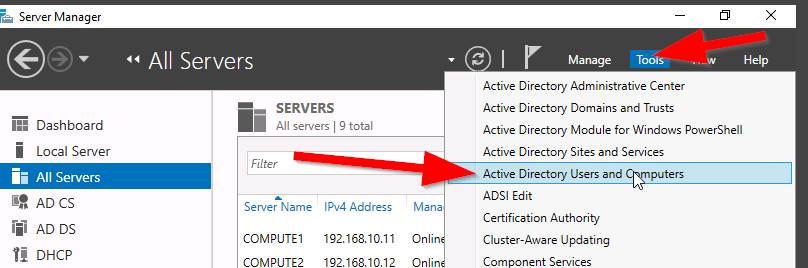
  1. Open Server Manager. server_mgr
  2. Then, go to the Active Directory Users and Computers (ADUC). aduc
  3. Go to the Organization Unit (OU) Users,
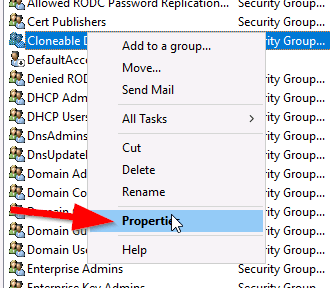
  4. Select the security group “Cloneable Domain Controllers“. cloneable_group
  5. Right click and select Properties. cloneable_properties
  6. Then go to Members Tab and Add the DC here. select member
  7. Save and Close the settings.


Alternately, PowerShell can be used to the previous step, see command:


ADGroupMember -Identity ‘Cloneable Domain Controllers’ -member (Get-ADComputer SRV1)

Next step is to check for excluded Application and generate a file using PowerShell:

Open an PowerShell console and use this command:

This command generates a list of excluded applications that are added to the allowed list and saves it to the C:\Windows\NTDS\.

Get-ADDCCloningExcludedApplicationList -GenerateXml

The next command is used to create the DC Cloning configuration XML file that is used to configure the virtual DC clone that you will import into the desired Hypervisor.

New-ADDCCloningConfigFile -CloneComputerName “DCCloneName” -IPv4Address 10.10.10.10 –IPv4DefaultGateway 10.10.10.1 –IPv4SubnetMask 255.255.255.0 –IPv4DNSResolver 10.10.10.100,10.10.10.102 –Static

Now shutdown the VM DC, export a copy of it and then import it as a copy generating a new VM ID. Once the copied VM is booted, you should see the cloning process initializing at boot up. When the process is completed, it will reboot and the new cloned DC is ready for use.


Reference: https://docs.microsoft.com/en-us/windows-server/identity/ad-ds/introduction-to-active-directory-domain-services-ad-ds-virtualization-level-100

Useful Windows commands

This article was written to share the commands which can be executed on a Windows system to access different tools of the computer. This list will be updated as time goes by.

Open Local Users and Groups

lusrmgr.msc

Local Security Policy

secpol.msc

Local Group Policy Editor

gpedit.msc

Computer Management Tools

compmgmt.msc

Registry Editor

regedit

Disk Management tool

diskmgmt.msc

Execute a Group Policy Result Report

gpresult /H GPReport.html

GPReport.html

Flush the local DNS cache

ipconfig /flushdns

To change the default OU for Domain computer, use the redirect command

redircmp “OU=MyComputer,DC=domain,DC=com”

View the ARP list of MAC address linked to IP address

arp -a


Veeam Replication Error – Unable to discover replica VM

There was an Veeam Backup & Replication job notification with the following error:

Discovering replica VM Error: Unable to find mapping target VmRef [vm-40195]
Error: Unable to find mapping target VmRef [vm-40195]

Based the above error line “unable to find mapping target” means that the replica VM is missing or the replica VM is not mapped to the particular source VM. To resolve this issue, you will need to make the changes to the Replication Job settings for this source VM.

Open the Veeam Backup & Replication console.

veeam_b_r_console

Select Replication and right click and select Edit to modify the properties of the selected job.

veeam_edit_replica_job

Under Describe you DR site, tick Low connection bandwidth (enable replica seeding). Note: This allows you get the additional options to check the original VMs mapping to the replica VMs.

veeam_low_connection

Select Seeding on the left side to go directly to the Replica mapping settings.

veeam_replica_displayed

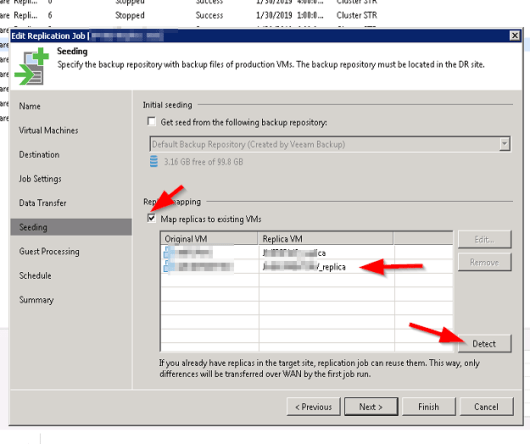
Under Replica Mapping, tick Map replicas to existing VMs if not already ticked.

It will show all the original VMs and their respective replica VMs. If there is a replica VM beside the source VM with error, it means that the replica VM is missing.

Select the Detect button to let Veeam discover all the replica VMs associated with the original VMs in the database. If the replica VM is showing No mapping, it means that the replica VM is missing or it is unable to detect the replica VM.

veeam_detect_replica

The replica VM was can manually selected by highlighting the original VM and select Edit. browse the vCenter for the replica and select it (this is only if it exist but not mapping automatically using the Detection method).

Select Finish and retry the failed replica job. One thing to note is when the retry job option is used, only the failed VM replication job is executed.

Cert Exam Prep: Exam 70-742: Identity with Windows Server 2016 – Study notes

  1. Install and configure Active Directory Domain Services (AD DS) (20–25%)

Install Active Directory

Know the PowerShell commands:

– Add the binaries

Add-WindowsFeature -name ad-domain-services—lncludeManagementTools -Restart

– Add a new forest

Install-ADDSForest —DomainName ‘corp.contoso.com’

– Add a new domain in an existing forest

Install-ADDSDomain -NewDomainName amer ParentDomainName ‘corp.contoso.com’

– Add a new domain controller in an existing domain

Install-ADDSDomainController —DomainName ‘amer. corp.contoso.com’

– Perform a staged read-only domain controller (RODC) installation

Install-ADDSReadOnlyDomainControl|erAccount –DomainControllerAccountName RODC1 -DomainName amercorp contoso com -SiteName Boston

* Then on RODC1: add the ad-domain-services feature, and domain controller role


Transferring and seizing FSMO roles

Exam Topic – What you should know!

Transfer FSMO Roles

  • Perform this on a domain controller which will be down for maintenance for a period of time, to ensure there is no loss of the fsmo service
  • Move-ADDirectoryServerOperationMasterRo|e -Identity “Target-DC” -OperationMasterRole SchemaMaster,RlDMaster,InfrastructureMaster, DomainNamingMaster,PDCEmulator

Seize FSMO Roles

  • Perform this if a domain controller is down and cannot be recovered, to ensure there is no loss of the FSMO service
  • Move-ADDirectoryServerOperationMasterRole -ldentity “Target-DC’ -OperationMasterRole SchemaMaster,RIDMaster,InfrastructureMaster,DomainNamingMaster,PDCEmulator -Force

FSMO roles can be represented by numbers

  • Move-ADDirectoryServerOperationMasterRole -Identity “Target-DC” -OperationMasterRole 0,1,2,3,4 -Force

– 0: PDC Emulator

– 1: RID Master

– 2: Infrastructure Master

– 3: Schema Master

– 4: Domain Naming Master


Additional common active directory install functions

Install from media

  • Useful when the database is on a domain controller across a slow WAN link
  • Install-ADDSDomainController —DomainName ‘amer.corp.contoso.com” -lnstallationMediaPath C:\ADMedia

Configure a domain controller to not be global catalog server

  • InstalI-ADDSDomainController —DomainName ‘amer.corp.contoso.com” —NoGlobalCatalog

Move the Infrastructure Master FSMO role

  • Needed if the domain controller will be a global catalog server
  • Install-ADDSDomainController —DomainName ‘amer.corp.contoso.com” -MovelnfrastructureMasterRolelfNecessary

Uninstall active directory and demote to a server

  • Uninstall-ADDSDomainController

Time-limited Group Memberships

Users can be added to a security group with time-to-live (TTL)

  • When the TTL expires, the user’s membership in that group disappears

Kerberos token lifetime will be determined by TTL of the user’s memberships

  • TGT (Ticket Generated Ticket) based on shortest group membership
  • ST (Shortest time) based on TGT and resource local domain group membership

Requires new FFL (Force Functional Level)

  • Scavenger thread takes care of cleaning up group memberships


Way to join a computer to the domain

System Control Panel

  • System added to default container unless pre—staged

Windows PowerShell

  • Add-Computer -ComputerName ‘Server1′ -DomainName ‘amer.corp.contoso.com’ -Credential Get-Credential -Restart

  • System added to default container unless pre-staged

Desired State Configuration (DSC)

  • Joins a computer to the domain, and re-joins if it ‘falls out‘ of the domain
  • Uses Start-DscConfiguration cmdlet, and can be set to check compliance every x minutes

Offline domain join

  • Run djoin.exe on a domain controller to pre-stage the object and create provisioning file
  • Run djoin.exe on target computer and point to the provisioning file

Tips

  1. Know the PowerShell commands for installing and managing Active Directory
  2. Active Directory, FSMO Roles, DNS. Group Types and scopes haven’t really changed, but if you haven’t managed them lately, brush up
  3. Desired State Configuration (DSC) can be used to join a server to the domain and rejoin it if necessary


  1. Manage and Maintain AD DS (15-20%)

Configure service authentication

Service Accounts

  • Used to enhance security but the pain point is the password management and SPN mgmt.
  • Two types: Managed Service Accounts and Group Managed Service Accounts

Create/configure Managed Service Accounts

  • Used for a single computer or server
  • New-ADServiceAccount with the —RestrictToSingleComputer parameter
  • Not supported for scheduled tasks, Exchange, SQL

Create/configure Group Managed Service Accounts

  • Used for multiple servers
  • Minimum of one DC that runs at least Windows Server 2012
  • Before you begin, must create KDS Root Key: Add-KDSRootKey -Effectivelmmediately
  • New-ADServiceAccount and Set-ADServiceAccount

Configure Kerberos delegation

  • IIS may require the Trust this computer for delegation to any service (Kerberos only) option

Manage Service Principal Names (SPNs)

  • Use SetSPN <service type>/<instance name>:<port number>/<service name>