Link Aggregation (LAG) Port (EtherChannel – Cisco)

In the field of networking, there is a concept called Link Aggregation (LAG) which is a technology of combining more than one physical link together to make one logical link. This technology is usually implemented to support link redundancy and in some case higher throughput depending on the vendor. This technology is used mostly to connect servers to switches with multiple network cards. LAG ports are mostly connected in pairs of 2 e.g. 4, 8.

in this article, we are going to focus on the vendor Cisco who calls this technology by a different name, “Etherchannel”.

There are two protocols used on the Cisco switches to support Etherchannel:

  • LACP – Link Aggregation Control Protocol (Cisco proprietary)
  • PAgP – Port Aggregation Protocol (IEEE standard)

LACP protocol

  • Active
  • Passive

PAgP protocol

  • Auto
  • Desirable

Manual – On

Etherchannel configuration

switch(config-if-range)# channel-protocol [lacp/pagp]

switch(config-if-range)# channel-group # mode [protocol]

Etherchannel load-balance

  • src-mac (default)
  • dst-mac
  • src-ip
  • dst-ip
  • src-dst-mac
  • src-dst-ip

Loadbalance configuration

switch(config)# port-channel loadbalance [balance-option]

Layer 3 Etherchannel

an Etherchannel port become layer 3 (routing) port once your disable switchport on the portchannel

switch(config)# interface port-channel 1

switch(config-if)# no switchport

Show summary of the etherchannel

Tips:

  • Configurations applied to the port-channel interface is also applied to all the physical interfaces assigned to the port-channel group.
  • Layer 3 EtherChannel interface is not allowed on LAN based switches.
  • The following ethernet port settings must be the same when configuring the EtherChannel:
    • Speed
    • Duplex
    • native VLAN
    • VLAN range
    • trunking status
    • trunking type
  • When configuring the EtherChannel modes, one side must be in an active negotiating state (Desirable or Active)
  • Maximum interface support in one etherchannel is 8 and the maximum portchannel support on a switch is 64 depending on the switch model.
  • PAgP not supported on cross stack switches.


Setting up Skype For Business (SFB) to connect to Skype

I was asked by a user if Skype For Business (SFB) can connect with external persons using Skype. I know in the past, this interconnection was not possible but I can now positively advise that it is possible.

I am going to demonstrate how you configure the SFB to connect to Skype using email address.

Skype For Business Client

First, open SFB.

Select the tab NEW

Select the Add Contact iconsfb1

Select option Add a Contact Not in My Organization

sfb2

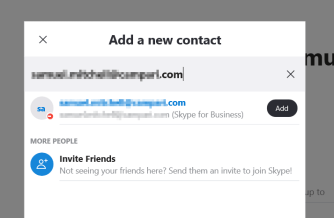
Enter the email of the recipient in the search box:

You will select the recipient from the result list that shows up

sfb3

Double click the persons identified and select Add this contact.

sfb4

It will prompt to send a request to the person and show up in the contact list.

Skype Client

Select Contacts –> Select +Contacts

skype1

The recipient will do the same from Skype and enter the persons SFB email address.

skype2

select Add, to send request and then it will show up in the contact list.

Try sending each other messages and then it will show the status.

Recovering from a BitLocker System Lockout after a BIOS Update

We had a user who was not abiding by the rules to store all the company data on the network drives to ensure it is protected and backed up by our systems.

The user’s laptop got a BIOS upgrade and unfortunately the laptop was rebooting requesting Bitlocker password. In our environment, Bitlocker passwords are registered in Active Directory upon activation but for some reason unknown to us, it was not there for this particular laptop.

Our colleague at the site, research a way to overcome this challenge and found the following solution:

  1. Download an Application that will allow you to build a bootable USB drive in DOS 32-bit. E.g. RUFUS
  2. Execute your selected application to build bootable USB drive (You might have to first format USB drive at 32-bit).
  3. Download all BIOS updates for the computer model from the vendor support site. (If you remember the previously installed BIOS version, you can download that version from the site)
  4. Boot up the computer with the bootable USB drive and run each BIOS from the command prompt (At this point, you are trying to find the BIOS version before the update was done, if you already know the version just install it).
  5. After updating the BIOS, reboot the computer to verify if Windows boots up successfully.
  6. If unsuccessful, go back to Step 4 and execute the next BIOS version file.
  1.  

    NOTE: Execute your BIOS from the latest to the oldest.

Error: Microsoft SharePoint is not supported with version 4.0.30319.42000 of the Microsoft .Net Runtime

My colleague was trying to run the PowerShell command Get-SPSite to get information about the SharePoint 2010 sites on the server.

He came across this error:

sharepointerror

It was discovered that the server Windows 2012 R2 has Microsoft .Net 4.0 installed on the box and as a result the SharePoint was not functioning with Powershell version 4.0.

To verify the version installed on the box:

$ver = $host | select version

$ver.Version

Solution

I had to run the opened PowerShell version 2 and then run the commands again.

To do this execute the following command from dos prompt:

powershell.exe -version 2

once the PowerShell opens run the commands again:

Add-PSSnapin Microsoft.SharePoint.PowerShell

Get-SPSite

Get-SPFarm

Get-SPWeb [SPSiteName]

Problem solved. I hope this was helpful.

Microsoft: SysInternals Suite PS Exec Command Usage

I was given a task to install a agent on computers and servers using command line as during my research I discovered this tool calls PSExec from the SysInternals Suite tools.

You may ask what is PSExec? According to Microsoft, it launches interactive command-prompts on remote systems and remote-enabling tools like IpConfig that otherwise do not have the ability to show information about remote systems. In other words, PSExec tool allows the execution of commands on a system remotely as if it is on the direct system console.

There are a number of features that I love about the PSExec tool which are as follows:

  1. It can run the command as another user remotely on the local system using user interaction
  2. It allows the execution of the command on multiple computers from a list in a text file

I was given the task to install the SAP Single Sign On add-in and it was difficult because it required that it is run under a network user locally in an interactive mode.

The PSExec tool gave me the power to overcome this difficulty.

Here is the syntax of the command and the parameters I used:

psexec.exe @[file-name.txt] -u [domain\username] -p -i -h [\\server\path\batch-files.bat]

explaining each switch:

@   execute the command on each computer in the file. Each computer must be in a new line

-u   username

-p  prompt for password

-i  run command in interactive mode

-h run the command with account elevated privilege

This command will execute the script on each computer return the result as it is completed.

Please ensure it is executed on a computer that is running since it cannot be execute without the computer being on.

Microsoft: Active Directory Domain Service Security Group

Security group scope

1. Universal

  • Forest users accessing its own Forest resources. (FF)
  • It can contain a combination of Global and Domain Local group

E.g. Enterprise Admins, Schema Admins (in the Users container)

2. Global

  • Domain users accessing its own Forest resources. (DF)

E.g. Domain Users, Domain Admins (in the Users container)

3. Domain Local

  • Forest users accessing Domain resources. (FD)
  • This is only group that can have members from an external forest

E.g. Administrators, Account Operators, Backup Operators, Print Operators (in the Builtin container)

Group Policy Object Processing And Precedence

This article is about the order of processing and precedence of the Group Policy Object (GPO).

There is a acronym used to remember the order of processing:

LSDOU – Local, Site, Domain, OU.

Local GPO

Site linked GPO

Domain linked GPO

Organizational Unit linked GPO

The rule of thumb with precedence for the LSDOU order of processing is that the last GPO applied takes precedence which will be the OU linked GPO. There are additional rules to consider such as when multiple GPOs are applied to an object (e.g. Domain), the GPO are process according to order from top to bottom (1 to …) and the top GPO takes precedence.

Inheriting Parent GPO

In some case there make be nested OUs or Parent and Child domains in which GPOs are inherited from the Parent automatically. The inherited GPOs has the least precedence by default on the child node which can be changed by rearranging the link order.

Enforcing GPO

The precedence of the GPO can change by Enforcing it which will allow it to move to the top (become number 1).


Setting up a Cisco AP using the command line

This article is to document the CLI commands used to configure an Autonomous Cisco Access Point.

To configure the AP management IP address use the following command:

Interface BVI1

ip address [ip] [subnetmask]

no shutdown

Next, define the SSID properties including Name, Key method and password.

This particular configuration is using WPA2 to authenticate the users.

dot11 ssid [SSIDName]

authentication open
authentication key-management wpa version 2
guest-mode
wpa-psk ascii [password]

Next you will push this SSID on the 2.4 Ghz which is on interface dot1Radio 0 and if you want it to be available on 5 Ghz band as well, you will configure it on dot1Radio 1. The radio will be using the AES-CCM encryption mode.

interface dot1radio0

encryption mode ciphers aes-ccm

ssid [SSID-name]

no shutdown

Once you are done, you can save the configuration and test you wireless device.

Common Switch Commands for the HP FlexNetwork

I have recently had to interact with an HP FlexNetwork 5510 switches and the command syntax was totally different from the HP-Aruba 2530. This article is to document the common switch commands that I use on a daily basis.

  • Show (Display) the list of interfaces and their status

display interfaces brief

  • list the directly connected devices using LLDP

display lldp neighbor-information list

  • Enter enable mode or exec privilege mode

system-view

  • Save switch startup configuration

write

  • Show the running configuration

display current-configuration

  • Configure IP helper on an interface

interface [interface_type]

dhcp select relay

dhcp relay server-address [dhcp_ip_address]

  • Configure NTP Service

ntp-service enable
ntp-service unicast-server 10.71.152.229
ntp-service unicast-server 10.220.0.35

  • Configure SSH

ssh server enable

ssh client source interface [interface]

service-type ssh terminal

  • Configure the default gateway

ip route-static 0.0.0.0 [gateway_ipaddress]

  • Configure interface as layer 2

port link-mode bridge

  • Configure interface as layer 3

port link-mode route

  •  Configure the interface as a trunk

port link-type trunk

port trunk permit vlan [vlan-id]

  • Configure the local user account to manage the switch

local-user [username] class manage
password simple [password]
service-type [options: ssh telnet terminal]
authorization-attribute user-role [role-name]

I will be adding more command as time goes by and I get familiar with the CLI.

Cisco: Converting an Cisco AP 2600 from Lightweight AP to Autonomous mode

This article is about converting a Cisco AP version CAP2602E from a lightweight to Autonomous. (This can apply to other APs of similar models)

The tools that you will need to do the job:

  1. A TFTP server application…I am using Pumpkin (link here)
  2. Telnet tool…I am using Putty (link here)
  3. The Autonomous image for the Cisco AP (note: that the image file name will contain “k9w7“)
  4. Console cable
  5. Network cable
  6. Power adapter for the AP. (If you have a PoE switch to power the AP, then you can skip the adapter)

Now let us begin the process:

  1. Install the TFTP server application and start it up
  2. Install the PUTTY telnet tool
  3. Copy the image to the tftp folder path set in the TFTP server application. The image required for my Cisco AP CAP2602E is “ap3g2-k9w7-tar.153-3.JAB.tar”. Note when you get the image, it will need to be renamed from the image type “.tar” to “.default“. Example in my case, it will be ap3g2-k9w7-tar.default. Please ensure to follow this same syntax.
  4. Connect your AP directly to your computer.
  5. The static IP address of the computer on which your TFTP server software runs should be between 10.0.0.2 and 10.0.0.30.
  6.  Disconnect power from the access point.
  7. Press and hold MODE while you reconnect power to the access point.
  8. Hold the MODE button until the status LED turns red (approximately 20 to 30 seconds) and then release.
  9. The AP will start to broadcast to the tftp server for the image file. When the tftp server get a prompt from the AP, select Grant Access. (Note if the another image is requested, make a note of the image and try to get it.
  10. Once the image is correct, it will start to pull the image from the TFTP server and it takes about 10 minutes to load.
  11. Once the image has loaded, the AP will reboot.
  12. Then you can use the PUTTY to connect to the console and configure the AP as desired by assigning an IP address to the BVI interface. (default password Cisco/Cisco)
  13. Once the IP address is set, you can access it using the Web GUI.

I hope this article was helpful.


reference: https://community.cisco.com/t5/wireless-security-and-network/converting-the-air-lap1242ag-e-k9-from-lightweight-to-autonomous/td-p/632837