
This article will be showing how to configure a Generic Encapsulation Tunnel also known as GRE Tunnel over IPSec.
disclaimer: note that this is a lab exercise only to show the configuration steps stated and may require additional modification based on your network environment.
The following network topology will be used to demonstrate this exercise.

The initial basic router configuration are below:
R1 configuration:
interface fastethernet 0/0
ip address 192.0.2.1 255.255.255.252
no shut
!
int loopback 0
ip address 1.1.1.1 255.255.255.255
!
router ospf 1
network 0.0.0.0 0.0.0.0 area 0
!
R2 configuration:interface fastethernet 0/0
ip address 192.0.2.2 255.255.255.252
no shut
!
interface fastethernet 0/1
ip address 203.0.113.1 255.255.255.252
no shut
!
int loopback 0
ip address 2.2.2.2 255.255.255.255
!
router ospf 1
network 0.0.0.0 0.0.0.0 area 0
!
R3 configuration:
interface fastethernet 0/1
ip address 198.51.100.1 255.255.255.252
no shut
!
interface fastethernet 0/0
ip address 203.0.113.2 255.255.255.252
no shut
!
int loopback 0
ip address 3.3.3.3 255.255.255.255
!
router ospf 1
network 0.0.0.0 0.0.0.0 area 0
!
R4 configuration:
interface fastethernet 0/0
ip address 198.51.100.2 255.255.255.252
no shut
!
int loopback 0
ip address 4.4.4.4 255.255.255.255
!
router ospf 1
network 0.0.0.0 0.0.0.0 area 0
!
Before going into the task, there are some information that is important to know why IPSec is with a GRE Tunnel:
- GRE Tunnel
- It is used to encapsulated the packets over a network between two network devices.
- it does not provide encryption which makes it unsecure
- IPSec
- It is secure by providing encryption
- it only supports uni-cast traffic which presents a problem for routing protocols that uses multicast to function.
What are the use cases for this technology?
Combining both technology makes it a suitable solution to create a secure connections over public or unsecured networks between two networks.
Lab Exercise
Once the routers has been configured accordingly using the initial base configuration, it is time to start the exercise.
In this exercise, two task are going to be done:
- Configure a GRE Tunnel between R1 and R4
- Configure a IPSec tunnel
Step 1 – Configure the GRE tunnel on R1 and R4
- Create a tunnel interface
R1(config)# interface tunnel 1
- Assign an ip address to the tunnel interface
R1(config-if)# ip address 192.168.0.1 255.255.255.252
- Set the source interface from where the tunnel will be connected
R1(config-if)# tunnel source fastethernet 0/0
- Set the destination address of the router at the other end of the tunnel
R1(config-if)# tunnel destination 198.51.100.2 255.255.255.252
Note: repeat the same steps on router R4 but replacing the respective source interface and destination address. It is important to note that the tunnel # is locally significant.
you can check the status of the tunnel after step 1 by running the show command as follows:
R1(config)# do show ip interface brief
Step 2 – Configure a IPSec tunnel
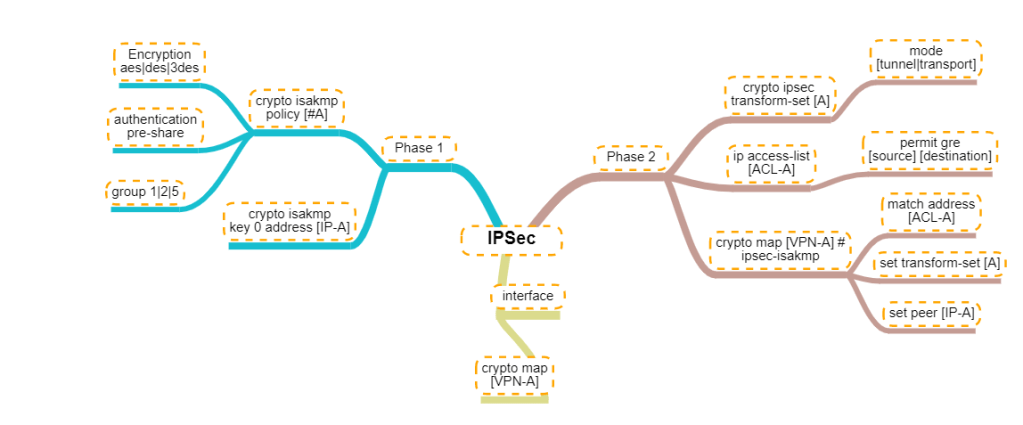
- Setup Phase 1 – set ISAKMP policy
R1(config)# crypto isakmp policy 14
- Set encryption type
R1(config-isakmp)# encryption aes
- Set authentication type
R1(config-isakmp)# authentication pre-share
R1(config-isakmp)# group 2
R1(config-isakmp)# exit
- Set ISAKMP key and transform mode
R1(config)# crypto isakmp key 0 [keypass] address [192.51.100.2]
R1(config)# crypto ipsec transform-set [KWTRAIN] esp-aes esp-sha-hmac
R1(cfg-crypto-trans)# mode [transport|tunnel]
R1(cfg-crypto-trans)# exit
- Configure an ACL for the traffic allowed to traverse the IPSec tunnel
R1(config)# ip access-list extended GRE-IN-IPSEC
R1(config-ext-nacl)# permit gre any any
R1(config-ext-nacl)# exit
- Setup Phase 2 – linking ACL, transform set and peer ip to IPSec tunnel
R1(config)# crypto map VPN 10 ipsec-isakmp
R1(config-crypto-map)# match address GRE-IN-IPSEC
R1(config-crypto-map)# set transform-set KWTRAIN
R1(config-crypto-map)# set peer 198.51.100.2
R1(config-crypto-map)# exit
- mapping interface to IPSec tunnel
R1(config)# interface f0/0
R1(config-if)# crypto map VPN
R1(config-if)# end
For person who are visual learners, here is a mind map of the configurations below.






 IT Wiz Technology Blog