Resizing a Ubuntu Linux VM in Hyper-V

I had a Ubuntu VM with disk size of 12GB running in an Hyper-V environment on the physical server with limited disk space. I discovered that the VHDX disk space was not enough to run the applications I was installing on it.

In order to resolve this challenge, I had to increase the disk size of the VHDX disk and then increase the disk partition within the VM.

  1. To increase the virtual disk size, I use the powershell command:

Resize-VHD -Path "VHDX disk location" -SizeBytes 60GB

2. Then I proceed to log into to Ubuntu VM

3. Open a bash shell

4. To view the partition to increase, run the command as a root:

sudo fdisk -l

if the command is not installed, you need to run the following command first:

sudo apt install cloud-guest-utils

5. When the partition is identified, use it in the next command to expand partition into free space:

sudo growpart /dev/sda 1

Note: space between the partition and id

6. Then this command will resize the partition:

sudo resize2fs /dev/sda1

Note: no space between partition and id

    7. Dont forget the final step to reboot the ubuntu VM for the command to take effects. This is critical because it did not work until I did this step.

    I hope this helps someone who support linux.

    Method of Changing the SID of a Windows Server 2016 VM

    In a virtual environment, there are scenarios where you would want to clone an existing Windows server virtual machine to provide redundancy for whatever application.

    Having the ability to create duplicate virtual machines by cloning it is a great feature but it creates a problem in a Windows Active Directory environment. There is a unique identifier called Security ID also known as SID which is created during installation to identify each machine in a Windows environment.

    Active Directory has a big problem when it discovers two machines with the same SID because it identify them as the same object. If the computer with the same SID attempts to join the same domain, it will generate an error and terminate the process. No worries, there is a solution for the Windows computer.

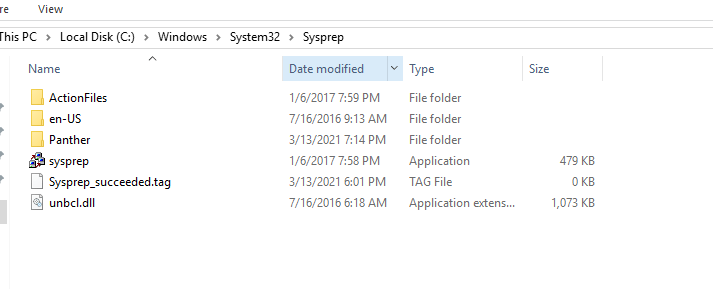
    Microsoft has included a tool called Sysprep which is natively installed on Windows server which is located in the folder path:

    %systemroot%\System32\Sysprep

    To start the process, you will navigate to the folder and follow the steps below:

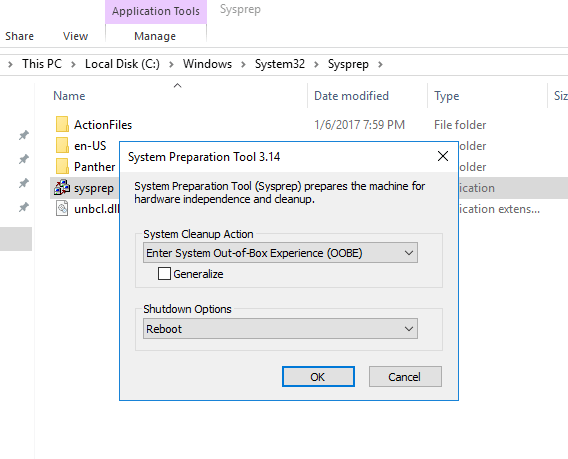
    • Right click and Run the System Preparation Tool (Sysprep.exe) as an administrator
    • Select the option Enter System Out-of-Box Experience (OOBE) for System Cleanup Action with the option Generalize ticked.
    • Select the Shutdown option: Reboot
    • Then select OK.

    Once the virtual machine reboots, it will prompt to select the usually Microsoft settings during initialization, accept the EULA and to set the Administrator password.

    Note that this method does not remove any installed applications except device drivers. It also removes the usually windows configuration such as IP address and machine name.

    The SysPrep will work in other versions of Windows.

    reference: https://docs.microsoft.com/en-us/windows-hardware/manufacture/desktop/sysprep–generalize–a-windows-installation

    Configuring Domain Controller Cloning

    Note: There is an Microsoft Hands-on Lab with code WS00148 that can be used to conduct this exercise. The environment may be required to do additional configuration to execute some of these steps since it is not the main aim and you can ignore the steps in that lab to do your own configuration.

    Before cloning a virtual Domain Controller (DC), there are a few requirements that needs to exist in the environment.

    The requirements are listed below:

    1. There must exist a DC with the FSMO role PDC Emulator running on atleast Windows Server 2012 which is accessible on the network.
    2. The virtual DC to be clone must be running on a hypervisor that supports the feature VM-GenerationID.
    3. The source virtual DC must be running atleast Windows Server 2012 and is a member of the AD group Cloneable Domain Controllers.
    4. There must be a DC Clone Configuration XML file (namely DCCloneConfig.xml) that holds the settings the clone DC will use to configure itself.

    To start the process of cloning a DC, the DC needs to be added to the Cloneable Domain Controllers:

    1. Open Server Manager. server_mgr
    2. Then, go to the Active Directory Users and Computers (ADUC). aduc
    3. Go to the Organization Unit (OU) Users,
    4. Select the security group “Cloneable Domain Controllers“. cloneable_group
    5. Right click and select Properties. cloneable_properties
    6. Then go to Members Tab and Add the DC here. select member
    7. Save and Close the settings.


    Alternately, PowerShell can be used to the previous step, see command:


    ADGroupMember -Identity ‘Cloneable Domain Controllers’ -member (Get-ADComputer SRV1)

    Next step is to check for excluded Application and generate a file using PowerShell:

    Open an PowerShell console and use this command:

    This command generates a list of excluded applications that are added to the allowed list and saves it to the C:\Windows\NTDS\.

    Get-ADDCCloningExcludedApplicationList -GenerateXml

    The next command is used to create the DC Cloning configuration XML file that is used to configure the virtual DC clone that you will import into the desired Hypervisor.

    New-ADDCCloningConfigFile -CloneComputerName “DCCloneName” -IPv4Address 10.10.10.10 –IPv4DefaultGateway 10.10.10.1 –IPv4SubnetMask 255.255.255.0 –IPv4DNSResolver 10.10.10.100,10.10.10.102 –Static

    Now shutdown the VM DC, export a copy of it and then import it as a copy generating a new VM ID. Once the copied VM is booted, you should see the cloning process initializing at boot up. When the process is completed, it will reboot and the new cloned DC is ready for use.


    Reference: https://docs.microsoft.com/en-us/windows-server/identity/ad-ds/introduction-to-active-directory-domain-services-ad-ds-virtualization-level-100

    VCP65-DCV Objective 1.1 – Configure and Administer Role-based Access Control

    To effectively master Objective 1.1 of the VCP65-DCV (2V0-622/D) exam guidelines which covers the topic Configure and Administer Role-based Access Control, it is important to know the following information:

    (you can click on the heading to go directly to the VMware vSphere 6.5 online documentation  where these information are stored.)

    1. Multiple Permission Settings
    2. Required Privileges for Common Tasks
    3. vCenter Server System Roles
    4. Example 3: User Role Overriding Group Role
    5. Prerequisites and Required Privileges for Encryption Tasks
    6. Configuring vCenter Single Sign-On Identity Sources
    7. Understanding the vCenter Server Permission Model
    8. Permission Validation
    9. Using Roles to Assign Privileges

    Preparing for VCP 6.5 DCV Delta Exam (2V0-622D)

    I had prepared and passed my VMware VCP 6.5 DCV Exam (2V0-622D) within 2 months of my VCP certification expiration date in June 2018.

    It was a rough and challenging journey but I had overcome all obstacles by using the following techniques. I prepared for my exam doing self study using:

    I also created a study plan schedule using the exam guidelines covering each objectives section for one day. For an up to date exam guidelines, please refer to the VMware website.

    Exam Topics –  (Sections hyperlinked to my study notes reference material)
    Section 1 – Configure and Administer vSphere 6.x Security
    Objective 1.1 – Configure and Administer Role-based Access Control
    Objective 1.2 – Secure ESXi and vCenter Server
    Objective 1.3 –Configure and Enable SSO and Identity Sources
    Objective 1.4 – Secure vSphere Virtual Machines
    Section 2 – Configure and Administer vSphere 6.x Networking
    Objective 2.1 – Configure policies/features and verify vSphere networking
    Objective 2.2 – Configure Network I/O control (NIOC)
    Section 3 –Configure and Administer vSphere 6.x Storage
    Objective 3.1 – Manage vSphere Integration with Physical Storage
    Objective 3.2 – Configure Software-Defined Storage
    Objective 3.3 – Configure vSphere Storage Multipathing and Failover
    Objective 3.4 – Perform VMFS and NFS configurations and upgrades
    Objective 3.5 – Set up and Configure Storage I/O Control (SIOC)
    Section 4 – Upgrade a vSphere Deployment to 6.x
    Objective 4.1 – Perform ESXi Host and Virtual Machine Upgrades
    Objective 4.2 – Perform vCenter Server Upgrades (Windows)
    Objective 4.3 – Perform vCenter Server migration to VCSA
    Section 5 – Administer and Manage vSphere 6.x Resources
    Objective 5.1 –Configure Multilevel Resource Pools
    Objective 5.2 – Configure vSphere DRS and Storage DRS Clusters
    Section 6 – Back up and Recover a vSphere Deployment
    Objective 6.1 – Configure and Administer vCenter Appliance Backup/Restore
    Objective 6.2 – Configure and Administer vCenter Data Protection
    Objective 6.3 – Configure vSphere Replication
    Section 7 – Troubleshoot a vSphere Deployment
    Objective 7.1 – Troubleshoot vCenter Server and ESXi Hosts
    Objective 7.2 – Troubleshoot vSphere Storage and Networking
    Objective 7.3 – Troubleshoot vSphere Upgrades and Migrations
    Objective 7.4 – Troubleshoot Virtual Machines
    Objective 7.5 – Troubleshoot HA and DRS Configurations and Fault Tolerance
    Section 8 – Deploy and Customize ESXi Hosts
    Objective 8.1 – Configure Auto Deploy for ESXi Hosts
    Objective 8.2 – Create and Deploy Host Profiles
    Section 9 – Configure and Administer vSphere and vCenter Availability Solutions
    Objective 9.1 – Configure vSphere HA Cluster Features
    Objective 9.2 – Configure vCenter Server Appliance (VCSA) HA
    Section 10 – Administer and Manage vSphere Virtual Machines
    Objective 10.1 – Create and Manage vSphere Virtual Machines and Templates
    Objective 10.2 – Create and Manage a Content Library
    Objective 10.3 – Objective 10.3 is no longer covered in the exam content.
    Objective 10.4 – Consolidate Physical Workloads using VMware vCenter Converter

    Later, I will add my study notes to assists anyone with the information  gathered while studying. Stay tune.