Multi-Cloud Architect Study Guide and Resources

Introduction

I have created this article to reflect the title which is to provide study resources to prepare for the various Cloud Architect certifications for Oracle, Google Cloud, Amazon Web Services and Microsoft Azure. Each of them brings their own dynamics to the architecture space and has difference focus and value. When you combine the information together, it will make you a well rounded Architect. The only missing piece is the business side because these resources only bring the technology perspective and focus. To fill this gap, I have included other resources from my references who I believe are enlightening the technical community on how to approach Architects with soft skills which is more important than the technical skills (the know how). Resources are from difference sources:

Technical Skills for Cloud Architects from different Cloud Service Providers:

Oracle Cloud Infrastructure 2023 Architect Associate

Oracle Cloud Infrastructure 2023 Architect Professional

Google Cloud Professional Cloud Architect

AWS Solutions Architect Professional

Azure Solutions Architect Expert

AZ-305 – Microsoft Azure Solution Architect Study Resources

I wanted to share the resources that I used to prepare for the AZ-305 Microsoft Certified: Azure Solutions Architect Expert.

  1. Microsoft Learn
  2. AZ-305 Microsoft Learn Case Study
  3. Thomas Maurer AZ-305 Study Guide
  4. Microsoft Cloud Workshop
  5. Microsoft AZ-305 Official Exam Prep
  6. John Savill’s AZ-305 Video Study Playlist

I will update this list as I gather more resources.

AZ-104 – Microsoft Azure Administrator : Deploy and manage Azure compute resources – Create and configure Azure App Service

This article will show the configuration commands required to complete the objectives on the exam guide for the AZ-104. The article information is updated as I complete the respective tasks.

Create and configure Azure App Service

Azure CLI

# Replace the following URL with a public GitHub repo URL

gitrepo=https://github.com/Azure-Samples/php-docs-hello-world webappname=mywebapp$RANDOM

# Create a resource group.

az group create –location eastus –name myRG

# Create an App Service plan in `FREE` tier.

az appservice plan create –name $webappname –resource-group myRG –sku FREE

# Create a web app.

az webapp create –name $webappname –resource-group myRG –plan $webappname

# Deploy code from a public GitHub repository.

az webapp deployment source config –name $webappname –resource-group myRG \

–repo-url $gitrepo –branch master –manual-integration

# Copy the result of the following command into a browser to see the web app.

echo http://$webappname.azurewebsites.net

PowerShell

# Replace the following URL with a public GitHub repo URL

$gitrepo=”https://github.com/Azure-Samples/app-service-web-dotnet-get-started.git”

$webappname=”mywebapp$(Get-Random)”

$location=”West Europe”

# Create a resource group.

New-AzResourceGroup -Name myRG -Location $location

# Create an App Service plan in Free tier.

New-AzAppServicePlan -Name $webappname -Location $location -ResourceGroupName myRG `

-Tier Free

# Create a web app.

New-AzWebApp -Name $webappname -Location $location -AppServicePlan $webappname `

-ResourceGroupName myRG

# Configure GitHub deployment from your GitHub repo and deploy once.

$PropertiesObject = @{ repoUrl = “$gitrepo”; branch = “master”; isManualIntegration = “true”; }

Set-AzResource -Properties $PropertiesObject -ResourceGroupName myRG `

-ResourceType Microsoft.Web/sites/sourcecontrols `

-ResourceName $webappname/web -ApiVersion 2015-08-01 -Force

Azure CLI

# Variables

appName=”AppServiceManualScale$random”

location=”WestUS”

# Create a Resource Group

az group create –name myRG –location $location

# Create App Service Plans

az appservice plan create –name AppServiceManualScalePlan –resource-group myRG –location $location –sku B1

# Add a Web App

az webapp create –name $appName –plan AppServiceManualScalePlan –resource-group myRG

# Scale Web App to 2 Workers

az appservice plan update –number-of-workers 2 –name AppServiceManualScalePlan \

–resource-group myRG

PowerShell

# Comment

# Generates a Random Value

$Random=(New-Guid).ToString().Substring(0,8)

# Variables

$RG=”myResourceGroup$random”

$AppName=”AppServiceManualScale$random”

$Location=”WestUS”

# Create a Resource Group

New-AzResourceGroup -Name $RG -Location $Location

# Create an App Service Plan

New-AzAppservicePlan -Name AppServiceManualScalePlan -ResourceGroupName $RG `

-Location $Location -Tier Basic

# Create a Web App in the App Service Plan

New-AzWebApp -Name $AppName -ResourceGroupName $RG -Location $Location `

-AppServicePlan AppServiceManualScalePlan

# Scale Web App to 2 Workers

Set-AzAppServicePlan -NumberofWorkers 2 -Name AppServiceManualScalePlan `

-ResourceGroupName $RG

Azure CLI

# Comment

az noun verb –name variable

PowerShell

# Comment

Verb-Noun -Parameters variable

Azure CLI

# Comment

az noun verb –name variable

PowerShell

# Comment

Verb-Noun -Parameters variable

  • Configure custome domain names

Azure CLI

# Variable

fqdn=<Replace with www.{yourdomain}>

webappname=mywebapp$RANDOM

# Create a resource group.

az group create –location westeurope –name myResourceGroup

# Create an App Service plan in SHARED tier (minimum required by custom domains).

az appservice plan create –name $webappname \

–resource-group myResourceGroup –sku SHARED

# Create a web app.

az webapp create –name $webappname –resource-group myResourceGroup \

–plan $webappname

echo “Configure a CNAME record that maps $fqdn to $webappname.azurewebsites.net” read -p “Press [Enter] key when ready …”

# Before continuing, go to your DNS configuration UI for your custom domain and follow the

# instructions at https://aka.ms/appservicecustomdns to configure a CNAME record for the

# hostname “www” and point it your web app’s default domain name.

# Map your prepared custom domain name to the web app.

az webapp config hostname add –webapp-name $webappname \

–resource-group myResourceGroup \

–hostname $fqdn

echo “You can now browse to http://$fqdn&#8221;

PowerShell

# Variable

$fqdn=”<Replace with your custom domain name>”

$webappname=”mywebapp$(Get-Random)”

$location=”West Europe”

# Create a resource group.

New-AzResourceGroup -Name $webappname -Location $location

# Create an App Service plan in Free tier.

New-AzAppServicePlan -Name $webappname -Location $location `

-ResourceGroupName $webappname -Tier Free

# Create a web app.

New-AzWebApp -Name $webappname -Location $location -AppServicePlan $webappname `

-ResourceGroupName $webappname

Write-Host “Configure a CNAME record that maps $fqdn to $webappname.azurewebsites.net” Read-Host “Press [Enter] key when ready …”

# Before continuing, go to your DNS configuration UI for your custom domain and follow the

# instructions at https://aka.ms/appservicecustomdns to configure a CNAME record for the

# hostname “www” and point it your web app’s default domain name.

# Upgrade App Service plan to Shared tier (minimum required by custom domains)

Set-AzAppServicePlan -Name $webappname -ResourceGroupName $webappname `

-Tier Shared

# Add a custom domain name to the web app.

Set-AzWebApp -Name $webappname -ResourceGroupName $webappname `

-HostNames @($fqdn,”$webappname.azurewebsites.net”)

The offline backup is a full backup each time and not an incremental copy.

Azure CLI

#

groupname=”myResourceGroup”

planname=”myAppServicePlan”

webappname=mywebapp$RANDOM

storagename=mywebappstorage$RANDOM

location=”WestEurope”

container=”appbackup”

backupname=”backup1″

expirydate=$(date -I -d “$(date) + 1 month”)

# Create a Resource Group

az group create –name $groupname –location $location

# Create a Storage Account

az storage account create –name $storagename \

–resource-group $groupname –location $location \

–sku Standard_LRS

# Create a storage container

az storage container create –account-name $storagename –name $container

# Generates an SAS token for the storage container, valid for one month.

# NOTE: You can use the same SAS token to make backups in App Service until –expiry sastoken=$(az storage container generate-sas –account-name $storagename –name $container \ –expiry $expirydate –permissions rwdl –output tsv)

# Construct the SAS URL for the container sasurl=https://$storagename.blob.core.windows.net/$container?$sastoken

# Create an App Service plan in Standard tier. Standard tier allows one backup per day.

az appservice plan create –name $planname –resource-group $groupname –location $location \

–sku S1

# Create a web app

az webapp create –name $webappname –plan $planname –resource-group $groupname

# Create a one-time backup

az webapp config backup create –resource-group $groupname –webapp-name $webappname \

–backup-name $backupname –container-url $sasurl

# List statuses of all backups that are complete or currently executing.

az webapp config backup list –resource-group $groupname –webapp-name $webappname

PowerShell

# Variables

$webappname=”mywebapp$(Get-Random -Minimum 100000 -Maximum 999999)” $storagename=”$($webappname)storage”

$container=”appbackup”

$location=”West Europe”

$backupname=”backup1″

# Create a resource group.

New-AzResourceGroup -Name myResourceGroup -Location $location

# Create a storage account.

$storage = New-AzStorageAccount -ResourceGroupName myResourceGroup `

-Name $storagename -SkuName Standard_LRS -Location $location

# Create a storage container.

New-AzStorageContainer -Name $container -Context $storage.Context

# Generates an SAS token for the storage container, valid for one month.

# NOTE: You can use the same SAS token to make backups in Web Apps until -ExpiryTime

$sasUrl = New-AzStorageContainerSASToken -Name $container -Permission rwdl `

-Context $storage.Context -ExpiryTime (Get-Date).AddMonths(1) -FullUri

# Create an App Service plan in Standard tier. Standard tier allows one backup per day.

New-AzAppServicePlan -ResourceGroupName myResourceGroup -Name $webappname `

-Location $location -Tier Standard

# Create a web app.

New-AzWebApp -ResourceGroupName myResourceGroup -Name $webappname ` -Location $location -AppServicePlan $webappname

# Create a one-time backup

New-AzWebAppBackup -ResourceGroupName myResourceGroup -Name $webappname `

-StorageAccountUrl $sasUrl -BackupName $backupname

# List statuses of all backups that are complete or currently executing.

Get-AzWebAppBackupList -ResourceGroupName myResourceGroup -Name $webappname

  • Configure networking settings

Azure CLI

# Comment

az noun verb –name variable

PowerShell

# Comment

Verb-Noun -Parameters variable
  • Configure deployment settings

Azure CLI

# Comment

az noun verb –name variable

PowerShell

# Comment

Verb-Noun -Parameters variable

AZ-104 – Microsoft Azure Administrator : Deploy and manage Azure Compute resources – Configure VMs

This article will show the configuration commands required to complete the objectives on the exam guide for the AZ-104. The article information is updated as I complete the respective tasks.

Configure VMs

  • Configure Azure Disk Encryption

Azure CLI

# Create a Key Vault

az keyvault create –name myKV –resource-group myRG –location eastus –enabled-for-disk-encryption

# Update Key Vault to allow the storing of disk encryption key

az keyvault update -n myKV -g myRG –enabled-for-disk-encryption

#Encrypt an existing VM disk

az vm encryption enable -n myVM -g myRG –disk-encryption-keyvault myKV –volume-type all

# View the status of Disk encryption

az vm encryption show -n myVM -g myRG

#Decrypt the VM disk

az vm encryption disable -n myVM -g myRG

PowerShell

# Create Azure KeyVault

New-AzKeyVault -VaultName myKV `

-ResourceGroupName myRG `

-Location EastUS `

-EnabledForDiskEncryption

# Change the KeyVault Policy Access

Set-AzKeyVaultAccessPolicy -VaultName myKV -ResourceGroupName myRG `

-EnabledForDiskEncryption

# Encrypt the VM disk

Set-AzVMDiskEncrytpionExtension -VMname myVM -ResourceGroupName myRG `

-VolumeType [All|OS|Data] -DiskEncryptionKeyVaultID myKV.id `

-DiskEncryptionKeyVaultUri myKV.uri -SkipVMBackup

#View the Disk Encryption Status

Get-AzVMDiskEncryptionStatus -VMname myVM -ResourceGroupName myRG

#Decrypt VM disk

Disable-AzVMDiskEncryption -VMname myVM -ResourceGroupName myRG

  • Manage VM sizes

Azure CLI

# Check the VM current size

az vm show –name myVM –resource-group myRG –query hardwareProfile.vmSize

#List the available size to the VM

az vm list-vm-resize-options –resource-group myRG –name myVM

#Resize the VM to the size of choice from the list generate from command

az vm resize –name myVM –resource-group myRG –size Standard_B1s

#Deallocate VM if the size desired is not listed to be made available

az vm deallocate –name myVM –resource-group myRG

az vm stop –name myVM –resource-group myRG

PowerShell

Get-AzVmSize -VMName myVM -ResourceGroupName myRG

$vm = Get-AzVM -VMName myVM -ResourceGroupName myRG

$vm.HardwareProfile.VmSize = “Standard_B1ls”

Update-AzVM -VM $vm -ResourceGroupName myRG

#Deallocate VM

Stop-AzVM -Name myVM -ResourceGroupName myRG

#Only Stop VM but does not deallocate it

Stop-AzVM -Name myVM -ResourceGroupName myRG -StayProvisioned

  • Add Data Disks

Azure CLI

# Create the disk and attached it to the VM in one command

az vm disk attached -g myRG -vm-name myVM –name myDisk –new –size-gb 32 \

–sku Standard_LRS

PowerShell

# Set the data disk configuration

$diskConfig = new-AzDiskConfig -SkuName “Standard_LRS” -Location “EastUS” `

-CreateOption Empty -DiskSizeGB 32

# Create the data disk

$dataDisk1 = new-AzDisk -DiskName myDisk -Disk $diskConfig -ResourceGroupName myRG

# Get the Virtual Machine information

$vm = Get-AzVM -Name myVM -ResourceGroup myRG

# Add the Disk information to VM

$vm = Add-AzVMDataDisk -VM $vm -Name myDisk -CreateOption Attach `

-ManagedDiskId #dataDisk1.Id -Lun 1

#Update the VM with the data disk

Update-AzVM -VM $vm -ResourceGroupName myRG

# The second phase is to intialize the disk within the VM.

  • Redeploy VMs

Azure CLI

# Redeploy a virtual machine

az vm redeploy –name myVM –resource-group myRG

PowerShell

# Redeploy a virtual machine

Set-AzVM -Redeploy -ResourceGroupName “myRG” -Name “myVM”

  • Move Resource to another Resource group

Azure CLI

# Comment

az resource move –destinationresourcegroupname myRG2 –ids myVMid myStorageid

PowerShell

# Move resource to another resource group

$webapp = Get-AzResource -ResourceGroupName myRG -ResourceName mySite

$vm = Get-AzResource -ResourceGroupName myRG -ResourceName myVM

Move-AzResource -DestinationResourceGroupName myRG2 -ResourceId $webapp.ResourceId, $vm.ResourceId

  • Configure Networking

Azure CLI

# Comment

az noun verb –name variable

PowerShell

# Comment

Verb-Noun -Parameters variable
  • Configure High Availability

Azure CLI

# Comment

az noun verb –name variable

PowerShell

# Comment

Verb-Noun -Parameters variable
  • Deploy and configure scale sets

Azure CLI

# Comment

az noun verb –name variable

PowerShell

# Comment

Verb-Noun -Parameters variable

Microsoft: SysInternals Suite PS Exec Command Usage

I was given a task to install a agent on computers and servers using command line as during my research I discovered this tool calls PSExec from the SysInternals Suite tools.

You may ask what is PSExec? According to Microsoft, it launches interactive command-prompts on remote systems and remote-enabling tools like IpConfig that otherwise do not have the ability to show information about remote systems. In other words, PSExec tool allows the execution of commands on a system remotely as if it is on the direct system console.

There are a number of features that I love about the PSExec tool which are as follows:

  1. It can run the command as another user remotely on the local system using user interaction
  2. It allows the execution of the command on multiple computers from a list in a text file

I was given the task to install the SAP Single Sign On add-in and it was difficult because it required that it is run under a network user locally in an interactive mode.

The PSExec tool gave me the power to overcome this difficulty.

Here is the syntax of the command and the parameters I used:

psexec.exe @[file-name.txt] -u [domain\username] -p -i -h [\\server\path\batch-files.bat]

explaining each switch:

@   execute the command on each computer in the file. Each computer must be in a new line

-u   username

-p  prompt for password

-i  run command in interactive mode

-h run the command with account elevated privilege

This command will execute the script on each computer return the result as it is completed.

Please ensure it is executed on a computer that is running since it cannot be execute without the computer being on.

Setting up a Cisco AP using the command line

This article is to document the CLI commands used to configure an Autonomous Cisco Access Point.

To configure the AP management IP address use the following command:

Interface BVI1

ip address [ip] [subnetmask]

no shutdown

Next, define the SSID properties including Name, Key method and password.

This particular configuration is using WPA2 to authenticate the users.

dot11 ssid [SSIDName]

authentication open
authentication key-management wpa version 2
guest-mode
wpa-psk ascii [password]

Next you will push this SSID on the 2.4 Ghz which is on interface dot1Radio 0 and if you want it to be available on 5 Ghz band as well, you will configure it on dot1Radio 1. The radio will be using the AES-CCM encryption mode.

interface dot1radio0

encryption mode ciphers aes-ccm

ssid [SSID-name]

no shutdown

Once you are done, you can save the configuration and test you wireless device.

Common Switch Commands for the HP FlexNetwork

I have recently had to interact with an HP FlexNetwork 5510 switches and the command syntax was totally different from the HP-Aruba 2530. This article is to document the common switch commands that I use on a daily basis.

  • Show (Display) the list of interfaces and their status

display interfaces brief

  • list the directly connected devices using LLDP

display lldp neighbor-information list

  • Enter enable mode or exec privilege mode

system-view

  • Save switch startup configuration

write

  • Show the running configuration

display current-configuration

  • Configure IP helper on an interface

interface [interface_type]

dhcp select relay

dhcp relay server-address [dhcp_ip_address]

  • Configure NTP Service

ntp-service enable
ntp-service unicast-server 10.71.152.229
ntp-service unicast-server 10.220.0.35

  • Configure SSH

ssh server enable

ssh client source interface [interface]

service-type ssh terminal

  • Configure the default gateway

ip route-static 0.0.0.0 [gateway_ipaddress]

  • Configure interface as layer 2

port link-mode bridge

  • Configure interface as layer 3

port link-mode route

  •  Configure the interface as a trunk

port link-type trunk

port trunk permit vlan [vlan-id]

  • Configure the local user account to manage the switch

local-user [username] class manage
password simple [password]
service-type [options: ssh telnet terminal]
authorization-attribute user-role [role-name]

I will be adding more command as time goes by and I get familiar with the CLI.

Cisco: Converting an Cisco AP 2600 from Lightweight AP to Autonomous mode

This article is about converting a Cisco AP version CAP2602E from a lightweight to Autonomous. (This can apply to other APs of similar models)

The tools that you will need to do the job:

  1. A TFTP server application…I am using Pumpkin (link here)
  2. Telnet tool…I am using Putty (link here)
  3. The Autonomous image for the Cisco AP (note: that the image file name will contain “k9w7“)
  4. Console cable
  5. Network cable
  6. Power adapter for the AP. (If you have a PoE switch to power the AP, then you can skip the adapter)

Now let us begin the process:

  1. Install the TFTP server application and start it up
  2. Install the PUTTY telnet tool
  3. Copy the image to the tftp folder path set in the TFTP server application. The image required for my Cisco AP CAP2602E is “ap3g2-k9w7-tar.153-3.JAB.tar”. Note when you get the image, it will need to be renamed from the image type “.tar” to “.default“. Example in my case, it will be ap3g2-k9w7-tar.default. Please ensure to follow this same syntax.
  4. Connect your AP directly to your computer.
  5. The static IP address of the computer on which your TFTP server software runs should be between 10.0.0.2 and 10.0.0.30.
  6.  Disconnect power from the access point.
  7. Press and hold MODE while you reconnect power to the access point.
  8. Hold the MODE button until the status LED turns red (approximately 20 to 30 seconds) and then release.
  9. The AP will start to broadcast to the tftp server for the image file. When the tftp server get a prompt from the AP, select Grant Access. (Note if the another image is requested, make a note of the image and try to get it.
  10. Once the image is correct, it will start to pull the image from the TFTP server and it takes about 10 minutes to load.
  11. Once the image has loaded, the AP will reboot.
  12. Then you can use the PUTTY to connect to the console and configure the AP as desired by assigning an IP address to the BVI interface. (default password Cisco/Cisco)
  13. Once the IP address is set, you can access it using the Web GUI.

I hope this article was helpful.


reference: https://community.cisco.com/t5/wireless-security-and-network/converting-the-air-lap1242ag-e-k9-from-lightweight-to-autonomous/td-p/632837


Configuring AWS CLI using Python and pip on Windows

This article was created to document the steps to configure and utilize the AWS CLI on a Windows machine.

There are multiple ways of installing the AWS CLI but I choose the method of using the Python with pip3 since I already have the tool install on my Windows 10 machine.

  1. After you install the python on your windows system from python.org

2.  You will run the following command to ensure it is working from the command prompt

python –version

3. You will then use the python utility pip3 and check if it is installed using the following command:

pip3 –version

4. Once the version is displayed without any errors, you can proceed to installing the AWS CLI using pip3. You will do this by using the command below:

pip3 install awscli

5. After the installation is complete. proceed to test that the AWS CLI is working:

where aws

Once the folder path of the AWS CLI is shown, then you have successfully installed the CLI.

Now the next step is to configure it for use with your AWS service. This can be done by running the following aws command:

aws configure

It will prompt you for the AWS Access key ID, Secret Access Key,  default Region and default output format. This allows you to connect to the AWS without authenticating each time. I would recommend that you setup an IAM user account to authenticate with the AWS CLI and limit the access to only the features that will be accessed using this method.

For further details, please consult the AWS CLI documentation here.

Fortinet: Publishing a Server access to the Internet via HTTP

This article is providing instructions on how to public a server/device to the internet using http. This article will go through the basic configuration.

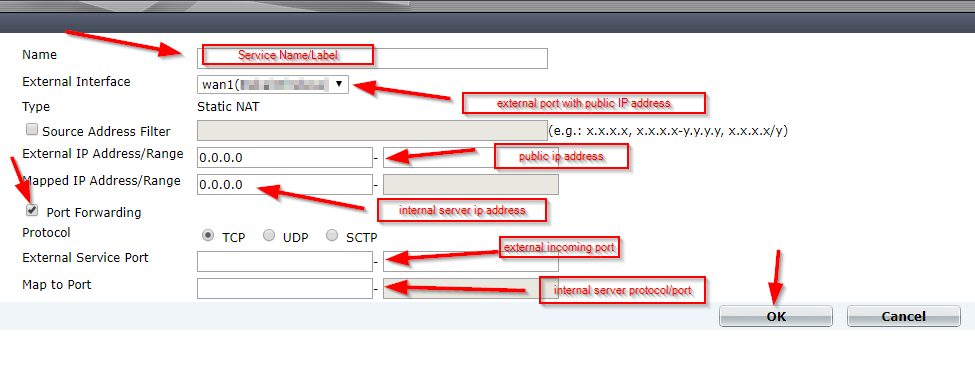
After logging into to the Fortinet portal, got to Firewall Objects –> Virtual IP –> Virtual IP, select Create New

create_virtual_ip

There are number of parameters:

Name: Short description of services e.g. DVR HTTP-80

External Interface: this is the port connected to the internet link with the public IP address.

External IP Address/Range: this use only need if you have more that one IP address configured on the port. If not, you can leave the default 0.0.0.0

Mapped IP Address/Range: Enter the internal server IP address of device. e.g. our DVR 192.168.0.12

Port Forwarding: tick this option if you are using custom ports from the default e.g. external service port is 5000 from the outside connecting to (map to) port 80 on the internal server.

virtual_ip_info

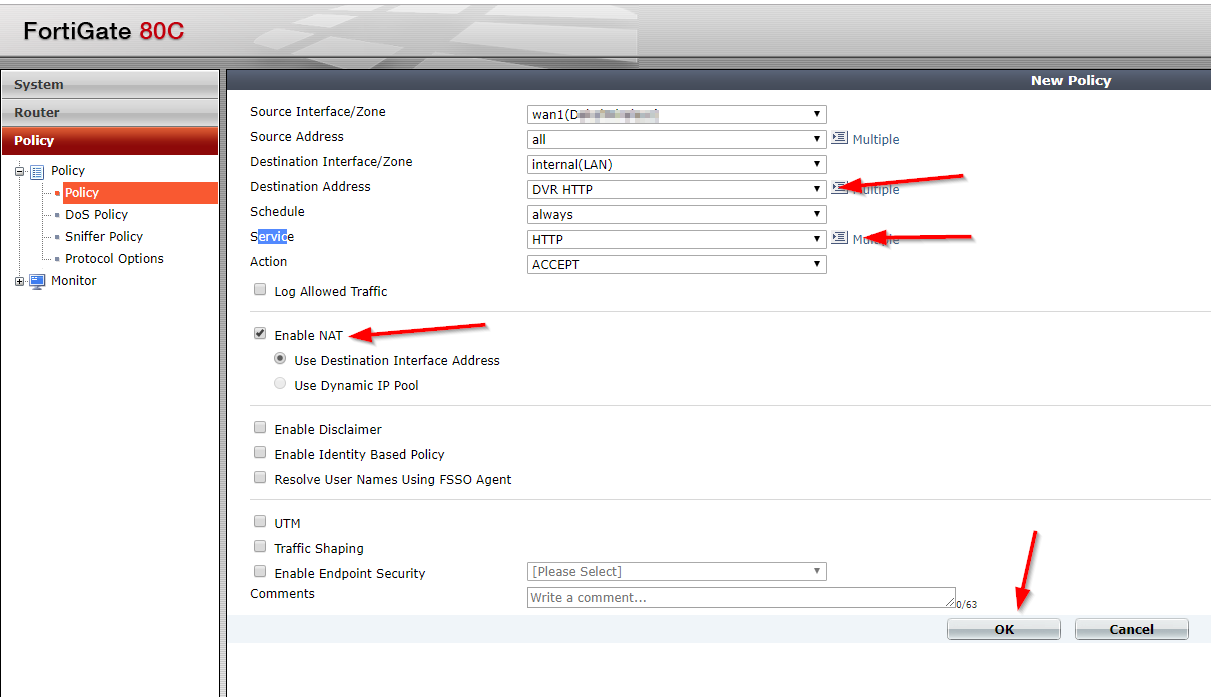
Go to Policy –>Policy –> Create New

create_policy

Select the Source Interface/Zone to external port.

Select destination Address to the Virtual IP created earlier and select Service to HTTP since we are using port 80. If the service is not list add it with the custom ports. Select Enable NAT to allow external IP address to access the internal device through the fortinet.

policy_settings

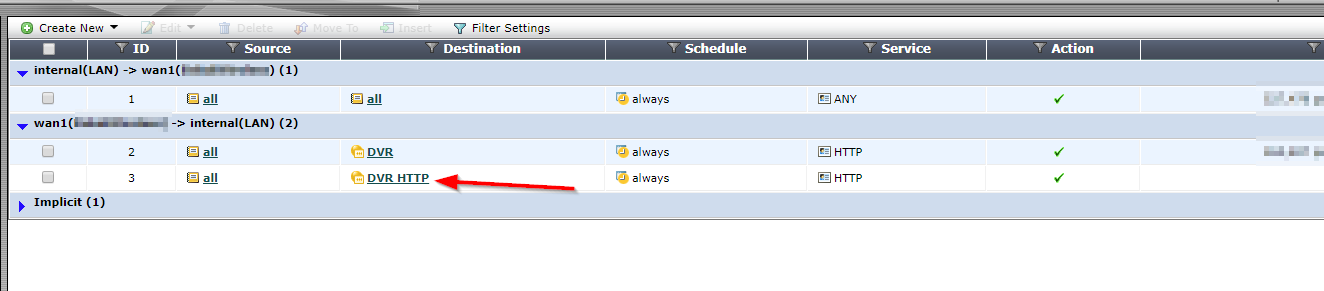
Once save by clicking ok, it will be listed under the external port source port column in the Policy section.

policy_listed