Resizing a Ubuntu Linux VM in Hyper-V

I had a Ubuntu VM with disk size of 12GB running in an Hyper-V environment on the physical server with limited disk space. I discovered that the VHDX disk space was not enough to run the applications I was installing on it.

In order to resolve this challenge, I had to increase the disk size of the VHDX disk and then increase the disk partition within the VM.

  1. To increase the virtual disk size, I use the powershell command:

Resize-VHD -Path "VHDX disk location" -SizeBytes 60GB

2. Then I proceed to log into to Ubuntu VM

3. Open a bash shell

4. To view the partition to increase, run the command as a root:

sudo fdisk -l

if the command is not installed, you need to run the following command first:

sudo apt install cloud-guest-utils

5. When the partition is identified, use it in the next command to expand partition into free space:

sudo growpart /dev/sda 1

Note: space between the partition and id

6. Then this command will resize the partition:

sudo resize2fs /dev/sda1

Note: no space between partition and id

    7. Dont forget the final step to reboot the ubuntu VM for the command to take effects. This is critical because it did not work until I did this step.

    I hope this helps someone who support linux.

    Multi-Cloud Architect Study Guide and Resources

    Introduction

    I have created this article to reflect the title which is to provide study resources to prepare for the various Cloud Architect certifications for Oracle, Google Cloud, Amazon Web Services and Microsoft Azure. Each of them brings their own dynamics to the architecture space and has difference focus and value. When you combine the information together, it will make you a well rounded Architect. The only missing piece is the business side because these resources only bring the technology perspective and focus. To fill this gap, I have included other resources from my references who I believe are enlightening the technical community on how to approach Architects with soft skills which is more important than the technical skills (the know how). Resources are from difference sources:

    Technical Skills for Cloud Architects from different Cloud Service Providers:

    Oracle Cloud Infrastructure 2023 Architect Associate

    Oracle Cloud Infrastructure 2023 Architect Professional

    Google Cloud Professional Cloud Architect

    AWS Solutions Architect Professional

    Azure Solutions Architect Expert

    Connecting a Web App Service to a Azure VM privately

    This article is about setting a public accessible Web App Service which allowing it to connect privately to a Azure VM within a Virtual network (VNET).

    I was given a task to assist our developer to connect a Web App with customized code to interface with a Azure VM hosting an SQL server database and customized web services. The design requirements were as followings:

    • The Web App must be accessible public with no restrictions
    • The Azure VM must be accessible by the Web App Service only
    • The services must use most cost effective Azure resources to accomplish this result.

    After reviewing the requirements and accessing what Azure features are available to accomplish the task. The following solution was provided.

    1. The Web App Service must have the supported pricing tier of at least Basic or Standard to use it with VNet.
    2. Configure a Subnet with CIDR notation of /26 which will facilitate the private connection from the Web App.
    3. Configure the VNET Integration to connect the Web App to the subnet created previously for the private communication.
    4. Network Security Group (NSG) can be used to limit who can accept connections from the Web App service in the private subnet.

    Microsoft Documentation reference:

    https://learn.microsoft.com/en-us/azure/app-service/configure-vnet-integration-enable

    changing a hdd FOR A hpe 3PAR STOREVIRTUAL

    I have gotten a case to change a failed hard drive in a HPE 3PAR StoreVirtual 7200 storage system.

    The process is not as simple as hot-swapping the hard drive which is possible but there are checks that have to be perform before this task is done to maintain the integrity of the data on the storage.

    Before I go into the details, let me share how the 3PAR work. It is important to note that this system is different in how it stores data on the disk.

    The 3PAR stores data in small chucks called chunklet which is spread across multiple drives using parity.

    When the system detects a possible failure, the servicemag start to migrate all the data chunklets to other drives to mitigate against lost of data.

    This functionality takes me to the point that before you can replace a hard drive, it is important that you check the status of the servicemag to ensure the migration process is completed before removing the hard drive from the system. This crucial step will ensure data integrity and consistence across the drives.

    To check if the migration of data hsa been completed, run the following command:

    servicemag status

    If the status indicate completed, then you are clear to replace the hard drive. Otherwise, you will have to wait for the process to complete which can be hours or days. The waiting period is dependent on the amount of data stored on the disk.

    After the Hard Drive has been replaced, it does not stop there. You have to rerun the command below:

    servicemag status

    Reference website: d8tadude.com/3par

    Method of Changing the SID of a Windows Server 2016 VM

    In a virtual environment, there are scenarios where you would want to clone an existing Windows server virtual machine to provide redundancy for whatever application.

    Having the ability to create duplicate virtual machines by cloning it is a great feature but it creates a problem in a Windows Active Directory environment. There is a unique identifier called Security ID also known as SID which is created during installation to identify each machine in a Windows environment.

    Active Directory has a big problem when it discovers two machines with the same SID because it identify them as the same object. If the computer with the same SID attempts to join the same domain, it will generate an error and terminate the process. No worries, there is a solution for the Windows computer.

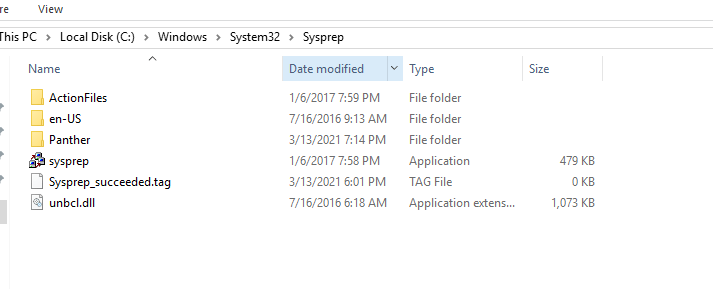
    Microsoft has included a tool called Sysprep which is natively installed on Windows server which is located in the folder path:

    %systemroot%\System32\Sysprep

    To start the process, you will navigate to the folder and follow the steps below:

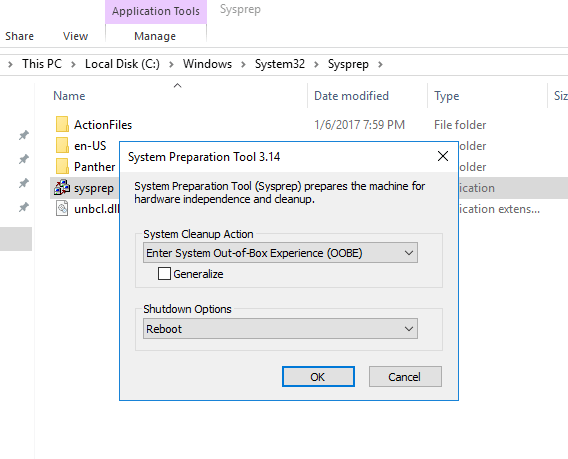
    • Right click and Run the System Preparation Tool (Sysprep.exe) as an administrator
    • Select the option Enter System Out-of-Box Experience (OOBE) for System Cleanup Action with the option Generalize ticked.
    • Select the Shutdown option: Reboot
    • Then select OK.

    Once the virtual machine reboots, it will prompt to select the usually Microsoft settings during initialization, accept the EULA and to set the Administrator password.

    Note that this method does not remove any installed applications except device drivers. It also removes the usually windows configuration such as IP address and machine name.

    The SysPrep will work in other versions of Windows.

    reference: https://docs.microsoft.com/en-us/windows-hardware/manufacture/desktop/sysprep–generalize–a-windows-installation

    Configuring Domain Controller Cloning

    Note: There is an Microsoft Hands-on Lab with code WS00148 that can be used to conduct this exercise. The environment may be required to do additional configuration to execute some of these steps since it is not the main aim and you can ignore the steps in that lab to do your own configuration.

    Before cloning a virtual Domain Controller (DC), there are a few requirements that needs to exist in the environment.

    The requirements are listed below:

    1. There must exist a DC with the FSMO role PDC Emulator running on atleast Windows Server 2012 which is accessible on the network.
    2. The virtual DC to be clone must be running on a hypervisor that supports the feature VM-GenerationID.
    3. The source virtual DC must be running atleast Windows Server 2012 and is a member of the AD group Cloneable Domain Controllers.
    4. There must be a DC Clone Configuration XML file (namely DCCloneConfig.xml) that holds the settings the clone DC will use to configure itself.

    To start the process of cloning a DC, the DC needs to be added to the Cloneable Domain Controllers:

    1. Open Server Manager. server_mgr
    2. Then, go to the Active Directory Users and Computers (ADUC). aduc
    3. Go to the Organization Unit (OU) Users,
    4. Select the security group “Cloneable Domain Controllers“. cloneable_group
    5. Right click and select Properties. cloneable_properties
    6. Then go to Members Tab and Add the DC here. select member
    7. Save and Close the settings.


    Alternately, PowerShell can be used to the previous step, see command:


    ADGroupMember -Identity ‘Cloneable Domain Controllers’ -member (Get-ADComputer SRV1)

    Next step is to check for excluded Application and generate a file using PowerShell:

    Open an PowerShell console and use this command:

    This command generates a list of excluded applications that are added to the allowed list and saves it to the C:\Windows\NTDS\.

    Get-ADDCCloningExcludedApplicationList -GenerateXml

    The next command is used to create the DC Cloning configuration XML file that is used to configure the virtual DC clone that you will import into the desired Hypervisor.

    New-ADDCCloningConfigFile -CloneComputerName “DCCloneName” -IPv4Address 10.10.10.10 –IPv4DefaultGateway 10.10.10.1 –IPv4SubnetMask 255.255.255.0 –IPv4DNSResolver 10.10.10.100,10.10.10.102 –Static

    Now shutdown the VM DC, export a copy of it and then import it as a copy generating a new VM ID. Once the copied VM is booted, you should see the cloning process initializing at boot up. When the process is completed, it will reboot and the new cloned DC is ready for use.


    Reference: https://docs.microsoft.com/en-us/windows-server/identity/ad-ds/introduction-to-active-directory-domain-services-ad-ds-virtualization-level-100

    Veeam Replication Error – Unable to discover replica VM

    There was an Veeam Backup & Replication job notification with the following error:

    Discovering replica VM Error: Unable to find mapping target VmRef [vm-40195]
    Error: Unable to find mapping target VmRef [vm-40195]

    Based the above error line “unable to find mapping target” means that the replica VM is missing or the replica VM is not mapped to the particular source VM. To resolve this issue, you will need to make the changes to the Replication Job settings for this source VM.

    Open the Veeam Backup & Replication console.

    veeam_b_r_console

    Select Replication and right click and select Edit to modify the properties of the selected job.

    veeam_edit_replica_job

    Under Describe you DR site, tick Low connection bandwidth (enable replica seeding). Note: This allows you get the additional options to check the original VMs mapping to the replica VMs.

    veeam_low_connection

    Select Seeding on the left side to go directly to the Replica mapping settings.

    veeam_replica_displayed

    Under Replica Mapping, tick Map replicas to existing VMs if not already ticked.

    It will show all the original VMs and their respective replica VMs. If there is a replica VM beside the source VM with error, it means that the replica VM is missing.

    Select the Detect button to let Veeam discover all the replica VMs associated with the original VMs in the database. If the replica VM is showing No mapping, it means that the replica VM is missing or it is unable to detect the replica VM.

    veeam_detect_replica

    The replica VM was can manually selected by highlighting the original VM and select Edit. browse the vCenter for the replica and select it (this is only if it exist but not mapping automatically using the Detection method).

    Select Finish and retry the failed replica job. One thing to note is when the retry job option is used, only the failed VM replication job is executed.

    Setting Up iSCSI in VMware ESXi 5.5

    To begin this article, let me first discuss what is iSCSI and then the reason for requiring an iSCSI.

    I love the definition of iSCSI provided by searchstorage.techtarget.com which stands for Internet Small Computer System Interface, that works on top of the Transport Control Protocol (TCP) and allows the SCSI command to be sent end-to-end over local-area networks (LANs), wide-area networks (WANs) or the Internet.

    According to the same site, iSCSI works by transporting block-level data from an iSCSI initiator on a server and a iSCSI target on a storage device. The iSCSI protocol encapsulates SCSI commands and assembles the data in packets for the TCP/IP layer. Packets are sent over the network using a point-to-point connection.

    The one of the main reason for using iSCSI connections is that it allows for the utilization of existing network resources such as NICs and network switches to present storage devices to servers once it has the iSCSI initiator software. this result in cost saving and it is is easily configured and it is available for both LAN, WAN and internet which mean easily access if it is relocated to the cloud

    Now, let us go to the fun part…configuration of iSCSI in Vmware ESXi 5.5

    It is important to note that there are two type of iSCSI initiator/target:

    1. Software
    2. Hardware

    In this article, we are only going to go through the configuring of the Software iSCSI initiator from within the VMware Esxi 5.5 hypervisor.

    Log into vSphere Web client

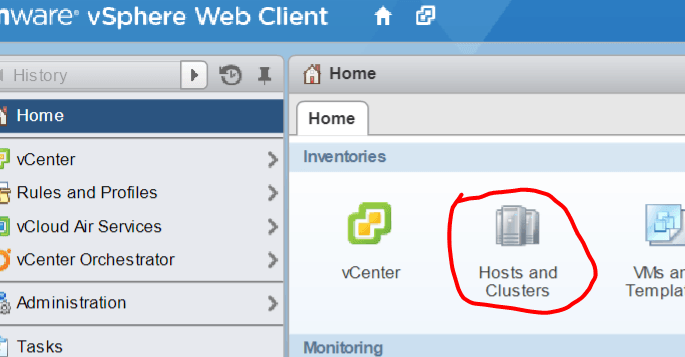
    Select Host and Clusters

    hostandcluster.png

    Select the host you want you want to setup the the iSCSI Software adapter on.

    Under the Host pane, select the Manage

    Under Manage, Select Storage then Storage Adapters

    ManageStorage_StorageAdapter

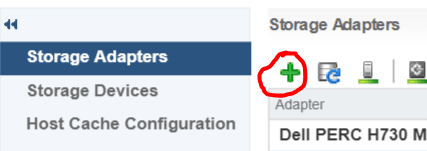
    Select the Plus button

    Storage-menu

    Select Software iSCSI Adapter

    software iscsi

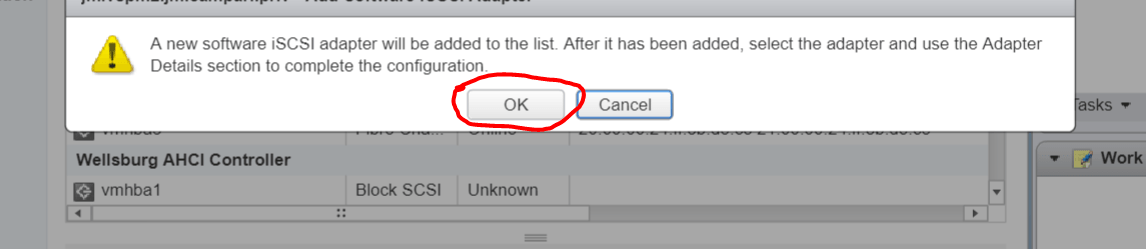
    Select OK to the following message

    software-iscsi-msg-e1503502080853.png

    Under Storage Adapters list, look for iSCSI Software Adapter and you will see the iSCSI Software Adapter listed.

    software-iscsi-adapter.png

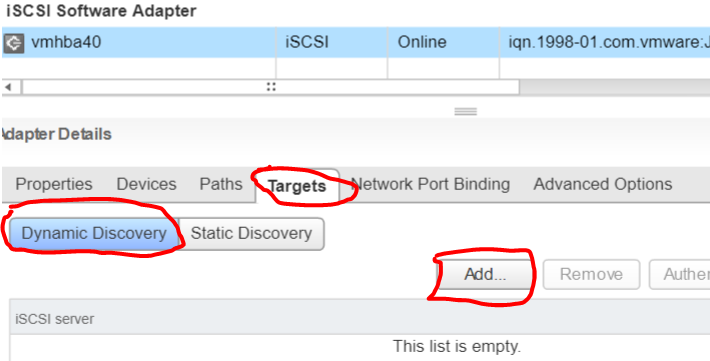
    Highlight the adapter vmhbaXX (e.g. vmhba40) and under Adapter Detail, select Target –> Dynamic –> Add

    AddDynamicTarget

    Note: this allows you to add the primary IP address of the SAN or storage which allows the device LUNs to be discovered.

    Enter the IP address of the target and leave the default port of 3260 for ISCSI communication. Then Select OK. For every iSCSI target, the IP address should be added.

    SendTargetServer