Disable IE Enhanced Security Configuration in Windows Server via script

I have always want to use a script to disable Internet Explorer Enhanced Security Configuration (IE ESC) in Windows Server. It is an annoying activity when it is required to perform tasked using the IE in older versions of windows servers.

It is important to note that IE ESC is very important to the security of legacy servers from common past vulnerabilities which is not a risk in current versions of server OS.

This activity must be taken with precaution and on servers with access restriction to the Internet. It is encouraged that IT professional implement all measures to secure the legacy application running on these servers that must be maintained in an segmented or isolated environment. It is the responsibility of the IT professional to use a secure alternative browser after this activity has been performed.

Now here is a batch script to the rescue taken from this Microsoft FAQ that can be runned on all your servers. Save the script in a batch file and run it from the command line.

The script must run as an administrator or a logon script to work since it is making changes to the registry.

Note: The script was created for Windows Server 2003 and 2008. However, it will work for other versions such as Windows Server 2019.

ECHO OFF
REM  IEHarden Removal Project
REM  HasVersionInfo: Yes
REM  Author: Axelr
REM  Productname: Remove IE Enhanced Security
REM  Comments: Helps remove the IE Enhanced Security Component of Windows 2003 and 2008(including R2)
REM  IEHarden Removal Project End
ECHO ON
::Related Article
::933991 Standard users cannot turn off the Internet Explorer Enhanced Security feature on a Windows Server 2003-based terminal server
::http://support.microsoft.com/default.aspx?scid=kb;EN-US;933991
:: Rem out if you like to Backup the registry keys
::REG EXPORT "HKEY_LOCAL_MACHINE\SOFTWARE\Microsoft\Active Setup\Installed Components\{A509B1A7-37EF-4b3f-8CFC-4F3A74704073}" "%TEMP%.HKEY_LOCAL_MACHINE.SOFTWARE.Microsoft.Active Setup.Installed Components.A509B1A7-37EF-4b3f-8CFC-4F3A74704073.reg"
::REG EXPORT "HKEY_LOCAL_MACHINE\SOFTWARE\Microsoft\Active Setup\Installed Components\{A509B1A7-37EF-4b3f-8CFC-4F3A74704073}" "%TEMP%.HKEY_LOCAL_MACHINE.SOFTWARE.Microsoft.Active Setup.Installed Components.A509B1A8-37EF-4b3f-8CFC-4F3A74704073.reg"
REG ADD "HKEY_LOCAL_MACHINE\SOFTWARE\Microsoft\Active Setup\Installed Components\{A509B1A7-37EF-4b3f-8CFC-4F3A74704073}" /v "IsInstalled" /t REG_DWORD /d 0 /f
REG ADD "HKEY_LOCAL_MACHINE\SOFTWARE\Microsoft\Active Setup\Installed Components\{A509B1A8-37EF-4b3f-8CFC-4F3A74704073}" /v "IsInstalled" /t REG_DWORD /d 0 /f
::x64
REG ADD "HKEY_LOCAL_MACHINE\SOFTWARE\Wow6432node\Microsoft\Active Setup\Installed Components\{A509B1A8-37EF-4b3f-8CFC-4F3A74704073}" /v "IsInstalled" /t REG_DWORD /d 0 /f
::Disables IE Harden for user if set to 1 which is enabled
REG ADD "HKEY_CURRENT_USER\Software\Microsoft\Windows\CurrentVersion\Internet Settings\ZoneMap" /v "IEHarden" /t REG_DWORD /d 0 /f
REG ADD "HKEY_LOCAL_MACHINE\Software\Microsoft\Windows\CurrentVersion\Internet Settings\ZoneMap" /v "IEHarden" /t REG_DWORD /d 0 /f
REG ADD "HKEY_CURRENT_USER\Software\Wow6432Node\Microsoft\Windows\CurrentVersion\Internet Settings\ZoneMap" /v "IEHarden" /t REG_DWORD /d 0 /f
::Removing line below as it is not needed for Windows 2003 scenarios. You may need to enable it for Windows 2008 scenarios
::Rundll32 iesetup.dll,IEHardenLMSettings
Rundll32 iesetup.dll,IEHardenUser
Rundll32 iesetup.dll,IEHardenAdmin
Rundll32 iesetup.dll,IEHardenMachineNow
::This apply to Windows 2003 Servers
REG DELETE "HKEY_LOCAL_MACHINE\SOFTWARE\Microsoft\Windows\CurrentVersion\Setup\OC Manager\Subcomponents" /v "iehardenadmin" /f /va
REG DELETE "HKEY_LOCAL_MACHINE\SOFTWARE\Microsoft\Windows\CurrentVersion\Setup\OC Manager\Subcomponents" /v "iehardenuser" /f /va
REG ADD "HKEY_LOCAL_MACHINE\SOFTWARE\Microsoft\Windows\CurrentVersion\Setup\OC Manager\Subcomponents" /v "iehardenadmin" /t REG_DWORD /d 0 /f
REG ADD "HKEY_LOCAL_MACHINE\SOFTWARE\Microsoft\Windows\CurrentVersion\Setup\OC Manager\Subcomponents" /v "iehardenuser" /t REG_DWORD /d 0 /f
::REG DELETE "HKEY_LOCAL_MACHINE\SOFTWARE\Microsoft\Active Setup\Installed Components\{A509B1A7-37EF-4b3f-8CFC-4F3A74704073}" /f /va
::REG DELETE "HKEY_LOCAL_MACHINE\SOFTWARE\Microsoft\Active Setup\Installed Components\{A509B1A8-37EF-4b3f-8CFC-4F3A74704073}" /f /va
:: Optional to remove warning on first IE Run and set home page to blank. remove the :: from lines below
:: 32-bit HKCU Keys
REG DELETE "HKEY_CURRENT_USER\Software\Microsoft\Internet Explorer\Main" /v "First Home Page" /f
REG ADD "HKEY_CURRENT_USER\Software\Microsoft\Internet Explorer\Main" /v "Default_Page_URL" /t REG_SZ /d "about:blank" /f
REG ADD "HKEY_CURRENT_USER\Software\Microsoft\Internet Explorer\Main" /v "Start Page" /t REG_SZ /d "about:blank" /f
:: This will disable a warning the user may get regarding Protected Mode being disable for intranet, which is the default.
:: See article http://social.technet.microsoft.com/Forums/lv-LV/winserverTS/thread/34719084-5bdb-4590-9ebf-e190e8784ec7
:: Intranet Protected mode is disable. Warning should not appear and this key will disable the warning
REG ADD "HKEY_CURRENT_USER\Software\Microsoft\Internet Explorer\Main" /v "NoProtectedModeBanner" /t REG_DWORD /d 1 /f
:: Removing Terminal Server Shadowing x86 32bit
REG DELETE "HKEY_LOCAL_MACHINE\SOFTWARE\Microsoft\Windows NT\CurrentVersion\Terminal Server\Install\Software\Microsoft\Windows\CurrentVersion\Internet Settings\ZoneMap" /v "IEHarden" /f
:: Removing Terminal Server Shadowing Wow6432Node
REG DELETE "HKEY_LOCAL_MACHINE\SOFTWARE\Wow6432Node\Microsoft\Windows NT\CurrentVersion\Terminal Server\Install\Software\Microsoft\Windows\CurrentVersion\Internet Settings\ZoneMap" /v "IEHarden" /f

The script may display errors for some commands depending on the versions of Windows servers due the registry keys not used in that versions.

Most importantly, ensure to verify the settings changed for the Internet Explorer ESC.

CCNP R&S Switch: Private VLANs

This article describes the Private VLANs on a Cisco switch.

There are three (3) type of Private VLANs:

  1. Primary
  2. Isolated
  3. Community

There are two port types that are associated with Private VLANs:

  • Promiscuous
  • Host

You can configure a host port to be associated with either an Isolated or Community VLAN.

Individual ports in an Isolated VLAN cannot communicate with any other port except the port in the primary VLAN.

All Ports in a Community VLAN can communicated with other ports in the same VLAN and with the port in the Primary VLAN.

Promiscuous port can communicate with all ports in either an Isolated or Community VLAN that it is associated with.

Private VLANs can be replicated to other switches using VTPv3.

Secondary VLANs (Community and Isolated) can only be mapped to one Primary VLAN (Promiscuous).

Cisco reference: https://www.cisco.com/c/en/us/td/docs/switches/lan/catalyst4500/12-2/50sg/configuration/guide/Wrapper-46SG/pvlans.pdf

CCNP Encore: Configuring GRE Tunnel over IPSec

This article will be showing how to configure a Generic Encapsulation Tunnel also known as GRE Tunnel over IPSec.

disclaimer: note that this is a lab exercise only to show the configuration steps stated and may require additional modification based on your network environment.

The following network topology will be used to demonstrate this exercise.

Network Topology

The initial basic router configuration are below:

R1 configuration:

interface fastethernet 0/0
ip address 192.0.2.1 255.255.255.252
no shut
!
int loopback 0
ip address 1.1.1.1 255.255.255.255
!
router ospf 1
network 0.0.0.0 0.0.0.0 area 0
!
R2 configuration:

interface fastethernet 0/0

ip address 192.0.2.2 255.255.255.252

no shut

!

interface fastethernet 0/1

ip address 203.0.113.1 255.255.255.252

no shut

!

int loopback 0

ip address 2.2.2.2 255.255.255.255

!

router ospf 1

network 0.0.0.0 0.0.0.0 area 0

!

R3 configuration:

interface fastethernet 0/1

ip address 198.51.100.1 255.255.255.252

no shut

!

interface fastethernet 0/0

ip address 203.0.113.2 255.255.255.252

no shut

!

int loopback 0

ip address 3.3.3.3 255.255.255.255

!

router ospf 1

network 0.0.0.0 0.0.0.0 area 0

!

R4 configuration:

interface fastethernet 0/0

ip address 198.51.100.2 255.255.255.252

no shut

!

int loopback 0

ip address 4.4.4.4 255.255.255.255

!

router ospf 1

network 0.0.0.0 0.0.0.0 area 0

!

Before going into the task, there are some information that is important to know why IPSec is with a GRE Tunnel:

  • GRE Tunnel
    • It is used to encapsulated the packets over a network between two network devices.
    • it does not provide encryption which makes it unsecure
  • IPSec
    • It is secure by providing encryption
    • it only supports uni-cast traffic which presents a problem for routing protocols that uses multicast to function.

What are the use cases for this technology?

Combining both technology makes it a suitable solution to create a secure connections over public or unsecured networks between two networks.

Lab Exercise

Once the routers has been configured accordingly using the initial base configuration, it is time to start the exercise.

In this exercise, two task are going to be done:

  1. Configure a GRE Tunnel between R1 and R4
  2. Configure a IPSec tunnel

Step 1 – Configure the GRE tunnel on R1 and R4

  • Create a tunnel interface

R1(config)# interface tunnel 1

  • Assign an ip address to the tunnel interface

R1(config-if)# ip address 192.168.0.1 255.255.255.252

  • Set the source interface from where the tunnel will be connected

R1(config-if)# tunnel source fastethernet 0/0

  • Set the destination address of the router at the other end of the tunnel

R1(config-if)# tunnel destination 198.51.100.2 255.255.255.252

Note: repeat the same steps on router R4 but replacing the respective source interface and destination address. It is important to note that the tunnel # is locally significant.

you can check the status of the tunnel after step 1 by running the show command as follows:

R1(config)# do show ip interface brief

Step 2 – Configure a IPSec tunnel

  • Setup Phase 1 – set ISAKMP policy

R1(config)# crypto isakmp policy 14

  • Set encryption type

R1(config-isakmp)# encryption aes

  • Set authentication type

R1(config-isakmp)# authentication pre-share

R1(config-isakmp)# group 2

R1(config-isakmp)# exit

  • Set ISAKMP key and transform mode

R1(config)# crypto isakmp key 0 [keypass] address [192.51.100.2]

R1(config)# crypto ipsec transform-set [KWTRAIN] esp-aes esp-sha-hmac

R1(cfg-crypto-trans)# mode [transport|tunnel]

R1(cfg-crypto-trans)# exit

  • Configure an ACL for the traffic allowed to traverse the IPSec tunnel

R1(config)# ip access-list extended GRE-IN-IPSEC

R1(config-ext-nacl)# permit gre any any

R1(config-ext-nacl)# exit

  • Setup Phase 2 – linking ACL, transform set and peer ip to IPSec tunnel

R1(config)# crypto map VPN 10 ipsec-isakmp

R1(config-crypto-map)# match address GRE-IN-IPSEC

R1(config-crypto-map)# set transform-set KWTRAIN

R1(config-crypto-map)# set peer 198.51.100.2

R1(config-crypto-map)# exit

  • mapping interface to IPSec tunnel

R1(config)# interface f0/0

R1(config-if)# crypto map VPN

R1(config-if)# end

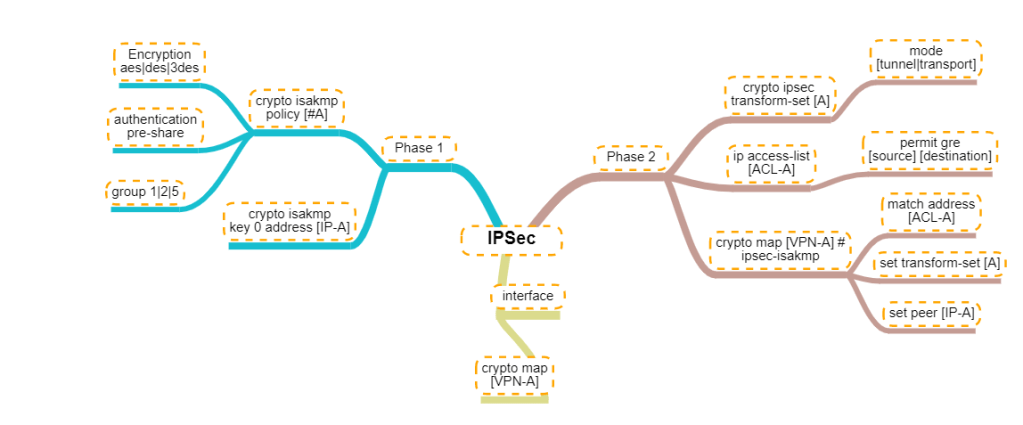
For person who are visual learners, here is a mind map of the configurations below.

Mindmap of the IPSec configuration commands

Recovering from a BitLocker System Lockout after a BIOS Update

We had a user who was not abiding by the rules to store all the company data on the network drives to ensure it is protected and backed up by our systems.

The user’s laptop got a BIOS upgrade and unfortunately the laptop was rebooting requesting Bitlocker password. In our environment, Bitlocker passwords are registered in Active Directory upon activation but for some reason unknown to us, it was not there for this particular laptop.

Our colleague at the site, research a way to overcome this challenge and found the following solution:

  1. Download an Application that will allow you to build a bootable USB drive in DOS 32-bit. E.g. RUFUS
  2. Execute your selected application to build bootable USB drive (You might have to first format USB drive at 32-bit).
  3. Download all BIOS updates for the computer model from the vendor support site. (If you remember the previously installed BIOS version, you can download that version from the site)
  4. Boot up the computer with the bootable USB drive and run each BIOS from the command prompt (At this point, you are trying to find the BIOS version before the update was done, if you already know the version just install it).
  5. After updating the BIOS, reboot the computer to verify if Windows boots up successfully.
  6. If unsuccessful, go back to Step 4 and execute the next BIOS version file.
  1.  

    NOTE: Execute your BIOS from the latest to the oldest.

Securing the Web management for the HP 2530 switch

Whenever you get a HP/Aruba 2530 switch out of the box, it comes default with web management enabled using http. You can easily go to the IP address of the switch to view the switch details. To secure the web portal of the switch, do the following:

  1. Log into the switch
  2. Go into configuration mode
  3. Create a self-signed certificate for secure http access
    1. crypto pki enroll-self-signed certificate-name [SWITCHNAME] subject

    2. Enter each information requested
  4. To enable secure http, use command
    1. web-management ssl

  5. To disable http for web management, use command
    1. no web-management plaintext
  6. To added a login for the web portal, use the command:
    1. password manager user-name [loginname] plaintext [loginpassword]

I hope this was useful.

Fortinet: Publishing a Server access to the Internet via HTTP

This article is providing instructions on how to public a server/device to the internet using http. This article will go through the basic configuration.

After logging into to the Fortinet portal, got to Firewall Objects –> Virtual IP –> Virtual IP, select Create New

create_virtual_ip

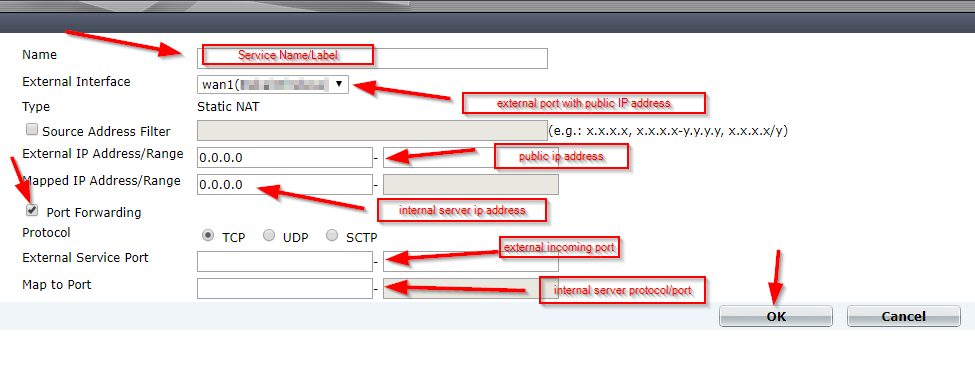
There are number of parameters:

Name: Short description of services e.g. DVR HTTP-80

External Interface: this is the port connected to the internet link with the public IP address.

External IP Address/Range: this use only need if you have more that one IP address configured on the port. If not, you can leave the default 0.0.0.0

Mapped IP Address/Range: Enter the internal server IP address of device. e.g. our DVR 192.168.0.12

Port Forwarding: tick this option if you are using custom ports from the default e.g. external service port is 5000 from the outside connecting to (map to) port 80 on the internal server.

virtual_ip_info

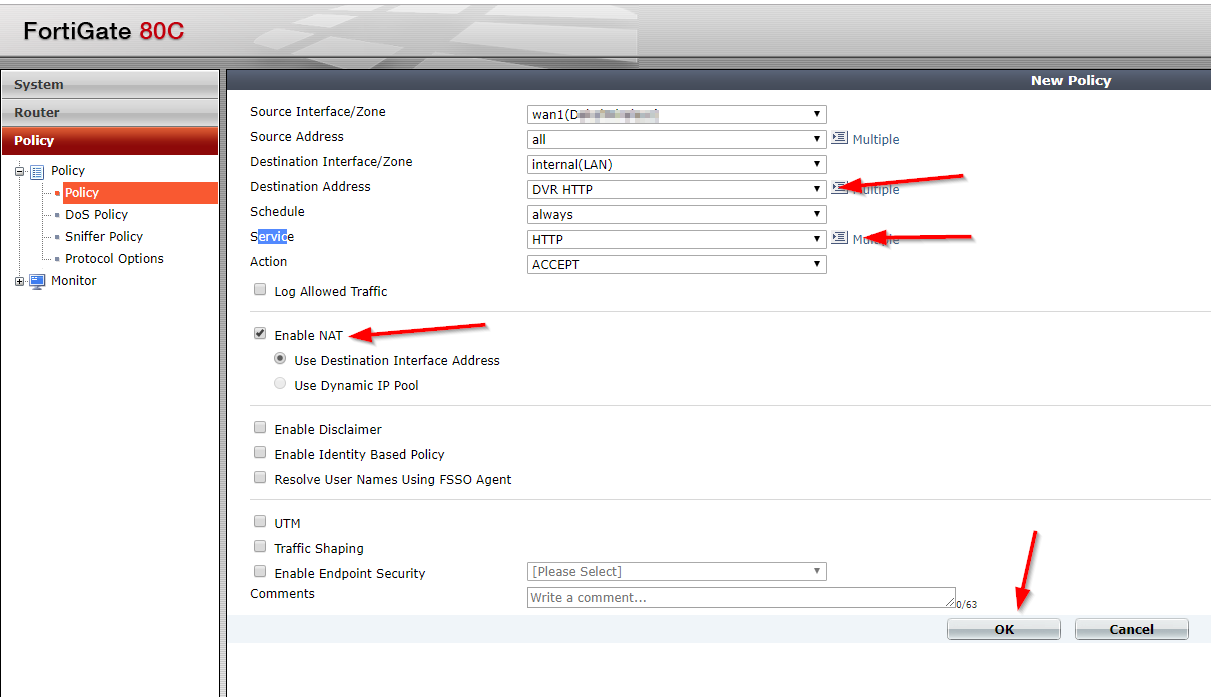
Go to Policy –>Policy –> Create New

create_policy

Select the Source Interface/Zone to external port.

Select destination Address to the Virtual IP created earlier and select Service to HTTP since we are using port 80. If the service is not list add it with the custom ports. Select Enable NAT to allow external IP address to access the internal device through the fortinet.

policy_settings

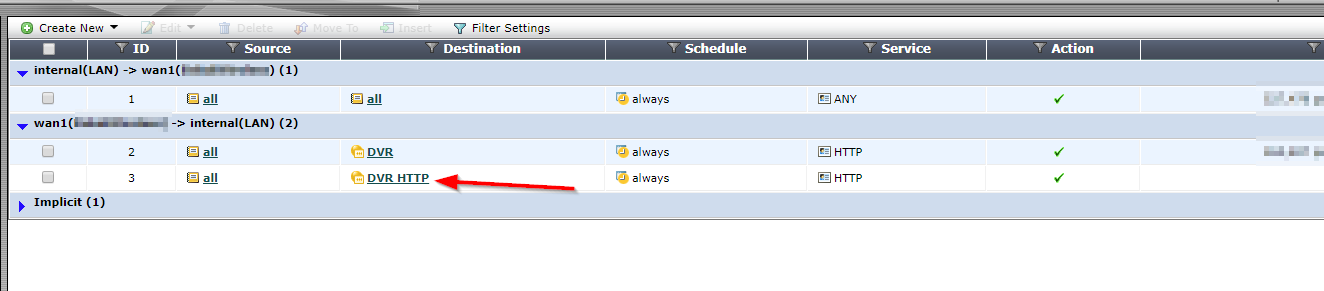
Once save by clicking ok, it will be listed under the external port source port column in the Policy section.

policy_listed

Microsoft Powershell – Install and Configure AD Certificate Services (Windows Server 2016)

This article will demonstrate how to install and configure the Active Directory Certificate Services (AD CS) and the Certification Authority (CA) using both the Server Manager and corresponding Powershell cmdlet.

Using Powershell method

Check if the Active Directory Certificate Service is installed

Get-WindowsFeature AD-Certificate


To install the Certification Authority features, run the following cmdlet:

Install-WindowsFeature ADCS-Cert-Authority -IncludeManagementTools


Configuring the Active Directory Certificate Services with a Standalone Root CA on Host1.

Install-ADcsCertificationAuthority –Credential (Get-Credential) -CAType [StandaloneRootCA]CACommonName“domain-Host1-CA-1”CADistinguishedNameSuffix “DC=domain,DC=com” CryptoProviderName“RSA#Microsoft Software Key Storage Provider” -KeyLength 2048 HashAlgorithmName SHA1 ValidityPeriod Years ValidityPeriodUnits3DatabaseDirectory “C:\windows\system32\certLog”LogDirectory “c:\windows\system32\CertLog”Force

You can select the CA Type by setting the parameter for –CA Type to either StandaloneRootCA, StandaloneSubordinateCA, EnterpriseRootCA or EnterpriseSubordinateCA. For the CA options like the Cryptographic Provider, Hash Algorithm and Key length will have to be known so that it is selected correctly.

Example for the key length, the values can be 512, 1024, 2048, 4096 which has to be typed out.

For Hash Algorithm, the options are: SHA256, SHA384, SHA512, SHA1, MD5, MD4, MD2.

For the Cryptographic Provider, the parameter -CryptoProviderName can be:

  • RSA#Microsoft Software Key Storage Provider
  • ECDSA_P521#Microsoft Software Key Storage Provider
  • ECDSA_P256#Microsoft Software Key Storage Provider
  • ECDSA_P384#Microsoft Software Key Storage Provider
  • DSA#Microsoft Software Key Storage Provider

and any other…


Removing the AD CS and CA feature from the server.

Remove-WindowsFeature ADCS-Cert-Authority


Using the Server Manager


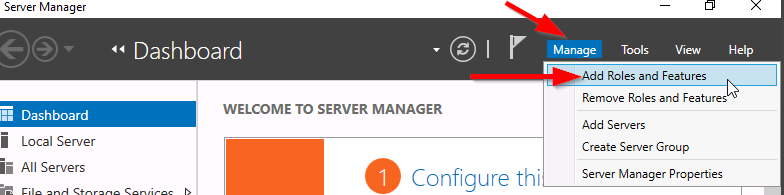
Go to Server Manager–> Manage –> Add Role and Features

servermgr

Select Role-based or feature-based installation

role-based

Select the Server to install it on

server

Tick the Active Directory Certificate Services

adcs_server_role

Tick the Certification Authority

CA_role

The feature will be installed and then you can select Configure Active Directory Certificate Services to setup the CA.

configure_ADCS_CA

Enter the Credential that have permission to configure the CA. Note the following:

For Standalone CA: you need local administrator rights

For Enterprise CA: you need Enterprise Admin rights

ca_credential

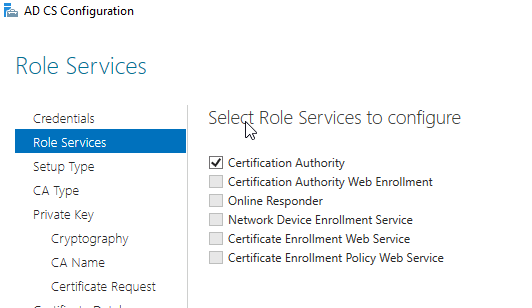
Select  role services: Certification Authority (CA)

configure_CA

select Standalone CA. Once you know how to configure Standalone CA then you can easily configure Enterprise CA.

select_StandaloneCA

Select Root CA (this is the first CA)

select_RootCA

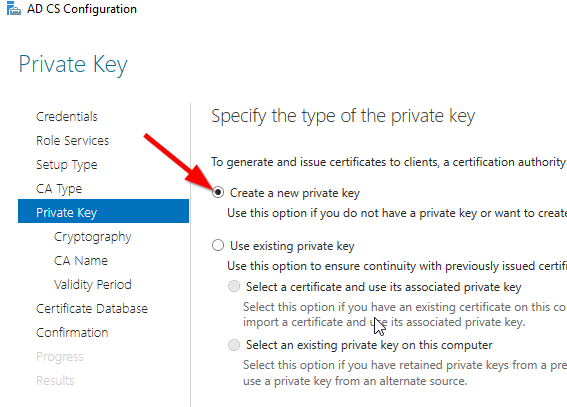
Select Create a new private key.

create_key

Select your preferred cryptographic provider, key length and hash algorithm

crypto_options

The Common Name and distinguished name suffix will be generated but you can enter your own name.

CA_CommonName

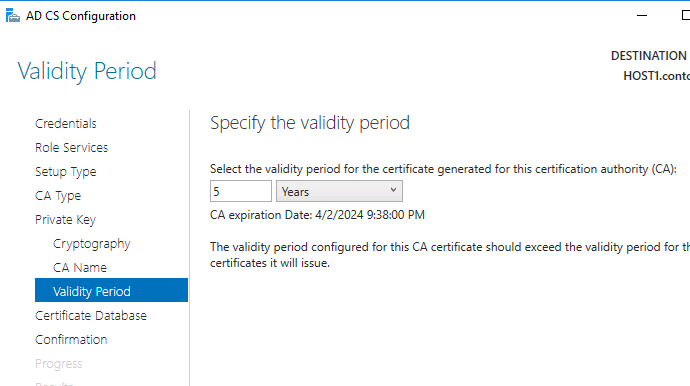
Select the validity period for the Certificate generated.

CA_Period

You can change certificate database and log path or let it remain at the default path

CA_DB-log

Confirm configuration settings of CA.

CA_result_page

Once the CA installation is complete, you can go to Server Manager –> Tools –> Certification Authority to view CA server in the MMC.


Computer blocked by Port Security

My colleague was working on an issue where a computer was communicating on the network through a Cisco switch that had port security enabled. As usually, he disables port security and re-enables it in an attempt to get the new mac address registered on the port. The computer (A) was now able to get an IP address from the DHCP server but unfortunately, the computer (A) still was not able to communicate with the server. In an effort to identify whether the problem was with computer (A) or the network port, another computer (B) was connected to the port which was successful. But when computer (A) was reconnected to the same port, there was still no communication. All network settings on Computer (A) were verified to be correct but still no break through. The same computer (A) was taken to another switch in another location and surprisingly it worked. So hhhmmm….what could be the problem? It was escalated to me to investigate further as he could not identify what was the root of the problem.

I started to ask the question “What is working?”

The responses were:

  1. Other devices were communicating when connected to the port
  2. The computer (A) is getting an IP address from the DHCP server
  3. The computer (A) is able to communicate on other switches

Next question, did they try the computer (A) on another port on the same switch? Response was No.

Anyways, everything was connected back to how it was before and then I started the troubleshooting.

The following observations were made:

  1. Port-security was enabled on the entire switch but disabled on this troubled port.
  2. The port duplex and speed was ok (Full/100)
  3. The computer (A) got an dynamic IP address from the DHCP server
  4. The computer (A) mac address was not showing on the port when I check the MAC address table for the problem port (f0/42)
  5. Port security sticky address listing showed that computer (A) mac address was tied to port f0/22

What do you think the root of the problem is?

The computer (A) is not able to communicate with anything on the network because the mac address of the computer (A) was tied to another port so when devices response to the packet, it is returning to the wrong port. so the solution was to remove the sticky address and allow the switch to relearn it over the new connected port (f0/42). Another question resonate in my mind was “How did it get an IP address from the DHCP server?”. But if you review how devices acquire an IP address, it is using broadcast. Therefore, the computer will always get an IP address but it would not be able to communicate with other devices.

I hope this troubleshooting scenario helps someone with understanding port-security on a Cisco switch.

CIA – Confidentiality, Integrity and Availability

Confidentiality – is the method of ensuring that only authorized persons are able to view the company data.

Integrity – is the method of ensuring that only authorized persons are allowed to modify the company data.

Availability – is the method of ensuring that the authorized persons are able to access the company data when it is need.

Almost caught by Spam

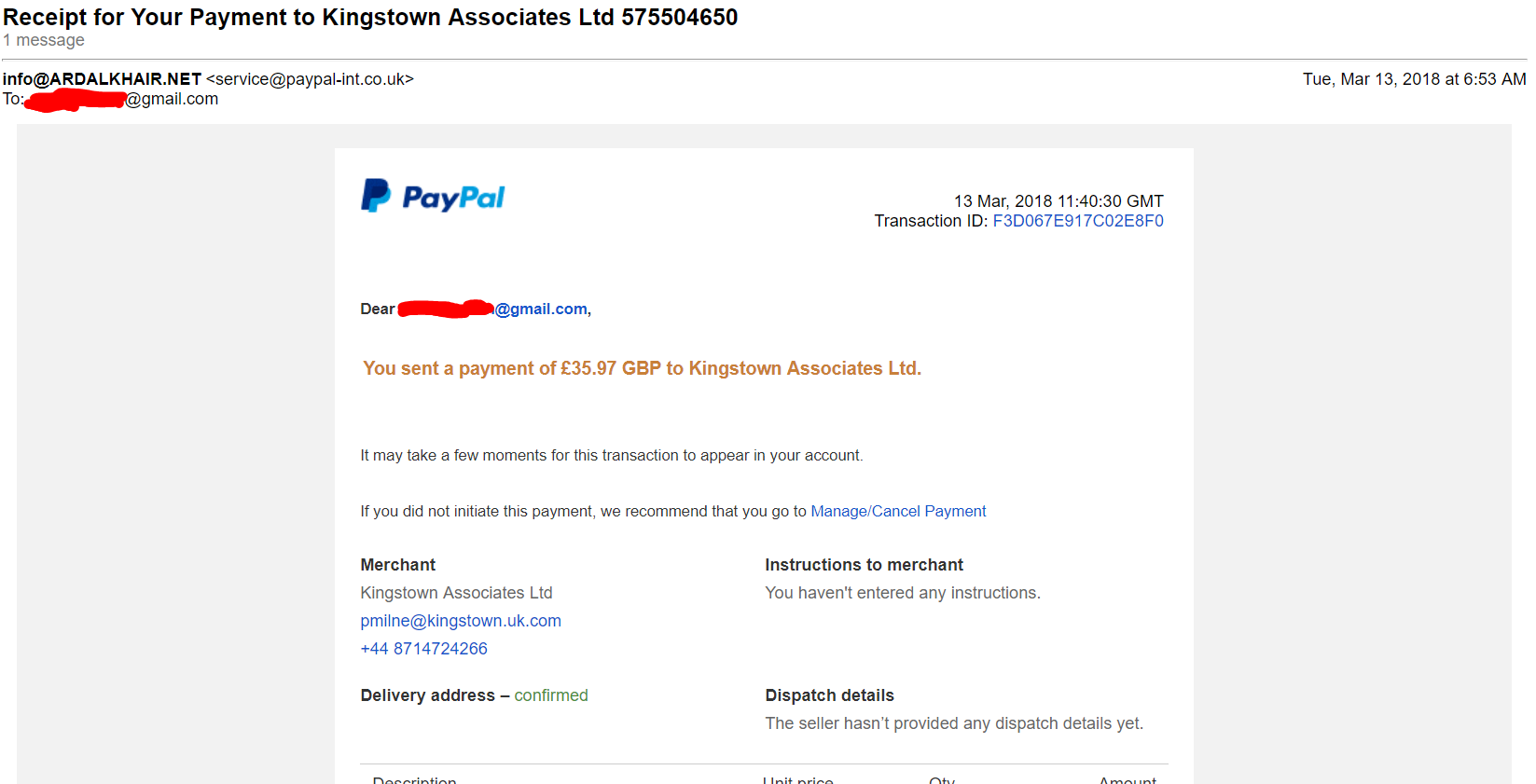
I had receive the following spam email which seems to come from Paypal:

Spam_email_paypalMarch132018_edit

At first glance, it looks very legitimate but after close inspection, it was discovered to be a spam. This provides the opportunity to highlight some indications that the email received is a spam and how to mitigate against it.

  • Check the email address that it is coming from. Not the one that is displayed at first glance but when it is opened, the email address that is between these symbols <>. In the example above, it says it is coming from service@paypal-int.co.uk. (Paypal correct address is service@intl.paypal.com).


  • Check where the link that you are asked to click on is point to by just hovering the mouse pointer over the hyperlink and look at the bottom of the browser. The spam email said the following:

    If you did not initiate this payment, we recommend that you go to Manage/Cancel Payment

    The Manage/Cancel payment was pointing to an unknown URL and not to the Paypal website so you know that it is a malicious website it is asking you to click on.


  • Usually the greeting will include the email address it is sent to. In this case, I was address by my email address (*****@gmail.com) and not by my full name which the Paypal will have on record.

Now for those who are unsure if this event actually happened that the email is stating. Verify the transaction by logging on directly to your website or portal (not using the email links) in my case Paypal.com and check if any such event has occurred.

I hope this is helpful and don’t be fooled by well crafted spam emails.

Keep safe…Keep secure