Blog

Connecting a Web App Service to a Azure VM privately

This article is about setting a public accessible Web App Service which allowing it to connect privately to a Azure VM within a Virtual network (VNET).

I was given a task to assist our developer to connect a Web App with customized code to interface with a Azure VM hosting an SQL server database and customized web services. The design requirements were as followings:

  • The Web App must be accessible public with no restrictions
  • The Azure VM must be accessible by the Web App Service only
  • The services must use most cost effective Azure resources to accomplish this result.

After reviewing the requirements and accessing what Azure features are available to accomplish the task. The following solution was provided.

  1. The Web App Service must have the supported pricing tier of at least Basic or Standard to use it with VNet.
  2. Configure a Subnet with CIDR notation of /26 which will facilitate the private connection from the Web App.
  3. Configure the VNET Integration to connect the Web App to the subnet created previously for the private communication.
  4. Network Security Group (NSG) can be used to limit who can accept connections from the Web App service in the private subnet.

Microsoft Documentation reference:

https://learn.microsoft.com/en-us/azure/app-service/configure-vnet-integration-enable

changing a hdd FOR A hpe 3PAR STOREVIRTUAL

I have gotten a case to change a failed hard drive in a HPE 3PAR StoreVirtual 7200 storage system.

The process is not as simple as hot-swapping the hard drive which is possible but there are checks that have to be perform before this task is done to maintain the integrity of the data on the storage.

Before I go into the details, let me share how the 3PAR work. It is important to note that this system is different in how it stores data on the disk.

The 3PAR stores data in small chucks called chunklet which is spread across multiple drives using parity.

When the system detects a possible failure, the servicemag start to migrate all the data chunklets to other drives to mitigate against lost of data.

This functionality takes me to the point that before you can replace a hard drive, it is important that you check the status of the servicemag to ensure the migration process is completed before removing the hard drive from the system. This crucial step will ensure data integrity and consistence across the drives.

To check if the migration of data hsa been completed, run the following command:

servicemag status

If the status indicate completed, then you are clear to replace the hard drive. Otherwise, you will have to wait for the process to complete which can be hours or days. The waiting period is dependent on the amount of data stored on the disk.

After the Hard Drive has been replaced, it does not stop there. You have to rerun the command below:

servicemag status

Reference website: d8tadude.com/3par

AZ-104 – Microsoft Azure Administrator : Managing Identities and Governance- Manage Azure Active Directory (Azure AD) objects

This article will show the configuration commands required to complete the objectives on the exam guide for the AZ-104. The article information is updated as I complete the respective tasks.

Manage Azure Active Directory (Azure AD) objects

  • Create users and groups

Azure CLI

# Create user

az ad user create –display-name “Full Name” –user-principal-name “Firstname.lastname@domain.com”

# Create user group

az ad group create –display-name “Group Name” –mail-nickname “GroupName”

PowerShell

# Create user

New-AzADuser -DisplayName “Full Name” -UserPrincipalName “Firstname.lastname@domain.com” -MailNickName “FullName”

#Create Group

New-AzADGroup -DisplayName “Group Name” -MailNickName “Groupname”

  • Create administrative units

Azure CLI

# Comment

az noun verb –name variable

PowerShell

# Create a Administrative Unit

New-AzureADMSAdministrativeUnit -DisplayName “NameOfAdminUnit” -Descrption “DescriptionOfAdminUnit”

# Remove a Administrative Unit

Remove-AzureADMSAdministrativeUnit –

  • Manage user and group properties

Azure CLI

# Comment

az noun verb –name variable

PowerShell

# Comment

Verb-Noun -Parameters variable

  • Perform bulk user updates

Azure CLI

# Comment

az noun verb –name variable

PowerShell

# Comment

Verb-Noun -Parameters variable

  • Manage device settings

Azure CLI

# Comment

az noun verb –name variable

PowerShell

# Comment

Verb-Noun -Parameters variable
  • configure Azure AD join

Azure CLI

# Comment

az noun verb –name variable

PowerShell

# Comment

Verb-Noun -Parameters variable

  • Configure self-services password reset

Azure CLI

# Comment

az noun verb –name variable

PowerShell

# Comment

Verb-Noun -Parameters variable
AZ-104 – Microsoft Azure Administrator : Manage Azure Identities and Governance – Manage Role-based access control (RBAC)

This article will show the configuration commands required to complete the objectives on the exam guide for the AZ-104. The article information is updated as I complete the respective tasks.

Manage Role-based Access Control (RBAC)

  • Create a custom role

Azure CLI

# Comment

az noun verb –name variable

PowerShell

# Comment

Verb-Noun -Parameters variable

  • Provide access to Azure resources by assigning roles at different scopes

Azure CLI

# Assigning role Owner to subscription scope

az role assignment create \

–assignee “rbacuser@domain.com” \

–role “Owner” \

— scope “scope_name_or_id”

#Assign role Contributor to resource level

az role assignment create \

–assignee “user@domain.com” \

–scope “/subscriptions/[subid]/resourceGroups/[rgid]/provider/Microsoft.Compute/virtualMachines/[myVM1” \

–role “Contributor”

#Delete role assignment

az role assignment delete \

–assignee “deleteuser@domain.com” \

–scope “scope_name_or_id” \

–role “Owner”

#view all role assignment

az role assignment list –all

PowerShell

# Assigned Owner role at scope level

New -AzRoleAssignment -SignInName “rbacuser@domain.com” `

-RoleDefinitionName “Owner” -scope “scope_name_or_id”

#Delete role assignment

Remove-RoleAssignment -SignInName “user@domain.com” `

-Scope “scope_name_or_id” `

-RoleDefinitionName “Reader”

#List all the Role assignment

Get-AzRoleAssignment

  • Interpret access assignments

Azure CLI

# Comment

az noun verb –name variable

PowerShell

# Comment

Verb-Noun -Parameters variable

AZ-104 – Microsoft Azure Administrator : Deploy and manage Azure compute resources – Create and configure Azure App Service

This article will show the configuration commands required to complete the objectives on the exam guide for the AZ-104. The article information is updated as I complete the respective tasks.

Create and configure Azure App Service

Azure CLI

# Replace the following URL with a public GitHub repo URL

gitrepo=https://github.com/Azure-Samples/php-docs-hello-world webappname=mywebapp$RANDOM

# Create a resource group.

az group create –location eastus –name myRG

# Create an App Service plan in `FREE` tier.

az appservice plan create –name $webappname –resource-group myRG –sku FREE

# Create a web app.

az webapp create –name $webappname –resource-group myRG –plan $webappname

# Deploy code from a public GitHub repository.

az webapp deployment source config –name $webappname –resource-group myRG \

–repo-url $gitrepo –branch master –manual-integration

# Copy the result of the following command into a browser to see the web app.

echo http://$webappname.azurewebsites.net

PowerShell

# Replace the following URL with a public GitHub repo URL

$gitrepo=”https://github.com/Azure-Samples/app-service-web-dotnet-get-started.git”

$webappname=”mywebapp$(Get-Random)”

$location=”West Europe”

# Create a resource group.

New-AzResourceGroup -Name myRG -Location $location

# Create an App Service plan in Free tier.

New-AzAppServicePlan -Name $webappname -Location $location -ResourceGroupName myRG `

-Tier Free

# Create a web app.

New-AzWebApp -Name $webappname -Location $location -AppServicePlan $webappname `

-ResourceGroupName myRG

# Configure GitHub deployment from your GitHub repo and deploy once.

$PropertiesObject = @{ repoUrl = “$gitrepo”; branch = “master”; isManualIntegration = “true”; }

Set-AzResource -Properties $PropertiesObject -ResourceGroupName myRG `

-ResourceType Microsoft.Web/sites/sourcecontrols `

-ResourceName $webappname/web -ApiVersion 2015-08-01 -Force

Azure CLI

# Variables

appName=”AppServiceManualScale$random”

location=”WestUS”

# Create a Resource Group

az group create –name myRG –location $location

# Create App Service Plans

az appservice plan create –name AppServiceManualScalePlan –resource-group myRG –location $location –sku B1

# Add a Web App

az webapp create –name $appName –plan AppServiceManualScalePlan –resource-group myRG

# Scale Web App to 2 Workers

az appservice plan update –number-of-workers 2 –name AppServiceManualScalePlan \

–resource-group myRG

PowerShell

# Comment

# Generates a Random Value

$Random=(New-Guid).ToString().Substring(0,8)

# Variables

$RG=”myResourceGroup$random”

$AppName=”AppServiceManualScale$random”

$Location=”WestUS”

# Create a Resource Group

New-AzResourceGroup -Name $RG -Location $Location

# Create an App Service Plan

New-AzAppservicePlan -Name AppServiceManualScalePlan -ResourceGroupName $RG `

-Location $Location -Tier Basic

# Create a Web App in the App Service Plan

New-AzWebApp -Name $AppName -ResourceGroupName $RG -Location $Location `

-AppServicePlan AppServiceManualScalePlan

# Scale Web App to 2 Workers

Set-AzAppServicePlan -NumberofWorkers 2 -Name AppServiceManualScalePlan `

-ResourceGroupName $RG

Azure CLI

# Comment

az noun verb –name variable

PowerShell

# Comment

Verb-Noun -Parameters variable

Azure CLI

# Comment

az noun verb –name variable

PowerShell

# Comment

Verb-Noun -Parameters variable

  • Configure custome domain names

Azure CLI

# Variable

fqdn=<Replace with www.{yourdomain}>

webappname=mywebapp$RANDOM

# Create a resource group.

az group create –location westeurope –name myResourceGroup

# Create an App Service plan in SHARED tier (minimum required by custom domains).

az appservice plan create –name $webappname \

–resource-group myResourceGroup –sku SHARED

# Create a web app.

az webapp create –name $webappname –resource-group myResourceGroup \

–plan $webappname

echo “Configure a CNAME record that maps $fqdn to $webappname.azurewebsites.net” read -p “Press [Enter] key when ready …”

# Before continuing, go to your DNS configuration UI for your custom domain and follow the

# instructions at https://aka.ms/appservicecustomdns to configure a CNAME record for the

# hostname “www” and point it your web app’s default domain name.

# Map your prepared custom domain name to the web app.

az webapp config hostname add –webapp-name $webappname \

–resource-group myResourceGroup \

–hostname $fqdn

echo “You can now browse to http://$fqdn&#8221;

PowerShell

# Variable

$fqdn=”<Replace with your custom domain name>”

$webappname=”mywebapp$(Get-Random)”

$location=”West Europe”

# Create a resource group.

New-AzResourceGroup -Name $webappname -Location $location

# Create an App Service plan in Free tier.

New-AzAppServicePlan -Name $webappname -Location $location `

-ResourceGroupName $webappname -Tier Free

# Create a web app.

New-AzWebApp -Name $webappname -Location $location -AppServicePlan $webappname `

-ResourceGroupName $webappname

Write-Host “Configure a CNAME record that maps $fqdn to $webappname.azurewebsites.net” Read-Host “Press [Enter] key when ready …”

# Before continuing, go to your DNS configuration UI for your custom domain and follow the

# instructions at https://aka.ms/appservicecustomdns to configure a CNAME record for the

# hostname “www” and point it your web app’s default domain name.

# Upgrade App Service plan to Shared tier (minimum required by custom domains)

Set-AzAppServicePlan -Name $webappname -ResourceGroupName $webappname `

-Tier Shared

# Add a custom domain name to the web app.

Set-AzWebApp -Name $webappname -ResourceGroupName $webappname `

-HostNames @($fqdn,”$webappname.azurewebsites.net”)

The offline backup is a full backup each time and not an incremental copy.

Azure CLI

#

groupname=”myResourceGroup”

planname=”myAppServicePlan”

webappname=mywebapp$RANDOM

storagename=mywebappstorage$RANDOM

location=”WestEurope”

container=”appbackup”

backupname=”backup1″

expirydate=$(date -I -d “$(date) + 1 month”)

# Create a Resource Group

az group create –name $groupname –location $location

# Create a Storage Account

az storage account create –name $storagename \

–resource-group $groupname –location $location \

–sku Standard_LRS

# Create a storage container

az storage container create –account-name $storagename –name $container

# Generates an SAS token for the storage container, valid for one month.

# NOTE: You can use the same SAS token to make backups in App Service until –expiry sastoken=$(az storage container generate-sas –account-name $storagename –name $container \ –expiry $expirydate –permissions rwdl –output tsv)

# Construct the SAS URL for the container sasurl=https://$storagename.blob.core.windows.net/$container?$sastoken

# Create an App Service plan in Standard tier. Standard tier allows one backup per day.

az appservice plan create –name $planname –resource-group $groupname –location $location \

–sku S1

# Create a web app

az webapp create –name $webappname –plan $planname –resource-group $groupname

# Create a one-time backup

az webapp config backup create –resource-group $groupname –webapp-name $webappname \

–backup-name $backupname –container-url $sasurl

# List statuses of all backups that are complete or currently executing.

az webapp config backup list –resource-group $groupname –webapp-name $webappname

PowerShell

# Variables

$webappname=”mywebapp$(Get-Random -Minimum 100000 -Maximum 999999)” $storagename=”$($webappname)storage”

$container=”appbackup”

$location=”West Europe”

$backupname=”backup1″

# Create a resource group.

New-AzResourceGroup -Name myResourceGroup -Location $location

# Create a storage account.

$storage = New-AzStorageAccount -ResourceGroupName myResourceGroup `

-Name $storagename -SkuName Standard_LRS -Location $location

# Create a storage container.

New-AzStorageContainer -Name $container -Context $storage.Context

# Generates an SAS token for the storage container, valid for one month.

# NOTE: You can use the same SAS token to make backups in Web Apps until -ExpiryTime

$sasUrl = New-AzStorageContainerSASToken -Name $container -Permission rwdl `

-Context $storage.Context -ExpiryTime (Get-Date).AddMonths(1) -FullUri

# Create an App Service plan in Standard tier. Standard tier allows one backup per day.

New-AzAppServicePlan -ResourceGroupName myResourceGroup -Name $webappname `

-Location $location -Tier Standard

# Create a web app.

New-AzWebApp -ResourceGroupName myResourceGroup -Name $webappname ` -Location $location -AppServicePlan $webappname

# Create a one-time backup

New-AzWebAppBackup -ResourceGroupName myResourceGroup -Name $webappname `

-StorageAccountUrl $sasUrl -BackupName $backupname

# List statuses of all backups that are complete or currently executing.

Get-AzWebAppBackupList -ResourceGroupName myResourceGroup -Name $webappname

  • Configure networking settings

Azure CLI

# Comment

az noun verb –name variable

PowerShell

# Comment

Verb-Noun -Parameters variable

  • Configure deployment settings

Azure CLI

# Comment

az noun verb –name variable

PowerShell

# Comment

Verb-Noun -Parameters variable
AZ-104 – Microsoft Azure Administrator : Deploy and manage Azure Compute resources – Configure VMs

This article will show the configuration commands required to complete the objectives on the exam guide for the AZ-104. The article information is updated as I complete the respective tasks.

Configure VMs

  • Configure Azure Disk Encryption

Azure CLI

# Create a Key Vault

az keyvault create –name myKV –resource-group myRG –location eastus –enabled-for-disk-encryption

# Update Key Vault to allow the storing of disk encryption key

az keyvault update -n myKV -g myRG –enabled-for-disk-encryption

#Encrypt an existing VM disk

az vm encryption enable -n myVM -g myRG –disk-encryption-keyvault myKV –volume-type all

# View the status of Disk encryption

az vm encryption show -n myVM -g myRG

#Decrypt the VM disk

az vm encryption disable -n myVM -g myRG

PowerShell

# Create Azure KeyVault

New-AzKeyVault -VaultName myKV `

-ResourceGroupName myRG `

-Location EastUS `

-EnabledForDiskEncryption

# Change the KeyVault Policy Access

Set-AzKeyVaultAccessPolicy -VaultName myKV -ResourceGroupName myRG `

-EnabledForDiskEncryption

# Encrypt the VM disk

Set-AzVMDiskEncrytpionExtension -VMname myVM -ResourceGroupName myRG `

-VolumeType [All|OS|Data] -DiskEncryptionKeyVaultID myKV.id `

-DiskEncryptionKeyVaultUri myKV.uri -SkipVMBackup

#View the Disk Encryption Status

Get-AzVMDiskEncryptionStatus -VMname myVM -ResourceGroupName myRG

#Decrypt VM disk

Disable-AzVMDiskEncryption -VMname myVM -ResourceGroupName myRG

  • Manage VM sizes

Azure CLI

# Check the VM current size

az vm show –name myVM –resource-group myRG –query hardwareProfile.vmSize

#List the available size to the VM

az vm list-vm-resize-options –resource-group myRG –name myVM

#Resize the VM to the size of choice from the list generate from command

az vm resize –name myVM –resource-group myRG –size Standard_B1s

#Deallocate VM if the size desired is not listed to be made available

az vm deallocate –name myVM –resource-group myRG

az vm stop –name myVM –resource-group myRG

PowerShell

Get-AzVmSize -VMName myVM -ResourceGroupName myRG

$vm = Get-AzVM -VMName myVM -ResourceGroupName myRG

$vm.HardwareProfile.VmSize = “Standard_B1ls”

Update-AzVM -VM $vm -ResourceGroupName myRG

#Deallocate VM

Stop-AzVM -Name myVM -ResourceGroupName myRG

#Only Stop VM but does not deallocate it

Stop-AzVM -Name myVM -ResourceGroupName myRG -StayProvisioned

  • Add Data Disks

Azure CLI

# Create the disk and attached it to the VM in one command

az vm disk attached -g myRG -vm-name myVM –name myDisk –new –size-gb 32 \

–sku Standard_LRS

PowerShell

# Set the data disk configuration

$diskConfig = new-AzDiskConfig -SkuName “Standard_LRS” -Location “EastUS” `

-CreateOption Empty -DiskSizeGB 32

# Create the data disk

$dataDisk1 = new-AzDisk -DiskName myDisk -Disk $diskConfig -ResourceGroupName myRG

# Get the Virtual Machine information

$vm = Get-AzVM -Name myVM -ResourceGroup myRG

# Add the Disk information to VM

$vm = Add-AzVMDataDisk -VM $vm -Name myDisk -CreateOption Attach `

-ManagedDiskId #dataDisk1.Id -Lun 1

#Update the VM with the data disk

Update-AzVM -VM $vm -ResourceGroupName myRG

# The second phase is to intialize the disk within the VM.

  • Redeploy VMs

Azure CLI

# Redeploy a virtual machine

az vm redeploy –name myVM –resource-group myRG

PowerShell

# Redeploy a virtual machine

Set-AzVM -Redeploy -ResourceGroupName “myRG” -Name “myVM”

  • Move Resource to another Resource group

Azure CLI

# Comment

az resource move –destinationresourcegroupname myRG2 –ids myVMid myStorageid

PowerShell

# Move resource to another resource group

$webapp = Get-AzResource -ResourceGroupName myRG -ResourceName mySite

$vm = Get-AzResource -ResourceGroupName myRG -ResourceName myVM

Move-AzResource -DestinationResourceGroupName myRG2 -ResourceId $webapp.ResourceId, $vm.ResourceId

  • Configure Networking

Azure CLI

# Comment

az noun verb –name variable

PowerShell

# Comment

Verb-Noun -Parameters variable

  • Configure High Availability

Azure CLI

# Comment

az noun verb –name variable

PowerShell

# Comment

Verb-Noun -Parameters variable

  • Deploy and configure scale sets

Azure CLI

# Comment

az noun verb –name variable

PowerShell

# Comment

Verb-Noun -Parameters variable

CCNP R&S Switch: Private VLANs

This article describes the Private VLANs on a Cisco switch.

There are three (3) type of Private VLANs:

  1. Primary
  2. Isolated
  3. Community

There are two port types that are associated with Private VLANs:

  • Promiscuous
  • Host

You can configure a host port to be associated with either an Isolated or Community VLAN.

Individual ports in an Isolated VLAN cannot communicate with any other port except the port in the primary VLAN.

All Ports in a Community VLAN can communicated with other ports in the same VLAN and with the port in the Primary VLAN.

Promiscuous port can communicate with all ports in either an Isolated or Community VLAN that it is associated with.

Private VLANs can be replicated to other switches using VTPv3.

Secondary VLANs (Community and Isolated) can only be mapped to one Primary VLAN (Promiscuous).

Cisco reference: https://www.cisco.com/c/en/us/td/docs/switches/lan/catalyst4500/12-2/50sg/configuration/guide/Wrapper-46SG/pvlans.pdf

Method of Changing the SID of a Windows Server 2016 VM

In a virtual environment, there are scenarios where you would want to clone an existing Windows server virtual machine to provide redundancy for whatever application.

Having the ability to create duplicate virtual machines by cloning it is a great feature but it creates a problem in a Windows Active Directory environment. There is a unique identifier called Security ID also known as SID which is created during installation to identify each machine in a Windows environment.

Active Directory has a big problem when it discovers two machines with the same SID because it identify them as the same object. If the computer with the same SID attempts to join the same domain, it will generate an error and terminate the process. No worries, there is a solution for the Windows computer.

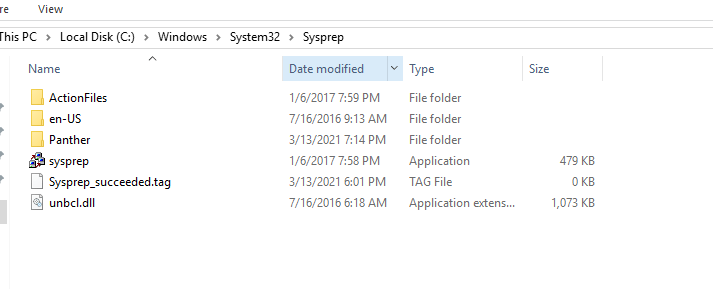
Microsoft has included a tool called Sysprep which is natively installed on Windows server which is located in the folder path:

%systemroot%\System32\Sysprep

To start the process, you will navigate to the folder and follow the steps below:

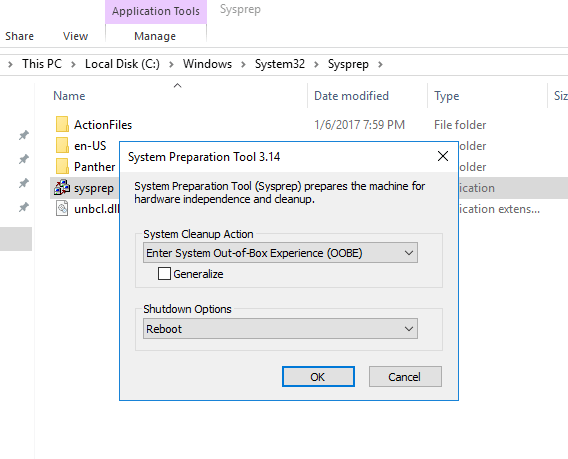
  • Right click and Run the System Preparation Tool (Sysprep.exe) as an administrator
  • Select the option Enter System Out-of-Box Experience (OOBE) for System Cleanup Action with the option Generalize ticked.
  • Select the Shutdown option: Reboot
  • Then select OK.

Once the virtual machine reboots, it will prompt to select the usually Microsoft settings during initialization, accept the EULA and to set the Administrator password.

Note that this method does not remove any installed applications except device drivers. It also removes the usually windows configuration such as IP address and machine name.

The SysPrep will work in other versions of Windows.

reference: https://docs.microsoft.com/en-us/windows-hardware/manufacture/desktop/sysprep–generalize–a-windows-installation

CCNP Route 300-101 – OSPF

This article was written about OSPF as I prepare for the CCNP. It was be updated as I progress.

OSPF is the acronym for Open Shortest Path First which is a vendor mutual routing protocol.

  • Shortest Path First SPF Algorithm for calculating the cost.
  • Default hello timer: 10 seconds
  • Default dead timer: 40 seconds (4 x hello)
  • Multicast address: 224.0.0.5 and 224.0.0.6
  • Communication Protocol:
  • Administrative distance of 110
  • Process ID is local significant and is not required to be the same with the neighbors.
  • The router ID is set using the following method in order:
    • using the router-id command
    • the highest IP address on the active loopback interface
    • The highest IP address on the active physical interface
  • Link State Updates (LSU) send every 30 minutes

OSPF neighbor relationship

OSPF States

Down –> Init –> 2Way –> ExStart –> Exchange –> Loading –> FULL

OSPF Packet Types

Type 1 – Hello

The purpose is to maintain the neighbor relationship using it as a keepalive.

debug ip ospf events of packet type 1debug_hello

Wireshark capture of packet type 1.OSPFType1Hello

Type 2 – Database Description (DBD)

debug ip ospf events of packet type 2debug_DBD.png

Wireshark capture of packet type 2ospftype2-dbdesc

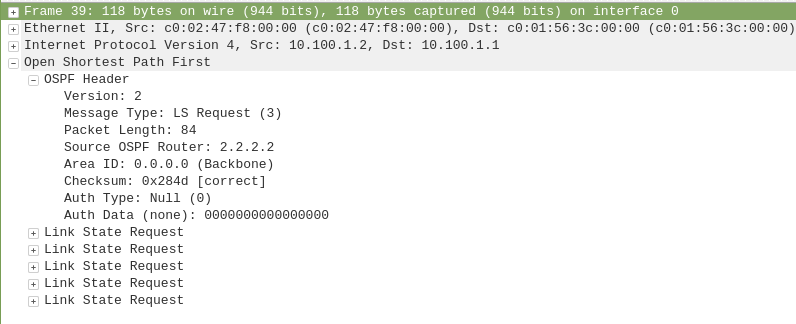
Type 3 – Link State Request (LSR)

debug ip ospf events of packet type 3debug_LSR

Wireshark capture of packet type 3ospf-type3-LSReq

Type 4 – Link State Update (LSU)

debug ip ospf events of packet type 4debug_LSU

Wireshark capture of packet type 4ospf-type4-lsupdate

Type 5 – Link State Acknowledge (LSAck)

debug ip ospf events of packet type 5debug_LSAck

Wireshark capture of packet type 5ospf-type5-lsAck

OSPF Network Types

  • Loopback – Stub Host – /32
  • P2P – Point-to-Point – HDLC
  • Broadcast – FastEthernet – DR/BDR
  • NBMA -Non-Broadcast Multi Access
  • P2MP – Point-to-Multipoint –
  • Virtual Links

OSPF Area and Router Types

ASBR – Autonomous System Border Router

ABR – Area Border Router

Stubby Area

Totally Stubby Area

Not-So Stubby Area

CCNP Encore: Configuring GRE Tunnel over IPSec

This article will be showing how to configure a Generic Encapsulation Tunnel also known as GRE Tunnel over IPSec.

disclaimer: note that this is a lab exercise only to show the configuration steps stated and may require additional modification based on your network environment.

The following network topology will be used to demonstrate this exercise.

Network Topology

The initial basic router configuration are below:

R1 configuration:

interface fastethernet 0/0
ip address 192.0.2.1 255.255.255.252
no shut
!
int loopback 0
ip address 1.1.1.1 255.255.255.255
!
router ospf 1
network 0.0.0.0 0.0.0.0 area 0
!
R2 configuration:

interface fastethernet 0/0

ip address 192.0.2.2 255.255.255.252

no shut

!

interface fastethernet 0/1

ip address 203.0.113.1 255.255.255.252

no shut

!

int loopback 0

ip address 2.2.2.2 255.255.255.255

!

router ospf 1

network 0.0.0.0 0.0.0.0 area 0

!

R3 configuration:

interface fastethernet 0/1

ip address 198.51.100.1 255.255.255.252

no shut

!

interface fastethernet 0/0

ip address 203.0.113.2 255.255.255.252

no shut

!

int loopback 0

ip address 3.3.3.3 255.255.255.255

!

router ospf 1

network 0.0.0.0 0.0.0.0 area 0

!

R4 configuration:

interface fastethernet 0/0

ip address 198.51.100.2 255.255.255.252

no shut

!

int loopback 0

ip address 4.4.4.4 255.255.255.255

!

router ospf 1

network 0.0.0.0 0.0.0.0 area 0

!

Before going into the task, there are some information that is important to know why IPSec is with a GRE Tunnel:

  • GRE Tunnel
    • It is used to encapsulated the packets over a network between two network devices.
    • it does not provide encryption which makes it unsecure
  • IPSec
    • It is secure by providing encryption
    • it only supports uni-cast traffic which presents a problem for routing protocols that uses multicast to function.

What are the use cases for this technology?

Combining both technology makes it a suitable solution to create a secure connections over public or unsecured networks between two networks.

Lab Exercise

Once the routers has been configured accordingly using the initial base configuration, it is time to start the exercise.

In this exercise, two task are going to be done:

  1. Configure a GRE Tunnel between R1 and R4
  2. Configure a IPSec tunnel

Step 1 – Configure the GRE tunnel on R1 and R4

  • Create a tunnel interface

R1(config)# interface tunnel 1

  • Assign an ip address to the tunnel interface

R1(config-if)# ip address 192.168.0.1 255.255.255.252

  • Set the source interface from where the tunnel will be connected

R1(config-if)# tunnel source fastethernet 0/0

  • Set the destination address of the router at the other end of the tunnel

R1(config-if)# tunnel destination 198.51.100.2 255.255.255.252

Note: repeat the same steps on router R4 but replacing the respective source interface and destination address. It is important to note that the tunnel # is locally significant.

you can check the status of the tunnel after step 1 by running the show command as follows:

R1(config)# do show ip interface brief

Step 2 – Configure a IPSec tunnel

  • Setup Phase 1 – set ISAKMP policy

R1(config)# crypto isakmp policy 14

  • Set encryption type

R1(config-isakmp)# encryption aes

  • Set authentication type

R1(config-isakmp)# authentication pre-share

R1(config-isakmp)# group 2

R1(config-isakmp)# exit

  • Set ISAKMP key and transform mode

R1(config)# crypto isakmp key 0 [keypass] address [192.51.100.2]

R1(config)# crypto ipsec transform-set [KWTRAIN] esp-aes esp-sha-hmac

R1(cfg-crypto-trans)# mode [transport|tunnel]

R1(cfg-crypto-trans)# exit

  • Configure an ACL for the traffic allowed to traverse the IPSec tunnel

R1(config)# ip access-list extended GRE-IN-IPSEC

R1(config-ext-nacl)# permit gre any any

R1(config-ext-nacl)# exit

  • Setup Phase 2 – linking ACL, transform set and peer ip to IPSec tunnel

R1(config)# crypto map VPN 10 ipsec-isakmp

R1(config-crypto-map)# match address GRE-IN-IPSEC

R1(config-crypto-map)# set transform-set KWTRAIN

R1(config-crypto-map)# set peer 198.51.100.2

R1(config-crypto-map)# exit

  • mapping interface to IPSec tunnel

R1(config)# interface f0/0

R1(config-if)# crypto map VPN

R1(config-if)# end

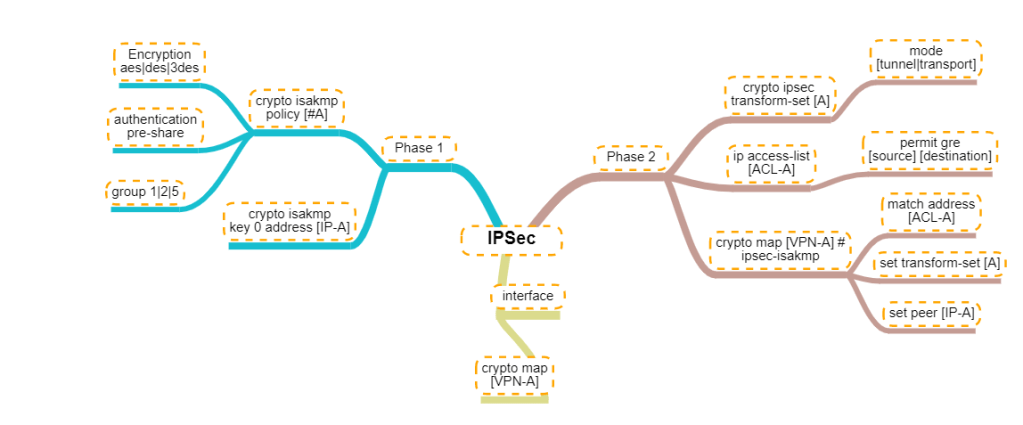
For person who are visual learners, here is a mind map of the configurations below.

Mindmap of the IPSec configuration commands