Manipulating the DHCP Server using Powershell

This article will go through the cmdlet to successfully configure DHCP services on a Windows server using Powershell.

Firstly you can start a Powershell session on the DHCP server using the following command: It will prompt for the credential using the Get-Credential command.

Enter-PSSession -ComputerName [DHCPServerName] -Credential (Get-Credential)

Create an IPv4 DHCP Scope for 10.10.10.0 name Ground Floor with range 10-200 on server DC1.domain.com

Add-DhcpServerv4Scope -StartRange “10.10.10.10” -EndRange “10.10.10.200” -SubnetMask “255.255.255.0”-Name “Ground Floor” LeaseDuration [day.hrs:mins:secs]-ComputerName “DC1.domain.com” -Description “Subnet for Data VLAN on Ground Floor” -State [Active/InActive]

Configure the Scope 10.10.10.0 DHCP server DNS, Domain, Gateway, WINS and wpad settings

Add-DhcpServerv4OptionValue -ScopeId 10.10.10.0 -Router 10.10.10.1 -DnsDomain “domain.com” -DnsServer 10.10.10.250 WinsServer 10.10.10.251 -Wpad http://proxy.domain.com/wpad.dat” -ComputerName “DC1.domain.com”

Note: To configure the options above at the reservation level replace the parameter ReservedIP and for setting it at the server level, exclude both ReservedIP and ScopeId parameters.

Show the DHCP server IPv4 Scope

Get-DhcpServerv4Scope [-ComputerName “DC1.domain.com”] [[-ScopeId] 10.10.10.0]

Change a DHCP Server Scope Settings

Set-DhcpServerv4Scope [-Type [DHCP|Bootp|Both]] [-ScopeId] 10.10.10.0 [-Description Scope for data vlan for 10.10.10.0“] [-LeaseDuration day.hrs:mins:secs] [-Name “Ground Floor”]  [-ComputerName “DC1.domain.com”]  -StartRange 10.10.0.20  -EndRange 10.10.10.200

Remove a DHCP server IPv4 Scope

Remove-DhcpServerv4Scope [-ScopeId] 10.10.10.0 [-Force] [-ComputerName “DC1.domain.com”]


Create a reservation for IP address 10.10.10.100 on DHCP server DC1.domain.com

Add-DhcpServerv4Reservation -ScopeId 10.10.10.0 -IPAddress 10.10.10.100 -ClientId [usually-MAC-address] -ComputerName DC1.domain.com -Description “Reservation for Kiosk PC”

Listing the DHCP Server Scope

Get-DhcpServerv4Scope -ComputerName [DHCPServerName] -ScopeId [IPAddress]

Get the List of DHCP Server Options

Get-DhcpServerv4OptionValue -ScopeId [IPAddress][-All -Brief] -ReservedIP [SpecificIP]

Note: Exclude the ReservedIP parameter to list the values at the scope level and exclude ScopeId parameter to list the values at the server level.

Get the interface and IP address that the DHCP server service is bound

Get-DhcpServerv4Binding -ComputerName “DC1.domain.com”

Set the interface that the DHCP server service will be bound

Set-DhcpServerv4Binding -ComputerName “DC1.domain.com” -BindingState $true -InterfaceAlias “Wired Ethernet Connection”

Set the Boot server Host Name (option id ) for the DHCP server scope of 192.168.0.0 

Set-DhcpServerv4OptionValue -OptionId 3 -Value 192.168.0.1 -ScopeId 192.168.0.0

List the DHCP server IPv4 address lease

Get-DhcpServerv4Lease -ScopeId 10.10.10.0 [-IPAddress 10.10.10.25] [ClientId 00-00-fe-3e-b0-01] [-BadLeases] [-AllLeases] -ComputerName “DC1.domain.com”

Note: Using the IPAddress parameter return lease for specific IP address. Using the ClientId parameter returns only lease for client mac. Using the BadLeases returns only bad leases. Using the AllLeases parameter includes all leases including Offered, Declined and Expired.


Removing a DHCP server IPv4 address lease

Remove-DhcpServerv4Lease -ScopeId 10.10.10.0 [-IPAddress 10.10.10.25] -ClientId [00-54-fe-ed-00] [-BadLeases] [-ComputerName “DC1.domain.com”]

Note: same rule applies as the Get cmdlet for this command.

Get ten (10) Free IP Address from the DHCP server from the scope 10.10.10.0 in the range 10.10.10.50-100

Get-DhcpServerv4FreeIPAddress -ScopeId 10.10.10.0 -NumAddress 10 -StartAddress 10.10.10.50 -EndAddress 10.10.10.100

Add a DHCP Scope of IPv4 Excluded Range

Add-DhcpServerv4ExclusionRange [-ComputerName “DC1.domain.com“] [-ScopeId] 10.10.10.0 [-StartRange] 10.10.10.200 [-EndRange] 10.10.10.250

Show the DHCP Scope of IPv4 Address Excluded Range

Get-DhcpServerv4ExclusionRange [-ComputerName “DC1.domain.com“] [[-ScopeId] 10.10.10.0]

Remove an DHCP Scope of IPv4 Address Excluded Range

Remove-DhcpServerv4ExclusionRange [-ComputerName “DC1.domain.com”] [-ScopeId] 10.10.10.0 [[-StartRange] 10.10.10.200] [[-EndRange] 10.10.10.250]


Retrieves the DHCP server scope statistics which includes Free, In Use, Reserved, Pending and Percentage in use IP address

Get-DhcpServerv4ScopeStatistics [[-ScopeId] 10.10.10.0] [-ComputerName “DC1.domain.com”] [-Failover]

Configuring Domain Controller Cloning

Note: There is an Microsoft Hands-on Lab with code WS00148 that can be used to conduct this exercise. The environment may be required to do additional configuration to execute some of these steps since it is not the main aim and you can ignore the steps in that lab to do your own configuration.

Before cloning a virtual Domain Controller (DC), there are a few requirements that needs to exist in the environment.

The requirements are listed below:

  1. There must exist a DC with the FSMO role PDC Emulator running on atleast Windows Server 2012 which is accessible on the network.
  2. The virtual DC to be clone must be running on a hypervisor that supports the feature VM-GenerationID.
  3. The source virtual DC must be running atleast Windows Server 2012 and is a member of the AD group Cloneable Domain Controllers.
  4. There must be a DC Clone Configuration XML file (namely DCCloneConfig.xml) that holds the settings the clone DC will use to configure itself.

To start the process of cloning a DC, the DC needs to be added to the Cloneable Domain Controllers:

  1. Open Server Manager. server_mgr
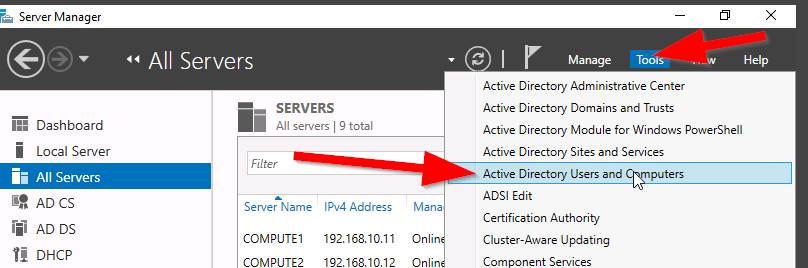
  2. Then, go to the Active Directory Users and Computers (ADUC). aduc
  3. Go to the Organization Unit (OU) Users,
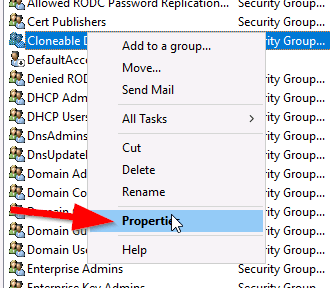
  4. Select the security group “Cloneable Domain Controllers“. cloneable_group
  5. Right click and select Properties. cloneable_properties
  6. Then go to Members Tab and Add the DC here. select member
  7. Save and Close the settings.


Alternately, PowerShell can be used to the previous step, see command:


ADGroupMember -Identity ‘Cloneable Domain Controllers’ -member (Get-ADComputer SRV1)

Next step is to check for excluded Application and generate a file using PowerShell:

Open an PowerShell console and use this command:

This command generates a list of excluded applications that are added to the allowed list and saves it to the C:\Windows\NTDS\.

Get-ADDCCloningExcludedApplicationList -GenerateXml

The next command is used to create the DC Cloning configuration XML file that is used to configure the virtual DC clone that you will import into the desired Hypervisor.

New-ADDCCloningConfigFile -CloneComputerName “DCCloneName” -IPv4Address 10.10.10.10 –IPv4DefaultGateway 10.10.10.1 –IPv4SubnetMask 255.255.255.0 –IPv4DNSResolver 10.10.10.100,10.10.10.102 –Static

Now shutdown the VM DC, export a copy of it and then import it as a copy generating a new VM ID. Once the copied VM is booted, you should see the cloning process initializing at boot up. When the process is completed, it will reboot and the new cloned DC is ready for use.


Reference: https://docs.microsoft.com/en-us/windows-server/identity/ad-ds/introduction-to-active-directory-domain-services-ad-ds-virtualization-level-100

Useful Windows commands

This article was written to share the commands which can be executed on a Windows system to access different tools of the computer. This list will be updated as time goes by.

Open Local Users and Groups

lusrmgr.msc

Local Security Policy

secpol.msc

Local Group Policy Editor

gpedit.msc

Computer Management Tools

compmgmt.msc

Registry Editor

regedit

Disk Management tool

diskmgmt.msc

Execute a Group Policy Result Report

gpresult /H GPReport.html

GPReport.html

Flush the local DNS cache

ipconfig /flushdns

To change the default OU for Domain computer, use the redirect command

redircmp “OU=MyComputer,DC=domain,DC=com”

View the ARP list of MAC address linked to IP address

arp -a


Cert Exam Prep: Exam 70-742: Identity with Windows Server 2016 – Study notes

  1. Install and configure Active Directory Domain Services (AD DS) (20–25%)

Install Active Directory

Know the PowerShell commands:

– Add the binaries

Add-WindowsFeature -name ad-domain-services—lncludeManagementTools -Restart

– Add a new forest

Install-ADDSForest —DomainName ‘corp.contoso.com’

– Add a new domain in an existing forest

Install-ADDSDomain -NewDomainName amer ParentDomainName ‘corp.contoso.com’

– Add a new domain controller in an existing domain

Install-ADDSDomainController —DomainName ‘amer. corp.contoso.com’

– Perform a staged read-only domain controller (RODC) installation

Install-ADDSReadOnlyDomainControl|erAccount –DomainControllerAccountName RODC1 -DomainName amercorp contoso com -SiteName Boston

* Then on RODC1: add the ad-domain-services feature, and domain controller role


Transferring and seizing FSMO roles

Exam Topic – What you should know!

Transfer FSMO Roles

  • Perform this on a domain controller which will be down for maintenance for a period of time, to ensure there is no loss of the fsmo service
  • Move-ADDirectoryServerOperationMasterRo|e -Identity “Target-DC” -OperationMasterRole SchemaMaster,RlDMaster,InfrastructureMaster, DomainNamingMaster,PDCEmulator

Seize FSMO Roles

  • Perform this if a domain controller is down and cannot be recovered, to ensure there is no loss of the FSMO service
  • Move-ADDirectoryServerOperationMasterRole -ldentity “Target-DC’ -OperationMasterRole SchemaMaster,RIDMaster,InfrastructureMaster,DomainNamingMaster,PDCEmulator -Force

FSMO roles can be represented by numbers

  • Move-ADDirectoryServerOperationMasterRole -Identity “Target-DC” -OperationMasterRole 0,1,2,3,4 -Force

– 0: PDC Emulator

– 1: RID Master

– 2: Infrastructure Master

– 3: Schema Master

– 4: Domain Naming Master


Additional common active directory install functions

Install from media

  • Useful when the database is on a domain controller across a slow WAN link
  • Install-ADDSDomainController —DomainName ‘amer.corp.contoso.com” -lnstallationMediaPath C:\ADMedia

Configure a domain controller to not be global catalog server

  • InstalI-ADDSDomainController —DomainName ‘amer.corp.contoso.com” —NoGlobalCatalog

Move the Infrastructure Master FSMO role

  • Needed if the domain controller will be a global catalog server
  • Install-ADDSDomainController —DomainName ‘amer.corp.contoso.com” -MovelnfrastructureMasterRolelfNecessary

Uninstall active directory and demote to a server

  • Uninstall-ADDSDomainController

Time-limited Group Memberships

Users can be added to a security group with time-to-live (TTL)

  • When the TTL expires, the user’s membership in that group disappears

Kerberos token lifetime will be determined by TTL of the user’s memberships

  • TGT (Ticket Generated Ticket) based on shortest group membership
  • ST (Shortest time) based on TGT and resource local domain group membership

Requires new FFL (Force Functional Level)

  • Scavenger thread takes care of cleaning up group memberships


Way to join a computer to the domain

System Control Panel

  • System added to default container unless pre—staged

Windows PowerShell

  • Add-Computer -ComputerName ‘Server1′ -DomainName ‘amer.corp.contoso.com’ -Credential Get-Credential -Restart

  • System added to default container unless pre-staged

Desired State Configuration (DSC)

  • Joins a computer to the domain, and re-joins if it ‘falls out‘ of the domain
  • Uses Start-DscConfiguration cmdlet, and can be set to check compliance every x minutes

Offline domain join

  • Run djoin.exe on a domain controller to pre-stage the object and create provisioning file
  • Run djoin.exe on target computer and point to the provisioning file

Tips

  1. Know the PowerShell commands for installing and managing Active Directory
  2. Active Directory, FSMO Roles, DNS. Group Types and scopes haven’t really changed, but if you haven’t managed them lately, brush up
  3. Desired State Configuration (DSC) can be used to join a server to the domain and rejoin it if necessary


  1. Manage and Maintain AD DS (15-20%)

Configure service authentication

Service Accounts

  • Used to enhance security but the pain point is the password management and SPN mgmt.
  • Two types: Managed Service Accounts and Group Managed Service Accounts

Create/configure Managed Service Accounts

  • Used for a single computer or server
  • New-ADServiceAccount with the —RestrictToSingleComputer parameter
  • Not supported for scheduled tasks, Exchange, SQL

Create/configure Group Managed Service Accounts

  • Used for multiple servers
  • Minimum of one DC that runs at least Windows Server 2012
  • Before you begin, must create KDS Root Key: Add-KDSRootKey -Effectivelmmediately
  • New-ADServiceAccount and Set-ADServiceAccount

Configure Kerberos delegation

  • IIS may require the Trust this computer for delegation to any service (Kerberos only) option

Manage Service Principal Names (SPNs)

  • Use SetSPN <service type>/<instance name>:<port number>/<service name>


Computer blocked by Port Security

My colleague was working on an issue where a computer was communicating on the network through a Cisco switch that had port security enabled. As usually, he disables port security and re-enables it in an attempt to get the new mac address registered on the port. The computer (A) was now able to get an IP address from the DHCP server but unfortunately, the computer (A) still was not able to communicate with the server. In an effort to identify whether the problem was with computer (A) or the network port, another computer (B) was connected to the port which was successful. But when computer (A) was reconnected to the same port, there was still no communication. All network settings on Computer (A) were verified to be correct but still no break through. The same computer (A) was taken to another switch in another location and surprisingly it worked. So hhhmmm….what could be the problem? It was escalated to me to investigate further as he could not identify what was the root of the problem.

I started to ask the question “What is working?”

The responses were:

  1. Other devices were communicating when connected to the port
  2. The computer (A) is getting an IP address from the DHCP server
  3. The computer (A) is able to communicate on other switches

Next question, did they try the computer (A) on another port on the same switch? Response was No.

Anyways, everything was connected back to how it was before and then I started the troubleshooting.

The following observations were made:

  1. Port-security was enabled on the entire switch but disabled on this troubled port.
  2. The port duplex and speed was ok (Full/100)
  3. The computer (A) got an dynamic IP address from the DHCP server
  4. The computer (A) mac address was not showing on the port when I check the MAC address table for the problem port (f0/42)
  5. Port security sticky address listing showed that computer (A) mac address was tied to port f0/22

What do you think the root of the problem is?

The computer (A) is not able to communicate with anything on the network because the mac address of the computer (A) was tied to another port so when devices response to the packet, it is returning to the wrong port. so the solution was to remove the sticky address and allow the switch to relearn it over the new connected port (f0/42). Another question resonate in my mind was “How did it get an IP address from the DHCP server?”. But if you review how devices acquire an IP address, it is using broadcast. Therefore, the computer will always get an IP address but it would not be able to communicate with other devices.

I hope this troubleshooting scenario helps someone with understanding port-security on a Cisco switch.

Useful Windows PowerShell (PS) command

This blog is an opportunity to record all the PS commands I used in my day-to-day management of my environment.

Get-Help [*command*]

The get-help is a useful command used to get details of the command executed.

Get-Command [*command*]

List the A record of the server

Get-DnsServerRecord -Name [Hostname]-RRType [A]

Add an server name with the IP address to the DNS server. This command should be ran from the DNS server remotely or locally.

Add-DnsServerRecordA -Name [HostName] -IPAddress [IP] -ZoneName [domain-name] -AllowUpdate

Shutdown the server

Stop-Computer -ComputerName [Servername] -Force

Restart the server

Restart-Computer -ComputerName [Servername] -Force

Start a remote PowerShell session on server

Enter-PSSession [Servername]

Exit the existing PowerShell remote session

Exit-PSSession

A Similiar command to ping and trace route in Powershell

Test-NetConnection [-traceroute] [destination-name or address]

A command to execute PS commands on a remote host

Invoke-Command -ComputerName -ScriptBlock { [Powershell command goes here] }

List all the services on a computer

Get-Service

List all the Windows share (SMB) session on a computer

Get-SmbSession

Get the AD User information filtered by Name or login

Get-ADUser -Identity [CID] -Filter ‘Name -like “Firstname*”‘

Set the AD User information

Set-ADUser -Identity [CID] -ParameterField “Value”

Unlock User Account

Unlock-ADAccount -Identity [CID]

Disable User Account

Disable-ADAccount Identity [CID]

Enable User Account

Enable-ADAccount Identity [CID]

Reset User Account Password

Set-ADAccountPassword -Identity [CID] -Reset -NewPassword (ConvertTo-SecureString -ASPlainText “MyPassword” -Force)

Set the user account password settings

Set-ADUser -ChangePasswordAtLogon $true -CannotChangePassword $true -AccountExpirationDate “mm/dd/yyyy” -PasswordNeverExpires $true

Search AD for User Account that has expired password

Search-ADAccount -UsersOnly -PasswordExpired | FT SamAccountName, Name, LastLogonDate

Search AD for Locked Out Accounts

Search-ADAccount -UsersOnly -LockedOut | FT SamAccountName, Name, LastLogonDate

Search AD for Expiring Accounts within 60 days

Search-ADAccount -usersonly -AccountExpiring -TimeSpan 60.00:00 | FT SamAccountName,Name,AccountExpirationDate

Search AD for Inactive Accounts

Search-ADAccount -UsersOnly -AccountInactive | FT SamAccountName, Name, LastLogonDate

Search AD for Disabled Accounts

Search-ADAccount -UsersOnly -AccountDisabled | FT SamAccountName, Name

Search AD for Expired Accounts

Search-ADAccount -UsersOnly -AccountExpired | FT SamAccountName, Name, AccountExpirationDate

Search AD for Accounts password set to never expire

Search-ADAccount -UsersOnly -PasswordNeverExpires | FT SamAccountName, Name, AccountExpirationDate,LastLogonDate

Retrieve AD Group Information based on Filter

Get-ADGroup -Filter ‘Name -like “[string]*”‘ -Properties canonicalName | FT canonicalname

Retrieve members for a specific AD Group

Get-ADGroupMember -Identity ‘[groupname]’ | FT SamAccountName, Name

Retrieve the properties of an object

Verb-Object -properties *

Add Members to an AD Group

Add-ADGroupMember -Identity ‘GroupName’ -Members [UserName]

Create an New OU

New-ADOrganizationUnit -Name [OU-Name] -Path “[DC=Domain,DC=com]”

Create a user in the New OU

New-ADUser -Name “Firstname Lastname” -SamAccountName [CID] -Path “OU=,DC=,D=com”

Create a New AD Group

New-ADGroup -Name “GroupName” -SamAccountName [GroupName] -GroupCategory [Security/Distribution] -GroupScope [DomainLocal/Global/Universal] -Path “OU=,DC=domain,DC=com”

Create a managed service account

New-ADServiceAccount -Name [AccountName] -RestrictToSingleComputer

Add-ADComputerServiceAccount -Identity [COMPNAME] -ServiceAccount [AccName]

Test-ADServiceAccount -Identity [AccName]

Get Windows Security event of lockout accounts from PDC

Get-ADDomainController -Filter “OperationMasterRoles -like ‘*PDCEmulator*'” | FT Hostname, OperationMasterRoles, Site, OperatingSystem

Get-WinEvent -ComputerName [PDCEmulaor] -FilterHashtable @{LogName=’Security’;Id=4740} -ErrorAction Stop

Show the Default Domain Password Policy

Get-ADDefaultDomainPasswordPolicy

Change the Default Domain Password Policy

Get-ADDefaultDomainPasswordPolicy | Set-ADDefaultDomainPasswordPolicy -LockoutDuration -LockoutThreshold -MaxPasswordAge -MinPasswordAge -MinPasswordLength -ComplexityEnabled [$true/$false] -PasswordHistoryCount -LockoutObservationWindow


VCP65-DCV – Objective 4.2 – Perform vCenter Server Upgrades (Windows)

The following reference material from the vSphere 6.5 online documentation will assist you in covering the main information that is needed to know the topics in this objective:

  1. GUI Migration of vCenter Server (Embedded PSC)
  2. GUI Migration of vCenter Server (External PSC)
  3. Hardware Requirements for vCenter Server and PSC on Windows
  4. Hardware Requirements for vCenter Server and PSC appliance
  5. Collect Database Upgrade Logs
  6. vCenter Server Log files (Windows)
  7. Distributed vCenter Server 5.5 for Windows Services Relocation

Setting Up iSCSI in VMware ESXi 5.5

To begin this article, let me first discuss what is iSCSI and then the reason for requiring an iSCSI.

I love the definition of iSCSI provided by searchstorage.techtarget.com which stands for Internet Small Computer System Interface, that works on top of the Transport Control Protocol (TCP) and allows the SCSI command to be sent end-to-end over local-area networks (LANs), wide-area networks (WANs) or the Internet.

According to the same site, iSCSI works by transporting block-level data from an iSCSI initiator on a server and a iSCSI target on a storage device. The iSCSI protocol encapsulates SCSI commands and assembles the data in packets for the TCP/IP layer. Packets are sent over the network using a point-to-point connection.

The one of the main reason for using iSCSI connections is that it allows for the utilization of existing network resources such as NICs and network switches to present storage devices to servers once it has the iSCSI initiator software. this result in cost saving and it is is easily configured and it is available for both LAN, WAN and internet which mean easily access if it is relocated to the cloud

Now, let us go to the fun part…configuration of iSCSI in Vmware ESXi 5.5

It is important to note that there are two type of iSCSI initiator/target:

  1. Software
  2. Hardware

In this article, we are only going to go through the configuring of the Software iSCSI initiator from within the VMware Esxi 5.5 hypervisor.

Log into vSphere Web client

Select Host and Clusters

hostandcluster.png

Select the host you want you want to setup the the iSCSI Software adapter on.

Under the Host pane, select the Manage

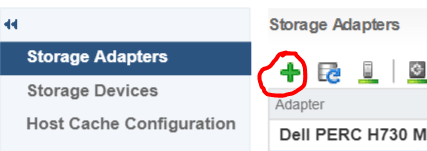
Under Manage, Select Storage then Storage Adapters

ManageStorage_StorageAdapter

Select the Plus button

Storage-menu

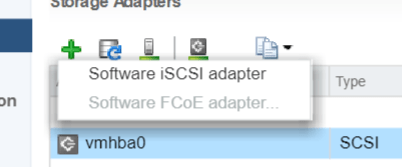
Select Software iSCSI Adapter

software iscsi

Select OK to the following message

software-iscsi-msg-e1503502080853.png

Under Storage Adapters list, look for iSCSI Software Adapter and you will see the iSCSI Software Adapter listed.

software-iscsi-adapter.png

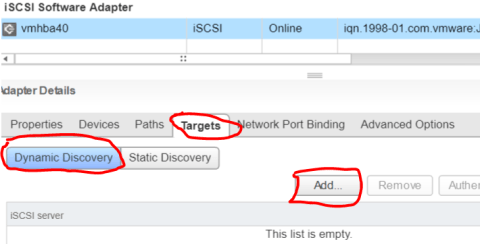
Highlight the adapter vmhbaXX (e.g. vmhba40) and under Adapter Detail, select Target –> Dynamic –> Add

AddDynamicTarget

Note: this allows you to add the primary IP address of the SAN or storage which allows the device LUNs to be discovered.

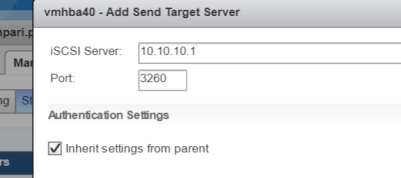
Enter the IP address of the target and leave the default port of 3260 for ISCSI communication. Then Select OK. For every iSCSI target, the IP address should be added.

SendTargetServer