VMware VCP 6.7-DCV – Objective 1.8 – Differentiate between VDS and VSS

The following notes will assist you to prepare for this objective:

  • You will need to know the features set of both type of switch
    • Standard and Distributed switch
    • Select the appropriate switch given a scenario
    • Understand level of effort in administration
  • Don’t let questions mislead you on feature set
    • Standard switches have significant functionality
  • Learn what the standards actually mean
    • IEEE 802.1q / IEEE 802.3ad
  • Also be able to differentiate discovery protocols
    • When would you use LLDP or CDP?
    • Does that affect switch choice?
  • Be able to determine when a feature is appropriate
    • Health check
    • Beacon probing – detect uplink failure
    • Notify switches – switch cache mac address
    • Roll back
    • Traffic shaping
    • NIOC
  • Questions on NIC teaming rules are possible
  • Can you draw out how traffic flows given each load balancing algorithm is used?
    • Route based on originating virtual port
    • Route based on source MAC hash
    • Route based on source IP hash
    • Route based on physical NIC load
    • Explicit failover order

Reference:

vSphere Networking Guide pdf – Chapter 8 – Networking Policies

VMware VCP 6.7-DCV – Objective 1.7 – Describe and identify resource pools and use cases

The following notes will assist you to prepare for this objective:

  • Resource management is an essential skills for passing VCP-DCV
    • What resource are you being asked to control?
    • Different resources have different controls
  • Know the resource pool settings
    • You need to be able to select the right settings for a scenario
    • Proportional share allocation
  • Why use resource pools

Reference:

VMware VCP 6.7-DCV – Objective 1.9 – Describe the purpose of cluster and the features it provides

The following notes will assist you to prepare for this objective:

  • Be aware of additional features of both HA and DRS
    • HA provides option to enable VM fault tolerance
    • HA provides optional VM Component Protection
    • DRS rules control placement (affinity)
    • DRS provides optional DPM
  • Make sure you have read and experimented with admission control
    • Remember this is a gating of VM power on operations
    • What is slot size? Different from %?
  • Ultimately DRS is automating vMotion
    • So what stops vMotion from working?
    • Incompatible CPUs!
  • Ensure you have looked at Enhanced vMotion Compatibility (EVC)
    • Can you explain CPU masking?
    • Can you pick the appropriate use-case from implementation of either?
  • You need to have awareness of vMotion Encryption

Reference:

vSphere Availability Guide pdf – Chapter 2 – Creating and Using vSphere HA Clusters

vSphere Resource Management Guide pdf

  • Chapter 10 – Managing Resource Pools
  • Chapter 11 – Creating a DRS Cluster

vSphere Security Guide pdf – Chapter 6 – Encrypted vSphere vMotion

VMware VCP 6.7-DCV – Objective 1.10 – Describe virtual machine (VM) file structure

The following notes will assist you to prepare for this objective:

  • You need to know the files that make up a VM and what they do
    • VMX, VMDK, VSWP, VMSD, VMSN, etc
  • You need to know their behaviour
    • What gets created if missing?
    • What is naming convention of files?
    • What is the snapshot naming behaviour?
    • Any differences between VMFS5 and VMFS6?
    • How do resources reservation affects files?
  • You should also be familiar with virtual disk types
  • Try in your home lab to create VMs with
    • Thin provisioned disk
    • Thick provisioned disk
    • Eager zero thick provisioned disk
    • Could you convert from one disk type to another? How exactly?
  • Get to a vSphere host command line and look at what gets created
    • Nothin like doing to lock this into your memory!

Reference: vSphere ESXi vCenter-Server 67 Virtual Machine Admin Guide pdf

VMware VCP 6.7-DCV – Objective 1.6 – Describe and differentiate among vSphere, HA, DRS, and SDRS functionality

The following notes will assist you to prepare for this objective:

  • HA has come a long way, don’t rely on legacy knowledge of HA to meet objective
  • Learn the newer features, pre-reqs and limitations of:
    • Proactive HA
    • Orchestrated Restart
    • Fault Tolerance (FT) vSMP
  • HA can’t work around everything
    • For example datastore connectivity loss or unable to satisfy reservation
  • Ensure you can explain the basic modes of DRS
    • Disable, Manual, Partial, Full Automated, per-VM
  • DRS has come a long way
    • Predictive DRS
    • Limitations of vMotion have been overcome
  • What are the vMotion pre-reqs?
    • CPU compatibility
    • Network configuration
    • Compatible virtual hardware
  • What virtual hardware options can and cannot be migrated with DRS?
  • SDRS often gets overlooked
    • Remember it has 2 dimensions to optimization
      • Space utilization & I/O latency
      • What are you being asked in the question?

Reference: 

vSphere Availability Guide pdf

vSphere Resource Guide pdf

Brian Graf Blog – https://www.brianjgraf.com/2016/10/17/vsphere-6-5-vsphere-ha-whats-new-part-3-orchestrated-restart/

VMware VCP 6.7-DCV – Objective 1.3 – Describe storage types for vSphere

The following notes will assist you to prepare for this objective:

  • Ensure you are clear on the differences between
    • Block (LUN/vVOL)
    • File access
    • vSAN
  • Read storage questions slowly and carefully
    • Are you being asked about VMs and their virtual hard disks?
    • Are you being asked about what storage vSphere can address?
  • VMware loves acronyms
    • For this objective, you need to learn lots of them
  • For example
    • Can you differentiate SIOC from VAIO?
    • Do you know if RDM is possible with NFS?
    • Happy with VASA providers?

Reference: vSphere 6.7 Storage Guide

VMware VCP 6.7-DCV – Objective 1.1 – Identify the pre-requisites and components for vSphere Implementation

The following notes will assist you to prepare for this objective:

  • Know your vSphere technologies and what they do and what they don’t
    • HA
    • DRS
    • FT
    • vCenter HA
    • vSAN
  • Don’t let questions mislead you on risks mitigated
    • For example does DRS maintain availability?
  • Learn the vSphere 6.7 resource pre-reqs
    • Minimum CPU & RAM
    • Why do you need the HCL?
  • Think about post-install procedures
    • Logging, scratch, dump collection
    • Authentication
  • Know your way around VAMI
    • Adding syslog, adding NTP, DNS settings

Reference: vSphere ESXi 672 Installation Setup Guide.pdf – Chapter 5

vCenter Server Installation and Setup pdf = Chapter 2

Veeam Replication Job Trouble Ticket # 1

There was an email notification received from the Veeam B&R server stating that one of the VM replication job had failed with the following error:

Error: Failed to open VDDK disk [[Datastore_Name] VM_replica/VM2-000001.vmdk] ( is read-only mode – [false] ) Logon attempt with parameters [VC/ESX: [vCSA_Name];Port: 443;Login: [domain\account_name];VMX Spec: [moref=vm-40195];Snapshot mor: [snapshot-112166];Transports: [nbd];Read Only: [false]] failed because of the following errors: Failed to open disk for write. Failed to download disk. Reconnectable protocol device was closed. Failed to upload disk. Age

The first thing done was to log into the Veeam backup server and open the Veeam Backup & Replication console.   veeam_b_r_console

Under the Home, navigate to the Replicas, search for the VM. Then highlight it and right click and open the properties. It will show all the replica jobs which are snapshots on the replica VM in vSphere.


The two last replica job shows that they were incomplete. This sometimes indicate that there was a problem with the snapshot that was created. Logon to the vSphere web client and check the snapshot manager for the replica VM (the default naming convention is “VMName_replica“). Open the option Snapshots–>Manage Snapshots and you will expand the snapshots until you reach the last two set before “You are here”.

vsphere_snapshot

In the image, you will notice that the snapshot names “Veeam Replica Working Snapshot” which indicate that the snapshot was not completed. To eliminate the job continue failing is to delete all the snapshots with the title “Veeam Replica Working snapshot” and rerun the job from veeam so it can recreate the snapshot. If these snapshot are allowed to remain, the Veeam replica job will continue to fail.

I hope this help to resolve some of the veeam replication job failures.

Setting Up iSCSI in VMware ESXi 5.5

To begin this article, let me first discuss what is iSCSI and then the reason for requiring an iSCSI.

I love the definition of iSCSI provided by searchstorage.techtarget.com which stands for Internet Small Computer System Interface, that works on top of the Transport Control Protocol (TCP) and allows the SCSI command to be sent end-to-end over local-area networks (LANs), wide-area networks (WANs) or the Internet.

According to the same site, iSCSI works by transporting block-level data from an iSCSI initiator on a server and a iSCSI target on a storage device. The iSCSI protocol encapsulates SCSI commands and assembles the data in packets for the TCP/IP layer. Packets are sent over the network using a point-to-point connection.

The one of the main reason for using iSCSI connections is that it allows for the utilization of existing network resources such as NICs and network switches to present storage devices to servers once it has the iSCSI initiator software. this result in cost saving and it is is easily configured and it is available for both LAN, WAN and internet which mean easily access if it is relocated to the cloud

Now, let us go to the fun part…configuration of iSCSI in Vmware ESXi 5.5

It is important to note that there are two type of iSCSI initiator/target:

  1. Software
  2. Hardware

In this article, we are only going to go through the configuring of the Software iSCSI initiator from within the VMware Esxi 5.5 hypervisor.

Log into vSphere Web client

Select Host and Clusters

hostandcluster.png

Select the host you want you want to setup the the iSCSI Software adapter on.

Under the Host pane, select the Manage

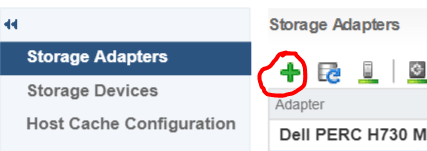
Under Manage, Select Storage then Storage Adapters

ManageStorage_StorageAdapter

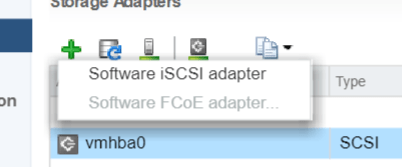
Select the Plus button

Storage-menu

Select Software iSCSI Adapter

software iscsi

Select OK to the following message

software-iscsi-msg-e1503502080853.png

Under Storage Adapters list, look for iSCSI Software Adapter and you will see the iSCSI Software Adapter listed.

software-iscsi-adapter.png

Highlight the adapter vmhbaXX (e.g. vmhba40) and under Adapter Detail, select Target –> Dynamic –> Add
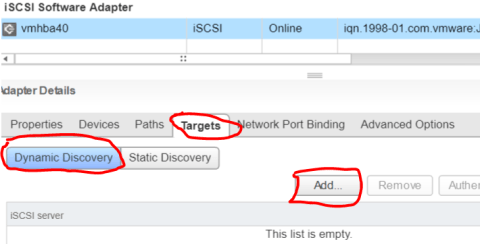
AddDynamicTarget

Note: this allows you to add the primary IP address of the SAN or storage which allows the device LUNs to be discovered.

Enter the IP address of the target and leave the default port of 3260 for ISCSI communication. Then Select OK. For every iSCSI target, the IP address should be added.
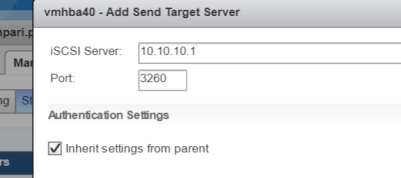
SendTargetServer


Preparing for VCP 6.5 DCV Delta Exam (2V0-622D)

I had prepared and passed my VMware VCP 6.5 DCV Exam (2V0-622D) within 2 months of my VCP certification expiration date in June 2018.

It was a rough and challenging journey but I had overcome all obstacles by using the following techniques. I prepared for my exam doing self study using:

I also created a study plan schedule using the exam guidelines covering each objectives section for one day. For an up to date exam guidelines, please refer to the VMware website.

Exam Topics –  (Sections hyperlinked to my study notes reference material)
Section 1 – Configure and Administer vSphere 6.x Security
Objective 1.1 – Configure and Administer Role-based Access Control
Objective 1.2 – Secure ESXi and vCenter Server
Objective 1.3 –Configure and Enable SSO and Identity Sources
Objective 1.4 – Secure vSphere Virtual Machines
Section 2 – Configure and Administer vSphere 6.x Networking
Objective 2.1 – Configure policies/features and verify vSphere networking
Objective 2.2 – Configure Network I/O control (NIOC)
Section 3 –Configure and Administer vSphere 6.x Storage
Objective 3.1 – Manage vSphere Integration with Physical Storage
Objective 3.2 – Configure Software-Defined Storage
Objective 3.3 – Configure vSphere Storage Multipathing and Failover
Objective 3.4 – Perform VMFS and NFS configurations and upgrades
Objective 3.5 – Set up and Configure Storage I/O Control (SIOC)
Section 4 – Upgrade a vSphere Deployment to 6.x
Objective 4.1 – Perform ESXi Host and Virtual Machine Upgrades
Objective 4.2 – Perform vCenter Server Upgrades (Windows)
Objective 4.3 – Perform vCenter Server migration to VCSA
Section 5 – Administer and Manage vSphere 6.x Resources
Objective 5.1 –Configure Multilevel Resource Pools
Objective 5.2 – Configure vSphere DRS and Storage DRS Clusters
Section 6 – Back up and Recover a vSphere Deployment
Objective 6.1 – Configure and Administer vCenter Appliance Backup/Restore
Objective 6.2 – Configure and Administer vCenter Data Protection
Objective 6.3 – Configure vSphere Replication
Section 7 – Troubleshoot a vSphere Deployment
Objective 7.1 – Troubleshoot vCenter Server and ESXi Hosts
Objective 7.2 – Troubleshoot vSphere Storage and Networking
Objective 7.3 – Troubleshoot vSphere Upgrades and Migrations
Objective 7.4 – Troubleshoot Virtual Machines
Objective 7.5 – Troubleshoot HA and DRS Configurations and Fault Tolerance
Section 8 – Deploy and Customize ESXi Hosts
Objective 8.1 – Configure Auto Deploy for ESXi Hosts
Objective 8.2 – Create and Deploy Host Profiles
Section 9 – Configure and Administer vSphere and vCenter Availability Solutions
Objective 9.1 – Configure vSphere HA Cluster Features
Objective 9.2 – Configure vCenter Server Appliance (VCSA) HA
Section 10 – Administer and Manage vSphere Virtual Machines
Objective 10.1 – Create and Manage vSphere Virtual Machines and Templates
Objective 10.2 – Create and Manage a Content Library
Objective 10.3 – Objective 10.3 is no longer covered in the exam content.
Objective 10.4 – Consolidate Physical Workloads using VMware vCenter Converter

Later, I will add my study notes to assists anyone with the information  gathered while studying. Stay tune.