Improving the Resilence of Azure VM Disk

In Microsoft Azure there are many features available to improve the resilience of your Azure resources. In this article, I am going to focus on the resilience of an Azure VM Disk.

Let me paint a scenario where a Azure VM was created with a disk as LRS (locally redundant storage). The risk with the LRS is the disks are only protected against physical failures within a single datacenter such as server rack or drive failure. However, to increase the resilience of the VM disk against datacenter failures, I recommend that it is configure as ZRS (zone-redundant storage).

To convert a disk from LRS to ZRS, the correct procedure must be followed based on whether the disk is zonal or regional. To check this state, run the following command:

Azure CLI:

az disk show –name [DiskName] –resource-group [RGName]

If the zone parameter is empty, it is an indication that it is regional otherwise it is zonal.

The disk locality will be determine which method is applied to convert the disk from LRS to ZRS. Once verified as regional continue to the next steps to start the process.

For regional disk, it is necessary to only deallocate(shutdown) the Azure VM and then convert the disk using the commands:

Firstly, gather the Azure VM and disk information and create variables to store these values:

$RGName='ResourceGroupName'

$vmDiskName='VMDiskName'

$vmSize='Standard_DS_v2'

$diskSKU='Premium_ZRS'

Get the Parent VM Id (required for sizing of the VM if disk type is changed from Premium to Standard)

$vmId= $(az disk show \

–name$vmDiskName \

–resource-group $RGName \

–query manageBy \

–output tsv)

Stop the Azure VM in preparation for disk conversion

az vm deallocate --ids $vmId

Upgrade the Azure VM size (this step is critical that VM size can support the disk SKU or the disk conversion may fail)

az vm resize –ids $vmId –size $vmSize

Convert the disk from LRS to ZRS:

az disk update –name $vmDiskName –sku $diskSKU –resource-group $RGName

Start up the VM:

az vm start –ids $vmId

If the disk is zonal:

  • a snapshot of the original disk will need to be created.
  • Then a new disk will be created from the snapshot.
  • when the disk is created, a new VM will be provisioned with this new disk atached.

I hope this article assist with the steps to convert a disk from LRS to ZRS.

Reference:

Disk Migration LRS to ZRS

Connecting a Web App Service to a Azure VM privately

This article is about setting a public accessible Web App Service which allowing it to connect privately to a Azure VM within a Virtual network (VNET).

I was given a task to assist our developer to connect a Web App with customized code to interface with a Azure VM hosting an SQL server database and customized web services. The design requirements were as followings:

  • The Web App must be accessible public with no restrictions
  • The Azure VM must be accessible by the Web App Service only
  • The services must use most cost effective Azure resources to accomplish this result.

After reviewing the requirements and accessing what Azure features are available to accomplish the task. The following solution was provided.

  1. The Web App Service must have the supported pricing tier of at least Basic or Standard to use it with VNet.
  2. Configure a Subnet with CIDR notation of /26 which will facilitate the private connection from the Web App.
  3. Configure the VNET Integration to connect the Web App to the subnet created previously for the private communication.
  4. Network Security Group (NSG) can be used to limit who can accept connections from the Web App service in the private subnet.

Microsoft Documentation reference:

https://learn.microsoft.com/en-us/azure/app-service/configure-vnet-integration-enable

AZ-104 – Microsoft Azure Administrator : Managing Identities and Governance- Manage Azure Active Directory (Azure AD) objects

This article will show the configuration commands required to complete the objectives on the exam guide for the AZ-104. The article information is updated as I complete the respective tasks.

Manage Azure Active Directory (Azure AD) objects

  • Create users and groups

Azure CLI

# Create user

az ad user create –display-name “Full Name” –user-principal-name “Firstname.lastname@domain.com”

# Create user group

az ad group create –display-name “Group Name” –mail-nickname “GroupName”

PowerShell

# Create user

New-AzADuser -DisplayName “Full Name” -UserPrincipalName “Firstname.lastname@domain.com” -MailNickName “FullName”

#Create Group

New-AzADGroup -DisplayName “Group Name” -MailNickName “Groupname”

  • Create administrative units

Azure CLI

# Comment

az noun verb –name variable

PowerShell

# Create a Administrative Unit

New-AzureADMSAdministrativeUnit -DisplayName “NameOfAdminUnit” -Descrption “DescriptionOfAdminUnit”

# Remove a Administrative Unit

Remove-AzureADMSAdministrativeUnit –

  • Manage user and group properties

Azure CLI

# Comment

az noun verb –name variable

PowerShell

# Comment

Verb-Noun -Parameters variable

  • Perform bulk user updates

Azure CLI

# Comment

az noun verb –name variable

PowerShell

# Comment

Verb-Noun -Parameters variable

  • Manage device settings

Azure CLI

# Comment

az noun verb –name variable

PowerShell

# Comment

Verb-Noun -Parameters variable
  • configure Azure AD join

Azure CLI

# Comment

az noun verb –name variable

PowerShell

# Comment

Verb-Noun -Parameters variable

  • Configure self-services password reset

Azure CLI

# Comment

az noun verb –name variable

PowerShell

# Comment

Verb-Noun -Parameters variable
AZ-104 – Microsoft Azure Administrator : Manage Azure Identities and Governance – Manage Role-based access control (RBAC)

This article will show the configuration commands required to complete the objectives on the exam guide for the AZ-104. The article information is updated as I complete the respective tasks.

Manage Role-based Access Control (RBAC)

  • Create a custom role

Azure CLI

# Comment

az noun verb –name variable

PowerShell

# Comment

Verb-Noun -Parameters variable

  • Provide access to Azure resources by assigning roles at different scopes

Azure CLI

# Assigning role Owner to subscription scope

az role assignment create \

–assignee “rbacuser@domain.com” \

–role “Owner” \

— scope “scope_name_or_id”

#Assign role Contributor to resource level

az role assignment create \

–assignee “user@domain.com” \

–scope “/subscriptions/[subid]/resourceGroups/[rgid]/provider/Microsoft.Compute/virtualMachines/[myVM1” \

–role “Contributor”

#Delete role assignment

az role assignment delete \

–assignee “deleteuser@domain.com” \

–scope “scope_name_or_id” \

–role “Owner”

#view all role assignment

az role assignment list –all

PowerShell

# Assigned Owner role at scope level

New -AzRoleAssignment -SignInName “rbacuser@domain.com” `

-RoleDefinitionName “Owner” -scope “scope_name_or_id”

#Delete role assignment

Remove-RoleAssignment -SignInName “user@domain.com” `

-Scope “scope_name_or_id” `

-RoleDefinitionName “Reader”

#List all the Role assignment

Get-AzRoleAssignment

  • Interpret access assignments

Azure CLI

# Comment

az noun verb –name variable

PowerShell

# Comment

Verb-Noun -Parameters variable

AZ-104 – Microsoft Azure Administrator : Deploy and manage Azure compute resources – Create and configure Azure App Service

This article will show the configuration commands required to complete the objectives on the exam guide for the AZ-104. The article information is updated as I complete the respective tasks.

Create and configure Azure App Service

Azure CLI

# Replace the following URL with a public GitHub repo URL

gitrepo=https://github.com/Azure-Samples/php-docs-hello-world webappname=mywebapp$RANDOM

# Create a resource group.

az group create –location eastus –name myRG

# Create an App Service plan in `FREE` tier.

az appservice plan create –name $webappname –resource-group myRG –sku FREE

# Create a web app.

az webapp create –name $webappname –resource-group myRG –plan $webappname

# Deploy code from a public GitHub repository.

az webapp deployment source config –name $webappname –resource-group myRG \

–repo-url $gitrepo –branch master –manual-integration

# Copy the result of the following command into a browser to see the web app.

echo http://$webappname.azurewebsites.net

PowerShell

# Replace the following URL with a public GitHub repo URL

$gitrepo=”https://github.com/Azure-Samples/app-service-web-dotnet-get-started.git”

$webappname=”mywebapp$(Get-Random)”

$location=”West Europe”

# Create a resource group.

New-AzResourceGroup -Name myRG -Location $location

# Create an App Service plan in Free tier.

New-AzAppServicePlan -Name $webappname -Location $location -ResourceGroupName myRG `

-Tier Free

# Create a web app.

New-AzWebApp -Name $webappname -Location $location -AppServicePlan $webappname `

-ResourceGroupName myRG

# Configure GitHub deployment from your GitHub repo and deploy once.

$PropertiesObject = @{ repoUrl = “$gitrepo”; branch = “master”; isManualIntegration = “true”; }

Set-AzResource -Properties $PropertiesObject -ResourceGroupName myRG `

-ResourceType Microsoft.Web/sites/sourcecontrols `

-ResourceName $webappname/web -ApiVersion 2015-08-01 -Force

Azure CLI

# Variables

appName=”AppServiceManualScale$random”

location=”WestUS”

# Create a Resource Group

az group create –name myRG –location $location

# Create App Service Plans

az appservice plan create –name AppServiceManualScalePlan –resource-group myRG –location $location –sku B1

# Add a Web App

az webapp create –name $appName –plan AppServiceManualScalePlan –resource-group myRG

# Scale Web App to 2 Workers

az appservice plan update –number-of-workers 2 –name AppServiceManualScalePlan \

–resource-group myRG

PowerShell

# Comment

# Generates a Random Value

$Random=(New-Guid).ToString().Substring(0,8)

# Variables

$RG=”myResourceGroup$random”

$AppName=”AppServiceManualScale$random”

$Location=”WestUS”

# Create a Resource Group

New-AzResourceGroup -Name $RG -Location $Location

# Create an App Service Plan

New-AzAppservicePlan -Name AppServiceManualScalePlan -ResourceGroupName $RG `

-Location $Location -Tier Basic

# Create a Web App in the App Service Plan

New-AzWebApp -Name $AppName -ResourceGroupName $RG -Location $Location `

-AppServicePlan AppServiceManualScalePlan

# Scale Web App to 2 Workers

Set-AzAppServicePlan -NumberofWorkers 2 -Name AppServiceManualScalePlan `

-ResourceGroupName $RG

Azure CLI

# Comment

az noun verb –name variable

PowerShell

# Comment

Verb-Noun -Parameters variable

Azure CLI

# Comment

az noun verb –name variable

PowerShell

# Comment

Verb-Noun -Parameters variable

  • Configure custome domain names

Azure CLI

# Variable

fqdn=<Replace with www.{yourdomain}>

webappname=mywebapp$RANDOM

# Create a resource group.

az group create –location westeurope –name myResourceGroup

# Create an App Service plan in SHARED tier (minimum required by custom domains).

az appservice plan create –name $webappname \

–resource-group myResourceGroup –sku SHARED

# Create a web app.

az webapp create –name $webappname –resource-group myResourceGroup \

–plan $webappname

echo “Configure a CNAME record that maps $fqdn to $webappname.azurewebsites.net” read -p “Press [Enter] key when ready …”

# Before continuing, go to your DNS configuration UI for your custom domain and follow the

# instructions at https://aka.ms/appservicecustomdns to configure a CNAME record for the

# hostname “www” and point it your web app’s default domain name.

# Map your prepared custom domain name to the web app.

az webapp config hostname add –webapp-name $webappname \

–resource-group myResourceGroup \

–hostname $fqdn

echo “You can now browse to http://$fqdn&#8221;

PowerShell

# Variable

$fqdn=”<Replace with your custom domain name>”

$webappname=”mywebapp$(Get-Random)”

$location=”West Europe”

# Create a resource group.

New-AzResourceGroup -Name $webappname -Location $location

# Create an App Service plan in Free tier.

New-AzAppServicePlan -Name $webappname -Location $location `

-ResourceGroupName $webappname -Tier Free

# Create a web app.

New-AzWebApp -Name $webappname -Location $location -AppServicePlan $webappname `

-ResourceGroupName $webappname

Write-Host “Configure a CNAME record that maps $fqdn to $webappname.azurewebsites.net” Read-Host “Press [Enter] key when ready …”

# Before continuing, go to your DNS configuration UI for your custom domain and follow the

# instructions at https://aka.ms/appservicecustomdns to configure a CNAME record for the

# hostname “www” and point it your web app’s default domain name.

# Upgrade App Service plan to Shared tier (minimum required by custom domains)

Set-AzAppServicePlan -Name $webappname -ResourceGroupName $webappname `

-Tier Shared

# Add a custom domain name to the web app.

Set-AzWebApp -Name $webappname -ResourceGroupName $webappname `

-HostNames @($fqdn,”$webappname.azurewebsites.net”)

The offline backup is a full backup each time and not an incremental copy.

Azure CLI

#

groupname=”myResourceGroup”

planname=”myAppServicePlan”

webappname=mywebapp$RANDOM

storagename=mywebappstorage$RANDOM

location=”WestEurope”

container=”appbackup”

backupname=”backup1″

expirydate=$(date -I -d “$(date) + 1 month”)

# Create a Resource Group

az group create –name $groupname –location $location

# Create a Storage Account

az storage account create –name $storagename \

–resource-group $groupname –location $location \

–sku Standard_LRS

# Create a storage container

az storage container create –account-name $storagename –name $container

# Generates an SAS token for the storage container, valid for one month.

# NOTE: You can use the same SAS token to make backups in App Service until –expiry sastoken=$(az storage container generate-sas –account-name $storagename –name $container \ –expiry $expirydate –permissions rwdl –output tsv)

# Construct the SAS URL for the container sasurl=https://$storagename.blob.core.windows.net/$container?$sastoken

# Create an App Service plan in Standard tier. Standard tier allows one backup per day.

az appservice plan create –name $planname –resource-group $groupname –location $location \

–sku S1

# Create a web app

az webapp create –name $webappname –plan $planname –resource-group $groupname

# Create a one-time backup

az webapp config backup create –resource-group $groupname –webapp-name $webappname \

–backup-name $backupname –container-url $sasurl

# List statuses of all backups that are complete or currently executing.

az webapp config backup list –resource-group $groupname –webapp-name $webappname

PowerShell

# Variables

$webappname=”mywebapp$(Get-Random -Minimum 100000 -Maximum 999999)” $storagename=”$($webappname)storage”

$container=”appbackup”

$location=”West Europe”

$backupname=”backup1″

# Create a resource group.

New-AzResourceGroup -Name myResourceGroup -Location $location

# Create a storage account.

$storage = New-AzStorageAccount -ResourceGroupName myResourceGroup `

-Name $storagename -SkuName Standard_LRS -Location $location

# Create a storage container.

New-AzStorageContainer -Name $container -Context $storage.Context

# Generates an SAS token for the storage container, valid for one month.

# NOTE: You can use the same SAS token to make backups in Web Apps until -ExpiryTime

$sasUrl = New-AzStorageContainerSASToken -Name $container -Permission rwdl `

-Context $storage.Context -ExpiryTime (Get-Date).AddMonths(1) -FullUri

# Create an App Service plan in Standard tier. Standard tier allows one backup per day.

New-AzAppServicePlan -ResourceGroupName myResourceGroup -Name $webappname `

-Location $location -Tier Standard

# Create a web app.

New-AzWebApp -ResourceGroupName myResourceGroup -Name $webappname ` -Location $location -AppServicePlan $webappname

# Create a one-time backup

New-AzWebAppBackup -ResourceGroupName myResourceGroup -Name $webappname `

-StorageAccountUrl $sasUrl -BackupName $backupname

# List statuses of all backups that are complete or currently executing.

Get-AzWebAppBackupList -ResourceGroupName myResourceGroup -Name $webappname

  • Configure networking settings

Azure CLI

# Comment

az noun verb –name variable

PowerShell

# Comment

Verb-Noun -Parameters variable

  • Configure deployment settings

Azure CLI

# Comment

az noun verb –name variable

PowerShell

# Comment

Verb-Noun -Parameters variable

AZ-104 – Microsoft Azure Administrator : Deploy and manage Azure Compute resources – Configure VMs

This article will show the configuration commands required to complete the objectives on the exam guide for the AZ-104. The article information is updated as I complete the respective tasks.

Configure VMs

  • Configure Azure Disk Encryption

Azure CLI

# Create a Key Vault

az keyvault create –name myKV –resource-group myRG –location eastus –enabled-for-disk-encryption

# Update Key Vault to allow the storing of disk encryption key

az keyvault update -n myKV -g myRG –enabled-for-disk-encryption

#Encrypt an existing VM disk

az vm encryption enable -n myVM -g myRG –disk-encryption-keyvault myKV –volume-type all

# View the status of Disk encryption

az vm encryption show -n myVM -g myRG

#Decrypt the VM disk

az vm encryption disable -n myVM -g myRG

PowerShell

# Create Azure KeyVault

New-AzKeyVault -VaultName myKV `

-ResourceGroupName myRG `

-Location EastUS `

-EnabledForDiskEncryption

# Change the KeyVault Policy Access

Set-AzKeyVaultAccessPolicy -VaultName myKV -ResourceGroupName myRG `

-EnabledForDiskEncryption

# Encrypt the VM disk

Set-AzVMDiskEncrytpionExtension -VMname myVM -ResourceGroupName myRG `

-VolumeType [All|OS|Data] -DiskEncryptionKeyVaultID myKV.id `

-DiskEncryptionKeyVaultUri myKV.uri -SkipVMBackup

#View the Disk Encryption Status

Get-AzVMDiskEncryptionStatus -VMname myVM -ResourceGroupName myRG

#Decrypt VM disk

Disable-AzVMDiskEncryption -VMname myVM -ResourceGroupName myRG

  • Manage VM sizes

Azure CLI

# Check the VM current size

az vm show –name myVM –resource-group myRG –query hardwareProfile.vmSize

#List the available size to the VM

az vm list-vm-resize-options –resource-group myRG –name myVM

#Resize the VM to the size of choice from the list generate from command

az vm resize –name myVM –resource-group myRG –size Standard_B1s

#Deallocate VM if the size desired is not listed to be made available

az vm deallocate –name myVM –resource-group myRG

az vm stop –name myVM –resource-group myRG

PowerShell

Get-AzVmSize -VMName myVM -ResourceGroupName myRG

$vm = Get-AzVM -VMName myVM -ResourceGroupName myRG

$vm.HardwareProfile.VmSize = “Standard_B1ls”

Update-AzVM -VM $vm -ResourceGroupName myRG

#Deallocate VM

Stop-AzVM -Name myVM -ResourceGroupName myRG

#Only Stop VM but does not deallocate it

Stop-AzVM -Name myVM -ResourceGroupName myRG -StayProvisioned

  • Add Data Disks

Azure CLI

# Create the disk and attached it to the VM in one command

az vm disk attached -g myRG -vm-name myVM –name myDisk –new –size-gb 32 \

–sku Standard_LRS

PowerShell

# Set the data disk configuration

$diskConfig = new-AzDiskConfig -SkuName “Standard_LRS” -Location “EastUS” `

-CreateOption Empty -DiskSizeGB 32

# Create the data disk

$dataDisk1 = new-AzDisk -DiskName myDisk -Disk $diskConfig -ResourceGroupName myRG

# Get the Virtual Machine information

$vm = Get-AzVM -Name myVM -ResourceGroup myRG

# Add the Disk information to VM

$vm = Add-AzVMDataDisk -VM $vm -Name myDisk -CreateOption Attach `

-ManagedDiskId #dataDisk1.Id -Lun 1

#Update the VM with the data disk

Update-AzVM -VM $vm -ResourceGroupName myRG

# The second phase is to intialize the disk within the VM.

  • Redeploy VMs

Azure CLI

# Redeploy a virtual machine

az vm redeploy –name myVM –resource-group myRG

PowerShell

# Redeploy a virtual machine

Set-AzVM -Redeploy -ResourceGroupName “myRG” -Name “myVM”

  • Move Resource to another Resource group

Azure CLI

# Comment

az resource move –destinationresourcegroupname myRG2 –ids myVMid myStorageid

PowerShell

# Move resource to another resource group

$webapp = Get-AzResource -ResourceGroupName myRG -ResourceName mySite

$vm = Get-AzResource -ResourceGroupName myRG -ResourceName myVM

Move-AzResource -DestinationResourceGroupName myRG2 -ResourceId $webapp.ResourceId, $vm.ResourceId

  • Configure Networking

Azure CLI

# Comment

az noun verb –name variable

PowerShell

# Comment

Verb-Noun -Parameters variable

  • Configure High Availability

Azure CLI

# Comment

az noun verb –name variable

PowerShell

# Comment

Verb-Noun -Parameters variable

  • Deploy and configure scale sets

Azure CLI

# Comment

az noun verb –name variable

PowerShell

# Comment

Verb-Noun -Parameters variable

Method of Changing the SID of a Windows Server 2016 VM

In a virtual environment, there are scenarios where you would want to clone an existing Windows server virtual machine to provide redundancy for whatever application.

Having the ability to create duplicate virtual machines by cloning it is a great feature but it creates a problem in a Windows Active Directory environment. There is a unique identifier called Security ID also known as SID which is created during installation to identify each machine in a Windows environment.

Active Directory has a big problem when it discovers two machines with the same SID because it identify them as the same object. If the computer with the same SID attempts to join the same domain, it will generate an error and terminate the process. No worries, there is a solution for the Windows computer.

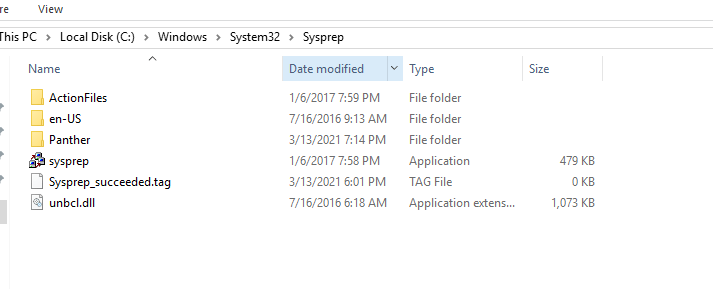
Microsoft has included a tool called Sysprep which is natively installed on Windows server which is located in the folder path:

%systemroot%\System32\Sysprep

To start the process, you will navigate to the folder and follow the steps below:

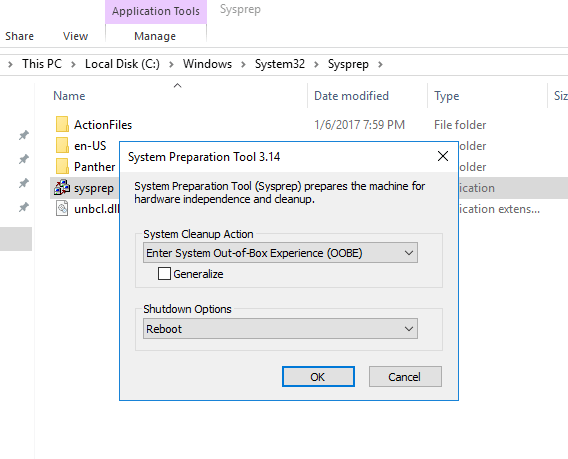
  • Right click and Run the System Preparation Tool (Sysprep.exe) as an administrator
  • Select the option Enter System Out-of-Box Experience (OOBE) for System Cleanup Action with the option Generalize ticked.
  • Select the Shutdown option: Reboot
  • Then select OK.

Once the virtual machine reboots, it will prompt to select the usually Microsoft settings during initialization, accept the EULA and to set the Administrator password.

Note that this method does not remove any installed applications except device drivers. It also removes the usually windows configuration such as IP address and machine name.

The SysPrep will work in other versions of Windows.

reference: https://docs.microsoft.com/en-us/windows-hardware/manufacture/desktop/sysprep–generalize–a-windows-installation

VMware VCP 6.7-DCV – Objective 1.10 – Describe virtual machine (VM) file structure

The following notes will assist you to prepare for this objective:

  • You need to know the files that make up a VM and what they do
    • VMX, VMDK, VSWP, VMSD, VMSN, etc
  • You need to know their behaviour
    • What gets created if missing?
    • What is naming convention of files?
    • What is the snapshot naming behaviour?
    • Any differences between VMFS5 and VMFS6?
    • How do resources reservation affects files?
  • You should also be familiar with virtual disk types
  • Try in your home lab to create VMs with
    • Thin provisioned disk
    • Thick provisioned disk
    • Eager zero thick provisioned disk
    • Could you convert from one disk type to another? How exactly?
  • Get to a vSphere host command line and look at what gets created
    • Nothin like doing to lock this into your memory!

Reference: vSphere ESXi vCenter-Server 67 Virtual Machine Admin Guide pdf

Manipulating VMware vSphere using PowerCLI

I enjoying using powershell so I started to explore the possibility of using it for manipulating vSphere. Low and behold, welcome to PowerCLI with similar syntax as powershell or it can be called powershell in vSphere.

Firstly, before the vCenter server can be manage, a connection is required. To do so, this command can be executed. It can also be used to connect to a single ESXi Host.

Connect-VIServer [vCenterServer or ESXiHost] -Credential(Get-Credential)

I prefer to use the Get-Credential cmdlet because it will prompt me with a windows dialog box requesting the username and password (It is a very useful cmdlet).

Once connected, to get the List of Cluster , VM or Host the following respective commands can be used:

Get-Cluster

Get-VM

Get-VMHost

To get specific details the name of the object can be added to the cmdlet. The pipe (|) can also be used to get details from specific area.

Example to retrieve all the Virtual machines within Cluster A

Get-Cluster ClusterA | Get-VM

To Get all VMs on ESXi Host A

Get-VMHost ESXiA | Get-VM

Putting an ESXi Host A in Maintenance mode

Set-VMHost ESXiA -State Maintenance

Shutting down the ESXi Host A

Stop-VMHost ESXiA-Force

Startup Virtual machine VM1 and VM2

Start-VM VM1,VM2

Exit Maintenance Mode for ESXi Host A

Set-VMHost ESXiA -State Connected

To get more cmdlet from the VMware PowerCLI, use the get-command [*keyword*] to list all commands with the keyword.

I will update this list as time progress.

VCP65-DCV – Objective 7.4 – Troubleshoot Virtual Machines

The following reference material from the vSphere 6.5 online documentation will assist you in covering the main information that is needed to know the topics in this objective:

  1. Overview Performance Charts
  2. Troubleshoot and Enhance Performance
  3. CPU Virtualization Basics
  4. Memory virtualization Basics
  5. Working with Advanced and Custom Charts
  6. Storage Device Panel
  7. know the commands:
    1. esxtop
  8. EVC requirements for Hosts
  9. Change the EVC mode for a Cluster