Disable IE Enhanced Security Configuration in Windows Server via script

I have always want to use a script to disable Internet Explorer Enhanced Security Configuration (IE ESC) in Windows Server. It is an annoying activity when it is required to perform tasked using the IE in older versions of windows servers.

It is important to note that IE ESC is very important to the security of legacy servers from common past vulnerabilities which is not a risk in current versions of server OS.

This activity must be taken with precaution and on servers with access restriction to the Internet. It is encouraged that IT professional implement all measures to secure the legacy application running on these servers that must be maintained in an segmented or isolated environment. It is the responsibility of the IT professional to use a secure alternative browser after this activity has been performed.

Now here is a batch script to the rescue taken from this Microsoft FAQ that can be runned on all your servers. Save the script in a batch file and run it from the command line.

The script must run as an administrator or a logon script to work since it is making changes to the registry.

Note: The script was created for Windows Server 2003 and 2008. However, it will work for other versions such as Windows Server 2019.

ECHO OFF
REM  IEHarden Removal Project
REM  HasVersionInfo: Yes
REM  Author: Axelr
REM  Productname: Remove IE Enhanced Security
REM  Comments: Helps remove the IE Enhanced Security Component of Windows 2003 and 2008(including R2)
REM  IEHarden Removal Project End
ECHO ON
::Related Article
::933991 Standard users cannot turn off the Internet Explorer Enhanced Security feature on a Windows Server 2003-based terminal server
::http://support.microsoft.com/default.aspx?scid=kb;EN-US;933991
:: Rem out if you like to Backup the registry keys
::REG EXPORT "HKEY_LOCAL_MACHINE\SOFTWARE\Microsoft\Active Setup\Installed Components\{A509B1A7-37EF-4b3f-8CFC-4F3A74704073}" "%TEMP%.HKEY_LOCAL_MACHINE.SOFTWARE.Microsoft.Active Setup.Installed Components.A509B1A7-37EF-4b3f-8CFC-4F3A74704073.reg"
::REG EXPORT "HKEY_LOCAL_MACHINE\SOFTWARE\Microsoft\Active Setup\Installed Components\{A509B1A7-37EF-4b3f-8CFC-4F3A74704073}" "%TEMP%.HKEY_LOCAL_MACHINE.SOFTWARE.Microsoft.Active Setup.Installed Components.A509B1A8-37EF-4b3f-8CFC-4F3A74704073.reg"
REG ADD "HKEY_LOCAL_MACHINE\SOFTWARE\Microsoft\Active Setup\Installed Components\{A509B1A7-37EF-4b3f-8CFC-4F3A74704073}" /v "IsInstalled" /t REG_DWORD /d 0 /f
REG ADD "HKEY_LOCAL_MACHINE\SOFTWARE\Microsoft\Active Setup\Installed Components\{A509B1A8-37EF-4b3f-8CFC-4F3A74704073}" /v "IsInstalled" /t REG_DWORD /d 0 /f
::x64
REG ADD "HKEY_LOCAL_MACHINE\SOFTWARE\Wow6432node\Microsoft\Active Setup\Installed Components\{A509B1A8-37EF-4b3f-8CFC-4F3A74704073}" /v "IsInstalled" /t REG_DWORD /d 0 /f
::Disables IE Harden for user if set to 1 which is enabled
REG ADD "HKEY_CURRENT_USER\Software\Microsoft\Windows\CurrentVersion\Internet Settings\ZoneMap" /v "IEHarden" /t REG_DWORD /d 0 /f
REG ADD "HKEY_LOCAL_MACHINE\Software\Microsoft\Windows\CurrentVersion\Internet Settings\ZoneMap" /v "IEHarden" /t REG_DWORD /d 0 /f
REG ADD "HKEY_CURRENT_USER\Software\Wow6432Node\Microsoft\Windows\CurrentVersion\Internet Settings\ZoneMap" /v "IEHarden" /t REG_DWORD /d 0 /f
::Removing line below as it is not needed for Windows 2003 scenarios. You may need to enable it for Windows 2008 scenarios
::Rundll32 iesetup.dll,IEHardenLMSettings
Rundll32 iesetup.dll,IEHardenUser
Rundll32 iesetup.dll,IEHardenAdmin
Rundll32 iesetup.dll,IEHardenMachineNow
::This apply to Windows 2003 Servers
REG DELETE "HKEY_LOCAL_MACHINE\SOFTWARE\Microsoft\Windows\CurrentVersion\Setup\OC Manager\Subcomponents" /v "iehardenadmin" /f /va
REG DELETE "HKEY_LOCAL_MACHINE\SOFTWARE\Microsoft\Windows\CurrentVersion\Setup\OC Manager\Subcomponents" /v "iehardenuser" /f /va
REG ADD "HKEY_LOCAL_MACHINE\SOFTWARE\Microsoft\Windows\CurrentVersion\Setup\OC Manager\Subcomponents" /v "iehardenadmin" /t REG_DWORD /d 0 /f
REG ADD "HKEY_LOCAL_MACHINE\SOFTWARE\Microsoft\Windows\CurrentVersion\Setup\OC Manager\Subcomponents" /v "iehardenuser" /t REG_DWORD /d 0 /f
::REG DELETE "HKEY_LOCAL_MACHINE\SOFTWARE\Microsoft\Active Setup\Installed Components\{A509B1A7-37EF-4b3f-8CFC-4F3A74704073}" /f /va
::REG DELETE "HKEY_LOCAL_MACHINE\SOFTWARE\Microsoft\Active Setup\Installed Components\{A509B1A8-37EF-4b3f-8CFC-4F3A74704073}" /f /va
:: Optional to remove warning on first IE Run and set home page to blank. remove the :: from lines below
:: 32-bit HKCU Keys
REG DELETE "HKEY_CURRENT_USER\Software\Microsoft\Internet Explorer\Main" /v "First Home Page" /f
REG ADD "HKEY_CURRENT_USER\Software\Microsoft\Internet Explorer\Main" /v "Default_Page_URL" /t REG_SZ /d "about:blank" /f
REG ADD "HKEY_CURRENT_USER\Software\Microsoft\Internet Explorer\Main" /v "Start Page" /t REG_SZ /d "about:blank" /f
:: This will disable a warning the user may get regarding Protected Mode being disable for intranet, which is the default.
:: See article http://social.technet.microsoft.com/Forums/lv-LV/winserverTS/thread/34719084-5bdb-4590-9ebf-e190e8784ec7
:: Intranet Protected mode is disable. Warning should not appear and this key will disable the warning
REG ADD "HKEY_CURRENT_USER\Software\Microsoft\Internet Explorer\Main" /v "NoProtectedModeBanner" /t REG_DWORD /d 1 /f
:: Removing Terminal Server Shadowing x86 32bit
REG DELETE "HKEY_LOCAL_MACHINE\SOFTWARE\Microsoft\Windows NT\CurrentVersion\Terminal Server\Install\Software\Microsoft\Windows\CurrentVersion\Internet Settings\ZoneMap" /v "IEHarden" /f
:: Removing Terminal Server Shadowing Wow6432Node
REG DELETE "HKEY_LOCAL_MACHINE\SOFTWARE\Wow6432Node\Microsoft\Windows NT\CurrentVersion\Terminal Server\Install\Software\Microsoft\Windows\CurrentVersion\Internet Settings\ZoneMap" /v "IEHarden" /f

The script may display errors for some commands depending on the versions of Windows servers due the registry keys not used in that versions.

Most importantly, ensure to verify the settings changed for the Internet Explorer ESC.
Method of Changing the SID of a Windows Server 2016 VM

In a virtual environment, there are scenarios where you would want to clone an existing Windows server virtual machine to provide redundancy for whatever application.

Having the ability to create duplicate virtual machines by cloning it is a great feature but it creates a problem in a Windows Active Directory environment. There is a unique identifier called Security ID also known as SID which is created during installation to identify each machine in a Windows environment.

Active Directory has a big problem when it discovers two machines with the same SID because it identify them as the same object. If the computer with the same SID attempts to join the same domain, it will generate an error and terminate the process. No worries, there is a solution for the Windows computer.

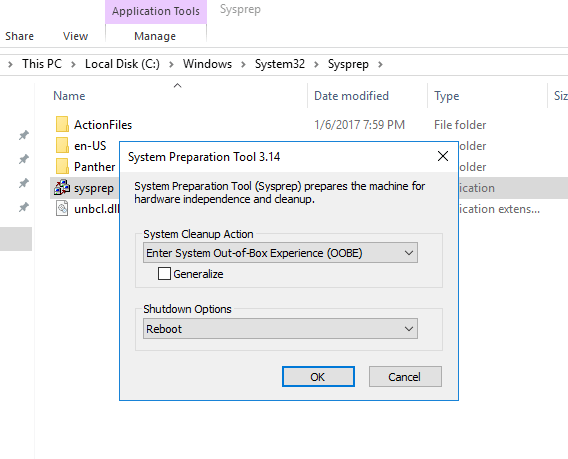
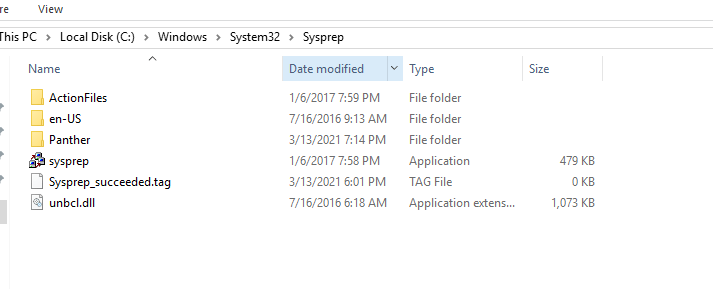
Microsoft has included a tool called Sysprep which is natively installed on Windows server which is located in the folder path:

%systemroot%\System32\Sysprep

To start the process, you will navigate to the folder and follow the steps below:

  • Right click and Run the System Preparation Tool (Sysprep.exe) as an administrator
  • Select the option Enter System Out-of-Box Experience (OOBE) for System Cleanup Action with the option Generalize ticked.
  • Select the Shutdown option: Reboot
  • Then select OK.

Once the virtual machine reboots, it will prompt to select the usually Microsoft settings during initialization, accept the EULA and to set the Administrator password.

Note that this method does not remove any installed applications except device drivers. It also removes the usually windows configuration such as IP address and machine name.

The SysPrep will work in other versions of Windows.

reference: https://docs.microsoft.com/en-us/windows-hardware/manufacture/desktop/sysprep–generalize–a-windows-installation

Microsoft: Enabling Recycle Bin feature in Windows Server 2016 Active Directory Domain Services

There is a new feature available in Active Directory Administrative Center (ADAC) in the Windows Server 2016 that allows you restore deleted AD objects from the Recycle Bin (although it could be activated from Windows server 2008 R2 using Powershell). It allows you to enable it at the Domain or Forest level. The only caveat is once it is enabled, it cannot be disabled. The default lifetime for a deleted object to remain in the AD Recycle Bin is 180 days.

To enable the feature using Powershell:

Enable-ADOptionalFeatureIdentity ‘Recycle Bin Feature’Scope ForestOrConfigurationSetTarget ‘domain.com’Server DC1

To enable the feature in Active Directory Administrative Center:

Go to Server Manager –> Tools –> Active Directory Administrative Center

servermgr_Adac

Highlight the domain or forest on the left pane and then under the Task pane on the right under the domain, select Enable Recycle Bin.

Enable_recycleBin_ADAC

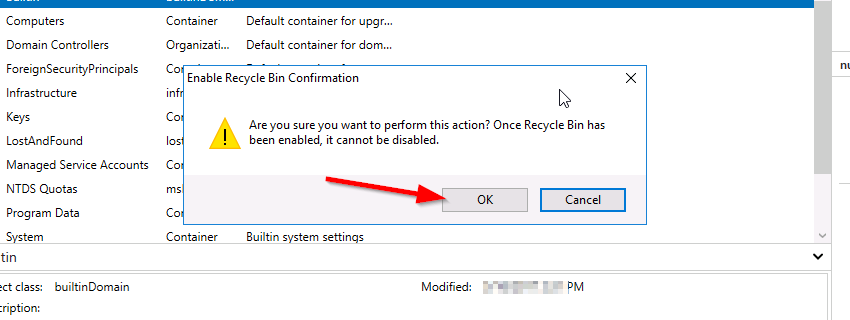
You will get the warning that once it is enabled it cannot be disabled, select Ok.

rc_warn

Fortinet: Publishing a Server access to the Internet via HTTP

This article is providing instructions on how to public a server/device to the internet using http. This article will go through the basic configuration.

After logging into to the Fortinet portal, got to Firewall Objects –> Virtual IP –> Virtual IP, select Create New

create_virtual_ip

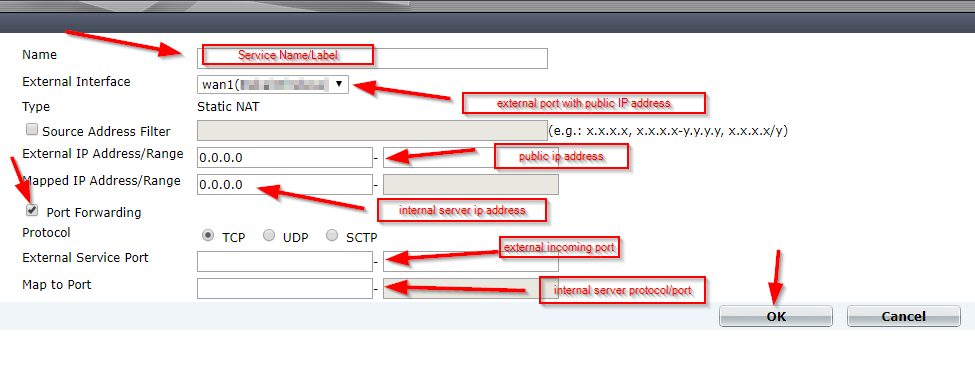
There are number of parameters:

Name: Short description of services e.g. DVR HTTP-80

External Interface: this is the port connected to the internet link with the public IP address.

External IP Address/Range: this use only need if you have more that one IP address configured on the port. If not, you can leave the default 0.0.0.0

Mapped IP Address/Range: Enter the internal server IP address of device. e.g. our DVR 192.168.0.12

Port Forwarding: tick this option if you are using custom ports from the default e.g. external service port is 5000 from the outside connecting to (map to) port 80 on the internal server.

virtual_ip_info

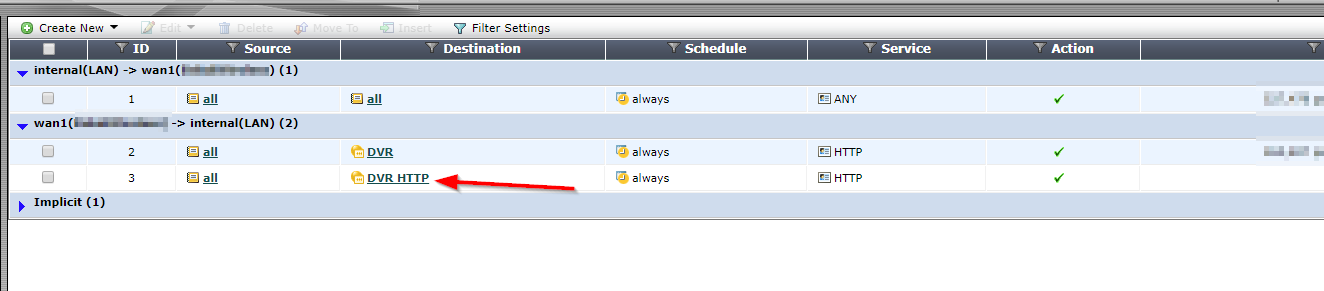
Go to Policy –>Policy –> Create New

create_policy

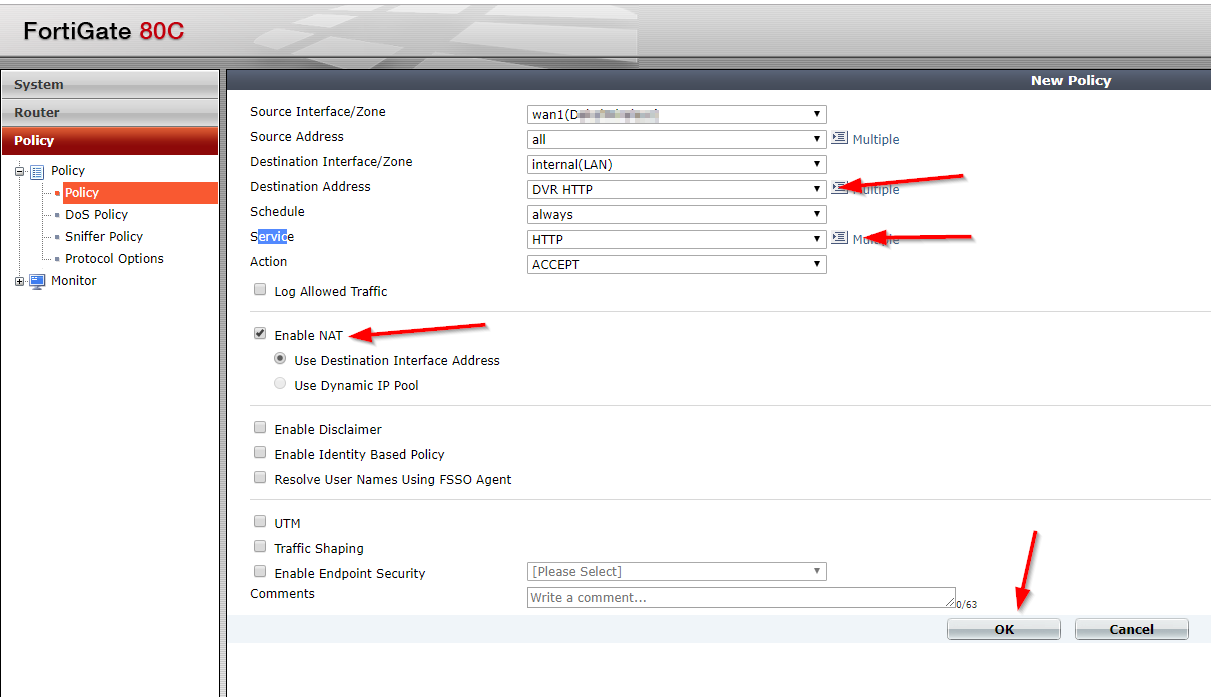
Select the Source Interface/Zone to external port.

Select destination Address to the Virtual IP created earlier and select Service to HTTP since we are using port 80. If the service is not list add it with the custom ports. Select Enable NAT to allow external IP address to access the internal device through the fortinet.

policy_settings

Once save by clicking ok, it will be listed under the external port source port column in the Policy section.

policy_listed

Microsoft Powershell – Install and Configure AD Certificate Services (Windows Server 2016)

This article will demonstrate how to install and configure the Active Directory Certificate Services (AD CS) and the Certification Authority (CA) using both the Server Manager and corresponding Powershell cmdlet.

Using Powershell method

Check if the Active Directory Certificate Service is installed

Get-WindowsFeature AD-Certificate


To install the Certification Authority features, run the following cmdlet:

Install-WindowsFeature ADCS-Cert-Authority -IncludeManagementTools


Configuring the Active Directory Certificate Services with a Standalone Root CA on Host1.

Install-ADcsCertificationAuthority –Credential (Get-Credential) -CAType [StandaloneRootCA]CACommonName“domain-Host1-CA-1”CADistinguishedNameSuffix “DC=domain,DC=com” CryptoProviderName“RSA#Microsoft Software Key Storage Provider” -KeyLength 2048 HashAlgorithmName SHA1 ValidityPeriod Years ValidityPeriodUnits3DatabaseDirectory “C:\windows\system32\certLog”LogDirectory “c:\windows\system32\CertLog”Force

You can select the CA Type by setting the parameter for –CA Type to either StandaloneRootCA, StandaloneSubordinateCA, EnterpriseRootCA or EnterpriseSubordinateCA. For the CA options like the Cryptographic Provider, Hash Algorithm and Key length will have to be known so that it is selected correctly.

Example for the key length, the values can be 512, 1024, 2048, 4096 which has to be typed out.

For Hash Algorithm, the options are: SHA256, SHA384, SHA512, SHA1, MD5, MD4, MD2.

For the Cryptographic Provider, the parameter -CryptoProviderName can be:

  • RSA#Microsoft Software Key Storage Provider
  • ECDSA_P521#Microsoft Software Key Storage Provider
  • ECDSA_P256#Microsoft Software Key Storage Provider
  • ECDSA_P384#Microsoft Software Key Storage Provider
  • DSA#Microsoft Software Key Storage Provider

and any other…


Removing the AD CS and CA feature from the server.

Remove-WindowsFeature ADCS-Cert-Authority


Using the Server Manager


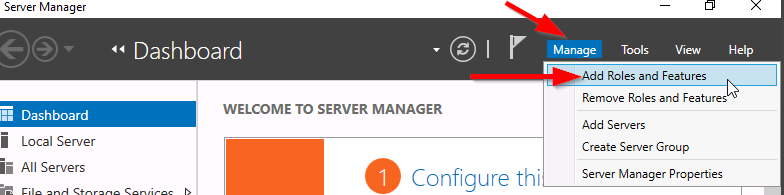
Go to Server Manager–> Manage –> Add Role and Features

servermgr

Select Role-based or feature-based installation

role-based

Select the Server to install it on

server

Tick the Active Directory Certificate Services

adcs_server_role

Tick the Certification Authority

CA_role

The feature will be installed and then you can select Configure Active Directory Certificate Services to setup the CA.

configure_ADCS_CA

Enter the Credential that have permission to configure the CA. Note the following:

For Standalone CA: you need local administrator rights

For Enterprise CA: you need Enterprise Admin rights

ca_credential

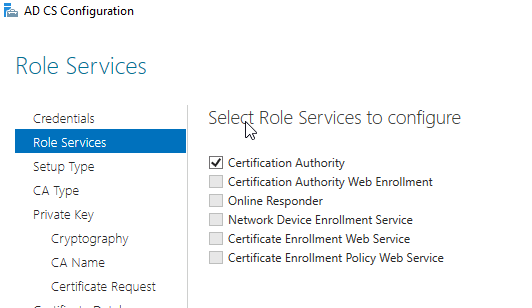
Select  role services: Certification Authority (CA)

configure_CA

select Standalone CA. Once you know how to configure Standalone CA then you can easily configure Enterprise CA.

select_StandaloneCA

Select Root CA (this is the first CA)

select_RootCA

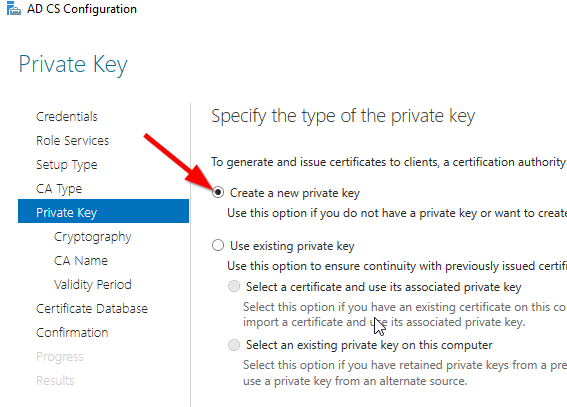
Select Create a new private key.

create_key

Select your preferred cryptographic provider, key length and hash algorithm

crypto_options

The Common Name and distinguished name suffix will be generated but you can enter your own name.

CA_CommonName

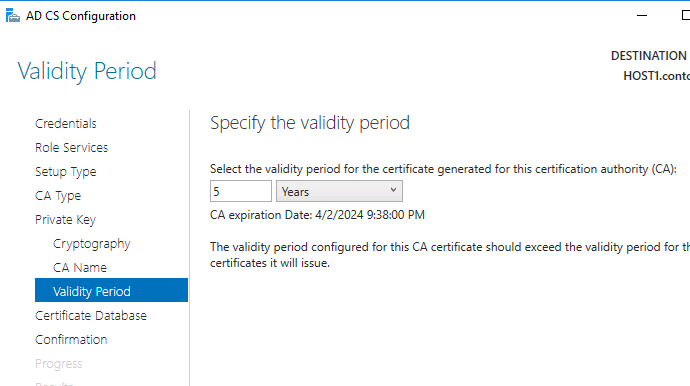
Select the validity period for the Certificate generated.

CA_Period

You can change certificate database and log path or let it remain at the default path

CA_DB-log

Confirm configuration settings of CA.

CA_result_page

Once the CA installation is complete, you can go to Server Manager –> Tools –> Certification Authority to view CA server in the MMC.


Manipulating the DHCP Server using Powershell

This article will go through the cmdlet to successfully configure DHCP services on a Windows server using Powershell.

Firstly you can start a Powershell session on the DHCP server using the following command: It will prompt for the credential using the Get-Credential command.

Enter-PSSession -ComputerName [DHCPServerName] -Credential (Get-Credential)

Create an IPv4 DHCP Scope for 10.10.10.0 name Ground Floor with range 10-200 on server DC1.domain.com

Add-DhcpServerv4Scope -StartRange “10.10.10.10” -EndRange “10.10.10.200” -SubnetMask “255.255.255.0”-Name “Ground Floor” LeaseDuration [day.hrs:mins:secs]-ComputerName “DC1.domain.com” -Description “Subnet for Data VLAN on Ground Floor” -State [Active/InActive]

Configure the Scope 10.10.10.0 DHCP server DNS, Domain, Gateway, WINS and wpad settings

Add-DhcpServerv4OptionValue -ScopeId 10.10.10.0 -Router 10.10.10.1 -DnsDomain “domain.com” -DnsServer 10.10.10.250 WinsServer 10.10.10.251 -Wpad http://proxy.domain.com/wpad.dat” -ComputerName “DC1.domain.com”

Note: To configure the options above at the reservation level replace the parameter ReservedIP and for setting it at the server level, exclude both ReservedIP and ScopeId parameters.

Show the DHCP server IPv4 Scope

Get-DhcpServerv4Scope [-ComputerName “DC1.domain.com”] [[-ScopeId] 10.10.10.0]

Change a DHCP Server Scope Settings

Set-DhcpServerv4Scope [-Type [DHCP|Bootp|Both]] [-ScopeId] 10.10.10.0 [-Description Scope for data vlan for 10.10.10.0“] [-LeaseDuration day.hrs:mins:secs] [-Name “Ground Floor”]  [-ComputerName “DC1.domain.com”]  -StartRange 10.10.0.20  -EndRange 10.10.10.200

Remove a DHCP server IPv4 Scope

Remove-DhcpServerv4Scope [-ScopeId] 10.10.10.0 [-Force] [-ComputerName “DC1.domain.com”]


Create a reservation for IP address 10.10.10.100 on DHCP server DC1.domain.com

Add-DhcpServerv4Reservation -ScopeId 10.10.10.0 -IPAddress 10.10.10.100 -ClientId [usually-MAC-address] -ComputerName DC1.domain.com -Description “Reservation for Kiosk PC”

Listing the DHCP Server Scope

Get-DhcpServerv4Scope -ComputerName [DHCPServerName] -ScopeId [IPAddress]

Get the List of DHCP Server Options

Get-DhcpServerv4OptionValue -ScopeId [IPAddress][-All -Brief] -ReservedIP [SpecificIP]

Note: Exclude the ReservedIP parameter to list the values at the scope level and exclude ScopeId parameter to list the values at the server level.

Get the interface and IP address that the DHCP server service is bound

Get-DhcpServerv4Binding -ComputerName “DC1.domain.com”

Set the interface that the DHCP server service will be bound

Set-DhcpServerv4Binding -ComputerName “DC1.domain.com” -BindingState $true -InterfaceAlias “Wired Ethernet Connection”

Set the Boot server Host Name (option id ) for the DHCP server scope of 192.168.0.0 

Set-DhcpServerv4OptionValue -OptionId 3 -Value 192.168.0.1 -ScopeId 192.168.0.0

List the DHCP server IPv4 address lease

Get-DhcpServerv4Lease -ScopeId 10.10.10.0 [-IPAddress 10.10.10.25] [ClientId 00-00-fe-3e-b0-01] [-BadLeases] [-AllLeases] -ComputerName “DC1.domain.com”

Note: Using the IPAddress parameter return lease for specific IP address. Using the ClientId parameter returns only lease for client mac. Using the BadLeases returns only bad leases. Using the AllLeases parameter includes all leases including Offered, Declined and Expired.


Removing a DHCP server IPv4 address lease

Remove-DhcpServerv4Lease -ScopeId 10.10.10.0 [-IPAddress 10.10.10.25] -ClientId [00-54-fe-ed-00] [-BadLeases] [-ComputerName “DC1.domain.com”]

Note: same rule applies as the Get cmdlet for this command.

Get ten (10) Free IP Address from the DHCP server from the scope 10.10.10.0 in the range 10.10.10.50-100

Get-DhcpServerv4FreeIPAddress -ScopeId 10.10.10.0 -NumAddress 10 -StartAddress 10.10.10.50 -EndAddress 10.10.10.100

Add a DHCP Scope of IPv4 Excluded Range

Add-DhcpServerv4ExclusionRange [-ComputerName “DC1.domain.com“] [-ScopeId] 10.10.10.0 [-StartRange] 10.10.10.200 [-EndRange] 10.10.10.250

Show the DHCP Scope of IPv4 Address Excluded Range

Get-DhcpServerv4ExclusionRange [-ComputerName “DC1.domain.com“] [[-ScopeId] 10.10.10.0]

Remove an DHCP Scope of IPv4 Address Excluded Range

Remove-DhcpServerv4ExclusionRange [-ComputerName “DC1.domain.com”] [-ScopeId] 10.10.10.0 [[-StartRange] 10.10.10.200] [[-EndRange] 10.10.10.250]


Retrieves the DHCP server scope statistics which includes Free, In Use, Reserved, Pending and Percentage in use IP address

Get-DhcpServerv4ScopeStatistics [[-ScopeId] 10.10.10.0] [-ComputerName “DC1.domain.com”] [-Failover]

Using Powershell to manipulate File Server Resource Manager

This article is to share information on how to use PowerShell to manipulate the File Server Resource Manager (FSRM) which is used to do quota management on a file server.

Setting the FSRM Quota for a shared path

Set-FsrmQuota -Path ‘U:\PathOFShare‘ -Description “Soft Limit set on to 10 GB” -Size 10GB [-SoftLimit] [-Threshold (New-FsrmQuotaThreshold -Percentage 85)] [-Disabled]

Set-FsrmQuota

View the File Server Resource Manager (FSRM) information for a shared path

Get-FsrmQuota -PathU:\UserPAthName

Creating a new FSRM Quota Template

new-FsrmQuotaTemplate -Name “Test” -Threshold (New-FsrmQuotaThreshold -Percentage 85) -Description “Test” -Size 10Gb

New-FsrmFileScreen -Path ”U:\PathToShare” [-Active] -Description “Screen Files for videos and music” -IncludeGroup “Audio and Video Files”

Cert Exam Prep: Exam 70-742: Identity with Windows Server 2016 – Study notes

  1. Install and configure Active Directory Domain Services (AD DS) (20–25%)

Install Active Directory

Know the PowerShell commands:

– Add the binaries

Add-WindowsFeature -name ad-domain-services—lncludeManagementTools -Restart

– Add a new forest

Install-ADDSForest —DomainName ‘corp.contoso.com’

– Add a new domain in an existing forest

Install-ADDSDomain -NewDomainName amer ParentDomainName ‘corp.contoso.com’

– Add a new domain controller in an existing domain

Install-ADDSDomainController —DomainName ‘amer. corp.contoso.com’

– Perform a staged read-only domain controller (RODC) installation

Install-ADDSReadOnlyDomainControl|erAccount –DomainControllerAccountName RODC1 -DomainName amercorp contoso com -SiteName Boston

* Then on RODC1: add the ad-domain-services feature, and domain controller role


Transferring and seizing FSMO roles

Exam Topic – What you should know!

Transfer FSMO Roles

  • Perform this on a domain controller which will be down for maintenance for a period of time, to ensure there is no loss of the fsmo service
  • Move-ADDirectoryServerOperationMasterRo|e -Identity “Target-DC” -OperationMasterRole SchemaMaster,RlDMaster,InfrastructureMaster, DomainNamingMaster,PDCEmulator

Seize FSMO Roles

  • Perform this if a domain controller is down and cannot be recovered, to ensure there is no loss of the FSMO service
  • Move-ADDirectoryServerOperationMasterRole -ldentity “Target-DC’ -OperationMasterRole SchemaMaster,RIDMaster,InfrastructureMaster,DomainNamingMaster,PDCEmulator -Force

FSMO roles can be represented by numbers

  • Move-ADDirectoryServerOperationMasterRole -Identity “Target-DC” -OperationMasterRole 0,1,2,3,4 -Force

– 0: PDC Emulator

– 1: RID Master

– 2: Infrastructure Master

– 3: Schema Master

– 4: Domain Naming Master


Additional common active directory install functions

Install from media

  • Useful when the database is on a domain controller across a slow WAN link
  • Install-ADDSDomainController —DomainName ‘amer.corp.contoso.com” -lnstallationMediaPath C:\ADMedia

Configure a domain controller to not be global catalog server

  • InstalI-ADDSDomainController —DomainName ‘amer.corp.contoso.com” —NoGlobalCatalog

Move the Infrastructure Master FSMO role

  • Needed if the domain controller will be a global catalog server
  • Install-ADDSDomainController —DomainName ‘amer.corp.contoso.com” -MovelnfrastructureMasterRolelfNecessary

Uninstall active directory and demote to a server

  • Uninstall-ADDSDomainController

Time-limited Group Memberships

Users can be added to a security group with time-to-live (TTL)

  • When the TTL expires, the user’s membership in that group disappears

Kerberos token lifetime will be determined by TTL of the user’s memberships

  • TGT (Ticket Generated Ticket) based on shortest group membership
  • ST (Shortest time) based on TGT and resource local domain group membership

Requires new FFL (Force Functional Level)

  • Scavenger thread takes care of cleaning up group memberships


Way to join a computer to the domain

System Control Panel

  • System added to default container unless pre—staged

Windows PowerShell

  • Add-Computer -ComputerName ‘Server1′ -DomainName ‘amer.corp.contoso.com’ -Credential Get-Credential -Restart

  • System added to default container unless pre-staged

Desired State Configuration (DSC)

  • Joins a computer to the domain, and re-joins if it ‘falls out‘ of the domain
  • Uses Start-DscConfiguration cmdlet, and can be set to check compliance every x minutes

Offline domain join

  • Run djoin.exe on a domain controller to pre-stage the object and create provisioning file
  • Run djoin.exe on target computer and point to the provisioning file

Tips

  1. Know the PowerShell commands for installing and managing Active Directory
  2. Active Directory, FSMO Roles, DNS. Group Types and scopes haven’t really changed, but if you haven’t managed them lately, brush up
  3. Desired State Configuration (DSC) can be used to join a server to the domain and rejoin it if necessary


  1. Manage and Maintain AD DS (15-20%)

Configure service authentication

Service Accounts

  • Used to enhance security but the pain point is the password management and SPN mgmt.
  • Two types: Managed Service Accounts and Group Managed Service Accounts

Create/configure Managed Service Accounts

  • Used for a single computer or server
  • New-ADServiceAccount with the —RestrictToSingleComputer parameter
  • Not supported for scheduled tasks, Exchange, SQL

Create/configure Group Managed Service Accounts

  • Used for multiple servers
  • Minimum of one DC that runs at least Windows Server 2012
  • Before you begin, must create KDS Root Key: Add-KDSRootKey -Effectivelmmediately
  • New-ADServiceAccount and Set-ADServiceAccount

Configure Kerberos delegation

  • IIS may require the Trust this computer for delegation to any service (Kerberos only) option

Manage Service Principal Names (SPNs)

  • Use SetSPN <service type>/<instance name>:<port number>/<service name>


Preparing for VCP 6.5 DCV Delta Exam (2V0-622D)

I had prepared and passed my VMware VCP 6.5 DCV Exam (2V0-622D) within 2 months of my VCP certification expiration date in June 2018.

It was a rough and challenging journey but I had overcome all obstacles by using the following techniques. I prepared for my exam doing self study using:

I also created a study plan schedule using the exam guidelines covering each objectives section for one day. For an up to date exam guidelines, please refer to the VMware website.

Exam Topics –  (Sections hyperlinked to my study notes reference material)
Section 1 – Configure and Administer vSphere 6.x Security
Objective 1.1 – Configure and Administer Role-based Access Control
Objective 1.2 – Secure ESXi and vCenter Server
Objective 1.3 –Configure and Enable SSO and Identity Sources
Objective 1.4 – Secure vSphere Virtual Machines
Section 2 – Configure and Administer vSphere 6.x Networking
Objective 2.1 – Configure policies/features and verify vSphere networking
Objective 2.2 – Configure Network I/O control (NIOC)
Section 3 –Configure and Administer vSphere 6.x Storage
Objective 3.1 – Manage vSphere Integration with Physical Storage
Objective 3.2 – Configure Software-Defined Storage
Objective 3.3 – Configure vSphere Storage Multipathing and Failover
Objective 3.4 – Perform VMFS and NFS configurations and upgrades
Objective 3.5 – Set up and Configure Storage I/O Control (SIOC)
Section 4 – Upgrade a vSphere Deployment to 6.x
Objective 4.1 – Perform ESXi Host and Virtual Machine Upgrades
Objective 4.2 – Perform vCenter Server Upgrades (Windows)
Objective 4.3 – Perform vCenter Server migration to VCSA
Section 5 – Administer and Manage vSphere 6.x Resources
Objective 5.1 –Configure Multilevel Resource Pools
Objective 5.2 – Configure vSphere DRS and Storage DRS Clusters
Section 6 – Back up and Recover a vSphere Deployment
Objective 6.1 – Configure and Administer vCenter Appliance Backup/Restore
Objective 6.2 – Configure and Administer vCenter Data Protection
Objective 6.3 – Configure vSphere Replication
Section 7 – Troubleshoot a vSphere Deployment
Objective 7.1 – Troubleshoot vCenter Server and ESXi Hosts
Objective 7.2 – Troubleshoot vSphere Storage and Networking
Objective 7.3 – Troubleshoot vSphere Upgrades and Migrations
Objective 7.4 – Troubleshoot Virtual Machines
Objective 7.5 – Troubleshoot HA and DRS Configurations and Fault Tolerance
Section 8 – Deploy and Customize ESXi Hosts
Objective 8.1 – Configure Auto Deploy for ESXi Hosts
Objective 8.2 – Create and Deploy Host Profiles
Section 9 – Configure and Administer vSphere and vCenter Availability Solutions
Objective 9.1 – Configure vSphere HA Cluster Features
Objective 9.2 – Configure vCenter Server Appliance (VCSA) HA
Section 10 – Administer and Manage vSphere Virtual Machines
Objective 10.1 – Create and Manage vSphere Virtual Machines and Templates
Objective 10.2 – Create and Manage a Content Library
Objective 10.3 – Objective 10.3 is no longer covered in the exam content.
Objective 10.4 – Consolidate Physical Workloads using VMware vCenter Converter

Later, I will add my study notes to assists anyone with the information  gathered while studying. Stay tune.