CCNP Encore: Configuring GRE Tunnel over IPSec

This article will be showing how to configure a Generic Encapsulation Tunnel also known as GRE Tunnel over IPSec.

disclaimer: note that this is a lab exercise only to show the configuration steps stated and may require additional modification based on your network environment.

The following network topology will be used to demonstrate this exercise.

Network Topology

The initial basic router configuration are below:

R1 configuration:

interface fastethernet 0/0
ip address 192.0.2.1 255.255.255.252
no shut
!
int loopback 0
ip address 1.1.1.1 255.255.255.255
!
router ospf 1
network 0.0.0.0 0.0.0.0 area 0
!
R2 configuration:

interface fastethernet 0/0

ip address 192.0.2.2 255.255.255.252

no shut

!

interface fastethernet 0/1

ip address 203.0.113.1 255.255.255.252

no shut

!

int loopback 0

ip address 2.2.2.2 255.255.255.255

!

router ospf 1

network 0.0.0.0 0.0.0.0 area 0

!

R3 configuration:

interface fastethernet 0/1

ip address 198.51.100.1 255.255.255.252

no shut

!

interface fastethernet 0/0

ip address 203.0.113.2 255.255.255.252

no shut

!

int loopback 0

ip address 3.3.3.3 255.255.255.255

!

router ospf 1

network 0.0.0.0 0.0.0.0 area 0

!

R4 configuration:

interface fastethernet 0/0

ip address 198.51.100.2 255.255.255.252

no shut

!

int loopback 0

ip address 4.4.4.4 255.255.255.255

!

router ospf 1

network 0.0.0.0 0.0.0.0 area 0

!

Before going into the task, there are some information that is important to know why IPSec is with a GRE Tunnel:

  • GRE Tunnel
    • It is used to encapsulated the packets over a network between two network devices.
    • it does not provide encryption which makes it unsecure
  • IPSec
    • It is secure by providing encryption
    • it only supports uni-cast traffic which presents a problem for routing protocols that uses multicast to function.

What are the use cases for this technology?

Combining both technology makes it a suitable solution to create a secure connections over public or unsecured networks between two networks.

Lab Exercise

Once the routers has been configured accordingly using the initial base configuration, it is time to start the exercise.

In this exercise, two task are going to be done:

  1. Configure a GRE Tunnel between R1 and R4
  2. Configure a IPSec tunnel

Step 1 – Configure the GRE tunnel on R1 and R4

  • Create a tunnel interface

R1(config)# interface tunnel 1

  • Assign an ip address to the tunnel interface

R1(config-if)# ip address 192.168.0.1 255.255.255.252

  • Set the source interface from where the tunnel will be connected

R1(config-if)# tunnel source fastethernet 0/0

  • Set the destination address of the router at the other end of the tunnel

R1(config-if)# tunnel destination 198.51.100.2 255.255.255.252

Note: repeat the same steps on router R4 but replacing the respective source interface and destination address. It is important to note that the tunnel # is locally significant.

you can check the status of the tunnel after step 1 by running the show command as follows:

R1(config)# do show ip interface brief

Step 2 – Configure a IPSec tunnel

  • Setup Phase 1 – set ISAKMP policy

R1(config)# crypto isakmp policy 14

  • Set encryption type

R1(config-isakmp)# encryption aes

  • Set authentication type

R1(config-isakmp)# authentication pre-share

R1(config-isakmp)# group 2

R1(config-isakmp)# exit

  • Set ISAKMP key and transform mode

R1(config)# crypto isakmp key 0 [keypass] address [192.51.100.2]

R1(config)# crypto ipsec transform-set [KWTRAIN] esp-aes esp-sha-hmac

R1(cfg-crypto-trans)# mode [transport|tunnel]

R1(cfg-crypto-trans)# exit

  • Configure an ACL for the traffic allowed to traverse the IPSec tunnel

R1(config)# ip access-list extended GRE-IN-IPSEC

R1(config-ext-nacl)# permit gre any any

R1(config-ext-nacl)# exit

  • Setup Phase 2 – linking ACL, transform set and peer ip to IPSec tunnel

R1(config)# crypto map VPN 10 ipsec-isakmp

R1(config-crypto-map)# match address GRE-IN-IPSEC

R1(config-crypto-map)# set transform-set KWTRAIN

R1(config-crypto-map)# set peer 198.51.100.2

R1(config-crypto-map)# exit

  • mapping interface to IPSec tunnel

R1(config)# interface f0/0

R1(config-if)# crypto map VPN

R1(config-if)# end

For person who are visual learners, here is a mind map of the configurations below.
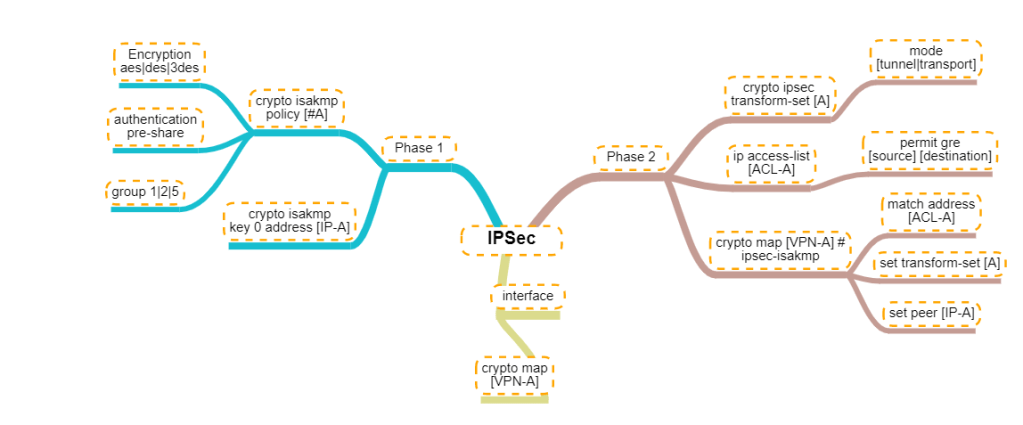
Mindmap of the IPSec configuration commands

CCNP R&S Switch: First Hop Redundancy Protocol Inner Workings

This article is to identify the important information to know about the the three (3) First Hop Redundancy Protocols (FHRP) supported on a Cisco devices.

The three FHRP are:

  • HSRP – Hot Standby Redundancy Protocol
  • VRRP – Virtual Router Redundancy Protocol
  • GLBP – Gateway Load Balancing Protocol

HSRP

  • The virtual mac address are as follows based on version:
    • v1: 0000.0c07.acXX
    • v2 : 0000.0c9f.f000 – 0000.0c9f.ffff
  • sends hello message every 3 seconds to multicast address on port UDP 1985:
    • 224.0.0.2 (v1)
    • 224.0.0.102 (v2)
  • Preemption is disabled by default
  • The HSRP virtual IP address cannot be the same as any of the devices in the group
  • The group number can be the same on the different interfaces on a device
    • v1 group range 0 – 255
    • v2 group range 0 – 4095
  •  If the priority is equal on all devices in a group, the device with the highest IP address wins.
  • v1 and v2 are not interoperable
  • Router state are either Active or Standby

VRRP

  • This protocol is an IEEE standard
  • The virtual mac address is 0000.5e00.01RR (R represents the virtual router identifier)
  • sends hello message every 1 second to multicast address 224.0.0.18 via IP protocol 112
  • Preemption is enabled by default
  • Router state are either Master or Backup
  • Protocol has the option to learn timer from the Master
    • vrrp # timer learn

GLBP

  • the virtual MAC address is 0007.b400.GGFF (G is the GLBP group number and R is the AVF number)
  • sends hello message every 3 seconds to multicast address on port UDP 3222:
    • 224.0.0.102
  • All devices will be an AVF (Active Virtual Forwarder)
  • Only one AVG (Active Virtual Gateway) will be elected
  • The AVG assign a virtual MAC address to the AVF
  • AVG is responsible for responding to ARP requests for the virtual IP address
  • load balancing methods
    • round-robin (default)
    • host-dependent
    • weighted
  • preemption is disabled by default
  • GLBP uses 3 packet types: Hello, Request and Reply

The detail listed is not exhausted but it will be updated in the future.

Setup Cisco Router 1841 for NATing over two interface with Dynamic address.

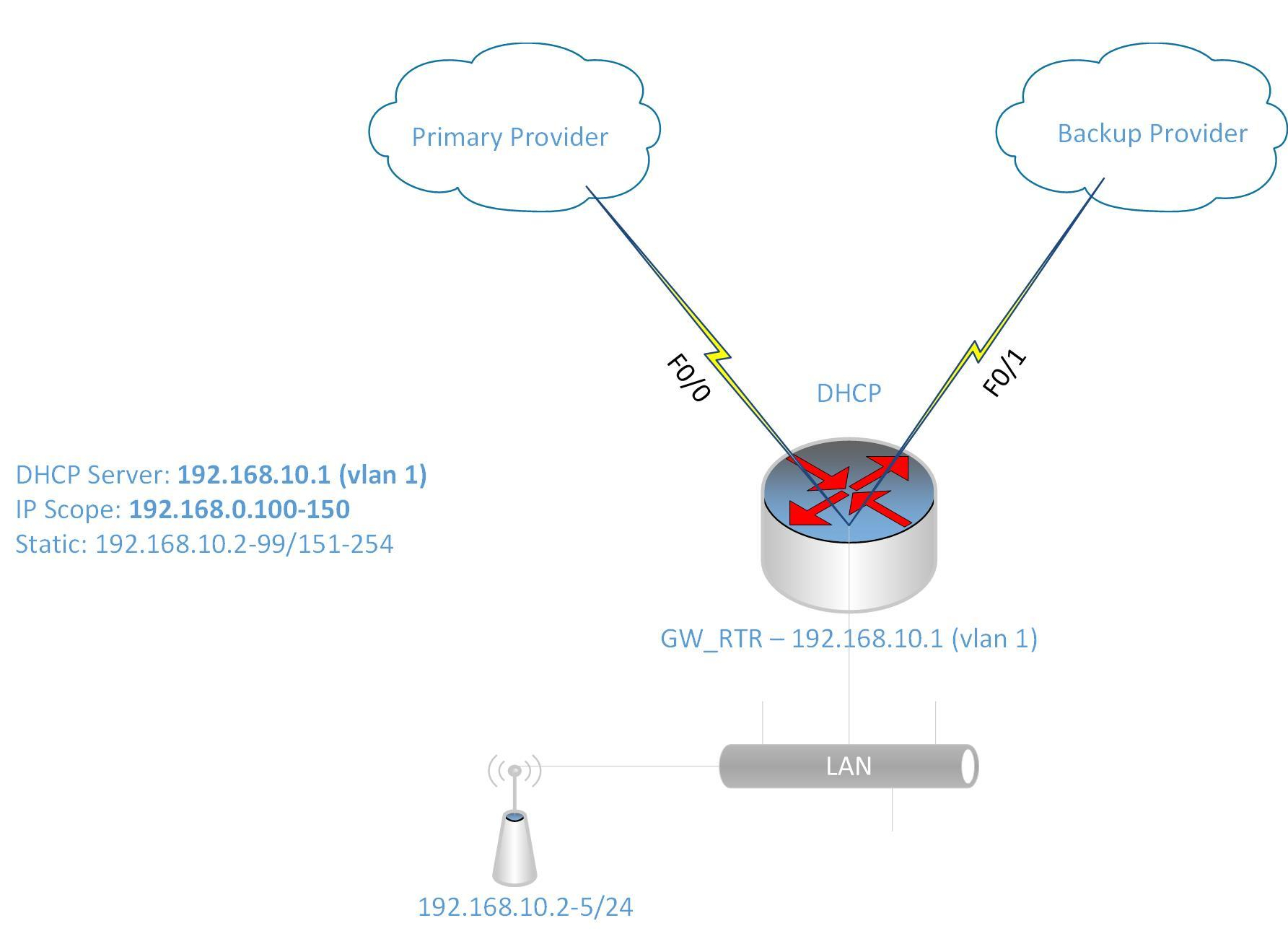
I was given the challenge to setup a Cisco 1841 router with two Fast Ethernet interface and a four Fast Ethernet-port switch module to configure redundancy across two Internet Service Providers (ISP).

RouterRedunantLink

I know that to accomplish this task, I will need  to do the following:

  • Configure the interfaces to get DHCP IP address from the two ISPs
  • Configure NATing from the LAN to the two ISPs for internet access
  • Configure IP SLA or Tracking to detect when the primary link goes down
  • Configure DHCP for the LAN devices
  • Configure Switch Virtual Interface (SVI) as the gateway for the LAN
  • There are also other features included to make the configuration easier such as IP access-list and route-map to link the IP address to the ISP interface for the NATing process.

Configure IP SLA for detecting failure of primary ISP link:

ip sla monitor 1

type echo protocol ipIcmpEcho 8.8.8.8 source-interface f0/0

timeout 1000

threshold 1000

frequency 6

ip sla monitor schedule 1 life forever start-time now

track 10 rtr 1 reachability

delay up 10

The command track 10 rtr is similiar to track 10 ip sla in newer router IOS. If the rtr parameter is not listed then use ip sla. Also some router IOS may not have ip sla monitor, instead it only has ip sla with the monitor parameter.

Now to configure the ISP interfaces and set the primary link tracking:

interface Fa0/0

ip dhcp client route track 10

ip address dhcp

ip nat otside

no shutdown

description PrimaryLink

interface f0/1

ip address dhcp

ip nat outside

description BackupLink

no shutdown

Using the command ip dhcp client route track 10 helps to track the ISP network status using the IP SLA configured previously.

Creating the SVI for the LAN:

interface VLAN 1

ip address 192.168.10.1 255.255.255.0

ip nat inside

description LAN_GWY

Setting  up the DHCP scope for the LAN (IP range 192.168.10.100-150):

ip dhcp pool LAN10

network 192.168.10.0 /24

default-router 192.168.10.1

dns-server 8.8.8.8 4.2.2.2

ip dhcp excluded-address 192.168.10.1 192.168.10.99

ip dhcp excluded-address 192.168.10.151 192.168.10.254

Setup the switch module ports as access ports for the LAN:

interface range f1/0 – 3

switchport mode access

Configure NATing for Internet access:

Please note that from previously entered command for the interfaces and SVI, there is an command ip nat inside and ip nat outside telling NAT which direction are the IP address translated.

Setup Access list for LAN Subnet (192.168.10.0/24)

ip access-list standard LAN-Subnet

permit 192.168.10.0 0.0.0.255

Setup Route-map to match LAN subnet to the two ISP interface:

route-map NAT_TO_PrimaryLink

match ip address LAN-Subnet

match interface f0/0

route-map NAT_TO_BackupLink

match ip address LAN-Subnet

match interface f0/1

Using route-map allows for the same source subnet to be map to two interfaces for the NATing.

Setup NATing for each ISP link to LAN Subnet

ip nat inside route-map NAT_TO_PrimaryLink interface f0/0 overload

ip nat inside route-map NAT_TO_BackupLink interface f0/1 overload

Change the administrative distance for Primary link

ip route 0.0.0.0 0.0.0.0 f0/0 dhcp 10

ip route 0.0.0.0 0.0.0.0 f0/1 dhcp 20

The default route 0.0.0.0 are set to ensure that they are setup with the specified administrative distance 10 and 20 for Primary and Backup link respectively.