Manipulating the DHCP Server using Powershell

This article will go through the cmdlet to successfully configure DHCP services on a Windows server using Powershell.

Firstly you can start a Powershell session on the DHCP server using the following command: It will prompt for the credential using the Get-Credential command.

Enter-PSSession -ComputerName [DHCPServerName] -Credential (Get-Credential)

Create an IPv4 DHCP Scope for 10.10.10.0 name Ground Floor with range 10-200 on server DC1.domain.com

Add-DhcpServerv4Scope -StartRange “10.10.10.10” -EndRange “10.10.10.200” -SubnetMask “255.255.255.0”-Name “Ground Floor” LeaseDuration [day.hrs:mins:secs]-ComputerName “DC1.domain.com” -Description “Subnet for Data VLAN on Ground Floor” -State [Active/InActive]

Configure the Scope 10.10.10.0 DHCP server DNS, Domain, Gateway, WINS and wpad settings

Add-DhcpServerv4OptionValue -ScopeId 10.10.10.0 -Router 10.10.10.1 -DnsDomain “domain.com” -DnsServer 10.10.10.250 WinsServer 10.10.10.251 -Wpad http://proxy.domain.com/wpad.dat” -ComputerName “DC1.domain.com”

Note: To configure the options above at the reservation level replace the parameter ReservedIP and for setting it at the server level, exclude both ReservedIP and ScopeId parameters.

Show the DHCP server IPv4 Scope

Get-DhcpServerv4Scope [-ComputerName “DC1.domain.com”] [[-ScopeId] 10.10.10.0]

Change a DHCP Server Scope Settings

Set-DhcpServerv4Scope [-Type [DHCP|Bootp|Both]] [-ScopeId] 10.10.10.0 [-Description Scope for data vlan for 10.10.10.0“] [-LeaseDuration day.hrs:mins:secs] [-Name “Ground Floor”]  [-ComputerName “DC1.domain.com”]  -StartRange 10.10.0.20  -EndRange 10.10.10.200

Remove a DHCP server IPv4 Scope

Remove-DhcpServerv4Scope [-ScopeId] 10.10.10.0 [-Force] [-ComputerName “DC1.domain.com”]


Create a reservation for IP address 10.10.10.100 on DHCP server DC1.domain.com

Add-DhcpServerv4Reservation -ScopeId 10.10.10.0 -IPAddress 10.10.10.100 -ClientId [usually-MAC-address] -ComputerName DC1.domain.com -Description “Reservation for Kiosk PC”

Listing the DHCP Server Scope

Get-DhcpServerv4Scope -ComputerName [DHCPServerName] -ScopeId [IPAddress]

Get the List of DHCP Server Options

Get-DhcpServerv4OptionValue -ScopeId [IPAddress][-All -Brief] -ReservedIP [SpecificIP]

Note: Exclude the ReservedIP parameter to list the values at the scope level and exclude ScopeId parameter to list the values at the server level.

Get the interface and IP address that the DHCP server service is bound

Get-DhcpServerv4Binding -ComputerName “DC1.domain.com”

Set the interface that the DHCP server service will be bound

Set-DhcpServerv4Binding -ComputerName “DC1.domain.com” -BindingState $true -InterfaceAlias “Wired Ethernet Connection”

Set the Boot server Host Name (option id ) for the DHCP server scope of 192.168.0.0 

Set-DhcpServerv4OptionValue -OptionId 3 -Value 192.168.0.1 -ScopeId 192.168.0.0

List the DHCP server IPv4 address lease

Get-DhcpServerv4Lease -ScopeId 10.10.10.0 [-IPAddress 10.10.10.25] [ClientId 00-00-fe-3e-b0-01] [-BadLeases] [-AllLeases] -ComputerName “DC1.domain.com”

Note: Using the IPAddress parameter return lease for specific IP address. Using the ClientId parameter returns only lease for client mac. Using the BadLeases returns only bad leases. Using the AllLeases parameter includes all leases including Offered, Declined and Expired.


Removing a DHCP server IPv4 address lease

Remove-DhcpServerv4Lease -ScopeId 10.10.10.0 [-IPAddress 10.10.10.25] -ClientId [00-54-fe-ed-00] [-BadLeases] [-ComputerName “DC1.domain.com”]

Note: same rule applies as the Get cmdlet for this command.

Get ten (10) Free IP Address from the DHCP server from the scope 10.10.10.0 in the range 10.10.10.50-100

Get-DhcpServerv4FreeIPAddress -ScopeId 10.10.10.0 -NumAddress 10 -StartAddress 10.10.10.50 -EndAddress 10.10.10.100

Add a DHCP Scope of IPv4 Excluded Range

Add-DhcpServerv4ExclusionRange [-ComputerName “DC1.domain.com“] [-ScopeId] 10.10.10.0 [-StartRange] 10.10.10.200 [-EndRange] 10.10.10.250

Show the DHCP Scope of IPv4 Address Excluded Range

Get-DhcpServerv4ExclusionRange [-ComputerName “DC1.domain.com“] [[-ScopeId] 10.10.10.0]

Remove an DHCP Scope of IPv4 Address Excluded Range

Remove-DhcpServerv4ExclusionRange [-ComputerName “DC1.domain.com”] [-ScopeId] 10.10.10.0 [[-StartRange] 10.10.10.200] [[-EndRange] 10.10.10.250]


Retrieves the DHCP server scope statistics which includes Free, In Use, Reserved, Pending and Percentage in use IP address

Get-DhcpServerv4ScopeStatistics [[-ScopeId] 10.10.10.0] [-ComputerName “DC1.domain.com”] [-Failover]

Using Powershell to manipulate File Server Resource Manager

This article is to share information on how to use PowerShell to manipulate the File Server Resource Manager (FSRM) which is used to do quota management on a file server.

Setting the FSRM Quota for a shared path

Set-FsrmQuota -Path ‘U:\PathOFShare‘ -Description “Soft Limit set on to 10 GB” -Size 10GB [-SoftLimit] [-Threshold (New-FsrmQuotaThreshold -Percentage 85)] [-Disabled]

Set-FsrmQuota

View the File Server Resource Manager (FSRM) information for a shared path

Get-FsrmQuota -PathU:\UserPAthName

Creating a new FSRM Quota Template

new-FsrmQuotaTemplate -Name “Test” -Threshold (New-FsrmQuotaThreshold -Percentage 85) -Description “Test” -Size 10Gb

New-FsrmFileScreen -Path ”U:\PathToShare” [-Active] -Description “Screen Files for videos and music” -IncludeGroup “Audio and Video Files”

Setting up a Read-only Domain Controller (RODC) using the Staging method

In this article, the steps required to setup a Read-only Domain Controller (RODC) for a remote office to authenticate users.

The demonstrataction of this configuration is done using the Active Directory Users and Computers (ADUC) console and performing the same task using Powershell.

The first set of instructions is using Powershell to install the RODC:

Step 1 – Create a normal AD user account

Logon to a writeable Domain Controller and open the Powershell commandline to execute the following commands.

This command is to add a new user account that will perform this task but if a user already exist, this step can be skipped.

New-ADUser -Name Sam -SamAccountName Sam -UserPrincipalName Sam -AccountPassword (Convertto-SecureString -AsPlainText ‘Pa$$w0rd’ -Force)

The command adds user Sam with password and setting the principal name and account to Sam.

Step 2 – Pre-create the Read-only Domain Controller computer account

To pre-create the RODC computer account, run the command below which adds the account to AD. The user account Sam which has no Administrative privileges will be delegated to join the RODC server to the domain.

Add-ADDSReadOnlyDomainControllerAccount -DomainControllerAccountName DC-RO -SkipPreChecks -delegatedAdministratorAccountName Sam -DomainNam ‘mydomain.com’ -SiteName Default-First-Site-Name

Let the user run the following Powershell commands on the prospective RODC server which should not be on the domain.

Step 3 – Install the Active Directory Domain Services on the prospective RODC

Install-WindowsFeature -Name AD-Domain-Services -IncludeManagementTools

Step 4 – Promote the server to the role of a RODC

Install-ADDSDomainController -DomainName ‘mydomain.com’ -Credential (Get-Credential) -UseExistingAccount

The command will prompt for the delegated account create earlier or the account that was delegated and the Directory Service Restore Mode password (SafeModeAdministratorPassword) to perform this task. Once, the process is completed, the server is going to restart and then the RODC is ready for use.

Reference: https://docs.microsoft.com/en-us/windows-server/identity/ad-ds/deploy/rodc/install-a-windows-server-2012-active-directory-read-only-domain-controller–rodc—level-200-

Configuring Domain Controller Cloning

Note: There is an Microsoft Hands-on Lab with code WS00148 that can be used to conduct this exercise. The environment may be required to do additional configuration to execute some of these steps since it is not the main aim and you can ignore the steps in that lab to do your own configuration.

Before cloning a virtual Domain Controller (DC), there are a few requirements that needs to exist in the environment.

The requirements are listed below:

  1. There must exist a DC with the FSMO role PDC Emulator running on atleast Windows Server 2012 which is accessible on the network.
  2. The virtual DC to be clone must be running on a hypervisor that supports the feature VM-GenerationID.
  3. The source virtual DC must be running atleast Windows Server 2012 and is a member of the AD group Cloneable Domain Controllers.
  4. There must be a DC Clone Configuration XML file (namely DCCloneConfig.xml) that holds the settings the clone DC will use to configure itself.

To start the process of cloning a DC, the DC needs to be added to the Cloneable Domain Controllers:

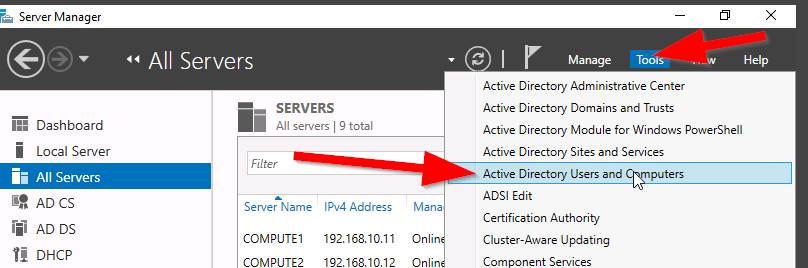
  1. Open Server Manager. server_mgr
  2. Then, go to the Active Directory Users and Computers (ADUC). aduc
  3. Go to the Organization Unit (OU) Users,
  4. Select the security group “Cloneable Domain Controllers“. cloneable_group
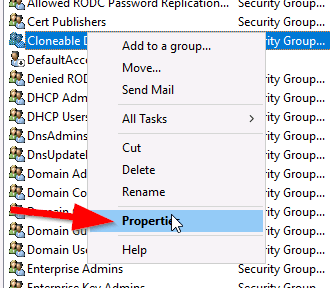
  5. Right click and select Properties. cloneable_properties
  6. Then go to Members Tab and Add the DC here. select member
  7. Save and Close the settings.


Alternately, PowerShell can be used to the previous step, see command:


ADGroupMember -Identity ‘Cloneable Domain Controllers’ -member (Get-ADComputer SRV1)

Next step is to check for excluded Application and generate a file using PowerShell:

Open an PowerShell console and use this command:

This command generates a list of excluded applications that are added to the allowed list and saves it to the C:\Windows\NTDS\.

Get-ADDCCloningExcludedApplicationList -GenerateXml

The next command is used to create the DC Cloning configuration XML file that is used to configure the virtual DC clone that you will import into the desired Hypervisor.

New-ADDCCloningConfigFile -CloneComputerName “DCCloneName” -IPv4Address 10.10.10.10 –IPv4DefaultGateway 10.10.10.1 –IPv4SubnetMask 255.255.255.0 –IPv4DNSResolver 10.10.10.100,10.10.10.102 –Static

Now shutdown the VM DC, export a copy of it and then import it as a copy generating a new VM ID. Once the copied VM is booted, you should see the cloning process initializing at boot up. When the process is completed, it will reboot and the new cloned DC is ready for use.


Reference: https://docs.microsoft.com/en-us/windows-server/identity/ad-ds/introduction-to-active-directory-domain-services-ad-ds-virtualization-level-100

Useful Windows PowerShell (PS) command

This blog is an opportunity to record all the PS commands I used in my day-to-day management of my environment.

Get-Help [*command*]

The get-help is a useful command used to get details of the command executed.

Get-Command [*command*]

List the A record of the server

Get-DnsServerRecord -Name [Hostname]-RRType [A]

Add an server name with the IP address to the DNS server. This command should be ran from the DNS server remotely or locally.

Add-DnsServerRecordA -Name [HostName] -IPAddress [IP] -ZoneName [domain-name] -AllowUpdate

Shutdown the server

Stop-Computer -ComputerName [Servername] -Force

Restart the server

Restart-Computer -ComputerName [Servername] -Force

Start a remote PowerShell session on server

Enter-PSSession [Servername]

Exit the existing PowerShell remote session

Exit-PSSession

A Similiar command to ping and trace route in Powershell

Test-NetConnection [-traceroute] [destination-name or address]

A command to execute PS commands on a remote host

Invoke-Command -ComputerName -ScriptBlock { [Powershell command goes here] }

List all the services on a computer

Get-Service

List all the Windows share (SMB) session on a computer

Get-SmbSession

Get the AD User information filtered by Name or login

Get-ADUser -Identity [CID] -Filter ‘Name -like “Firstname*”‘

Set the AD User information

Set-ADUser -Identity [CID] -ParameterField “Value”

Unlock User Account

Unlock-ADAccount -Identity [CID]

Disable User Account

Disable-ADAccount Identity [CID]

Enable User Account

Enable-ADAccount Identity [CID]

Reset User Account Password

Set-ADAccountPassword -Identity [CID] -Reset -NewPassword (ConvertTo-SecureString -ASPlainText “MyPassword” -Force)

Set the user account password settings

Set-ADUser -ChangePasswordAtLogon $true -CannotChangePassword $true -AccountExpirationDate “mm/dd/yyyy” -PasswordNeverExpires $true

Search AD for User Account that has expired password

Search-ADAccount -UsersOnly -PasswordExpired | FT SamAccountName, Name, LastLogonDate

Search AD for Locked Out Accounts

Search-ADAccount -UsersOnly -LockedOut | FT SamAccountName, Name, LastLogonDate

Search AD for Expiring Accounts within 60 days

Search-ADAccount -usersonly -AccountExpiring -TimeSpan 60.00:00 | FT SamAccountName,Name,AccountExpirationDate

Search AD for Inactive Accounts

Search-ADAccount -UsersOnly -AccountInactive | FT SamAccountName, Name, LastLogonDate

Search AD for Disabled Accounts

Search-ADAccount -UsersOnly -AccountDisabled | FT SamAccountName, Name

Search AD for Expired Accounts

Search-ADAccount -UsersOnly -AccountExpired | FT SamAccountName, Name, AccountExpirationDate

Search AD for Accounts password set to never expire

Search-ADAccount -UsersOnly -PasswordNeverExpires | FT SamAccountName, Name, AccountExpirationDate,LastLogonDate

Retrieve AD Group Information based on Filter

Get-ADGroup -Filter ‘Name -like “[string]*”‘ -Properties canonicalName | FT canonicalname

Retrieve members for a specific AD Group

Get-ADGroupMember -Identity ‘[groupname]’ | FT SamAccountName, Name

Retrieve the properties of an object

Verb-Object -properties *

Add Members to an AD Group

Add-ADGroupMember -Identity ‘GroupName’ -Members [UserName]

Create an New OU

New-ADOrganizationUnit -Name [OU-Name] -Path “[DC=Domain,DC=com]”

Create a user in the New OU

New-ADUser -Name “Firstname Lastname” -SamAccountName [CID] -Path “OU=,DC=,D=com”

Create a New AD Group

New-ADGroup -Name “GroupName” -SamAccountName [GroupName] -GroupCategory [Security/Distribution] -GroupScope [DomainLocal/Global/Universal] -Path “OU=,DC=domain,DC=com”

Create a managed service account

New-ADServiceAccount -Name [AccountName] -RestrictToSingleComputer

Add-ADComputerServiceAccount -Identity [COMPNAME] -ServiceAccount [AccName]

Test-ADServiceAccount -Identity [AccName]

Get Windows Security event of lockout accounts from PDC

Get-ADDomainController -Filter “OperationMasterRoles -like ‘*PDCEmulator*'” | FT Hostname, OperationMasterRoles, Site, OperatingSystem

Get-WinEvent -ComputerName [PDCEmulaor] -FilterHashtable @{LogName=’Security’;Id=4740} -ErrorAction Stop

Show the Default Domain Password Policy

Get-ADDefaultDomainPasswordPolicy

Change the Default Domain Password Policy

Get-ADDefaultDomainPasswordPolicy | Set-ADDefaultDomainPasswordPolicy -LockoutDuration -LockoutThreshold -MaxPasswordAge -MinPasswordAge -MinPasswordLength -ComplexityEnabled [$true/$false] -PasswordHistoryCount -LockoutObservationWindow


Installing Windows Features using PowerShell

I was on a drive to enable SNMP feature on all our Windows 2012 R2 servers in order to monitor the CPU, Memory and Disk utilization through WMI.

Trying to do this manually using the Windows Roles and Features for over 40 servers was not practical as it was time consuming. As a result, I venture out to seek a way to do this on a widescale in the shortest possible time.

Now here comes Powershell, it has save the day with it’s easy-to-use cmdlets and remote execution from any Windows machine.

I am now going take this opportunity to show what I have done to complete this task.

The following cmdlet is what you will use to install any windows features from the server roles:

This cmdlet is used to get the Windows features that are currently installed on the server:

Get-WindowsFeature [FeatureName] -computerName [NameOfComputer]

You can include the Features name in the command in order to get the status of the particular feature.

This cmdlet is used to install the windows features:

Install-WindowsFeature [FeatureName] -computerName [NameOfComputer]

Using the cmdlets above, the following commands were executed to install the SNMP-Service feature:

PS C:\> Get-WindowsFeature SNMP-Service -ComputerName TestWinServer

results:

SNMP-GetFeature

Installing Windows features SNMP-Service for the 2012 R2 server TestWinServer

PS C:\> Install-WindowsFeature SNMP-Service -ComputerName TestWinServer

Results:

SNMP-InstallFeature

After installing this feature, I was able to configure the SNMP services and set my monitoring tool to pull the information from WMI using snmp.

I hope this article was helpful.