Improving the Resilence of Azure VM Disk

In Microsoft Azure there are many features available to improve the resilience of your Azure resources. In this article, I am going to focus on the resilience of an Azure VM Disk.

Let me paint a scenario where a Azure VM was created with a disk as LRS (locally redundant storage). The risk with the LRS is the disks are only protected against physical failures within a single datacenter such as server rack or drive failure. However, to increase the resilience of the VM disk against datacenter failures, I recommend that it is configure as ZRS (zone-redundant storage).

To convert a disk from LRS to ZRS, the correct procedure must be followed based on whether the disk is zonal or regional. To check this state, run the following command:

Azure CLI:

az disk show –name [DiskName] –resource-group [RGName]

If the zone parameter is empty, it is an indication that it is regional otherwise it is zonal.

The disk locality will be determine which method is applied to convert the disk from LRS to ZRS. Once verified as regional continue to the next steps to start the process.

For regional disk, it is necessary to only deallocate(shutdown) the Azure VM and then convert the disk using the commands:

Firstly, gather the Azure VM and disk information and create variables to store these values:

$RGName='ResourceGroupName'

$vmDiskName='VMDiskName'

$vmSize='Standard_DS_v2'

$diskSKU='Premium_ZRS'

Get the Parent VM Id (required for sizing of the VM if disk type is changed from Premium to Standard)

$vmId= $(az disk show \

–name$vmDiskName \

–resource-group $RGName \

–query manageBy \

–output tsv)

Stop the Azure VM in preparation for disk conversion

az vm deallocate --ids $vmId

Upgrade the Azure VM size (this step is critical that VM size can support the disk SKU or the disk conversion may fail)

az vm resize –ids $vmId –size $vmSize

Convert the disk from LRS to ZRS:

az disk update –name $vmDiskName –sku $diskSKU –resource-group $RGName

Start up the VM:

az vm start –ids $vmId

If the disk is zonal:

  • a snapshot of the original disk will need to be created.
  • Then a new disk will be created from the snapshot.
  • when the disk is created, a new VM will be provisioned with this new disk atached.

I hope this article assist with the steps to convert a disk from LRS to ZRS.

Reference:

Disk Migration LRS to ZRS

Resizing a Ubuntu Linux VM in Hyper-V

I had a Ubuntu VM with disk size of 12GB running in an Hyper-V environment on the physical server with limited disk space. I discovered that the VHDX disk space was not enough to run the applications I was installing on it.

In order to resolve this challenge, I had to increase the disk size of the VHDX disk and then increase the disk partition within the VM.

  1. To increase the virtual disk size, I use the powershell command:

Resize-VHD -Path "VHDX disk location" -SizeBytes 60GB

2. Then I proceed to log into to Ubuntu VM

3. Open a bash shell

4. To view the partition to increase, run the command as a root:

sudo fdisk -l

if the command is not installed, you need to run the following command first:

sudo apt install cloud-guest-utils

5. When the partition is identified, use it in the next command to expand partition into free space:

sudo growpart /dev/sda 1

Note: space between the partition and id

6. Then this command will resize the partition:

sudo resize2fs /dev/sda1

Note: no space between partition and id

    7. Dont forget the final step to reboot the ubuntu VM for the command to take effects. This is critical because it did not work until I did this step.

    I hope this helps someone who support linux.

    Microsoft: Print Management using Powershell

    I was having an issue RDPing to a print server and the only other way was to using Server Management tools to manipulate the print services.

    I was curious to find out if this was possible using Powershell and I research it and these are the commands I discovered.

    Note: There was no direct Powershell command to execute a Test Print Page so this feature has to be manipulated using  Invoke-CimMethod using WMI print class which can be found here.


    Add-Printer Adds a printer to the specified computer.
    Add-PrinterDriver Installs a printer driver on the specified computer.
    Add-PrinterPort Installs a printer port on the specified computer.
    Get-PrintConfiguration Gets the configuration information of a printer.
    Get-PrintJob Retrieves a list of print jobs in the specified printer.
    Get-Printer Retrieves a list of printers installed on a computer.
    Get-PrinterDriver Retrieves the list of printer drivers installed on the specified computer.
    Get-PrinterPort Retrieves a list of printer ports installed on the specified computer.
    Get-PrinterProperty Retrieves printer properties for the specified printer.
    Read-PrinterNfcTag Reads information about printers from an NFC tag.
    Remove-PrintJob Removes a print job on the specified printer.
    Remove-Printer Removes a printer from the specified computer.
    Remove-PrinterDriver Deletes printer driver from the specified computer.
    Remove-PrinterPort Removes the specified printer port from the specified computer.
    Rename-Printer Renames the specified printer.
    Restart-PrintJob Restarts a print job on the specified printer.
    Resume-PrintJob Resumes a suspended print job.
    Set-PrintConfiguration Sets the configuration information for the specified printer.
    Set-Printer Updates the configuration of an existing printer.
    Set-PrinterProperty Modifies the printer properties for the specified printer.
    Suspend-PrintJob Suspends a print job on the specified printer.
    Write-PrinterNfcTag Writes printer connection data to an NFC tag.

    For more information, please refer to the Microsoft documentation here.

    Error: Microsoft SharePoint is not supported with version 4.0.30319.42000 of the Microsoft .Net Runtime

    My colleague was trying to run the PowerShell command Get-SPSite to get information about the SharePoint 2010 sites on the server.

    He came across this error:

    sharepointerror

    It was discovered that the server Windows 2012 R2 has Microsoft .Net 4.0 installed on the box and as a result the SharePoint was not functioning with Powershell version 4.0.

    To verify the version installed on the box:

    $ver = $host | select version

    $ver.Version

    Solution

    I had to run the opened PowerShell version 2 and then run the commands again.

    To do this execute the following command from dos prompt:

    powershell.exe -version 2

    once the PowerShell opens run the commands again:

    Add-PSSnapin Microsoft.SharePoint.PowerShell

    Get-SPSite

    Get-SPFarm

    Get-SPWeb [SPSiteName]

    Problem solved. I hope this was helpful.

    Microsoft: Enabling Recycle Bin feature in Windows Server 2016 Active Directory Domain Services

    There is a new feature available in Active Directory Administrative Center (ADAC) in the Windows Server 2016 that allows you restore deleted AD objects from the Recycle Bin (although it could be activated from Windows server 2008 R2 using Powershell). It allows you to enable it at the Domain or Forest level. The only caveat is once it is enabled, it cannot be disabled. The default lifetime for a deleted object to remain in the AD Recycle Bin is 180 days.

    To enable the feature using Powershell:

    Enable-ADOptionalFeatureIdentity ‘Recycle Bin Feature’Scope ForestOrConfigurationSetTarget ‘domain.com’Server DC1

    To enable the feature in Active Directory Administrative Center:

    Go to Server Manager –> Tools –> Active Directory Administrative Center

    servermgr_Adac

    Highlight the domain or forest on the left pane and then under the Task pane on the right under the domain, select Enable Recycle Bin.

    Enable_recycleBin_ADAC

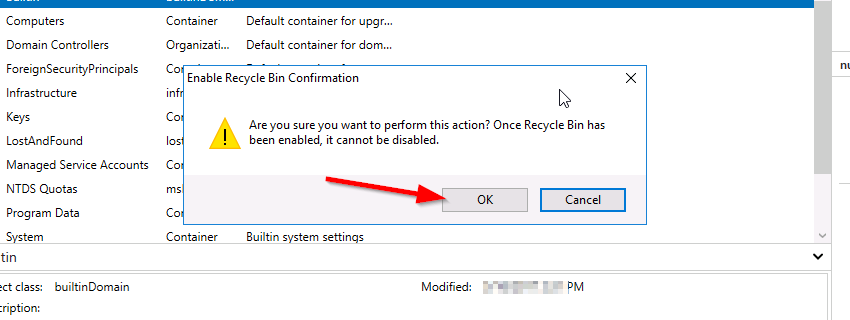
    You will get the warning that once it is enabled it cannot be disabled, select Ok.

    rc_warn

    Microsoft Powershell – Install and Configure AD Certificate Services (Windows Server 2016)

    This article will demonstrate how to install and configure the Active Directory Certificate Services (AD CS) and the Certification Authority (CA) using both the Server Manager and corresponding Powershell cmdlet.

    Using Powershell method

    Check if the Active Directory Certificate Service is installed

    Get-WindowsFeature AD-Certificate


    To install the Certification Authority features, run the following cmdlet:

    Install-WindowsFeature ADCS-Cert-Authority -IncludeManagementTools


    Configuring the Active Directory Certificate Services with a Standalone Root CA on Host1.

    Install-ADcsCertificationAuthority –Credential (Get-Credential) -CAType [StandaloneRootCA]CACommonName“domain-Host1-CA-1”CADistinguishedNameSuffix “DC=domain,DC=com” CryptoProviderName“RSA#Microsoft Software Key Storage Provider” -KeyLength 2048 HashAlgorithmName SHA1 ValidityPeriod Years ValidityPeriodUnits3DatabaseDirectory “C:\windows\system32\certLog”LogDirectory “c:\windows\system32\CertLog”Force

    You can select the CA Type by setting the parameter for –CA Type to either StandaloneRootCA, StandaloneSubordinateCA, EnterpriseRootCA or EnterpriseSubordinateCA. For the CA options like the Cryptographic Provider, Hash Algorithm and Key length will have to be known so that it is selected correctly.

    Example for the key length, the values can be 512, 1024, 2048, 4096 which has to be typed out.

    For Hash Algorithm, the options are: SHA256, SHA384, SHA512, SHA1, MD5, MD4, MD2.

    For the Cryptographic Provider, the parameter -CryptoProviderName can be:

    • RSA#Microsoft Software Key Storage Provider
    • ECDSA_P521#Microsoft Software Key Storage Provider
    • ECDSA_P256#Microsoft Software Key Storage Provider
    • ECDSA_P384#Microsoft Software Key Storage Provider
    • DSA#Microsoft Software Key Storage Provider

    and any other…


    Removing the AD CS and CA feature from the server.

    Remove-WindowsFeature ADCS-Cert-Authority


    Using the Server Manager


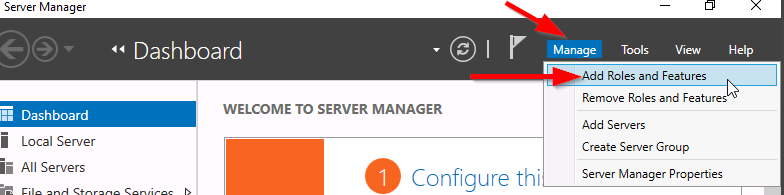
    Go to Server Manager–> Manage –> Add Role and Features

    servermgr

    Select Role-based or feature-based installation

    role-based

    Select the Server to install it on

    server

    Tick the Active Directory Certificate Services

    adcs_server_role

    Tick the Certification Authority

    CA_role

    The feature will be installed and then you can select Configure Active Directory Certificate Services to setup the CA.

    configure_ADCS_CA

    Enter the Credential that have permission to configure the CA. Note the following:

    For Standalone CA: you need local administrator rights

    For Enterprise CA: you need Enterprise Admin rights

    ca_credential

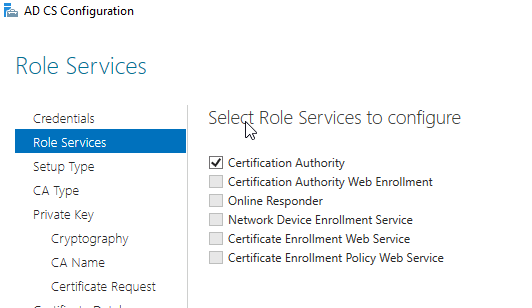
    Select  role services: Certification Authority (CA)

    configure_CA

    select Standalone CA. Once you know how to configure Standalone CA then you can easily configure Enterprise CA.

    select_StandaloneCA

    Select Root CA (this is the first CA)

    select_RootCA

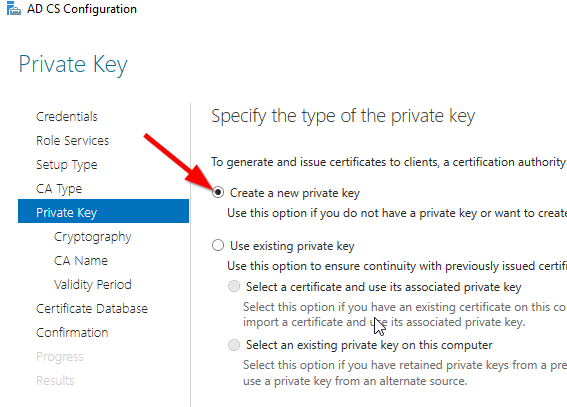
    Select Create a new private key.

    create_key

    Select your preferred cryptographic provider, key length and hash algorithm

    crypto_options

    The Common Name and distinguished name suffix will be generated but you can enter your own name.

    CA_CommonName

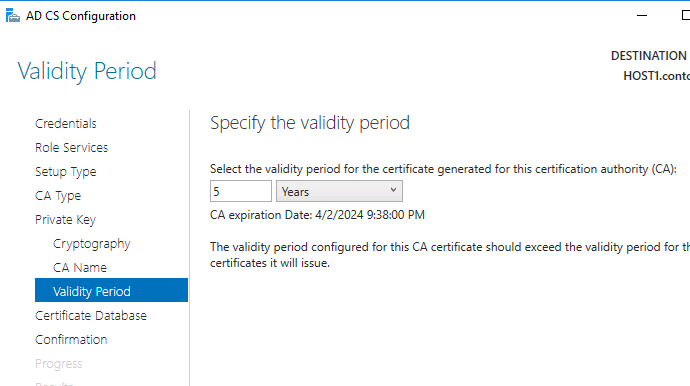
    Select the validity period for the Certificate generated.

    CA_Period

    You can change certificate database and log path or let it remain at the default path

    CA_DB-log

    Confirm configuration settings of CA.

    CA_result_page

    Once the CA installation is complete, you can go to Server Manager –> Tools –> Certification Authority to view CA server in the MMC.


    PowerShell: Get a List of AD Groups a specific user is a member of

    Powershell is very versatile and with this wonderful tool, I will share how to get the subject result.

    There are two ways of doing this:

    1. Using the cmdlet

    Get-ADPrincipalGroupMembership [username] | Format-Table Name -AutoSize

    I used the cmdlet with Format-table to output property Name in a table format

    2. Using the cmdlet

    Get-ADUser [username] -Properties memberof | Select -ExpandProperty memberof | Get-ADGroup | Format-Table Name -AutoSize

    I used the additional parameter -Properties to get the variable MemberOf then use the Select cmdlet to expand the array then pipe it to the Get-ADGroup to get the name of group to list it in a table format.

    Manipulating VMware vSphere using PowerCLI

    I enjoying using powershell so I started to explore the possibility of using it for manipulating vSphere. Low and behold, welcome to PowerCLI with similar syntax as powershell or it can be called powershell in vSphere.

    Firstly, before the vCenter server can be manage, a connection is required. To do so, this command can be executed. It can also be used to connect to a single ESXi Host.

    Connect-VIServer [vCenterServer or ESXiHost] -Credential(Get-Credential)

    I prefer to use the Get-Credential cmdlet because it will prompt me with a windows dialog box requesting the username and password (It is a very useful cmdlet).

    Once connected, to get the List of Cluster , VM or Host the following respective commands can be used:

    Get-Cluster

    Get-VM

    Get-VMHost

    To get specific details the name of the object can be added to the cmdlet. The pipe (|) can also be used to get details from specific area.

    Example to retrieve all the Virtual machines within Cluster A

    Get-Cluster ClusterA | Get-VM

    To Get all VMs on ESXi Host A

    Get-VMHost ESXiA | Get-VM

    Putting an ESXi Host A in Maintenance mode

    Set-VMHost ESXiA -State Maintenance

    Shutting down the ESXi Host A

    Stop-VMHost ESXiA-Force

    Startup Virtual machine VM1 and VM2

    Start-VM VM1,VM2

    Exit Maintenance Mode for ESXi Host A

    Set-VMHost ESXiA -State Connected

    To get more cmdlet from the VMware PowerCLI, use the get-command [*keyword*] to list all commands with the keyword.

    I will update this list as time progress.

    Microsoft: Manipulating Windows Network Adapter using PowerShell

    This article is about configuring the network adapter using PowerShell cmdlet:

    To get a list of the names of physical network adapter, the following command was used:

    Get-NetAdapter -Physical

    To get the IP address assigned to the network adapter:

    Get-NetIPAddress | Format-Table

    To enable/disable the network adapter:

    Enable-NetAdapter [-Name] “NetAdapterName”

    Disable-NetAdapter [-Name] “NetAdapterName”

    Restart-NetAdapter [-Name] “NetAdapterName”

    To set dynamic IP address assignment for network adapter:

    Set-NetIPAddress -AddressFamily IPv4 -PrefixOrigin Dhcp

    To set static IP address for network adapter:

    New-NetIPAddress -InterfaceIndex [NetAdapterIndex] -IPAddress 192.168.0.1 -PrefixLength 24 -DefaultGateway 192.168.0.5

    Set-NetIPAddress -InterfaceIndex [index] -IPAddress 10.0.0.9 -PrefixLength 24

    To set DNS IP address for network adapter:

    Set-DnsClientServerAddress -InterfaceIndex 12 -ServerAddresses(“10.0.0.1”,“10.0.0.2”)

    Or

    Set-DnsClientServerAddress -InterfaceIndex 12 -ResetServerAddresses

    For more commands and help on this topic, you can visit the Microsoft documentation site here.