Group Policy Object Processing And Precedence

This article is about the order of processing and precedence of the Group Policy Object (GPO).

There is a acronym used to remember the order of processing:

LSDOU – Local, Site, Domain, OU.

Local GPO

Site linked GPO

Domain linked GPO

Organizational Unit linked GPO

The rule of thumb with precedence for the LSDOU order of processing is that the last GPO applied takes precedence which will be the OU linked GPO. There are additional rules to consider such as when multiple GPOs are applied to an object (e.g. Domain), the GPO are process according to order from top to bottom (1 to …) and the top GPO takes precedence.

Inheriting Parent GPO

In some case there make be nested OUs or Parent and Child domains in which GPOs are inherited from the Parent automatically. The inherited GPOs has the least precedence by default on the child node which can be changed by rearranging the link order.

Enforcing GPO

The precedence of the GPO can change by Enforcing it which will allow it to move to the top (become number 1).
 

Fortinet: Publishing a Server access to the Internet via HTTP

This article is providing instructions on how to public a server/device to the internet using http. This article will go through the basic configuration.

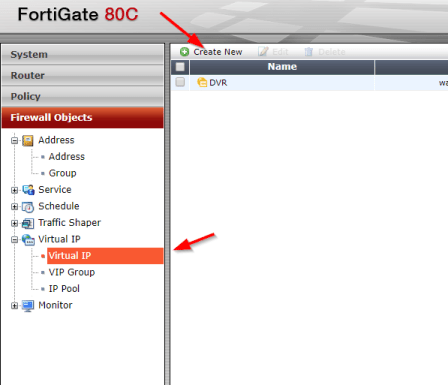
After logging into to the Fortinet portal, got to Firewall Objects –> Virtual IP –> Virtual IP, select Create New

create_virtual_ip

There are number of parameters:

Name: Short description of services e.g. DVR HTTP-80

External Interface: this is the port connected to the internet link with the public IP address.

External IP Address/Range: this use only need if you have more that one IP address configured on the port. If not, you can leave the default 0.0.0.0

Mapped IP Address/Range: Enter the internal server IP address of device. e.g. our DVR 192.168.0.12

Port Forwarding: tick this option if you are using custom ports from the default e.g. external service port is 5000 from the outside connecting to (map to) port 80 on the internal server.

virtual_ip_info

Go to Policy –>Policy –> Create New

create_policy

Select the Source Interface/Zone to external port.

Select destination Address to the Virtual IP created earlier and select Service to HTTP since we are using port 80. If the service is not list add it with the custom ports. Select Enable NAT to allow external IP address to access the internal device through the fortinet.

policy_settings

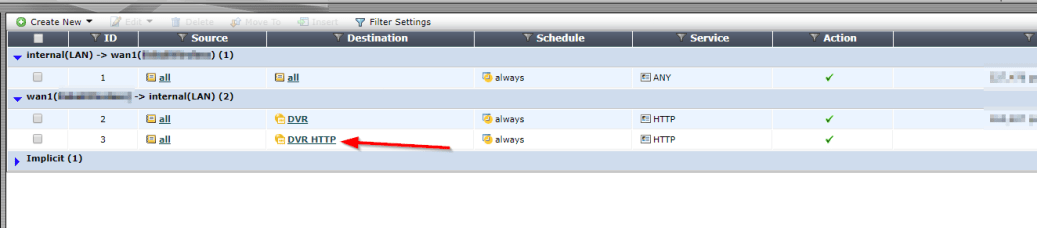
Once save by clicking ok, it will be listed under the external port source port column in the Policy section.

policy_listed