Connecting a Web App Service to a Azure VM privately

This article is about setting a public accessible Web App Service which allowing it to connect privately to a Azure VM within a Virtual network (VNET).

I was given a task to assist our developer to connect a Web App with customized code to interface with a Azure VM hosting an SQL server database and customized web services. The design requirements were as followings:

  • The Web App must be accessible public with no restrictions
  • The Azure VM must be accessible by the Web App Service only
  • The services must use most cost effective Azure resources to accomplish this result.

After reviewing the requirements and accessing what Azure features are available to accomplish the task. The following solution was provided.

  1. The Web App Service must have the supported pricing tier of at least Basic or Standard to use it with VNet.
  2. Configure a Subnet with CIDR notation of /26 which will facilitate the private connection from the Web App.
  3. Configure the VNET Integration to connect the Web App to the subnet created previously for the private communication.
  4. Network Security Group (NSG) can be used to limit who can accept connections from the Web App service in the private subnet.

Microsoft Documentation reference:

https://learn.microsoft.com/en-us/azure/app-service/configure-vnet-integration-enable

Fortinet: Publishing a Server access to the Internet via HTTP

This article is providing instructions on how to public a server/device to the internet using http. This article will go through the basic configuration.

After logging into to the Fortinet portal, got to Firewall Objects –> Virtual IP –> Virtual IP, select Create New

create_virtual_ip

There are number of parameters:

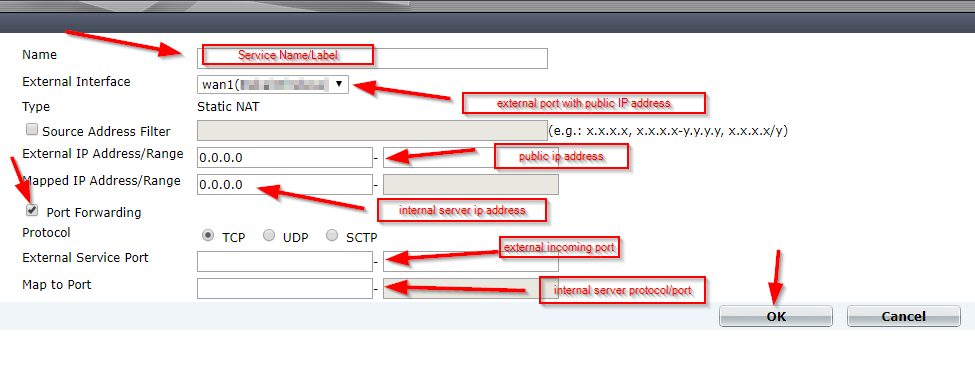
Name: Short description of services e.g. DVR HTTP-80

External Interface: this is the port connected to the internet link with the public IP address.

External IP Address/Range: this use only need if you have more that one IP address configured on the port. If not, you can leave the default 0.0.0.0

Mapped IP Address/Range: Enter the internal server IP address of device. e.g. our DVR 192.168.0.12

Port Forwarding: tick this option if you are using custom ports from the default e.g. external service port is 5000 from the outside connecting to (map to) port 80 on the internal server.

virtual_ip_info

Go to Policy –>Policy –> Create New

create_policy

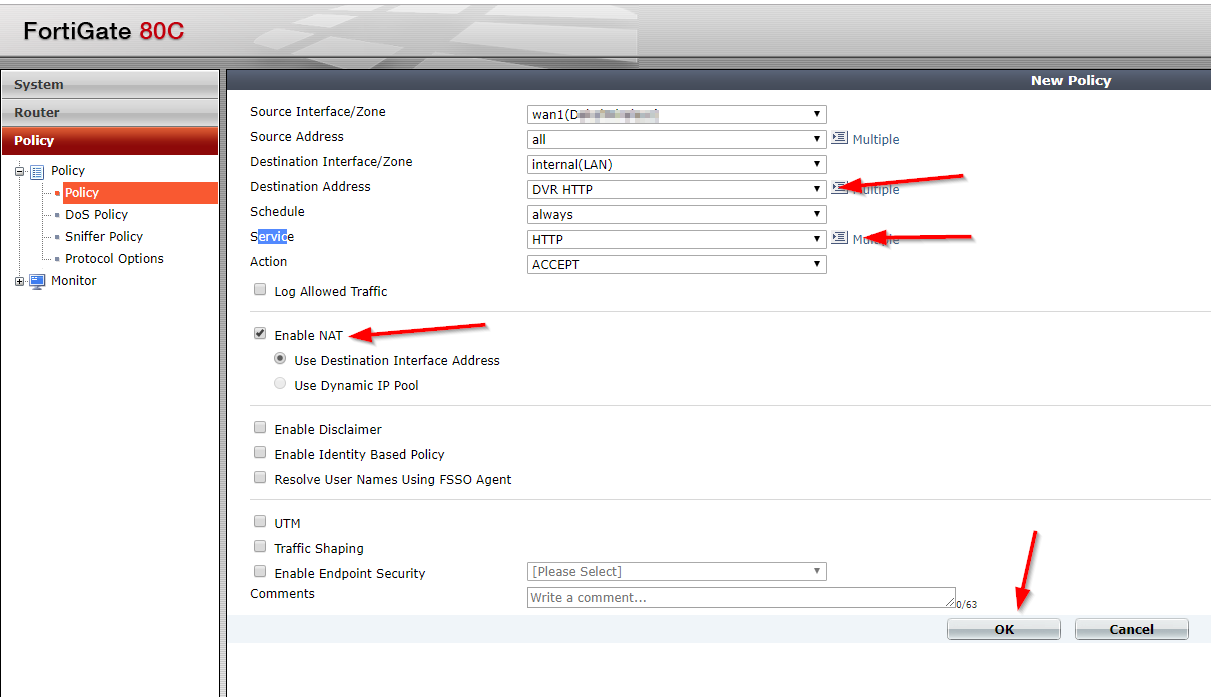
Select the Source Interface/Zone to external port.

Select destination Address to the Virtual IP created earlier and select Service to HTTP since we are using port 80. If the service is not list add it with the custom ports. Select Enable NAT to allow external IP address to access the internal device through the fortinet.

policy_settings

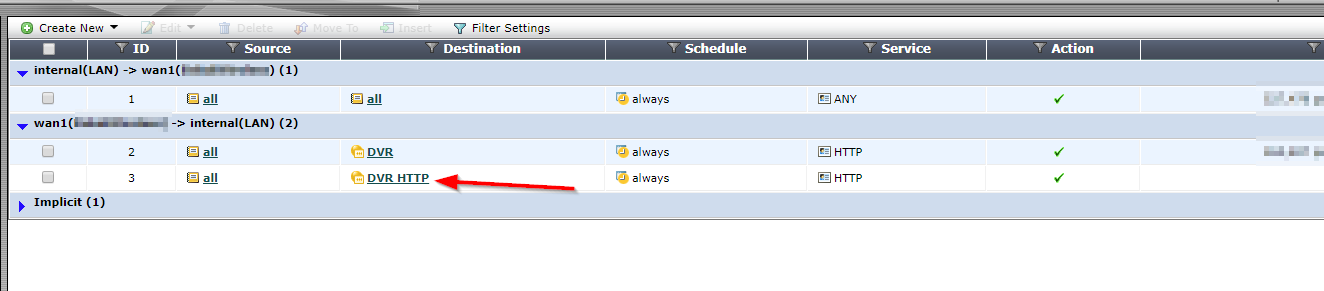
Once save by clicking ok, it will be listed under the external port source port column in the Policy section.

policy_listed

Setting Up iSCSI in VMware ESXi 5.5

To begin this article, let me first discuss what is iSCSI and then the reason for requiring an iSCSI.

I love the definition of iSCSI provided by searchstorage.techtarget.com which stands for Internet Small Computer System Interface, that works on top of the Transport Control Protocol (TCP) and allows the SCSI command to be sent end-to-end over local-area networks (LANs), wide-area networks (WANs) or the Internet.

According to the same site, iSCSI works by transporting block-level data from an iSCSI initiator on a server and a iSCSI target on a storage device. The iSCSI protocol encapsulates SCSI commands and assembles the data in packets for the TCP/IP layer. Packets are sent over the network using a point-to-point connection.

The one of the main reason for using iSCSI connections is that it allows for the utilization of existing network resources such as NICs and network switches to present storage devices to servers once it has the iSCSI initiator software. this result in cost saving and it is is easily configured and it is available for both LAN, WAN and internet which mean easily access if it is relocated to the cloud

Now, let us go to the fun part…configuration of iSCSI in Vmware ESXi 5.5

It is important to note that there are two type of iSCSI initiator/target:

  1. Software
  2. Hardware

In this article, we are only going to go through the configuring of the Software iSCSI initiator from within the VMware Esxi 5.5 hypervisor.

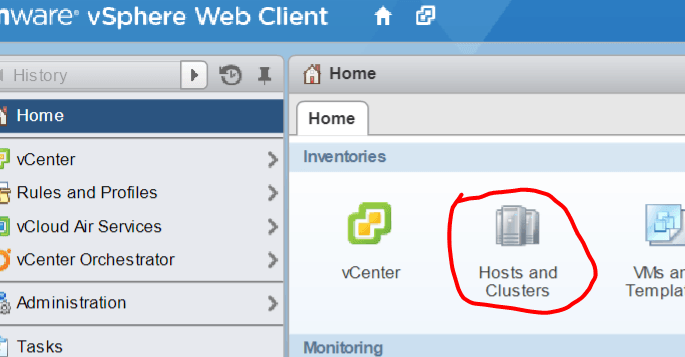
Log into vSphere Web client

Select Host and Clusters

hostandcluster.png

Select the host you want you want to setup the the iSCSI Software adapter on.

Under the Host pane, select the Manage

Under Manage, Select Storage then Storage Adapters

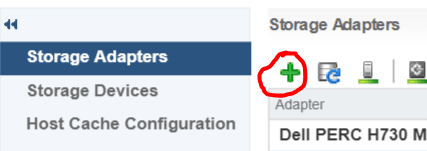
ManageStorage_StorageAdapter

Select the Plus button

Storage-menu

Select Software iSCSI Adapter

software iscsi

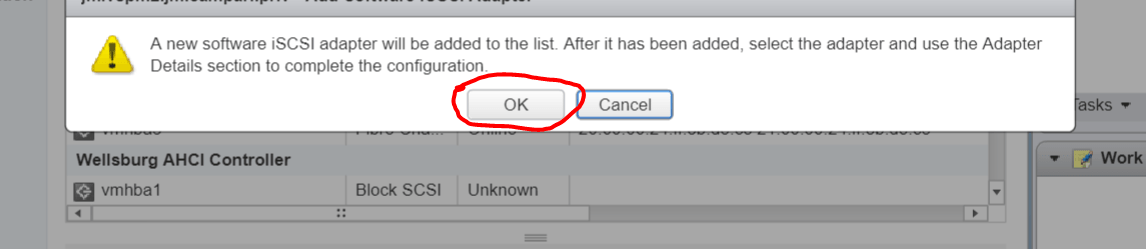
Select OK to the following message

software-iscsi-msg-e1503502080853.png

Under Storage Adapters list, look for iSCSI Software Adapter and you will see the iSCSI Software Adapter listed.

software-iscsi-adapter.png

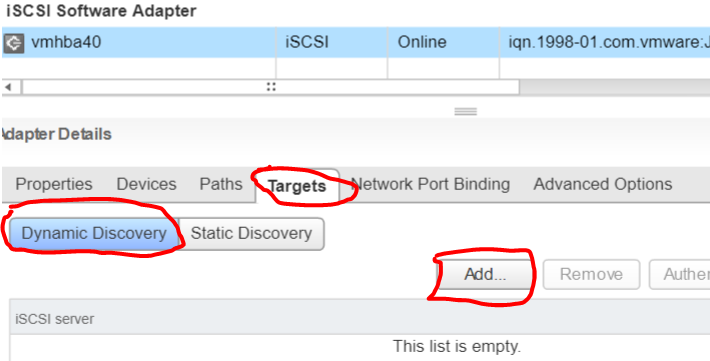
Highlight the adapter vmhbaXX (e.g. vmhba40) and under Adapter Detail, select Target –> Dynamic –> Add

AddDynamicTarget

Note: this allows you to add the primary IP address of the SAN or storage which allows the device LUNs to be discovered.

Enter the IP address of the target and leave the default port of 3260 for ISCSI communication. Then Select OK. For every iSCSI target, the IP address should be added.

SendTargetServer


Almost caught by Spam

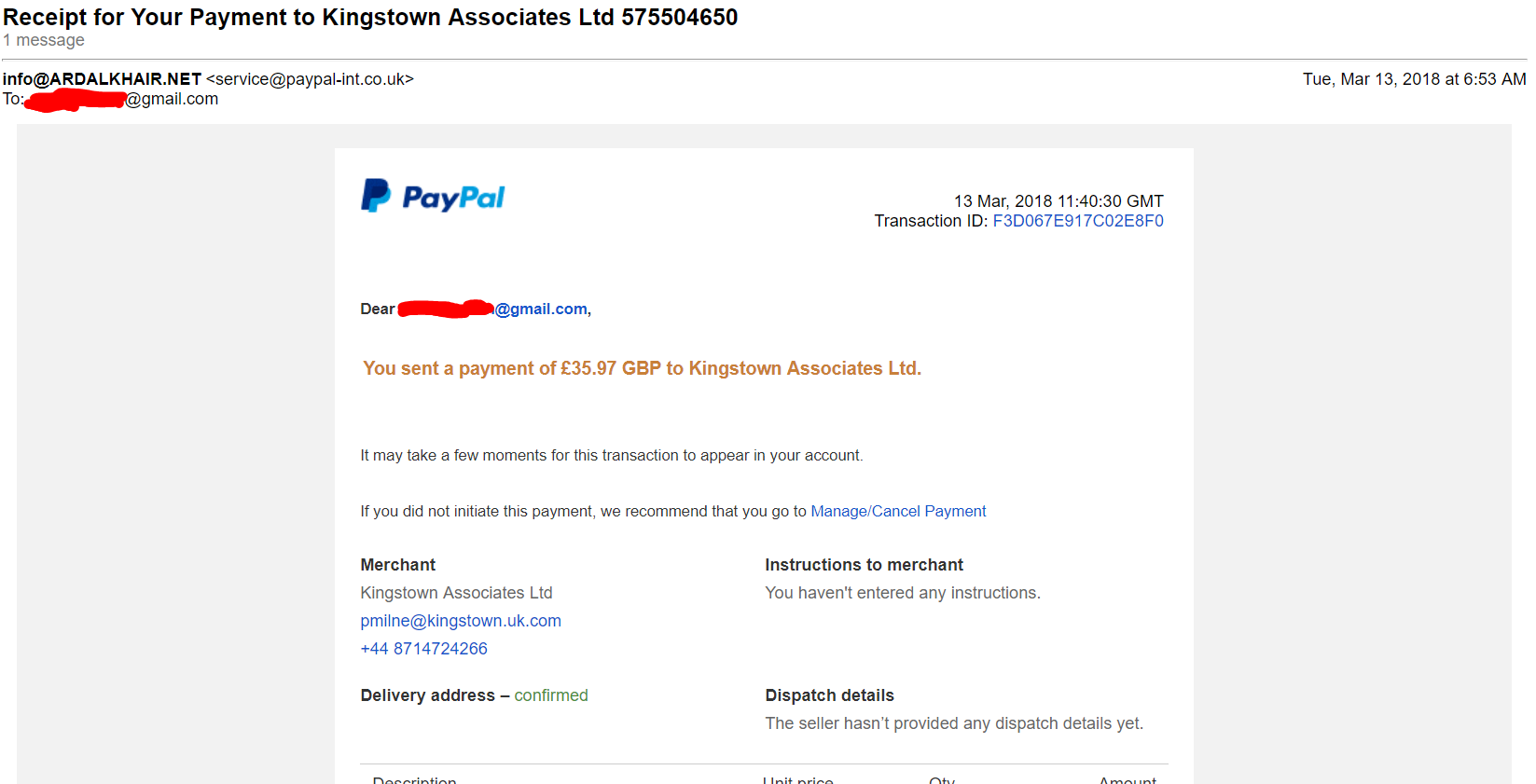
I had receive the following spam email which seems to come from Paypal:

Spam_email_paypalMarch132018_edit

At first glance, it looks very legitimate but after close inspection, it was discovered to be a spam. This provides the opportunity to highlight some indications that the email received is a spam and how to mitigate against it.

  • Check the email address that it is coming from. Not the one that is displayed at first glance but when it is opened, the email address that is between these symbols <>. In the example above, it says it is coming from service@paypal-int.co.uk. (Paypal correct address is service@intl.paypal.com).


  • Check where the link that you are asked to click on is point to by just hovering the mouse pointer over the hyperlink and look at the bottom of the browser. The spam email said the following:

    If you did not initiate this payment, we recommend that you go to Manage/Cancel Payment

    The Manage/Cancel payment was pointing to an unknown URL and not to the Paypal website so you know that it is a malicious website it is asking you to click on.


  • Usually the greeting will include the email address it is sent to. In this case, I was address by my email address (*****@gmail.com) and not by my full name which the Paypal will have on record.

Now for those who are unsure if this event actually happened that the email is stating. Verify the transaction by logging on directly to your website or portal (not using the email links) in my case Paypal.com and check if any such event has occurred.

I hope this is helpful and don’t be fooled by well crafted spam emails.

Keep safe…Keep secure