Setting up a Read-only Domain Controller (RODC) using the Staging method

In this article, the steps required to setup a Read-only Domain Controller (RODC) for a remote office to authenticate users.

The demonstrataction of this configuration is done using the Active Directory Users and Computers (ADUC) console and performing the same task using Powershell.

The first set of instructions is using Powershell to install the RODC:

Step 1 – Create a normal AD user account

Logon to a writeable Domain Controller and open the Powershell commandline to execute the following commands.

This command is to add a new user account that will perform this task but if a user already exist, this step can be skipped.

New-ADUser -Name Sam -SamAccountName Sam -UserPrincipalName Sam -AccountPassword (Convertto-SecureString -AsPlainText ‘Pa$$w0rd’ -Force)

The command adds user Sam with password and setting the principal name and account to Sam.

Step 2 – Pre-create the Read-only Domain Controller computer account

To pre-create the RODC computer account, run the command below which adds the account to AD. The user account Sam which has no Administrative privileges will be delegated to join the RODC server to the domain.

Add-ADDSReadOnlyDomainControllerAccount -DomainControllerAccountName DC-RO -SkipPreChecks -delegatedAdministratorAccountName Sam -DomainNam ‘mydomain.com’ -SiteName Default-First-Site-Name

Let the user run the following Powershell commands on the prospective RODC server which should not be on the domain.

Step 3 – Install the Active Directory Domain Services on the prospective RODC

Install-WindowsFeature -Name AD-Domain-Services -IncludeManagementTools

Step 4 – Promote the server to the role of a RODC

Install-ADDSDomainController -DomainName ‘mydomain.com’ -Credential (Get-Credential) -UseExistingAccount

The command will prompt for the delegated account create earlier or the account that was delegated and the Directory Service Restore Mode password (SafeModeAdministratorPassword) to perform this task. Once, the process is completed, the server is going to restart and then the RODC is ready for use.

Reference: https://docs.microsoft.com/en-us/windows-server/identity/ad-ds/deploy/rodc/install-a-windows-server-2012-active-directory-read-only-domain-controller–rodc—level-200-

VCP65-DCV Objective 1.1 – Configure and Administer Role-based Access Control

To effectively master Objective 1.1 of the VCP65-DCV (2V0-622/D) exam guidelines which covers the topic Configure and Administer Role-based Access Control, it is important to know the following information:

(you can click on the heading to go directly to the VMware vSphere 6.5 online documentation  where these information are stored.)

  1. Multiple Permission Settings
  2. Required Privileges for Common Tasks
  3. vCenter Server System Roles
  4. Example 3: User Role Overriding Group Role
  5. Prerequisites and Required Privileges for Encryption Tasks
  6. Configuring vCenter Single Sign-On Identity Sources
  7. Understanding the vCenter Server Permission Model
  8. Permission Validation
  9. Using Roles to Assign Privileges

Setting Up iSCSI in VMware ESXi 5.5

To begin this article, let me first discuss what is iSCSI and then the reason for requiring an iSCSI.

I love the definition of iSCSI provided by searchstorage.techtarget.com which stands for Internet Small Computer System Interface, that works on top of the Transport Control Protocol (TCP) and allows the SCSI command to be sent end-to-end over local-area networks (LANs), wide-area networks (WANs) or the Internet.

According to the same site, iSCSI works by transporting block-level data from an iSCSI initiator on a server and a iSCSI target on a storage device. The iSCSI protocol encapsulates SCSI commands and assembles the data in packets for the TCP/IP layer. Packets are sent over the network using a point-to-point connection.

The one of the main reason for using iSCSI connections is that it allows for the utilization of existing network resources such as NICs and network switches to present storage devices to servers once it has the iSCSI initiator software. this result in cost saving and it is is easily configured and it is available for both LAN, WAN and internet which mean easily access if it is relocated to the cloud

Now, let us go to the fun part…configuration of iSCSI in Vmware ESXi 5.5

It is important to note that there are two type of iSCSI initiator/target:

  1. Software
  2. Hardware

In this article, we are only going to go through the configuring of the Software iSCSI initiator from within the VMware Esxi 5.5 hypervisor.

Log into vSphere Web client

Select Host and Clusters

hostandcluster.png

Select the host you want you want to setup the the iSCSI Software adapter on.

Under the Host pane, select the Manage

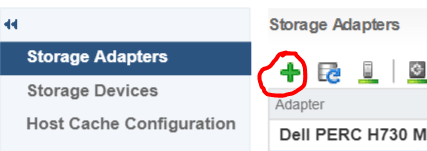
Under Manage, Select Storage then Storage Adapters

ManageStorage_StorageAdapter

Select the Plus button

Storage-menu

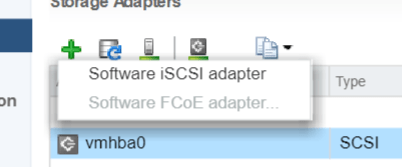
Select Software iSCSI Adapter

software iscsi

Select OK to the following message

software-iscsi-msg-e1503502080853.png

Under Storage Adapters list, look for iSCSI Software Adapter and you will see the iSCSI Software Adapter listed.

software-iscsi-adapter.png

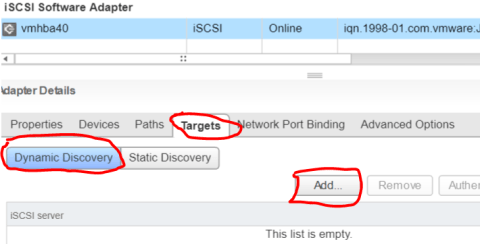
Highlight the adapter vmhbaXX (e.g. vmhba40) and under Adapter Detail, select Target –> Dynamic –> Add

AddDynamicTarget

Note: this allows you to add the primary IP address of the SAN or storage which allows the device LUNs to be discovered.

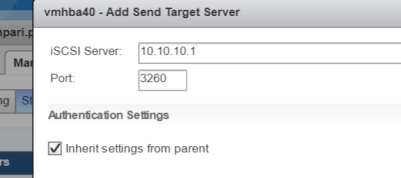
Enter the IP address of the target and leave the default port of 3260 for ISCSI communication. Then Select OK. For every iSCSI target, the IP address should be added.

SendTargetServer


CIA – Confidentiality, Integrity and Availability

Confidentiality – is the method of ensuring that only authorized persons are able to view the company data.

Integrity – is the method of ensuring that only authorized persons are allowed to modify the company data.

Availability – is the method of ensuring that the authorized persons are able to access the company data when it is need.

Almost caught by Spam

I had receive the following spam email which seems to come from Paypal:

Spam_email_paypalMarch132018_edit

At first glance, it looks very legitimate but after close inspection, it was discovered to be a spam. This provides the opportunity to highlight some indications that the email received is a spam and how to mitigate against it.

  • Check the email address that it is coming from. Not the one that is displayed at first glance but when it is opened, the email address that is between these symbols <>. In the example above, it says it is coming from service@paypal-int.co.uk. (Paypal correct address is service@intl.paypal.com).


  • Check where the link that you are asked to click on is point to by just hovering the mouse pointer over the hyperlink and look at the bottom of the browser. The spam email said the following:

    If you did not initiate this payment, we recommend that you go to Manage/Cancel Payment

    The Manage/Cancel payment was pointing to an unknown URL and not to the Paypal website so you know that it is a malicious website it is asking you to click on.


  • Usually the greeting will include the email address it is sent to. In this case, I was address by my email address (*****@gmail.com) and not by my full name which the Paypal will have on record.

Now for those who are unsure if this event actually happened that the email is stating. Verify the transaction by logging on directly to your website or portal (not using the email links) in my case Paypal.com and check if any such event has occurred.

I hope this is helpful and don’t be fooled by well crafted spam emails.

Keep safe…Keep secure

Error opening default Windows 10 App

When Windows 10 came out with a free option to upgrade, I took the liberate to take up the offer to do it later when I had the time. This selection allowed me to download the Windows 10 ISO file so that I can installed it at a later time during my free time.

After completing the upgrade to Windows 10, I noticed that I had the issue of not able to open native windows applications such as the Calculator as it would generate the following error seen below:

Windows Calculator

Doing my investigation, I realized that the issue was as a result of the MUI language pack (English US) not installed on my computer completely.

Solution: To fix this problem, you had to first find out what Windows version build you had installed (my own was 10240) and then you would search on the Microsoft website to download the package for you built.

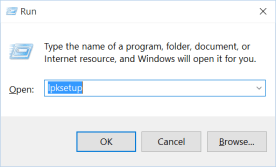
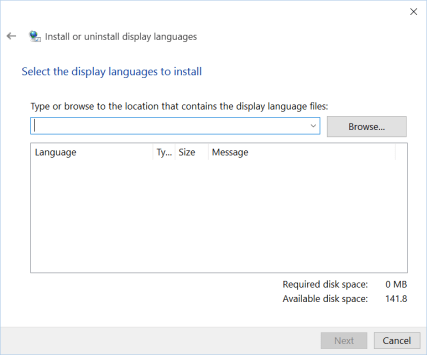
After you have gotten the MUI langauge pack (lp), you will run the following command to install it from RUN:

  1. To access RUN, use shortcut key Win + R or type run in the Start menu
  2. enter the command lpksetup.exe  lpksetup_run
  3. Select Install display languages  lpksetup_win1
  4. Browse for the lp file and select Next (note if it say it is incorrect then you downloaded the incorrect version for your OS build)lpksetup_win2
  5. Wait for it to complete and then you are done.

After you have applied the solution then restart your computer and you are good.

Avoid using Fiber Transceivers for Switch Connection

I am dedicating this article to an experience I had with connecting switches using 10/100 Base-T 100Base-FX fiber converters (Transceivers).

It is a pain when the transceivers goes bad especially if it is not identified as causing packet loss or slow link connection on the switched network.

I had an experience were a location was complaining of having slow connection to the server resources and the IP phones were having poor call quality. When the user is on a call, the caller will hear the person very clearly but the other user would constantly hear drop in the conversation.

When a ping test was done, for every 5 or 10 ping response, the packet will drop, even to the uplink switch. When a ping test is done to the same switch, it was successful with no packet loss.

Looking at the interfaces status, there was no indication of any CRC errors or other parameters such as runts or interface reset indicating no problem with cable.

I connected my laptop directly to the transceiver and did a ping test and the same result. This is where I concluded that the problem was with the transceiver; low and behold when I swap out the transceiver for the direct fiber connection to the switches, all connection issues just disappear.

Conclusion:  Avoid using transceivers to connect switches over fiber links, as much as possible use SFP modules because when the transceivers goes bad, they cause latency to the connected location. Also I have noticed that the devices are very unreliable and are fragile hence they are high maintenance and a waste of time, effort and money which most of us Engineers don’t have time to waste.

Configuring similar Cisco features on an HP 2530 switch

I had the privilege to learn another vendor’s switch configure from HP. This article will be about Configuring the following parameters in a HP 2530 similar what you will do in a Cisco access switch:

  • Access port (edge port)
  • Trunk ports (tagged port)
  • Port security (MAC security)
  • Ether channel  (LAG)
  • Spanning tree
  • Portfast
  • Enable secret password
  • SNMP
  • Switch virtual Interface  (SVI)
  • Vlan default gateway
  • Show logging on the console

Before I begin we need to know that there are two main standards in the networking world, it is either Cisco or IEEE. So vendors like HP will only follow the IEEE standards. With that being said, let us begin:

What I am going to do is to show the Cisco way of the commands for the particular feature followed by HP.

1. Trunk ports: we know that Cisco switch has two protocol Used to develop a trunk port; ISL and 802.1Q (IEEE standard). Although the newest Cisco are no longer supporting ISL as it is being faced outed.

CISCO: 

SW(config-if)# switchport trunk encapsulation dot1q

SW(config-if)# switchport mode trunk
SW(config-if)# switchport trunk allow vlan 1-5
SW(config-if)# switchport trunk native vlan 5

HP:

SW(configure)# int 49

SW(eth-49)# tagged vlan 1-4

SW (eth-49)# untagged vlan 5


2. Creating and configuring Voice vlan on a switch port that tells the IP Phone which vlan to use for communication.

CISCO:

SW(config)# interface f0/1

SW(config-if)# switchport voice vlan 6

HP:

SW(configure)# vlan 6

SW(vlan-6)#voice

SW(configure)#int 1

SW(eth-1)#tagged vlan 6


3. Configure Spanning-tree portfast to let the port transition into forwarding state immediately and also this configures the port as a access/edge port.

CISCO:

SW(config)# interface Fa0/1

SW(config-if)# switchport mode access

SW(config-if)# switchport access vlan 2

SW(config-if)# spanning-tree portfast

HP:

SW(configure)# spanning-tree 1 admin-edge-port

SW(configure)# interface 1

SW(eth-1)# untagged vlan 2


4.  Configure BPDU Guard to prevent a switch from connecting to a access port by shutting it down.

CISCO:

SW(config)#interface range fa0/1 – 24

SW(config-if-range)#spanning-tree bpduguard enable

HP:

SW(configure)# spanning-tree 1-24 bpdu-protection


5. Configure RSTP protocol to prevent loops in a network.

CISCO:

SW(config)# spanning-tree mode rapid-pvst

HP:

SW(configure)# spanning-tree

SW(configure)# spanning-tree force-version rstp-operation


6.  Configure Port security using mac address restriction and limiting the number of devices connected.

CISCO:

SW(config)# interface range f0/1 – 24

SW(config-if-range)# switchport port-security

SW(config-if-range)# switchport port-security maximum 2

SW(config-if-range)# switchport port-security violation restrict

HP:

SW(configure)# port-security 1-24 learn-mode limited-continuous address-limit 2


7. Configuring SNMP on the switch for monitoring tool to access the switch status.

CISCO:

SW(config)# snmp-server community [string-password] ro

HP:

SW(configure)# no snmp-server community public

SW(configure)# snmp-server community [string-password] restricted


8. Configure username and password on the switch.

CISCO:

SW(config)# username admin privilege 15 secret [password]

HP:

SW(configure)# password manager user-name [admin] plaintext [networkpassword]


9. Configure Etherchannel or Link Aggregation (LAG) port to bundle two or more ports together. Remember that LACP is the standard protocol for other vendors except Cisco.

CISCO:

SW(config)# interface range Fa0/47 – 48

SW(config-if-range)#channel-protocol lacp

SW(config-if-range)# channel-group 1 mode active

HP:

SW(configure)# trunk 47-48 trk1 LACP


10. Configure Switch Virtual Interface IP address and default gateway.

CISCO:

SW(config)# ip default-gateway 10.1.1.1

SW(config)# int vlan 1

SW(config-if)# ip address 10.1.1.10 255.255.255.0

SW(config-if)# no shutdown

HP:

SW(config)# ip default-gateway 10.1.1.1

SW(config)#int vlan 1

SW(vlan-1)#ip address 10.1.1.10 255.255.255.0


11. Show logging on the console

Cisco:

SW(config)# terminal monitor

HP:

SW# debug destination session

SW# debug event

IPv4 Subnetting

While studying for the CCNA exam, at the time I was struggling with subnetting of IPv4 addresses and understanding how they arrive at the answer provided. I can now safely say that I have developed a method to master the subnetting without even working out the binary results.

Here we go:

  1. We need to know the basic/ standard addressing scheme (classful):
    • Class A :                       1 – 126
    • Class B:                        128 – 191
    • Class C:                        192 – 223
    • Class D (multicast):  224 – 239
    • Class E (reserved):    240 – 255
  2.  To be continued…..