Windows 10: Opening Program management tools and features from command prompt

Sometimes you may want to run open Programs and Features without searching for it in the Control Panel. Another reason to require these commands is to run them with administrative privileges.

You can open the Run using [Windows KEY] + [R] or the cmd or even in PowerShell ISE

appwiz.cpl – open the Programs and Features window.

appwiz

devmgmt.msc – open the device manager

devmgmt

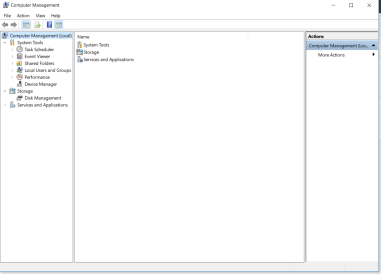
compmgmt.msc – open the computer management

compmgmt

diskmgmt.msc – opens the disk management

diskmgmt

lusrmgr.msc – opens the local users and groups management

lusrmgr

I will update this article with more useful commands as I identify them.


CCNP Route 300-101 – IPv6 Knowledge

This article is to share the knowledge about IPv6 (Internet Protocol version 6) in a simple way.

The first important knowledge you will needed to know before understanding IPv6 is that it is a 128-bit address that is represented using Hexadecimal values and it will be beneficial to know the binary and decimal equivalent.

Please see below the table showing this information:

Hex Binary Decimal
0 0000 0
1 0001 1
2 0010 2
3 0011 3
4 0100 4
5 0101 5
6 0110 6
7 0111 7
8 1000 8
9 1001 9
A 1010 10
B 1011 11
C 1100 12
D 1101 13
E 1110 14
F 1111 15

The next aspect of IPv6 Addressing to understand is that it is similar to IPv4 address where the address is split up into Octet (10.10.10.1) separated by a dot (.), IPv6 address are split up into quartet (2000:ABCD:0000:0000:0000:0000:0000:0001) separated by a colon (:). Each quartet is made up of 4 Hexadecimal number.

An example of an IPv6 address is below along with the binary of the address:

Quartet Hexadecimal Binary
1st 2000 0010 0000 0000 0000
2nd ABCD 1010 1011 1100 1101
3rd 0000 0000 0000 0000 0000
4th 0000 0000 0000 0000 0000
5th 0000 0000 0000 0000 0000
6th 0000 0000 0000 0000 0000
7th 0000 0000 0000 0000 0000
8th 0001 0000 0000 0000 0001

Shortening the IPv6 Address

there are two methods we can use to shorten the IPv6 address to make it easier to write which is also applied by supported devices.

  1. Eliminating the leading zeros
  2. Using the double colon (::) to represents multiple quartet of zeros. this can only be applied once in an IPv6 address.

let me use an example IPv6 address 2000:ABC0:00ED:0000:0000:1234:0000:0001

Applying shortening rule 1 to eliminating the leading zeros which will be:

2000 : ABC0 : 00ED : 0000 : 0000 : 1234 : 0000 : 0001
2000 : ABC0 : ED : 0 : 0 : 1234 : 0 : 1

Then we are going to apply rule 2 which is to use the double colon (::) to replace multiple quartet of zeros:

2000 : ABC0 : 0 : 0 : 1234 : 0 : 1
2000 : ABC0 :: 1234 : 0 : 1

IPv6 Prefix

The IPv6 address has two main parts to the address:

  1. Prefix (Network ID)
  2. Interface ID (Host ID)

The IPv6 Prefix is denoted by the CIDR /XX. For example 2000::/3 where /3 tells you the network portion of the IPv6 address space.

There are also subdivision of the Prefix:

  1. Registry Prefix – assigned by IANA to an RIR
  2. ISP Prefix – assigned by an RIR to an ISP
  3. Site Prefix (Global Routing Prefix) – assigned by an ISP to customer
  4. Subnet Prefix – assigned by a customer engineer internally

RIR – Regional Internet Registry

IANA – Internet Assigned Numbers Authority

IPv6 Address Types

The unspecified address is an address used by an IPv6 node that has not gotten an IPv6 address.

The Global address is the address space reserved to be routed on the internet which is assigned by the IANA.

The Multicast address is joined by IPv6 nodes depending on the class the device is apart of which will be discussed later.

The Link-local is the address automatically assigned by the IPv6 node using the EUI-64 method once the IPv6 is enabled on an interface.

Types of Address Binary Reality IPv6 method
Unspecified 0000…0 ::/128
Loopback 0000…1 ::1/128
Global 001… (first 3) 2000::/3 (2000 – 3FFF)
Multicast 1111 1111 (first 8) FF00::/8
Link-local 1111 1110 10… (first 10) FE80::/10

There is another special type of address which is the Extended Unique Identifier (EUI-64) that uses the MAC address (48-bit) as part of the IPv6 Address. The challenge with the MAC address is that it is short 16-bit so to make it 64-bit, FFFE will be place in the middle of the MAC address. Another modification that is required to derive the EUI-64 address is that the 7th bit must be flipped. To better understand this address, let me list the rules in a table:

Steps Rule Address
1 Get the Mac Address AAAA.BBBB.CCCC
2 Insert FFFE in the middle of the MAC AAAABB FFFE BBCCCC
3 Flip the 7th bit by converting the first 2 Hex to binary, flipping the 7th bit and then converting it back to Hexidecimal AA = 1010 1010

1010 1000 = A8

A8AA:BB FF:FE BB:CCCC

4 Apply the network prefix. in the example using link-local FE80::/8 FE80:0000:0000:0000:A8AA:BBFF:FEBB:CCCC /64
5 Shorten the IPv6 Address FE80::A8AA:BBFF:FEBB:CCCC /64

Local Multicast Address

IPv6 Local Multicast Address Description
FF02::1 All-node
FF02::2 all-routers
FF02::5 all-OSPF routers
FF02::6 OSPF designated routers
FF02::9 All RIP
FF02::A All-EIGRP
FF02::1:FFxx:xxxx solicited-node where x is the last 6 Hex of the IPv6 unicast address

IPv6 Node Layer 2 Communication

When a IPv6 node needs to communicate at the Layer 2 after receiving a multicast packet, the IPv6 node uses the following Layer 2 (MAC) address format:

3333 : xxxx : xxx1

where X is the last 8 Hex of the MAC address but the 8th Hex is change to 1 as shown above.

For the solicited address after the 3333, we will insert FF and then add the last 6 Hex as shown below:

3333 : FFxx : xxxx

IPv6 Address Dynamic Assignment

Stateless Address Auto Configuration (SLAAC)

  • The IPv6 address is derived using the Network prefix and adding the MAC address to it (EUI-64)
  • It used the Stateless DHCP
  • The prefix must be /64
  • There should be no DHCP IP pool configured on router

Stateful DHCP

  • The IPv6 address is dynamically assigned to the host by the DHCP server along with DNS and gateway.

Domain Name System (DNS) – RF6106

IPv6 Neighbor Discovery Protocol (NDP)

Network Discovery Protocol is defined in the RF 4861.

NDP Message Types

  • Router Solicitation (ICMPv6 type 133)
    • Asking router for information
  • Router Advertisement (ICMPv6 type 134)
    • Router responding with information
  • Neighbor Solicitation (ICMPv6 type 135)
    • Asking the neighbor for information
  • Neighbor Advertisement (ICMPv6 type 136)
    • Neighbor responding with information
  • Redirect (ICMPv6 type 137)
    • redirect of a packet

Function of NDP

  • Duplicate Address Detection (DAD)
  • Router Discovery
  • Address Configuration
  • L2 (link-level) Resolution
  • Redirection of a Packet

Microsoft: Print Management using Powershell

I was having an issue RDPing to a print server and the only other way was to using Server Management tools to manipulate the print services.

I was curious to find out if this was possible using Powershell and I research it and these are the commands I discovered.

Note: There was no direct Powershell command to execute a Test Print Page so this feature has to be manipulated using  Invoke-CimMethod using WMI print class which can be found here.


Add-Printer Adds a printer to the specified computer.
Add-PrinterDriver Installs a printer driver on the specified computer.
Add-PrinterPort Installs a printer port on the specified computer.
Get-PrintConfiguration Gets the configuration information of a printer.
Get-PrintJob Retrieves a list of print jobs in the specified printer.
Get-Printer Retrieves a list of printers installed on a computer.
Get-PrinterDriver Retrieves the list of printer drivers installed on the specified computer.
Get-PrinterPort Retrieves a list of printer ports installed on the specified computer.
Get-PrinterProperty Retrieves printer properties for the specified printer.
Read-PrinterNfcTag Reads information about printers from an NFC tag.
Remove-PrintJob Removes a print job on the specified printer.
Remove-Printer Removes a printer from the specified computer.
Remove-PrinterDriver Deletes printer driver from the specified computer.
Remove-PrinterPort Removes the specified printer port from the specified computer.
Rename-Printer Renames the specified printer.
Restart-PrintJob Restarts a print job on the specified printer.
Resume-PrintJob Resumes a suspended print job.
Set-PrintConfiguration Sets the configuration information for the specified printer.
Set-Printer Updates the configuration of an existing printer.
Set-PrinterProperty Modifies the printer properties for the specified printer.
Suspend-PrintJob Suspends a print job on the specified printer.
Write-PrinterNfcTag Writes printer connection data to an NFC tag.

For more information, please refer to the Microsoft documentation here.

Setting up Skype For Business (SFB) to connect to Skype

I was asked by a user if Skype For Business (SFB) can connect with external persons using Skype. I know in the past, this interconnection was not possible but I can now positively advise that it is possible.

I am going to demonstrate how you configure the SFB to connect to Skype using email address.

Skype For Business Client

First, open SFB.

Select the tab NEW

Select the Add Contact iconsfb1

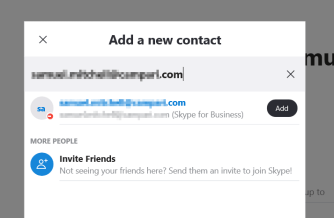
Select option Add a Contact Not in My Organization

sfb2

Enter the email of the recipient in the search box:

You will select the recipient from the result list that shows up

sfb3

Double click the persons identified and select Add this contact.

sfb4

It will prompt to send a request to the person and show up in the contact list.

Skype Client

Select Contacts –> Select +Contacts

skype1

The recipient will do the same from Skype and enter the persons SFB email address.

skype2

select Add, to send request and then it will show up in the contact list.

Try sending each other messages and then it will show the status.

Recovering from a BitLocker System Lockout after a BIOS Update

We had a user who was not abiding by the rules to store all the company data on the network drives to ensure it is protected and backed up by our systems.

The user’s laptop got a BIOS upgrade and unfortunately the laptop was rebooting requesting Bitlocker password. In our environment, Bitlocker passwords are registered in Active Directory upon activation but for some reason unknown to us, it was not there for this particular laptop.

Our colleague at the site, research a way to overcome this challenge and found the following solution:

  1. Download an Application that will allow you to build a bootable USB drive in DOS 32-bit. E.g. RUFUS
  2. Execute your selected application to build bootable USB drive (You might have to first format USB drive at 32-bit).
  3. Download all BIOS updates for the computer model from the vendor support site. (If you remember the previously installed BIOS version, you can download that version from the site)
  4. Boot up the computer with the bootable USB drive and run each BIOS from the command prompt (At this point, you are trying to find the BIOS version before the update was done, if you already know the version just install it).
  5. After updating the BIOS, reboot the computer to verify if Windows boots up successfully.
  6. If unsuccessful, go back to Step 4 and execute the next BIOS version file.
  1.  

    NOTE: Execute your BIOS from the latest to the oldest.

Error: Microsoft SharePoint is not supported with version 4.0.30319.42000 of the Microsoft .Net Runtime

My colleague was trying to run the PowerShell command Get-SPSite to get information about the SharePoint 2010 sites on the server.

He came across this error:

sharepointerror

It was discovered that the server Windows 2012 R2 has Microsoft .Net 4.0 installed on the box and as a result the SharePoint was not functioning with Powershell version 4.0.

To verify the version installed on the box:

$ver = $host | select version

$ver.Version

Solution

I had to run the opened PowerShell version 2 and then run the commands again.

To do this execute the following command from dos prompt:

powershell.exe -version 2

once the PowerShell opens run the commands again:

Add-PSSnapin Microsoft.SharePoint.PowerShell

Get-SPSite

Get-SPFarm

Get-SPWeb [SPSiteName]

Problem solved. I hope this was helpful.

Microsoft: SysInternals Suite PS Exec Command Usage

I was given a task to install a agent on computers and servers using command line as during my research I discovered this tool calls PSExec from the SysInternals Suite tools.

You may ask what is PSExec? According to Microsoft, it launches interactive command-prompts on remote systems and remote-enabling tools like IpConfig that otherwise do not have the ability to show information about remote systems. In other words, PSExec tool allows the execution of commands on a system remotely as if it is on the direct system console.

There are a number of features that I love about the PSExec tool which are as follows:

  1. It can run the command as another user remotely on the local system using user interaction
  2. It allows the execution of the command on multiple computers from a list in a text file

I was given the task to install the SAP Single Sign On add-in and it was difficult because it required that it is run under a network user locally in an interactive mode.

The PSExec tool gave me the power to overcome this difficulty.

Here is the syntax of the command and the parameters I used:

psexec.exe @[file-name.txt] -u [domain\username] -p -i -h [\\server\path\batch-files.bat]

explaining each switch:

@   execute the command on each computer in the file. Each computer must be in a new line

-u   username

-p  prompt for password

-i  run command in interactive mode

-h run the command with account elevated privilege

This command will execute the script on each computer return the result as it is completed.

Please ensure it is executed on a computer that is running since it cannot be execute without the computer being on.

Microsoft: Active Directory Domain Service Security Group

Security group scope

1. Universal

  • Forest users accessing its own Forest resources. (FF)
  • It can contain a combination of Global and Domain Local group

E.g. Enterprise Admins, Schema Admins (in the Users container)

2. Global

  • Domain users accessing its own Forest resources. (DF)

E.g. Domain Users, Domain Admins (in the Users container)

3. Domain Local

  • Forest users accessing Domain resources. (FD)
  • This is only group that can have members from an external forest

E.g. Administrators, Account Operators, Backup Operators, Print Operators (in the Builtin container)

Group Policy Object Processing And Precedence

This article is about the order of processing and precedence of the Group Policy Object (GPO).

There is a acronym used to remember the order of processing:

LSDOU – Local, Site, Domain, OU.

Local GPO

Site linked GPO

Domain linked GPO

Organizational Unit linked GPO

The rule of thumb with precedence for the LSDOU order of processing is that the last GPO applied takes precedence which will be the OU linked GPO. There are additional rules to consider such as when multiple GPOs are applied to an object (e.g. Domain), the GPO are process according to order from top to bottom (1 to …) and the top GPO takes precedence.

Inheriting Parent GPO

In some case there make be nested OUs or Parent and Child domains in which GPOs are inherited from the Parent automatically. The inherited GPOs has the least precedence by default on the child node which can be changed by rearranging the link order.

Enforcing GPO

The precedence of the GPO can change by Enforcing it which will allow it to move to the top (become number 1).