Securing the Web management for the HP 2530 switch

Whenever you get a HP/Aruba 2530 switch out of the box, it comes default with web management enabled using http. You can easily go to the IP address of the switch to view the switch details. To secure the web portal of the switch, do the following:

  1. Log into the switch
  2. Go into configuration mode
  3. Create a self-signed certificate for secure http access
    1. crypto pki enroll-self-signed certificate-name [SWITCHNAME] subject

    2. Enter each information requested
  4. To enable secure http, use command
    1. web-management ssl

  5. To disable http for web management, use command
    1. no web-management plaintext
  6. To added a login for the web portal, use the command:
    1. password manager user-name [loginname] plaintext [loginpassword]

I hope this was useful.

Fortinet: Publishing a Server access to the Internet via HTTP

This article is providing instructions on how to public a server/device to the internet using http. This article will go through the basic configuration.

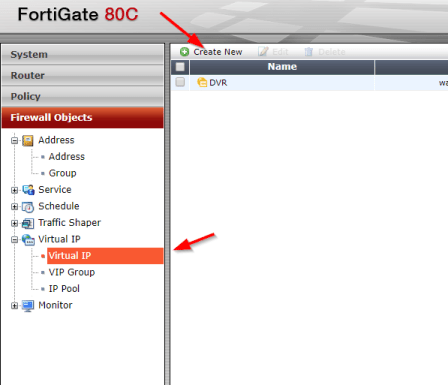
After logging into to the Fortinet portal, got to Firewall Objects –> Virtual IP –> Virtual IP, select Create New

create_virtual_ip

There are number of parameters:

Name: Short description of services e.g. DVR HTTP-80

External Interface: this is the port connected to the internet link with the public IP address.

External IP Address/Range: this use only need if you have more that one IP address configured on the port. If not, you can leave the default 0.0.0.0

Mapped IP Address/Range: Enter the internal server IP address of device. e.g. our DVR 192.168.0.12

Port Forwarding: tick this option if you are using custom ports from the default e.g. external service port is 5000 from the outside connecting to (map to) port 80 on the internal server.

virtual_ip_info

Go to Policy –>Policy –> Create New

create_policy

Select the Source Interface/Zone to external port.

Select destination Address to the Virtual IP created earlier and select Service to HTTP since we are using port 80. If the service is not list add it with the custom ports. Select Enable NAT to allow external IP address to access the internal device through the fortinet.

policy_settings

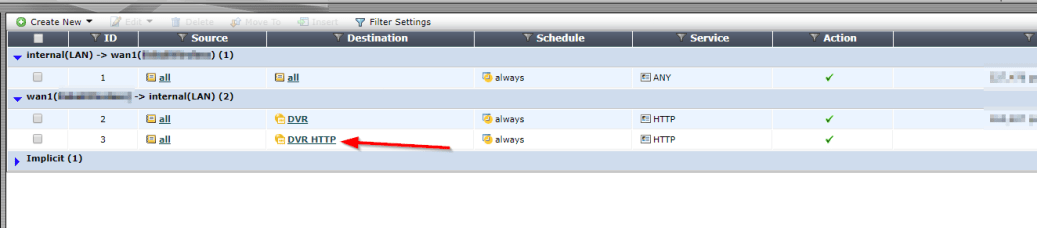
Once save by clicking ok, it will be listed under the external port source port column in the Policy section.

policy_listed

Cisco 2960 Error: %ILPOWER-3-CONTROLLER_PORT_ERR: Controller port error: Power Controller reports power supply VEE under voltage and lockout

I got a report that all our VoIP phone were down in a particular area that were connected to a Cisco 2960 switch. Upon investigation,

Initially, I ran the following show commands to check the status of the ports and power:

show power inline

The switch output:

showpowerinline

It was indicating that there was no device drawing power from the switch which was strange because there were VoIP phones connected to this switch.

With further checks, I came across these errors in the event logs:

poe_error

This error was telling me either the switch power module failed or some device caused a surge in power that causes the port power module to overload.

My resolution: Restart the switch which restored the switch to normal operations.

Being curious about the error, I researched it and came across this Cisco report:

https://quickview.cloudapps.cisco.com/quickview/bug/CSCsw18530

It was stating that this error is due to a bug in a particular version of IOS for 2960 switches.

The solution is:

Workaround:

Longer cable (>50ft) seems to fix the issue in most cases.

Solution

This issue is fixed in 12,2(55)SE3 , 12.2(58)SE1 and later releases. The
following interface configuration commands have to be applied to resolve the
issue,

Switch(config)# int x/y
Switch(config-if)# power inline port 2x-mode
Switch(config-if)# shut
Switch(config-if)# no shut

The fix is present in the following platforms :

3750-E,3560-E, 3750-X, 3560-X, 3560-C, 2960S, 2960,2960C,2960X

The other platforms do not support 2X power mode and the workaround would be to
use a longer cable.

Setup Cisco Router 1841 for NATing over two interface with Dynamic address.

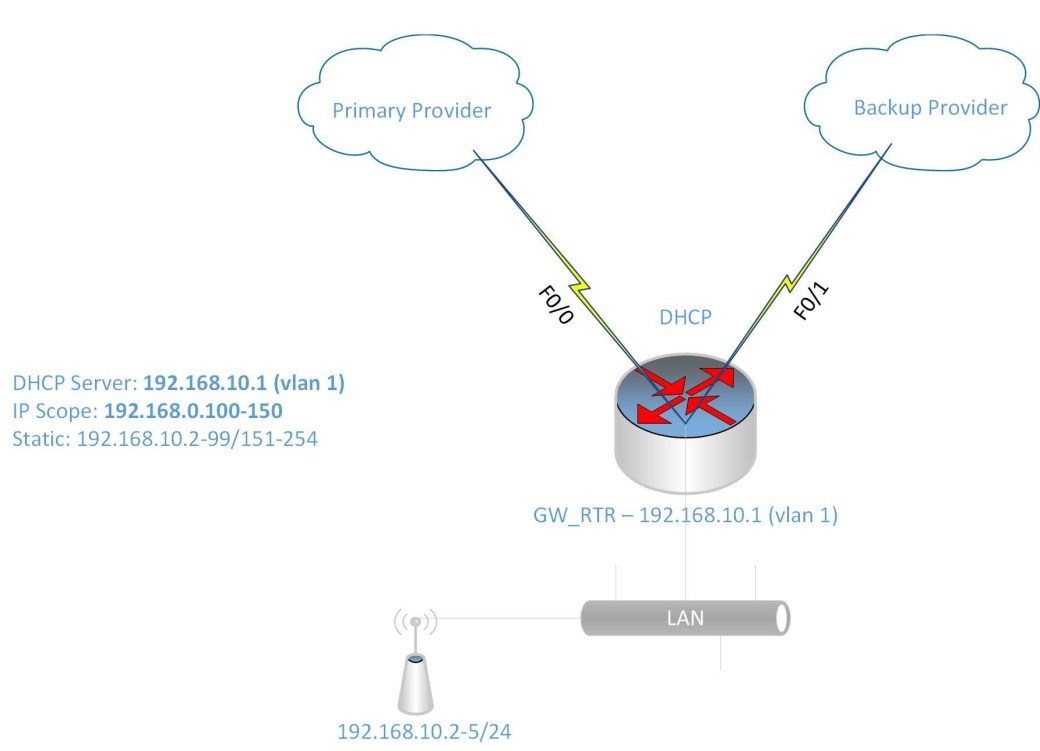
I was given the challenge to setup a Cisco 1841 router with two Fast Ethernet interface and a four Fast Ethernet-port switch module to configure redundancy across two Internet Service Providers (ISP).

RouterRedunantLink

I know that to accomplish this task, I will need  to do the following:

  • Configure the interfaces to get DHCP IP address from the two ISPs
  • Configure NATing from the LAN to the two ISPs for internet access
  • Configure IP SLA or Tracking to detect when the primary link goes down
  • Configure DHCP for the LAN devices
  • Configure Switch Virtual Interface (SVI) as the gateway for the LAN
  • There are also other features included to make the configuration easier such as IP access-list and route-map to link the IP address to the ISP interface for the NATing process.

Configure IP SLA for detecting failure of primary ISP link:

ip sla monitor 1

type echo protocol ipIcmpEcho 8.8.8.8 source-interface f0/0

timeout 1000

threshold 1000

frequency 6

ip sla monitor schedule 1 life forever start-time now

track 10 rtr 1 reachability

delay up 10

The command track 10 rtr is similiar to track 10 ip sla in newer router IOS. If the rtr parameter is not listed then use ip sla. Also some router IOS may not have ip sla monitor, instead it only has ip sla with the monitor parameter.

Now to configure the ISP interfaces and set the primary link tracking:

interface Fa0/0

ip dhcp client route track 10

ip address dhcp

ip nat otside

no shutdown

description PrimaryLink

interface f0/1

ip address dhcp

ip nat outside

description BackupLink

no shutdown

Using the command ip dhcp client route track 10 helps to track the ISP network status using the IP SLA configured previously.

Creating the SVI for the LAN:

interface VLAN 1

ip address 192.168.10.1 255.255.255.0

ip nat inside

description LAN_GWY

Setting  up the DHCP scope for the LAN (IP range 192.168.10.100-150):

ip dhcp pool LAN10

network 192.168.10.0 /24

default-router 192.168.10.1

dns-server 8.8.8.8 4.2.2.2

ip dhcp excluded-address 192.168.10.1 192.168.10.99

ip dhcp excluded-address 192.168.10.151 192.168.10.254

Setup the switch module ports as access ports for the LAN:

interface range f1/0 – 3

switchport mode access

Configure NATing for Internet access:

Please note that from previously entered command for the interfaces and SVI, there is an command ip nat inside and ip nat outside telling NAT which direction are the IP address translated.

Setup Access list for LAN Subnet (192.168.10.0/24)

ip access-list standard LAN-Subnet

permit 192.168.10.0 0.0.0.255

Setup Route-map to match LAN subnet to the two ISP interface:

route-map NAT_TO_PrimaryLink

match ip address LAN-Subnet

match interface f0/0

route-map NAT_TO_BackupLink

match ip address LAN-Subnet

match interface f0/1

Using route-map allows for the same source subnet to be map to two interfaces for the NATing.

Setup NATing for each ISP link to LAN Subnet

ip nat inside route-map NAT_TO_PrimaryLink interface f0/0 overload

ip nat inside route-map NAT_TO_BackupLink interface f0/1 overload

Change the administrative distance for Primary link

ip route 0.0.0.0 0.0.0.0 f0/0 dhcp 10

ip route 0.0.0.0 0.0.0.0 f0/1 dhcp 20

The default route 0.0.0.0 are set to ensure that they are setup with the specified administrative distance 10 and 20 for Primary and Backup link respectively.


Microsoft: Manipulating Windows Network Adapter using PowerShell

This article is about configuring the network adapter using PowerShell cmdlet:

To get a list of the names of physical network adapter, the following command was used:

Get-NetAdapter -Physical

To get the IP address assigned to the network adapter:

Get-NetIPAddress | Format-Table

To enable/disable the network adapter:

Enable-NetAdapter [-Name] “NetAdapterName”

Disable-NetAdapter [-Name] “NetAdapterName”

Restart-NetAdapter [-Name] “NetAdapterName”

To set dynamic IP address assignment for network adapter:

Set-NetIPAddress -AddressFamily IPv4 -PrefixOrigin Dhcp

To set static IP address for network adapter:

New-NetIPAddress -InterfaceIndex [NetAdapterIndex] -IPAddress 192.168.0.1 -PrefixLength 24 -DefaultGateway 192.168.0.5

Set-NetIPAddress -InterfaceIndex [index] -IPAddress 10.0.0.9 -PrefixLength 24

To set DNS IP address for network adapter:

Set-DnsClientServerAddress -InterfaceIndex 12 -ServerAddresses(“10.0.0.1”,“10.0.0.2”)

Or

Set-DnsClientServerAddress -InterfaceIndex 12 -ResetServerAddresses

For more commands and help on this topic, you can visit the Microsoft documentation site here.

Manipulating Windows Network Adapter using Network Shell

This adventure of configuring the network adapter started when I required admin rights to modify the settings because UAC (User Access Control) was disabled which prevented the prompting of admin privilege. The challenge was that I did not want to log off or switch user account hence I had to resort to using elevated privilege for the command prompt and utilize the network shell.

To get a list of the names of network adapter, the following command was used:

netsh interface show interface

To get the IP address assigned to the network adapter:

netsh interface ipv4 show addresses

To enable/disable the network adapter:

netsh interface set interface name=”NameOfInterface” admin=[ENABLED/DISABLED]

To set dynamic IP address assignment for network adapter:

netsh interface ipv4 set address source=dhcp

To set static IP address for network adapter:

netsh interface ipv4 set address static 10.0.0.9 255.255.255.0 10.0.0.1

To set DNS IP address for network adapter:

netsh interface ipv4 set dnsservers source=dhcp

Or

netsh interface ipv4 set dnsservers static 10.0.0.10 primary

For WLAN network adapter:

netsh wlan show interfaces

Show the Wireless networks broadcasting:

netsh wlan show networks

Show the WLAN profiles on computer:

netsh wlan show profiles

Connect to one of the WLAN profile configured on computer:

netsh wlan connect name=[ProfileName]

Disconnect from the currently connected WLAN SSID

network wlan disconnect name=[InterfaceName]

For more commands and help on this topic, you can visit the Microsoft documentation site here.

Computer blocked by Port Security

My colleague was working on an issue where a computer was communicating on the network through a Cisco switch that had port security enabled. As usually, he disables port security and re-enables it in an attempt to get the new mac address registered on the port. The computer (A) was now able to get an IP address from the DHCP server but unfortunately, the computer (A) still was not able to communicate with the server. In an effort to identify whether the problem was with computer (A) or the network port, another computer (B) was connected to the port which was successful. But when computer (A) was reconnected to the same port, there was still no communication. All network settings on Computer (A) were verified to be correct but still no break through. The same computer (A) was taken to another switch in another location and surprisingly it worked. So hhhmmm….what could be the problem? It was escalated to me to investigate further as he could not identify what was the root of the problem.

I started to ask the question “What is working?”

The responses were:

  1. Other devices were communicating when connected to the port
  2. The computer (A) is getting an IP address from the DHCP server
  3. The computer (A) is able to communicate on other switches

Next question, did they try the computer (A) on another port on the same switch? Response was No.

Anyways, everything was connected back to how it was before and then I started the troubleshooting.

The following observations were made:

  1. Port-security was enabled on the entire switch but disabled on this troubled port.
  2. The port duplex and speed was ok (Full/100)
  3. The computer (A) got an dynamic IP address from the DHCP server
  4. The computer (A) mac address was not showing on the port when I check the MAC address table for the problem port (f0/42)
  5. Port security sticky address listing showed that computer (A) mac address was tied to port f0/22

What do you think the root of the problem is?

The computer (A) is not able to communicate with anything on the network because the mac address of the computer (A) was tied to another port so when devices response to the packet, it is returning to the wrong port. so the solution was to remove the sticky address and allow the switch to relearn it over the new connected port (f0/42). Another question resonate in my mind was “How did it get an IP address from the DHCP server?”. But if you review how devices acquire an IP address, it is using broadcast. Therefore, the computer will always get an IP address but it would not be able to communicate with other devices.

I hope this troubleshooting scenario helps someone with understanding port-security on a Cisco switch.

Avoid using Fiber Transceivers for Switch Connection

I am dedicating this article to an experience I had with connecting switches using 10/100 Base-T 100Base-FX fiber converters (Transceivers).

It is a pain when the transceivers goes bad especially if it is not identified as causing packet loss or slow link connection on the switched network.

I had an experience were a location was complaining of having slow connection to the server resources and the IP phones were having poor call quality. When the user is on a call, the caller will hear the person very clearly but the other user would constantly hear drop in the conversation.

When a ping test was done, for every 5 or 10 ping response, the packet will drop, even to the uplink switch. When a ping test is done to the same switch, it was successful with no packet loss.

Looking at the interfaces status, there was no indication of any CRC errors or other parameters such as runts or interface reset indicating no problem with cable.

I connected my laptop directly to the transceiver and did a ping test and the same result. This is where I concluded that the problem was with the transceiver; low and behold when I swap out the transceiver for the direct fiber connection to the switches, all connection issues just disappear.

Conclusion:  Avoid using transceivers to connect switches over fiber links, as much as possible use SFP modules because when the transceivers goes bad, they cause latency to the connected location. Also I have noticed that the devices are very unreliable and are fragile hence they are high maintenance and a waste of time, effort and money which most of us Engineers don’t have time to waste.

Configuring similar Cisco features on an HP 2530 switch

I had the privilege to learn another vendor’s switch configure from HP. This article will be about Configuring the following parameters in a HP 2530 similar what you will do in a Cisco access switch:

  • Access port (edge port)
  • Trunk ports (tagged port)
  • Port security (MAC security)
  • Ether channel  (LAG)
  • Spanning tree
  • Portfast
  • Enable secret password
  • SNMP
  • Switch virtual Interface  (SVI)
  • Vlan default gateway
  • Show logging on the console

Before I begin we need to know that there are two main standards in the networking world, it is either Cisco or IEEE. So vendors like HP will only follow the IEEE standards. With that being said, let us begin:

What I am going to do is to show the Cisco way of the commands for the particular feature followed by HP.

1. Trunk ports: we know that Cisco switch has two protocol Used to develop a trunk port; ISL and 802.1Q (IEEE standard). Although the newest Cisco are no longer supporting ISL as it is being faced outed.

CISCO: 

SW(config-if)# switchport trunk encapsulation dot1q

SW(config-if)# switchport mode trunk
SW(config-if)# switchport trunk allow vlan 1-5
SW(config-if)# switchport trunk native vlan 5

HP:

SW(configure)# int 49

SW(eth-49)# tagged vlan 1-4

SW (eth-49)# untagged vlan 5


2. Creating and configuring Voice vlan on a switch port that tells the IP Phone which vlan to use for communication.

CISCO:

SW(config)# interface f0/1

SW(config-if)# switchport voice vlan 6

HP:

SW(configure)# vlan 6

SW(vlan-6)#voice

SW(configure)#int 1

SW(eth-1)#tagged vlan 6


3. Configure Spanning-tree portfast to let the port transition into forwarding state immediately and also this configures the port as a access/edge port.

CISCO:

SW(config)# interface Fa0/1

SW(config-if)# switchport mode access

SW(config-if)# switchport access vlan 2

SW(config-if)# spanning-tree portfast

HP:

SW(configure)# spanning-tree 1 admin-edge-port

SW(configure)# interface 1

SW(eth-1)# untagged vlan 2


4.  Configure BPDU Guard to prevent a switch from connecting to a access port by shutting it down.

CISCO:

SW(config)#interface range fa0/1 – 24

SW(config-if-range)#spanning-tree bpduguard enable

HP:

SW(configure)# spanning-tree 1-24 bpdu-protection


5. Configure RSTP protocol to prevent loops in a network.

CISCO:

SW(config)# spanning-tree mode rapid-pvst

HP:

SW(configure)# spanning-tree

SW(configure)# spanning-tree force-version rstp-operation


6.  Configure Port security using mac address restriction and limiting the number of devices connected.

CISCO:

SW(config)# interface range f0/1 – 24

SW(config-if-range)# switchport port-security

SW(config-if-range)# switchport port-security maximum 2

SW(config-if-range)# switchport port-security violation restrict

HP:

SW(configure)# port-security 1-24 learn-mode limited-continuous address-limit 2


7. Configuring SNMP on the switch for monitoring tool to access the switch status.

CISCO:

SW(config)# snmp-server community [string-password] ro

HP:

SW(configure)# no snmp-server community public

SW(configure)# snmp-server community [string-password] restricted


8. Configure username and password on the switch.

CISCO:

SW(config)# username admin privilege 15 secret [password]

HP:

SW(configure)# password manager user-name [admin] plaintext [networkpassword]


9. Configure Etherchannel or Link Aggregation (LAG) port to bundle two or more ports together. Remember that LACP is the standard protocol for other vendors except Cisco.

CISCO:

SW(config)# interface range Fa0/47 – 48

SW(config-if-range)#channel-protocol lacp

SW(config-if-range)# channel-group 1 mode active

HP:

SW(configure)# trunk 47-48 trk1 LACP


10. Configure Switch Virtual Interface IP address and default gateway.

CISCO:

SW(config)# ip default-gateway 10.1.1.1

SW(config)# int vlan 1

SW(config-if)# ip address 10.1.1.10 255.255.255.0

SW(config-if)# no shutdown

HP:

SW(config)# ip default-gateway 10.1.1.1

SW(config)#int vlan 1

SW(vlan-1)#ip address 10.1.1.10 255.255.255.0


11. Show logging on the console

Cisco:

SW(config)# terminal monitor

HP:

SW# debug destination session

SW# debug event

Standard configuration of an access layer switch (Cisco)

Over the years I have developed a number of parameters that needs to be configured on the Cisco switch. See below the features that you should consider to be enable or configured on the switch:

  1. logging synchronous – this feature allows your commands not to be interrupted by syslog messages because it can be annoying when you are typing a command and in the middle of it, you get a syslog message which breaks your command line.
  2. service password-encryption – this feature enables your system password to be encrypted with MD5 hash which is usually stored in the startup or running configuration file as clear text. This helps to add another layer of security for on-lookers. Although the MD5 hash password is easily reversible using google search, alteast it is not easily readable with just a glance. Note: this only encrypts password for the commands enable password, line vty and console passwords. Enable secret uses an irreversible encryption.
  3. enable secret – it is best to use this privilege mode password command than using enable password since it is more secure and the password is encrypted which is irreversible as mentioned in previous point.
  4. vtp mode transparent – although VLAN Trunking Protocol (VTP) is a great way of managing the vlan database for multiples switch, it can pose a problem if anything goes wrong with misconfiguration from any switches that is apart of the VTP domain.  It is also cisco’s best practice to convert all switches to transparent mode and manually manage the vlan  individually on each switches which will leave no room for error. This error can in fact cause a network outage that will take hours to reconfigure depending on the scale of your LAN.
  5. transport input ssh – it is good practice to secure your connection to your switches using ssh as it prevent persons from using tools such as wireshark to get password information for protocol (telnet) which send username and password in clear text. SSH encrypts the username and password in transit from source to device. this feature can be applied at the line vty port.

As I go along, I will update this article to reflect more parameters to configure on a network device for the best performance and security.