Disable IE Enhanced Security Configuration in Windows Server via script

I have always want to use a script to disable Internet Explorer Enhanced Security Configuration (IE ESC) in Windows Server. It is an annoying activity when it is required to perform tasked using the IE in older versions of windows servers.

It is important to note that IE ESC is very important to the security of legacy servers from common past vulnerabilities which is not a risk in current versions of server OS.

This activity must be taken with precaution and on servers with access restriction to the Internet. It is encouraged that IT professional implement all measures to secure the legacy application running on these servers that must be maintained in an segmented or isolated environment. It is the responsibility of the IT professional to use a secure alternative browser after this activity has been performed.

Now here is a batch script to the rescue taken from this Microsoft FAQ that can be runned on all your servers. Save the script in a batch file and run it from the command line.

The script must run as an administrator or a logon script to work since it is making changes to the registry.

Note: The script was created for Windows Server 2003 and 2008. However, it will work for other versions such as Windows Server 2019.

ECHO OFF
REM  IEHarden Removal Project
REM  HasVersionInfo: Yes
REM  Author: Axelr
REM  Productname: Remove IE Enhanced Security
REM  Comments: Helps remove the IE Enhanced Security Component of Windows 2003 and 2008(including R2)
REM  IEHarden Removal Project End
ECHO ON
::Related Article
::933991 Standard users cannot turn off the Internet Explorer Enhanced Security feature on a Windows Server 2003-based terminal server
::http://support.microsoft.com/default.aspx?scid=kb;EN-US;933991
:: Rem out if you like to Backup the registry keys
::REG EXPORT "HKEY_LOCAL_MACHINE\SOFTWARE\Microsoft\Active Setup\Installed Components\{A509B1A7-37EF-4b3f-8CFC-4F3A74704073}" "%TEMP%.HKEY_LOCAL_MACHINE.SOFTWARE.Microsoft.Active Setup.Installed Components.A509B1A7-37EF-4b3f-8CFC-4F3A74704073.reg"
::REG EXPORT "HKEY_LOCAL_MACHINE\SOFTWARE\Microsoft\Active Setup\Installed Components\{A509B1A7-37EF-4b3f-8CFC-4F3A74704073}" "%TEMP%.HKEY_LOCAL_MACHINE.SOFTWARE.Microsoft.Active Setup.Installed Components.A509B1A8-37EF-4b3f-8CFC-4F3A74704073.reg"
REG ADD "HKEY_LOCAL_MACHINE\SOFTWARE\Microsoft\Active Setup\Installed Components\{A509B1A7-37EF-4b3f-8CFC-4F3A74704073}" /v "IsInstalled" /t REG_DWORD /d 0 /f
REG ADD "HKEY_LOCAL_MACHINE\SOFTWARE\Microsoft\Active Setup\Installed Components\{A509B1A8-37EF-4b3f-8CFC-4F3A74704073}" /v "IsInstalled" /t REG_DWORD /d 0 /f
::x64
REG ADD "HKEY_LOCAL_MACHINE\SOFTWARE\Wow6432node\Microsoft\Active Setup\Installed Components\{A509B1A8-37EF-4b3f-8CFC-4F3A74704073}" /v "IsInstalled" /t REG_DWORD /d 0 /f
::Disables IE Harden for user if set to 1 which is enabled
REG ADD "HKEY_CURRENT_USER\Software\Microsoft\Windows\CurrentVersion\Internet Settings\ZoneMap" /v "IEHarden" /t REG_DWORD /d 0 /f
REG ADD "HKEY_LOCAL_MACHINE\Software\Microsoft\Windows\CurrentVersion\Internet Settings\ZoneMap" /v "IEHarden" /t REG_DWORD /d 0 /f
REG ADD "HKEY_CURRENT_USER\Software\Wow6432Node\Microsoft\Windows\CurrentVersion\Internet Settings\ZoneMap" /v "IEHarden" /t REG_DWORD /d 0 /f
::Removing line below as it is not needed for Windows 2003 scenarios. You may need to enable it for Windows 2008 scenarios
::Rundll32 iesetup.dll,IEHardenLMSettings
Rundll32 iesetup.dll,IEHardenUser
Rundll32 iesetup.dll,IEHardenAdmin
Rundll32 iesetup.dll,IEHardenMachineNow
::This apply to Windows 2003 Servers
REG DELETE "HKEY_LOCAL_MACHINE\SOFTWARE\Microsoft\Windows\CurrentVersion\Setup\OC Manager\Subcomponents" /v "iehardenadmin" /f /va
REG DELETE "HKEY_LOCAL_MACHINE\SOFTWARE\Microsoft\Windows\CurrentVersion\Setup\OC Manager\Subcomponents" /v "iehardenuser" /f /va
REG ADD "HKEY_LOCAL_MACHINE\SOFTWARE\Microsoft\Windows\CurrentVersion\Setup\OC Manager\Subcomponents" /v "iehardenadmin" /t REG_DWORD /d 0 /f
REG ADD "HKEY_LOCAL_MACHINE\SOFTWARE\Microsoft\Windows\CurrentVersion\Setup\OC Manager\Subcomponents" /v "iehardenuser" /t REG_DWORD /d 0 /f
::REG DELETE "HKEY_LOCAL_MACHINE\SOFTWARE\Microsoft\Active Setup\Installed Components\{A509B1A7-37EF-4b3f-8CFC-4F3A74704073}" /f /va
::REG DELETE "HKEY_LOCAL_MACHINE\SOFTWARE\Microsoft\Active Setup\Installed Components\{A509B1A8-37EF-4b3f-8CFC-4F3A74704073}" /f /va
:: Optional to remove warning on first IE Run and set home page to blank. remove the :: from lines below
:: 32-bit HKCU Keys
REG DELETE "HKEY_CURRENT_USER\Software\Microsoft\Internet Explorer\Main" /v "First Home Page" /f
REG ADD "HKEY_CURRENT_USER\Software\Microsoft\Internet Explorer\Main" /v "Default_Page_URL" /t REG_SZ /d "about:blank" /f
REG ADD "HKEY_CURRENT_USER\Software\Microsoft\Internet Explorer\Main" /v "Start Page" /t REG_SZ /d "about:blank" /f
:: This will disable a warning the user may get regarding Protected Mode being disable for intranet, which is the default.
:: See article http://social.technet.microsoft.com/Forums/lv-LV/winserverTS/thread/34719084-5bdb-4590-9ebf-e190e8784ec7
:: Intranet Protected mode is disable. Warning should not appear and this key will disable the warning
REG ADD "HKEY_CURRENT_USER\Software\Microsoft\Internet Explorer\Main" /v "NoProtectedModeBanner" /t REG_DWORD /d 1 /f
:: Removing Terminal Server Shadowing x86 32bit
REG DELETE "HKEY_LOCAL_MACHINE\SOFTWARE\Microsoft\Windows NT\CurrentVersion\Terminal Server\Install\Software\Microsoft\Windows\CurrentVersion\Internet Settings\ZoneMap" /v "IEHarden" /f
:: Removing Terminal Server Shadowing Wow6432Node
REG DELETE "HKEY_LOCAL_MACHINE\SOFTWARE\Wow6432Node\Microsoft\Windows NT\CurrentVersion\Terminal Server\Install\Software\Microsoft\Windows\CurrentVersion\Internet Settings\ZoneMap" /v "IEHarden" /f

The script may display errors for some commands depending on the versions of Windows servers due the registry keys not used in that versions.

Most importantly, ensure to verify the settings changed for the Internet Explorer ESC.

CCNA 200-301 Preparation Tools

This article is created to assist in providing the resources required to prepare for the CCNA 200-301 exam.

The list of resources I find helpful are:

CCNP R&S Switch: Private VLANs

This article describes the Private VLANs on a Cisco switch.

There are three (3) type of Private VLANs:

  1. Primary
  2. Isolated
  3. Community

There are two port types that are associated with Private VLANs:

  • Promiscuous
  • Host

You can configure a host port to be associated with either an Isolated or Community VLAN.

Individual ports in an Isolated VLAN cannot communicate with any other port except the port in the primary VLAN.

All Ports in a Community VLAN can communicated with other ports in the same VLAN and with the port in the Primary VLAN.

Promiscuous port can communicate with all ports in either an Isolated or Community VLAN that it is associated with.

Private VLANs can be replicated to other switches using VTPv3.

Secondary VLANs (Community and Isolated) can only be mapped to one Primary VLAN (Promiscuous).

Cisco reference: https://www.cisco.com/c/en/us/td/docs/switches/lan/catalyst4500/12-2/50sg/configuration/guide/Wrapper-46SG/pvlans.pdf

CCNP Route 300-101 – OSPF

This article was written about OSPF as I prepare for the CCNP. It was be updated as I progress.

OSPF is the acronym for Open Shortest Path First which is a vendor mutual routing protocol.

  • Shortest Path First SPF Algorithm for calculating the cost.
  • Default hello timer: 10 seconds
  • Default dead timer: 40 seconds (4 x hello)
  • Multicast address: 224.0.0.5 and 224.0.0.6
  • Communication Protocol:
  • Administrative distance of 110
  • Process ID is local significant and is not required to be the same with the neighbors.
  • The router ID is set using the following method in order:
    • using the router-id command
    • the highest IP address on the active loopback interface
    • The highest IP address on the active physical interface
  • Link State Updates (LSU) send every 30 minutes

OSPF neighbor relationship

OSPF States

Down –> Init –> 2Way –> ExStart –> Exchange –> Loading –> FULL

OSPF Packet Types

Type 1 – Hello

The purpose is to maintain the neighbor relationship using it as a keepalive.

debug ip ospf events of packet type 1debug_hello

Wireshark capture of packet type 1.OSPFType1Hello

Type 2 – Database Description (DBD)

debug ip ospf events of packet type 2debug_DBD.png

Wireshark capture of packet type 2ospftype2-dbdesc

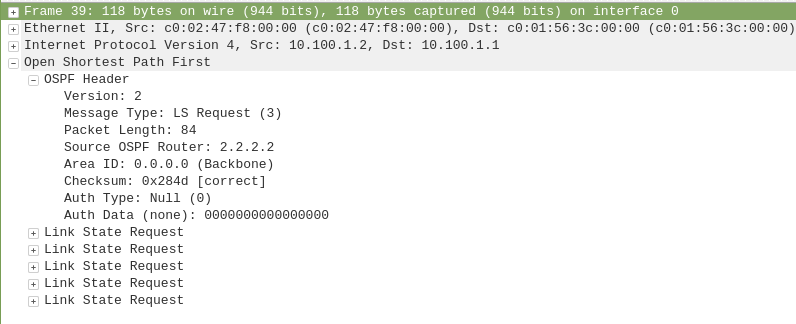
Type 3 – Link State Request (LSR)

debug ip ospf events of packet type 3debug_LSR

Wireshark capture of packet type 3ospf-type3-LSReq

Type 4 – Link State Update (LSU)

debug ip ospf events of packet type 4debug_LSU

Wireshark capture of packet type 4ospf-type4-lsupdate

Type 5 – Link State Acknowledge (LSAck)

debug ip ospf events of packet type 5debug_LSAck

Wireshark capture of packet type 5ospf-type5-lsAck

OSPF Network Types

  • Loopback – Stub Host – /32
  • P2P – Point-to-Point – HDLC
  • Broadcast – FastEthernet – DR/BDR
  • NBMA -Non-Broadcast Multi Access
  • P2MP – Point-to-Multipoint –
  • Virtual Links

OSPF Area and Router Types

ASBR – Autonomous System Border Router

ABR – Area Border Router

Stubby Area

Totally Stubby Area

Not-So Stubby Area

CCNP Encore: Configuring GRE Tunnel over IPSec

This article will be showing how to configure a Generic Encapsulation Tunnel also known as GRE Tunnel over IPSec.

disclaimer: note that this is a lab exercise only to show the configuration steps stated and may require additional modification based on your network environment.

The following network topology will be used to demonstrate this exercise.

Network Topology

The initial basic router configuration are below:

R1 configuration:

interface fastethernet 0/0
ip address 192.0.2.1 255.255.255.252
no shut
!
int loopback 0
ip address 1.1.1.1 255.255.255.255
!
router ospf 1
network 0.0.0.0 0.0.0.0 area 0
!
R2 configuration:

interface fastethernet 0/0

ip address 192.0.2.2 255.255.255.252

no shut

!

interface fastethernet 0/1

ip address 203.0.113.1 255.255.255.252

no shut

!

int loopback 0

ip address 2.2.2.2 255.255.255.255

!

router ospf 1

network 0.0.0.0 0.0.0.0 area 0

!

R3 configuration:

interface fastethernet 0/1

ip address 198.51.100.1 255.255.255.252

no shut

!

interface fastethernet 0/0

ip address 203.0.113.2 255.255.255.252

no shut

!

int loopback 0

ip address 3.3.3.3 255.255.255.255

!

router ospf 1

network 0.0.0.0 0.0.0.0 area 0

!

R4 configuration:

interface fastethernet 0/0

ip address 198.51.100.2 255.255.255.252

no shut

!

int loopback 0

ip address 4.4.4.4 255.255.255.255

!

router ospf 1

network 0.0.0.0 0.0.0.0 area 0

!

Before going into the task, there are some information that is important to know why IPSec is with a GRE Tunnel:

  • GRE Tunnel
    • It is used to encapsulated the packets over a network between two network devices.
    • it does not provide encryption which makes it unsecure
  • IPSec
    • It is secure by providing encryption
    • it only supports uni-cast traffic which presents a problem for routing protocols that uses multicast to function.

What are the use cases for this technology?

Combining both technology makes it a suitable solution to create a secure connections over public or unsecured networks between two networks.

Lab Exercise

Once the routers has been configured accordingly using the initial base configuration, it is time to start the exercise.

In this exercise, two task are going to be done:

  1. Configure a GRE Tunnel between R1 and R4
  2. Configure a IPSec tunnel

Step 1 – Configure the GRE tunnel on R1 and R4

  • Create a tunnel interface

R1(config)# interface tunnel 1

  • Assign an ip address to the tunnel interface

R1(config-if)# ip address 192.168.0.1 255.255.255.252

  • Set the source interface from where the tunnel will be connected

R1(config-if)# tunnel source fastethernet 0/0

  • Set the destination address of the router at the other end of the tunnel

R1(config-if)# tunnel destination 198.51.100.2 255.255.255.252

Note: repeat the same steps on router R4 but replacing the respective source interface and destination address. It is important to note that the tunnel # is locally significant.

you can check the status of the tunnel after step 1 by running the show command as follows:

R1(config)# do show ip interface brief

Step 2 – Configure a IPSec tunnel

  • Setup Phase 1 – set ISAKMP policy

R1(config)# crypto isakmp policy 14

  • Set encryption type

R1(config-isakmp)# encryption aes

  • Set authentication type

R1(config-isakmp)# authentication pre-share

R1(config-isakmp)# group 2

R1(config-isakmp)# exit

  • Set ISAKMP key and transform mode

R1(config)# crypto isakmp key 0 [keypass] address [192.51.100.2]

R1(config)# crypto ipsec transform-set [KWTRAIN] esp-aes esp-sha-hmac

R1(cfg-crypto-trans)# mode [transport|tunnel]

R1(cfg-crypto-trans)# exit

  • Configure an ACL for the traffic allowed to traverse the IPSec tunnel

R1(config)# ip access-list extended GRE-IN-IPSEC

R1(config-ext-nacl)# permit gre any any

R1(config-ext-nacl)# exit

  • Setup Phase 2 – linking ACL, transform set and peer ip to IPSec tunnel

R1(config)# crypto map VPN 10 ipsec-isakmp

R1(config-crypto-map)# match address GRE-IN-IPSEC

R1(config-crypto-map)# set transform-set KWTRAIN

R1(config-crypto-map)# set peer 198.51.100.2

R1(config-crypto-map)# exit

  • mapping interface to IPSec tunnel

R1(config)# interface f0/0

R1(config-if)# crypto map VPN

R1(config-if)# end

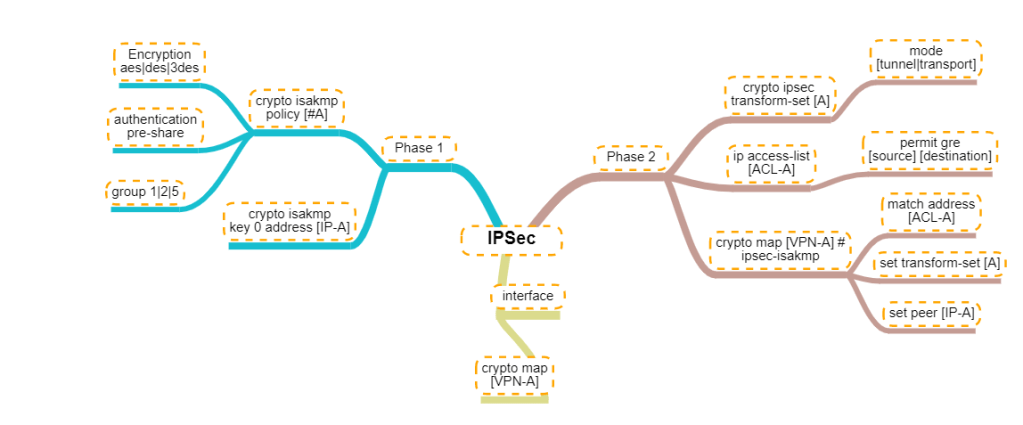
For person who are visual learners, here is a mind map of the configurations below.

Mindmap of the IPSec configuration commands

CCNP Route 300-101 – Policy Based Routing

Policy-based routing (PBR) is a process whereby the device puts packets through a route map before routing them.  (Cisco Reference)

Policy Based Routing is applicable to scenarios where you want to route a source IP address through a specific gateway IP address to a specific destination. Policy Based Routing relies on route-map to performs it functions which then uses access-list or prefix list to identify the respective source or destination IP address.

policybasedrouting

Configure Policy Based Routing

Step 1 – Configure Access list

R1(config)# ip access-list standard PC1-INT

R1(config-access-list)# permit ip host [PC1-IPAddress] [DestinationIP-Subnet]

Step 2 – Configure the Route map

R1(config)# route-map ISP2-INT [Sequence#]

R1(config-route-map)# match ip address [ISP2-INT]

R1(config-route-map)# set ip next-hop [ISP2]

Step 3 – Apply the Route map on the inbound interface

R1(config)# interface f0/0

R1(config-f)# ip policy route-map ISP2-INT

That is it for the configuration example for the Policy Based Routing.

There are a number of points to note about PBR:

  1. The implicit deny at the end of the route-map does not drop the packet but allow the  traffic to be routed but the normal routing table.
  2. There is an option to include a keyword “default” in the route-map set parameter which tells the router to check the routing table for this destination address before apply the next hop:
    1. set ip default next-hop [IPAddress]
  3. Match all parameter can be applied by not setting any match conditions in the route map.


This is it for the Policy Based Routing and you can refer to Cisco documentation for further information.


CCNP Route 300-101 – VRF lite

This article is going to take you through the configuration of VRF lite. VRF stands for Virtual Routing/Forwarding which is technology that allows you to have multiple routing tables that are kept isolated on a router. It is a feature similar to VLANs on a switch. VRF lite allows you to use the same subnets for each

You can refer to this Cisco document for further details: https://www.cisco.com/c/en/us/td/docs/switches/lan/catalyst4500/12-2/25ew/configuration/guide/conf/vrf.html#wp1045190

Note that VRF is usually used when configuring MPLS but because we are not using it with MPLS, it is referred to as VRF lite.

Configuration of VRF lite for IPv4

The following steps will be required to successfully configure VRF lite:

  1. Create the VRF and set the route distinguisher (rd)

R1(config)# ip vrf [NAME]

R1(config-vrf)# rd 100:1

2. Assigning the interfaces to the VRF (Note: VRF clears the interface IP address so you will have to reconfigure the ip address after applying this command)

R1(config-if)# ip vrf forwarding [NAME]

Review VRF Configuration

  1. Show the Assigned VRF Interfaces

R1# show ip vrf interfaces

2. Show the VRFs

R1# show ip vrf

3. Show the Routing Table within a VRF

R1# show ip route vrf [NAME]

4. Show the routing protocols operating within VRF

show ip protocol vrf [NAME]

Configure EIGRP and VRF Lite

R1(config)# router eigrp AS

R1(config-router)# address-family ipv4 vrf [NAME] autonomous-system AS

R1(config-router-af)#network [Subnet] [wildcard_mask]

Configure OSPF and VRF Lite

R1(config)# router ospf [Process-id] vrf [NAME]

Configure RIPv2 and VRF Lite

R1(config)# router rip

R1(config-router)# address-family ipv4 vrf [NAME]

Configuration of VRF lite for both IPv4 & IPv6

  1. Create the VRF and set the route distinguisher (rd)

R1(config)# vrf definition [NAME]

R1(config-vrf)# rd 100:1

R1(config-vrf)#address-family [ipv4|ipv6]

2. Assigning the interfaces to the VRF (Note: VRF clears the interface IP address so you will have to reconfigure the ip address after applying this command)

R1(config-if)# ip vrf forwarding [NAME]

Export and Import Routes from one VRF to another

Importing routes from another VRF using the RD (route distinguisher)

R1(config-vrf)# route-import [RD]

Exporting routes from the VRF using the RD (route distinguisher)

R1(config-vrf)# route-export [RD]

example:

ip vrf GREEN

rd 100:1

route-export 100:1234

ip vrf RED

rd 200:1

router-import 100:1234

Set Default VRF Lite Name

This commands allows you to configure the router in the stated VRF mode.

R1#routing-context vrf [VRFNAME]

R1%VRFNAME#


CCNP Route 300-101 – SNMP

SNMP stands for Simple Network Management Protocol which is uses to manage your network devices by a management host.

There are three versions of SNMP:

  • SNMPv1
  • SNMPv2c
  • SNMPv3

SNMPv1 and SNMPv2c uses community-string as password which is sent in clear text.

On the other hand, SNMPv3 is able to provide both authentication and encryption to secure the communication. SNMPv3 uses users and groups to grant access which is applied using one of the three security levels.

The SNMPv3 Security Levels:

  • noAuthPriv (noauth)- provides no Authentication or Privacy (encryption)
  • AuthNoPriv (auth) – provides Authentication but no Privacy (encryption)
  • AuthPriv (priv) – provides Authentication and Privacy (encryption)

The authentication supports two algorithms: MD5 and SHA1, while encryption supports algorithms DES, 3DES and AES.

 Configuring SNMPv3

1. Configure the View

snmp-server view [VIEWNAME] iso included

2. Configure the Group

snmp-server group [GROUPNAME] v3 [noauth|auth|priv] [read RName] [write WName] [context CName] [notify NName] [access ACL]

3. Configure the User

snmp-server user [Username] [GroupName] v3 [encrypt] auth [md5|sha] [AuthPWD] priv [des|3des|aes] [PrivPassword] [access ACL]

4. Configure Traps

snmp-server host [IP] traps version [1|2|3] [noauth|auth|priv] [USER] [other_snmp_options]

Verify SNMPv3

show snmp user

snmpuser

show snmp group

snmpgroup

This article covers some of the SNMP options and configuration of which I am covering in my CCNP studies. For further details, you can visit the Cisco documentations here.

CCNP Route 300-101 – PPPoE

PPPoE is the ability to negotiate a direct PPP link between multiple layer 3 devices
through a layer 2 switched infrastructure. This negotiation then allows the encapsulation of IP packets inside of PPP which is then encapsulated inside an Ethernet frame.

definition reference: https://learningnetwork.cisco.com/docs/DOC-27502

PPPoE Session Process

  1. PPPoED Active Discovery Initiation (PADI) – The PPPoE client sends a broadcast
  2. PPPoED Active Discovery Offer (PADO) – The PPPoE server reply with an session offer
  3. PPPoED Active Discovery Request (PADR) – The PPPoE client request to connect to session
  4. PPPoED Active Discovery Session-confirmation (PADS) – The PPPoE server confirms session connection

PPPoED Active Discovery Terminate (PADT) – the session is terminated  by client/server or due to configuration mismatch after it is shared between client and server.

The image below display a wireshark capture of the PPPoE session process mentioned above. Client MAC address contains 1111 and the Server contains 2222.

PPPoE_pcap

Configuring PPPoE Server

1. Configure the virtual template interfaces which allows server to set the configuration template for the each client virtual interface.

R(config)# interface virtual-template 1

R(config-if)# ip address [IP] [Mask]

!Configuring the MTU is necessary so that you don’t have packet fragmentation due to PPP use 2 Bytes and PPPoE uses 6 Bytes of the packet

R(config-if)# mtu 1492

!The peer command is optional if you want to assign an ip address to the clients from a static or DHCP pool

R(config-if)# peer default ip address [pool|dhcp|dhcp-pool] NAME

!The PPP Authentication is optional

R(config-if)# ppp authentication [pap|chap] callin

! After configuring the PAP/CHAP Authentication, you need to configure a username and password

R(config)# username [USER] password [PASSWORD]

2. Configure the Broadband Aggregation (BBA) Group which is used to spawn a virtual interface for each client that dials into the server and assign the virtual template.

R(config)# bba-group pppoe global
R(config-bba-group)#virtual-template 1

3. Configure the physical interface through which the clients will be connecting and assign it the bba group.

R(config)# interface [interface id]

R(config-if)#pppoe enable group global

R(config-if)# no shutdown

Configuring the PPPoE Client

1. Configure the interface Dialer

R(config)# interface Dialer 1

R(config-if)# encapsulation ppp

R(config-if)# ip address

R(config-if)#mtu 1492

R(config-if)#dialer pool 2

!Optional to configure authentication if server requires it

!PAP configuration to send username and password if needed by server

R(config-if ) ppp pap send-uername [USER] password [PASSWORD]

!CHAP configuration to send username(hostname) and password

R(config-f)ppp chap password [PASSWORD]

R(config-f)ppp chap hostname [USER]

2. Associate the physical interface with the dialer on which the PPPoE session will dial out.

R(config)# interface f0/0

R(config-if)# pppoe-client dial-pool-number 2

R(config-if)# no shutdown

Verify and Troubleshoot PPPoE

To verify pppoe is working, use the following commands:

1. Display the PPPoE session – show if the session is established

R# show pppoe session

2. Use debug to show PPPoE Events – displays PADI/PADO/PADR/PADR process

R#debug pppoe events

3. Use debug to show PPP negotiation – displays ppp configuration exchange

R#debug ppp negotiation

This is it for the PPPoE, I hope it helps in knowing how to configure PPPoE.

CCNP Route 300-101 – EIGRP

EIGRP routing protocol for IPv4 and IPv6

  • Default hello messages timer: 5 seconds
  • Default hold-down timer: 15 seconds
  • Multicast address: 224.0.0.10 (IPv4) / FF02::A (IPv6)
  • IP Protocol: 88
  • Administrative distance of 90
  • Autonomous Number is required to be the same with the neighbors.

Basic EIGRP Configuration

!IPv4 EIGRP configuration

R(config)# router eigrp [AS]

R(config)#network [subnet] [wildcard_mask]

!IPv6 EIGRP configuration

R(config)# ipv6 router eigrp 1
R(config-router) eigrp router-id [X.X.X.X]
R(config-router) no shutdown

!Configure command under participating interface in IPv6 EIGRP

R(config-if) ipv6 eigrp [AS]

EIGRP Metrics

To enable to metric for EIGRP, you use the following commands:

R(config-router)# metric weights 0 [K1] [K2] [K3] [K4] [K5]

Where the K values are:

  • K1 – Bandwidth [Kbit/sec] (default 1)
  • K2 –  Load (default 0)
  • K3 – Delay (default 1)
  • K4 and K5 – Reliability (default 0)

Calculating the full Metric (Formula)

Metric = ([K1 * bandwidth + (K2 * Bandwidth) / (256 – Load) + K3 * Delay] * [K5 / (Reliability + K4)]) * 256

Calculating the Default Metric

eigrp_metric_calculation

EIGRP Packets

  • Hello (5)

eigrp_hello

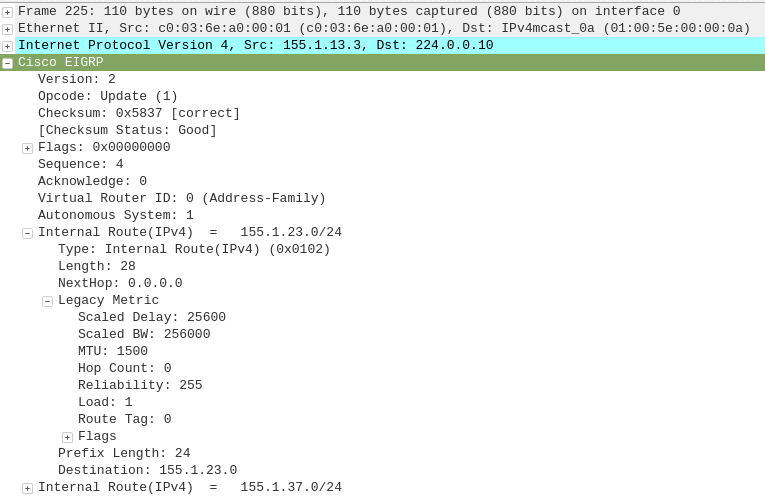
  • Update (1)

eigrp_update

  • Query (3)

eigrp_query

  • Reply (4)

eigrp_reply

  • Ack (5)

eigrp_Hello_Ack

Administrative Distance (AD) – is how far is the router from it’s neighbor.

Feasible Distance (FD) – is how far is the router for the destination subnet.eigrp_diagram

  • R1 FD from 10.1.1.0/24 through R3
    • = (R1–>R3) + (R3–>R4) + (subnet 10.1.1.0/24)
    • = 5 + 5 + 1 = 11


Feasible successor – the advertised distance (AD) must be less than the feasible distance (FD) of the Successor (Feasible Successor AD < Successor FD)

EIGRP Neighborship

When the neighbor command is used, it forces the EIGRP to use unicast traffic to discover the neighbor.

R1(config-router)# neighbor [ip address]

The command and out display of the EIGRP neighbor:

show ip eigrp neighbors

show_eigrp_neighbor-cmd

As i continue my studies, this article will be updated.