Microsoft: Enabling Recycle Bin feature in Windows Server 2016 Active Directory Domain Services

There is a new feature available in Active Directory Administrative Center (ADAC) in the Windows Server 2016 that allows you restore deleted AD objects from the Recycle Bin (although it could be activated from Windows server 2008 R2 using Powershell). It allows you to enable it at the Domain or Forest level. The only caveat is once it is enabled, it cannot be disabled. The default lifetime for a deleted object to remain in the AD Recycle Bin is 180 days.

To enable the feature using Powershell:

Enable-ADOptionalFeatureIdentity ‘Recycle Bin Feature’Scope ForestOrConfigurationSetTarget ‘domain.com’Server DC1

To enable the feature in Active Directory Administrative Center:

Go to Server Manager –> Tools –> Active Directory Administrative Center

servermgr_Adac

Highlight the domain or forest on the left pane and then under the Task pane on the right under the domain, select Enable Recycle Bin.

Enable_recycleBin_ADAC

You will get the warning that once it is enabled it cannot be disabled, select Ok.

rc_warn

Fortinet: Publishing a Server access to the Internet via HTTP

This article is providing instructions on how to public a server/device to the internet using http. This article will go through the basic configuration.

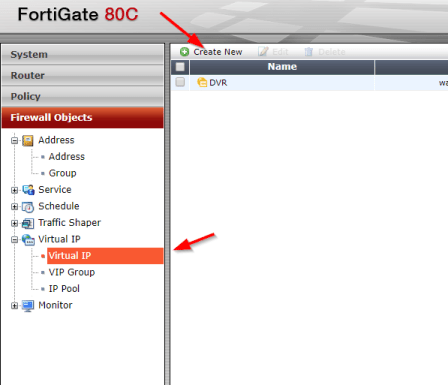
After logging into to the Fortinet portal, got to Firewall Objects –> Virtual IP –> Virtual IP, select Create New

create_virtual_ip

There are number of parameters:

Name: Short description of services e.g. DVR HTTP-80

External Interface: this is the port connected to the internet link with the public IP address.

External IP Address/Range: this use only need if you have more that one IP address configured on the port. If not, you can leave the default 0.0.0.0

Mapped IP Address/Range: Enter the internal server IP address of device. e.g. our DVR 192.168.0.12

Port Forwarding: tick this option if you are using custom ports from the default e.g. external service port is 5000 from the outside connecting to (map to) port 80 on the internal server.

virtual_ip_info

Go to Policy –>Policy –> Create New

create_policy

Select the Source Interface/Zone to external port.

Select destination Address to the Virtual IP created earlier and select Service to HTTP since we are using port 80. If the service is not list add it with the custom ports. Select Enable NAT to allow external IP address to access the internal device through the fortinet.

policy_settings

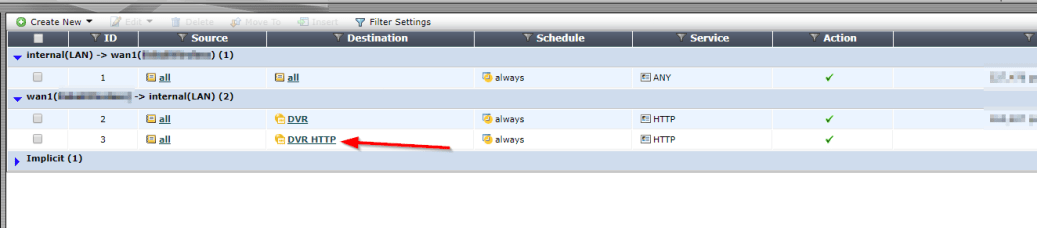
Once save by clicking ok, it will be listed under the external port source port column in the Policy section.

policy_listed

Microsoft Powershell – Install and Configure AD Certificate Services (Windows Server 2016)

This article will demonstrate how to install and configure the Active Directory Certificate Services (AD CS) and the Certification Authority (CA) using both the Server Manager and corresponding Powershell cmdlet.

Using Powershell method

Check if the Active Directory Certificate Service is installed

Get-WindowsFeature AD-Certificate


To install the Certification Authority features, run the following cmdlet:

Install-WindowsFeature ADCS-Cert-Authority -IncludeManagementTools


Configuring the Active Directory Certificate Services with a Standalone Root CA on Host1.

Install-ADcsCertificationAuthority –Credential (Get-Credential) -CAType [StandaloneRootCA]CACommonName“domain-Host1-CA-1”CADistinguishedNameSuffix “DC=domain,DC=com” CryptoProviderName“RSA#Microsoft Software Key Storage Provider” -KeyLength 2048 HashAlgorithmName SHA1 ValidityPeriod Years ValidityPeriodUnits3DatabaseDirectory “C:\windows\system32\certLog”LogDirectory “c:\windows\system32\CertLog”Force

You can select the CA Type by setting the parameter for –CA Type to either StandaloneRootCA, StandaloneSubordinateCA, EnterpriseRootCA or EnterpriseSubordinateCA. For the CA options like the Cryptographic Provider, Hash Algorithm and Key length will have to be known so that it is selected correctly.

Example for the key length, the values can be 512, 1024, 2048, 4096 which has to be typed out.

For Hash Algorithm, the options are: SHA256, SHA384, SHA512, SHA1, MD5, MD4, MD2.

For the Cryptographic Provider, the parameter -CryptoProviderName can be:

  • RSA#Microsoft Software Key Storage Provider
  • ECDSA_P521#Microsoft Software Key Storage Provider
  • ECDSA_P256#Microsoft Software Key Storage Provider
  • ECDSA_P384#Microsoft Software Key Storage Provider
  • DSA#Microsoft Software Key Storage Provider

and any other…


Removing the AD CS and CA feature from the server.

Remove-WindowsFeature ADCS-Cert-Authority


Using the Server Manager


Go to Server Manager–> Manage –> Add Role and Features

servermgr

Select Role-based or feature-based installation

role-based

Select the Server to install it on

server

Tick the Active Directory Certificate Services

adcs_server_role

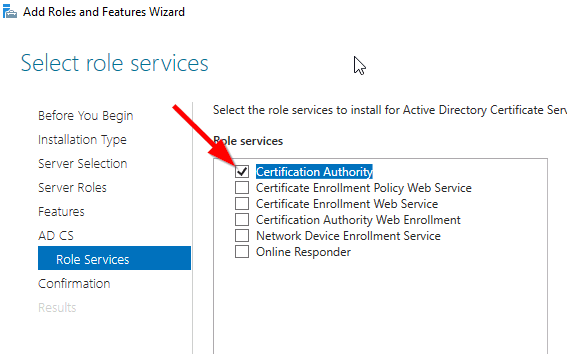
Tick the Certification Authority

CA_role

The feature will be installed and then you can select Configure Active Directory Certificate Services to setup the CA.

configure_ADCS_CA

Enter the Credential that have permission to configure the CA. Note the following:

For Standalone CA: you need local administrator rights

For Enterprise CA: you need Enterprise Admin rights

ca_credential

Select  role services: Certification Authority (CA)

configure_CA

select Standalone CA. Once you know how to configure Standalone CA then you can easily configure Enterprise CA.
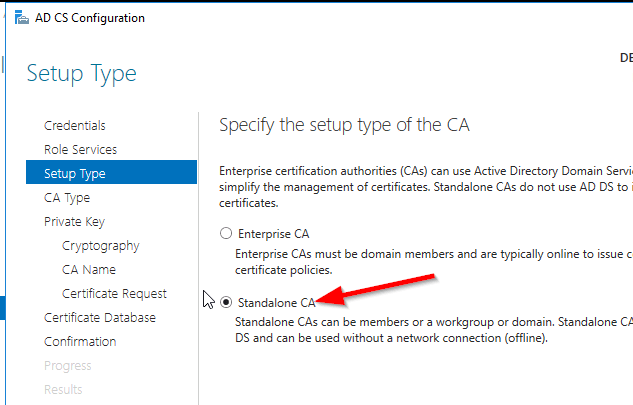
select_StandaloneCA

Select Root CA (this is the first CA)
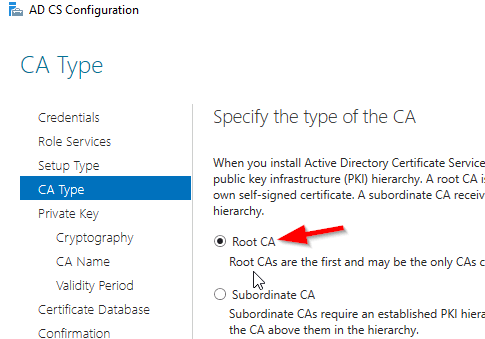
select_RootCA

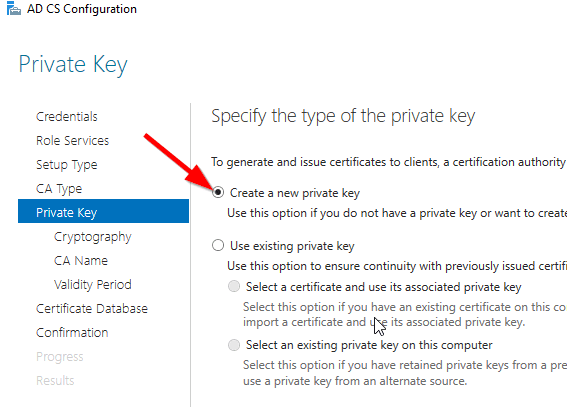
Select Create a new private key.

create_key

Select your preferred cryptographic provider, key length and hash algorithm
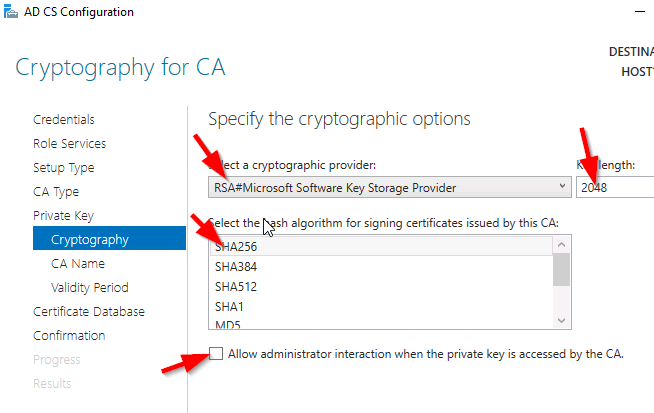
crypto_options

The Common Name and distinguished name suffix will be generated but you can enter your own name.

CA_CommonName

Select the validity period for the Certificate generated.

CA_Period

You can change certificate database and log path or let it remain at the default path

CA_DB-log

Confirm configuration settings of CA.

CA_result_page

Once the CA installation is complete, you can go to Server Manager –> Tools –> Certification Authority to view CA server in the MMC.


Cisco 2960 Error: %ILPOWER-3-CONTROLLER_PORT_ERR: Controller port error: Power Controller reports power supply VEE under voltage and lockout

I got a report that all our VoIP phone were down in a particular area that were connected to a Cisco 2960 switch. Upon investigation,

Initially, I ran the following show commands to check the status of the ports and power:

show power inline

The switch output:

showpowerinline

It was indicating that there was no device drawing power from the switch which was strange because there were VoIP phones connected to this switch.

With further checks, I came across these errors in the event logs:

poe_error

This error was telling me either the switch power module failed or some device caused a surge in power that causes the port power module to overload.

My resolution: Restart the switch which restored the switch to normal operations.

Being curious about the error, I researched it and came across this Cisco report:

https://quickview.cloudapps.cisco.com/quickview/bug/CSCsw18530

It was stating that this error is due to a bug in a particular version of IOS for 2960 switches.

The solution is:

Workaround:

Longer cable (>50ft) seems to fix the issue in most cases.

Solution

This issue is fixed in 12,2(55)SE3 , 12.2(58)SE1 and later releases. The
following interface configuration commands have to be applied to resolve the
issue,

Switch(config)# int x/y
Switch(config-if)# power inline port 2x-mode
Switch(config-if)# shut
Switch(config-if)# no shut

The fix is present in the following platforms :

3750-E,3560-E, 3750-X, 3560-X, 3560-C, 2960S, 2960,2960C,2960X

The other platforms do not support 2X power mode and the workaround would be to
use a longer cable.