Error opening default Windows 10 App

When Windows 10 came out with a free option to upgrade, I took the liberate to take up the offer to do it later when I had the time. This selection allowed me to download the Windows 10 ISO file so that I can installed it at a later time during my free time.

After completing the upgrade to Windows 10, I noticed that I had the issue of not able to open native windows applications such as the Calculator as it would generate the following error seen below:

Windows Calculator

Doing my investigation, I realized that the issue was as a result of the MUI language pack (English US) not installed on my computer completely.

Solution: To fix this problem, you had to first find out what Windows version build you had installed (my own was 10240) and then you would search on the Microsoft website to download the package for you built.

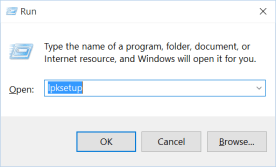
After you have gotten the MUI langauge pack (lp), you will run the following command to install it from RUN:

  1. To access RUN, use shortcut key Win + R or type run in the Start menu
  2. enter the command lpksetup.exe  lpksetup_run
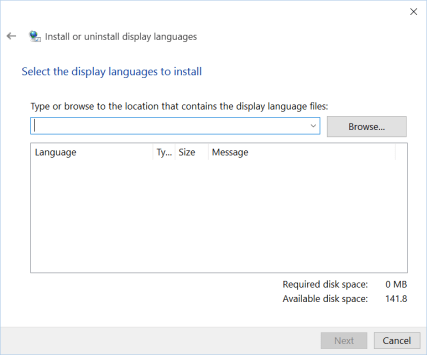
  3. Select Install display languages  lpksetup_win1
  4. Browse for the lp file and select Next (note if it say it is incorrect then you downloaded the incorrect version for your OS build)lpksetup_win2
  5. Wait for it to complete and then you are done.

After you have applied the solution then restart your computer and you are good.

Simple Computer Security Tips

As a computer user, we sometimes take for granted the numerous threats that are out on the internet that can steal and even take over our computers without our permission. It is important that we are aware of the threats that can affects us by just browsing the internet.

I would like to share a few simple tips that will help any person to protect themselves from the various treats on the internet.

  1. Install an Anti-virus software on your computer – this is one of the most important task that any person can do to protect their computer from viruses or malware that can cause our computer to behave abnormal or render it unusable. There are a few paid anti-virus software I can recommend such as Norton Security, Kaspersky Anivirus, ESET Security and McAfee Antivirus. If you dont want to spend money on this then there are also good free antivirus software such as Avast, AVG and Microsoft Security Essential.
  2. Remove the admin privileges from your default user account – This is a very important task because a lot of persons don’t realize that when you have administrator right on your user account that you use daily any changes can be made to the compute without restriction. It is not good because if your computer does get infected then the malicious software can make unwanted changes and you will not have control over it. I recommend that you create a different account with admin rights, then change the user account you use daily to a standard user. See instructions here on how to do this on Windows 10.
  3. Ensure that windows firewall is enabled – This is especially important for person who connect to any and every open WiFi that comes there way. Having the firewall enabled can reduce the likelihood of a unauthorized person from connecting or access your computer from these free open networks. for steps on how to check or enable to windows firewall on your computer, go here. Note: that the latest windows come with the Windows firewall turned on by default.
  4. Backup documents to a secure cloud space – This tip might seem trivial but it is one of the most important task to do. This task does not only protect you from hackers wiping out your data but also protects the important information from devices fail or a computer crash. To accomplish this task you can use one of the free large cloud space such as Google Drive and OneDrive. Note that they also have a desktop sync tool that allows you to sync local folders to the cloud once you are connected to the internet.
  5. Don’t visit any websites that are labelled as unsecure or unsafe – Whether browsing the internet or searching for information to assist in doing a task, we will sometimes get a message from our browser warning us that this site is unsecure. It is best that we don’t continue unless we are absolutely sure that it is legitimate or safe. Current reputable browser such as Google Chrome, Internet Explorer (or Edge) or Firefox has built in Certification Authority that checks a website’s certificate for its authenticity. This is important because we can be visiting a website that is developed by a hacker to get access to our computer or retrieve information from it.

These are the tips in a nutshell but if there are any more, I will update this list. I just want remind you to keep safe and do as much as you can to protect your personal data.