Disable IE Enhanced Security Configuration in Windows Server via script

I have always want to use a script to disable Internet Explorer Enhanced Security Configuration (IE ESC) in Windows Server. It is an annoying activity when it is required to perform tasked using the IE in older versions of windows servers.

It is important to note that IE ESC is very important to the security of legacy servers from common past vulnerabilities which is not a risk in current versions of server OS.

This activity must be taken with precaution and on servers with access restriction to the Internet. It is encouraged that IT professional implement all measures to secure the legacy application running on these servers that must be maintained in an segmented or isolated environment. It is the responsibility of the IT professional to use a secure alternative browser after this activity has been performed.

Now here is a batch script to the rescue taken from this Microsoft FAQ that can be runned on all your servers. Save the script in a batch file and run it from the command line.

The script must run as an administrator or a logon script to work since it is making changes to the registry.

Note: The script was created for Windows Server 2003 and 2008. However, it will work for other versions such as Windows Server 2019.

ECHO OFF
REM  IEHarden Removal Project
REM  HasVersionInfo: Yes
REM  Author: Axelr
REM  Productname: Remove IE Enhanced Security
REM  Comments: Helps remove the IE Enhanced Security Component of Windows 2003 and 2008(including R2)
REM  IEHarden Removal Project End
ECHO ON
::Related Article
::933991 Standard users cannot turn off the Internet Explorer Enhanced Security feature on a Windows Server 2003-based terminal server
::http://support.microsoft.com/default.aspx?scid=kb;EN-US;933991
:: Rem out if you like to Backup the registry keys
::REG EXPORT "HKEY_LOCAL_MACHINE\SOFTWARE\Microsoft\Active Setup\Installed Components\{A509B1A7-37EF-4b3f-8CFC-4F3A74704073}" "%TEMP%.HKEY_LOCAL_MACHINE.SOFTWARE.Microsoft.Active Setup.Installed Components.A509B1A7-37EF-4b3f-8CFC-4F3A74704073.reg"
::REG EXPORT "HKEY_LOCAL_MACHINE\SOFTWARE\Microsoft\Active Setup\Installed Components\{A509B1A7-37EF-4b3f-8CFC-4F3A74704073}" "%TEMP%.HKEY_LOCAL_MACHINE.SOFTWARE.Microsoft.Active Setup.Installed Components.A509B1A8-37EF-4b3f-8CFC-4F3A74704073.reg"
REG ADD "HKEY_LOCAL_MACHINE\SOFTWARE\Microsoft\Active Setup\Installed Components\{A509B1A7-37EF-4b3f-8CFC-4F3A74704073}" /v "IsInstalled" /t REG_DWORD /d 0 /f
REG ADD "HKEY_LOCAL_MACHINE\SOFTWARE\Microsoft\Active Setup\Installed Components\{A509B1A8-37EF-4b3f-8CFC-4F3A74704073}" /v "IsInstalled" /t REG_DWORD /d 0 /f
::x64
REG ADD "HKEY_LOCAL_MACHINE\SOFTWARE\Wow6432node\Microsoft\Active Setup\Installed Components\{A509B1A8-37EF-4b3f-8CFC-4F3A74704073}" /v "IsInstalled" /t REG_DWORD /d 0 /f
::Disables IE Harden for user if set to 1 which is enabled
REG ADD "HKEY_CURRENT_USER\Software\Microsoft\Windows\CurrentVersion\Internet Settings\ZoneMap" /v "IEHarden" /t REG_DWORD /d 0 /f
REG ADD "HKEY_LOCAL_MACHINE\Software\Microsoft\Windows\CurrentVersion\Internet Settings\ZoneMap" /v "IEHarden" /t REG_DWORD /d 0 /f
REG ADD "HKEY_CURRENT_USER\Software\Wow6432Node\Microsoft\Windows\CurrentVersion\Internet Settings\ZoneMap" /v "IEHarden" /t REG_DWORD /d 0 /f
::Removing line below as it is not needed for Windows 2003 scenarios. You may need to enable it for Windows 2008 scenarios
::Rundll32 iesetup.dll,IEHardenLMSettings
Rundll32 iesetup.dll,IEHardenUser
Rundll32 iesetup.dll,IEHardenAdmin
Rundll32 iesetup.dll,IEHardenMachineNow
::This apply to Windows 2003 Servers
REG DELETE "HKEY_LOCAL_MACHINE\SOFTWARE\Microsoft\Windows\CurrentVersion\Setup\OC Manager\Subcomponents" /v "iehardenadmin" /f /va
REG DELETE "HKEY_LOCAL_MACHINE\SOFTWARE\Microsoft\Windows\CurrentVersion\Setup\OC Manager\Subcomponents" /v "iehardenuser" /f /va
REG ADD "HKEY_LOCAL_MACHINE\SOFTWARE\Microsoft\Windows\CurrentVersion\Setup\OC Manager\Subcomponents" /v "iehardenadmin" /t REG_DWORD /d 0 /f
REG ADD "HKEY_LOCAL_MACHINE\SOFTWARE\Microsoft\Windows\CurrentVersion\Setup\OC Manager\Subcomponents" /v "iehardenuser" /t REG_DWORD /d 0 /f
::REG DELETE "HKEY_LOCAL_MACHINE\SOFTWARE\Microsoft\Active Setup\Installed Components\{A509B1A7-37EF-4b3f-8CFC-4F3A74704073}" /f /va
::REG DELETE "HKEY_LOCAL_MACHINE\SOFTWARE\Microsoft\Active Setup\Installed Components\{A509B1A8-37EF-4b3f-8CFC-4F3A74704073}" /f /va
:: Optional to remove warning on first IE Run and set home page to blank. remove the :: from lines below
:: 32-bit HKCU Keys
REG DELETE "HKEY_CURRENT_USER\Software\Microsoft\Internet Explorer\Main" /v "First Home Page" /f
REG ADD "HKEY_CURRENT_USER\Software\Microsoft\Internet Explorer\Main" /v "Default_Page_URL" /t REG_SZ /d "about:blank" /f
REG ADD "HKEY_CURRENT_USER\Software\Microsoft\Internet Explorer\Main" /v "Start Page" /t REG_SZ /d "about:blank" /f
:: This will disable a warning the user may get regarding Protected Mode being disable for intranet, which is the default.
:: See article http://social.technet.microsoft.com/Forums/lv-LV/winserverTS/thread/34719084-5bdb-4590-9ebf-e190e8784ec7
:: Intranet Protected mode is disable. Warning should not appear and this key will disable the warning
REG ADD "HKEY_CURRENT_USER\Software\Microsoft\Internet Explorer\Main" /v "NoProtectedModeBanner" /t REG_DWORD /d 1 /f
:: Removing Terminal Server Shadowing x86 32bit
REG DELETE "HKEY_LOCAL_MACHINE\SOFTWARE\Microsoft\Windows NT\CurrentVersion\Terminal Server\Install\Software\Microsoft\Windows\CurrentVersion\Internet Settings\ZoneMap" /v "IEHarden" /f
:: Removing Terminal Server Shadowing Wow6432Node
REG DELETE "HKEY_LOCAL_MACHINE\SOFTWARE\Wow6432Node\Microsoft\Windows NT\CurrentVersion\Terminal Server\Install\Software\Microsoft\Windows\CurrentVersion\Internet Settings\ZoneMap" /v "IEHarden" /f

The script may display errors for some commands depending on the versions of Windows servers due the registry keys not used in that versions.

Most importantly, ensure to verify the settings changed for the Internet Explorer ESC.
Securing the Microsoft OneDrive share

Microsoft has provided a method to easily and conveniently share documents with other persons that are stored within your OneDrive.

How?

This capability creates a shared link which can be sent via email or shared with the person directly.

Security

With this capability, it is important that users takes precaution when sharing their information with others, especially if it is company related.

I recommend the following guidelines when using these capabilities:

1. Verify the email address of the person you are sharing the files with. This email address will be used to validate the access to that share link using access code to the email.

2. Set the correct level of access such as “can view” (which is read-only). If they don’t need to edit the files, then apply the least privilege, which is read only. It protects the files from getting modified uncessarily.

3. Establish a timeline that the person will be assessing the information and set it on the shared link. This ensures the expiration of access without human’s intervention.

4. Dont share the entire drive, all the files should be placed in a folder and the shared link created from there. It limits the access to only that folder and even if it is compromised, it is restricted to that folder only. An additional benefit is that it gives you the flexibility to share additional information with the same party. You can simply drop that files in that folder, and it is readily available to them.

It is important to note that this shared link  from OneDrive is publicly accessible, which means that it will be accessed from the internet. The only safeguard is the access permissions configured as recommended.

Why?

The OneDrive is a public file storage service which provides local access on the computer.

Other OneDrive features for Business

The OneDrive for Business or organizations that uses SharePoint, there is an additional settings for restricting access based on location using the location-based policy. This setting is only configurable by administrators, and it is set on a wider scale.

There are more features which will not be discussed in this article. You can check out the Mircrosoft Learn for further details.

Microsoft Certification Learning Resources

This article was created for me to keep track of the Microsoft Learning resources available to acquire the knowledge needed to prepare for the Microsoft Certifications.

The material includes preparation for following certifications:

  • AZ-900
  • AZ-104
  • AZ-800/AZ-801
  • AZ-500
  • AZ-700
  • AZ-305
  • AZ-400
  • AZ-140
  • SC-300
  • MS-900
  • MS-500 (expires June 30, 2023)
  • MS-100/ MS-101 (expires July 31, 2023) / MS-102
  • AI-900
  • AI-102
  • DP-900
  • DP-420
  • DP-300

Microsoft Learn
https://learn.microsoft.com/en-us/

Microsoft Learning Lab Exercises
https://github.com/MicrosoftLearning

Microsoft Azure Connected Learning Experience (CLX)
https://clx.cloudevents.ai/events/39366311-ad15-4b90-9364-0252213842fa

Microsoft Partner Training
https://partner.microsoft.com/en-us/training/training-events

MS365 Lab Resources for Microsoft Partner
https://transform.microsoft.com/modernwork/partner

Microsoft Learn Lab Exercise
https://microsoftlearning.github.io/AZ500-AzureSecurityTechnologies/
https://microsoftlearning.github.io/MS-500-Microsoft-365-Security/
https://microsoftlearning.github.io/SC-300-Identity-and-Access-Administrator/
https://microsoftlearning.github.io/AZ-104-MicrosoftAzureAdministrator/

https://microsoftlearning.github.io/AZ-305-DesigningMicrosoftAzureInfrastructureSolutions/

https://microsoftcloudworkshop.com/

https://microsoftlearning.github.io/AZ500-AzureSecurityTechnologies/

https://microsoftlearning.github.io/AZ-140-Configuring-and-Operating-Microsoft-Azure-Virtual-Desktop/

https://microsoftlearning.github.io/AZ400-DesigningandImplementingMicrosoftDevOpsSolutions/

Microsoft Simulation Guide

https://mslearn.cloudguides.com/en-us/guides/AZ-900%20Exam%20Guide%20-%20Azure%20Fundamentals
https://mslabs.cloudguides.com/guides/DP-900%20Exam%20Guide%20-%20Azure%20Data%20Fundamentals
https://mslabs.cloudguides.com/guides/AI-900%20Exam%20Guide%20-%20Azure%20AI%20Fundamentals

https://mslabs.cloudguides.com/guides/AZ-104%20Exam%20Guide%20-%20Microsoft%20Azure%20Administrator

https://mslabs.cloudguides.com/guides/AZ-700%20Lab%20Simulations%20-%20Designing%20and%20implementing%20Microsoft%20Azure%20networking%20solutions

https://mslabs.cloudguides.com/guides/AZ-800%20Lab%20Simulations%20-%20Administering%20Windows%20Server%20Hybrid%20Core%20Infrastructure

https://mslabs.cloudguides.com/guides/AZ-801%20Lab%20Simulations%20-%20Configuring%20Windows%20Server%20Hybrid%20Advanced%20Services

https://mslabs.cloudguides.com/guides/DP-300%20Lab%20Simulations%20-%20Administering%20Microsoft%20Azure%20SQL%20solutions

https://mslabs.cloudguides.com/guides/AI-102%20Lab%20Simulations%20-%20Designing%20and%20implementing%20a%20Microsoft%20Azure%20AI%20solution

https://mslabs.cloudguides.com/guides/DP-420%20Lab%20Simulations%20-%20Designing%20and%20implementing%20cloud-native%20applications%20using%20Microsoft%20Azure%20Cosmos%20DB

Third party resources:

John Savill – https://learn.onboardtoazure.com/

Susanth Sutheesh – https://www.aguidetocloud.com/

Microsoft Azure Paid Labs environment and Training – ACloudGuru.com

I will update this list as times progresses and the information changes.

Disclaimer: all information is provided as is and if there are any changes Microsoft website is the ultimate authority and the respective producers.

Method of Changing the SID of a Windows Server 2016 VM

In a virtual environment, there are scenarios where you would want to clone an existing Windows server virtual machine to provide redundancy for whatever application.

Having the ability to create duplicate virtual machines by cloning it is a great feature but it creates a problem in a Windows Active Directory environment. There is a unique identifier called Security ID also known as SID which is created during installation to identify each machine in a Windows environment.

Active Directory has a big problem when it discovers two machines with the same SID because it identify them as the same object. If the computer with the same SID attempts to join the same domain, it will generate an error and terminate the process. No worries, there is a solution for the Windows computer.

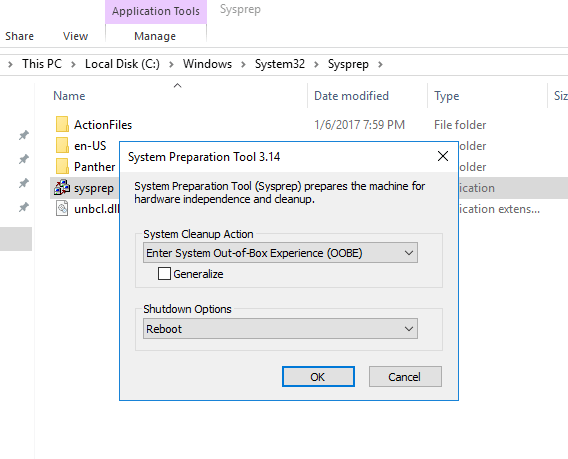
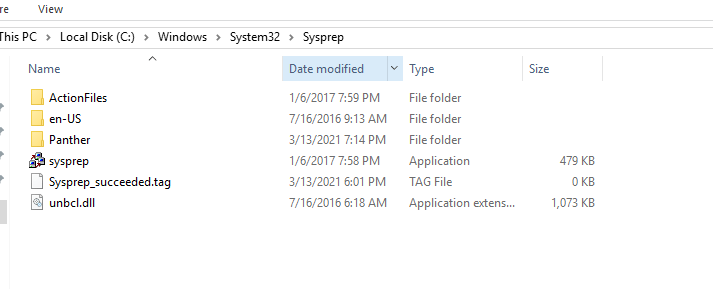
Microsoft has included a tool called Sysprep which is natively installed on Windows server which is located in the folder path:

%systemroot%\System32\Sysprep

To start the process, you will navigate to the folder and follow the steps below:

  • Right click and Run the System Preparation Tool (Sysprep.exe) as an administrator
  • Select the option Enter System Out-of-Box Experience (OOBE) for System Cleanup Action with the option Generalize ticked.
  • Select the Shutdown option: Reboot
  • Then select OK.

Once the virtual machine reboots, it will prompt to select the usually Microsoft settings during initialization, accept the EULA and to set the Administrator password.

Note that this method does not remove any installed applications except device drivers. It also removes the usually windows configuration such as IP address and machine name.

The SysPrep will work in other versions of Windows.

reference: https://docs.microsoft.com/en-us/windows-hardware/manufacture/desktop/sysprep–generalize–a-windows-installation

Windows 10: Opening Program management tools and features from command prompt

Sometimes you may want to run open Programs and Features without searching for it in the Control Panel. Another reason to require these commands is to run them with administrative privileges.

You can open the Run using [Windows KEY] + [R] or the cmd or even in PowerShell ISE

appwiz.cpl – open the Programs and Features window.

appwiz

devmgmt.msc – open the device manager

devmgmt

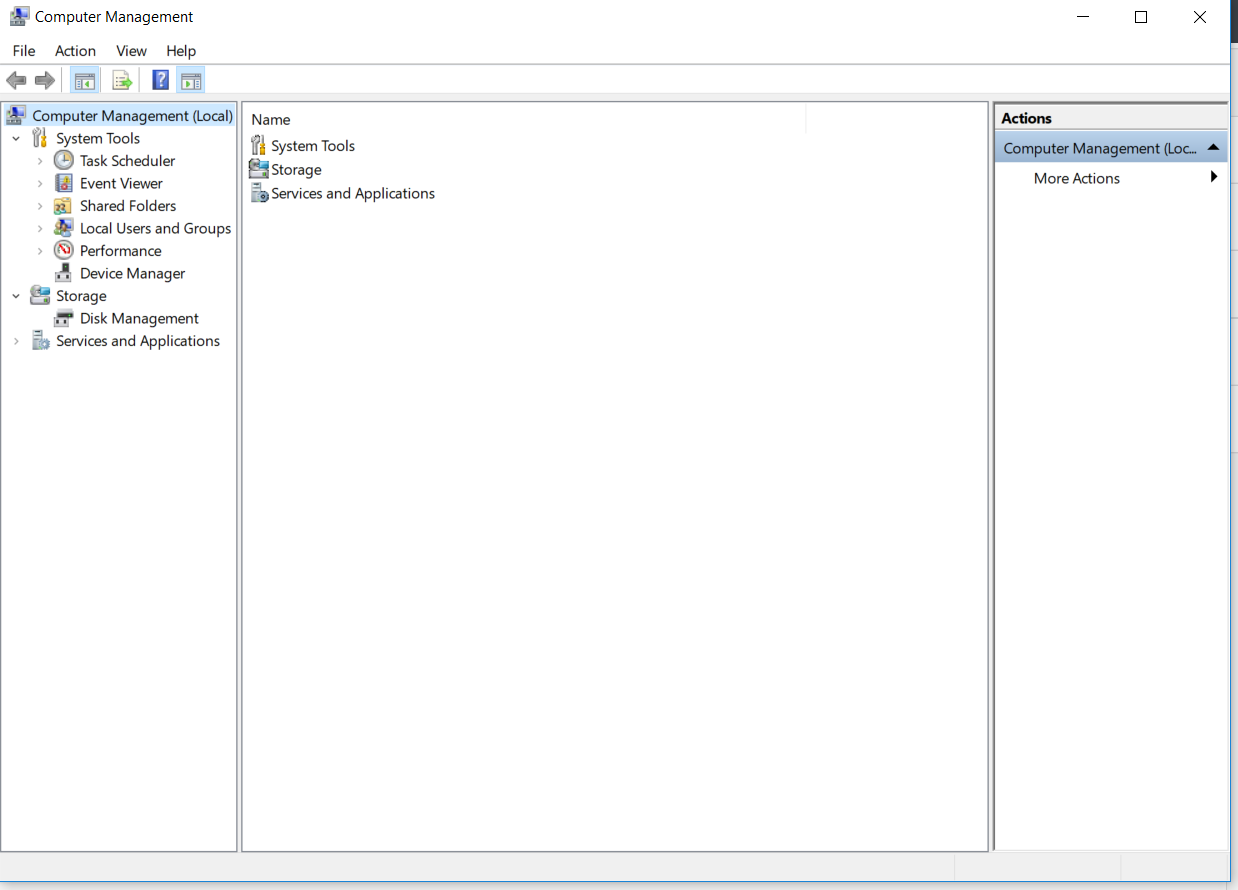
compmgmt.msc – open the computer management

compmgmt

diskmgmt.msc – opens the disk management

diskmgmt

lusrmgr.msc – opens the local users and groups management

lusrmgr

I will update this article with more useful commands as I identify them.


Recovering from a BitLocker System Lockout after a BIOS Update

We had a user who was not abiding by the rules to store all the company data on the network drives to ensure it is protected and backed up by our systems.

The user’s laptop got a BIOS upgrade and unfortunately the laptop was rebooting requesting Bitlocker password. In our environment, Bitlocker passwords are registered in Active Directory upon activation but for some reason unknown to us, it was not there for this particular laptop.

Our colleague at the site, research a way to overcome this challenge and found the following solution:

  1. Download an Application that will allow you to build a bootable USB drive in DOS 32-bit. E.g. RUFUS
  2. Execute your selected application to build bootable USB drive (You might have to first format USB drive at 32-bit).
  3. Download all BIOS updates for the computer model from the vendor support site. (If you remember the previously installed BIOS version, you can download that version from the site)
  4. Boot up the computer with the bootable USB drive and run each BIOS from the command prompt (At this point, you are trying to find the BIOS version before the update was done, if you already know the version just install it).
  5. After updating the BIOS, reboot the computer to verify if Windows boots up successfully.
  6. If unsuccessful, go back to Step 4 and execute the next BIOS version file.
  1.  

    NOTE: Execute your BIOS from the latest to the oldest.

Error: Microsoft SharePoint is not supported with version 4.0.30319.42000 of the Microsoft .Net Runtime

My colleague was trying to run the PowerShell command Get-SPSite to get information about the SharePoint 2010 sites on the server.

He came across this error:

sharepointerror

It was discovered that the server Windows 2012 R2 has Microsoft .Net 4.0 installed on the box and as a result the SharePoint was not functioning with Powershell version 4.0.

To verify the version installed on the box:

$ver = $host | select version

$ver.Version

Solution

I had to run the opened PowerShell version 2 and then run the commands again.

To do this execute the following command from dos prompt:

powershell.exe -version 2

once the PowerShell opens run the commands again:

Add-PSSnapin Microsoft.SharePoint.PowerShell

Get-SPSite

Get-SPFarm

Get-SPWeb [SPSiteName]

Problem solved. I hope this was helpful.

Microsoft: Enabling Recycle Bin feature in Windows Server 2016 Active Directory Domain Services

There is a new feature available in Active Directory Administrative Center (ADAC) in the Windows Server 2016 that allows you restore deleted AD objects from the Recycle Bin (although it could be activated from Windows server 2008 R2 using Powershell). It allows you to enable it at the Domain or Forest level. The only caveat is once it is enabled, it cannot be disabled. The default lifetime for a deleted object to remain in the AD Recycle Bin is 180 days.

To enable the feature using Powershell:

Enable-ADOptionalFeatureIdentity ‘Recycle Bin Feature’Scope ForestOrConfigurationSetTarget ‘domain.com’Server DC1

To enable the feature in Active Directory Administrative Center:

Go to Server Manager –> Tools –> Active Directory Administrative Center

servermgr_Adac

Highlight the domain or forest on the left pane and then under the Task pane on the right under the domain, select Enable Recycle Bin.

Enable_recycleBin_ADAC

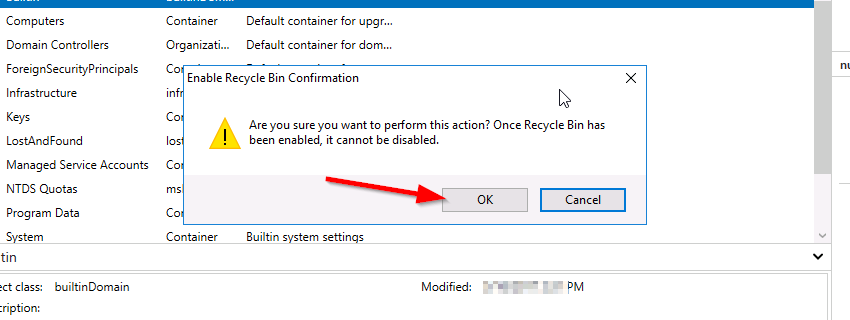
You will get the warning that once it is enabled it cannot be disabled, select Ok.

rc_warn

Microsoft Powershell – Install and Configure AD Certificate Services (Windows Server 2016)

This article will demonstrate how to install and configure the Active Directory Certificate Services (AD CS) and the Certification Authority (CA) using both the Server Manager and corresponding Powershell cmdlet.

Using Powershell method

Check if the Active Directory Certificate Service is installed

Get-WindowsFeature AD-Certificate


To install the Certification Authority features, run the following cmdlet:

Install-WindowsFeature ADCS-Cert-Authority -IncludeManagementTools


Configuring the Active Directory Certificate Services with a Standalone Root CA on Host1.

Install-ADcsCertificationAuthority –Credential (Get-Credential) -CAType [StandaloneRootCA]CACommonName“domain-Host1-CA-1”CADistinguishedNameSuffix “DC=domain,DC=com” CryptoProviderName“RSA#Microsoft Software Key Storage Provider” -KeyLength 2048 HashAlgorithmName SHA1 ValidityPeriod Years ValidityPeriodUnits3DatabaseDirectory “C:\windows\system32\certLog”LogDirectory “c:\windows\system32\CertLog”Force

You can select the CA Type by setting the parameter for –CA Type to either StandaloneRootCA, StandaloneSubordinateCA, EnterpriseRootCA or EnterpriseSubordinateCA. For the CA options like the Cryptographic Provider, Hash Algorithm and Key length will have to be known so that it is selected correctly.

Example for the key length, the values can be 512, 1024, 2048, 4096 which has to be typed out.

For Hash Algorithm, the options are: SHA256, SHA384, SHA512, SHA1, MD5, MD4, MD2.

For the Cryptographic Provider, the parameter -CryptoProviderName can be:

  • RSA#Microsoft Software Key Storage Provider
  • ECDSA_P521#Microsoft Software Key Storage Provider
  • ECDSA_P256#Microsoft Software Key Storage Provider
  • ECDSA_P384#Microsoft Software Key Storage Provider
  • DSA#Microsoft Software Key Storage Provider

and any other…


Removing the AD CS and CA feature from the server.

Remove-WindowsFeature ADCS-Cert-Authority


Using the Server Manager


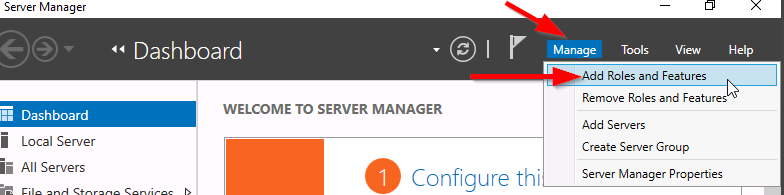
Go to Server Manager–> Manage –> Add Role and Features

servermgr

Select Role-based or feature-based installation

role-based

Select the Server to install it on

server

Tick the Active Directory Certificate Services

adcs_server_role

Tick the Certification Authority

CA_role

The feature will be installed and then you can select Configure Active Directory Certificate Services to setup the CA.

configure_ADCS_CA

Enter the Credential that have permission to configure the CA. Note the following:

For Standalone CA: you need local administrator rights

For Enterprise CA: you need Enterprise Admin rights

ca_credential

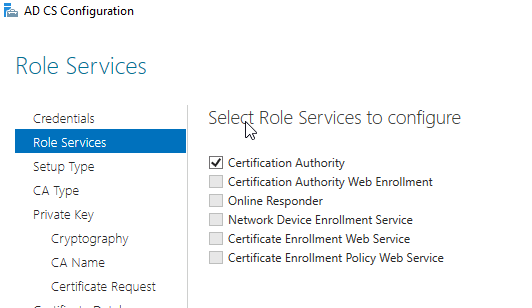
Select  role services: Certification Authority (CA)

configure_CA

select Standalone CA. Once you know how to configure Standalone CA then you can easily configure Enterprise CA.

select_StandaloneCA

Select Root CA (this is the first CA)

select_RootCA

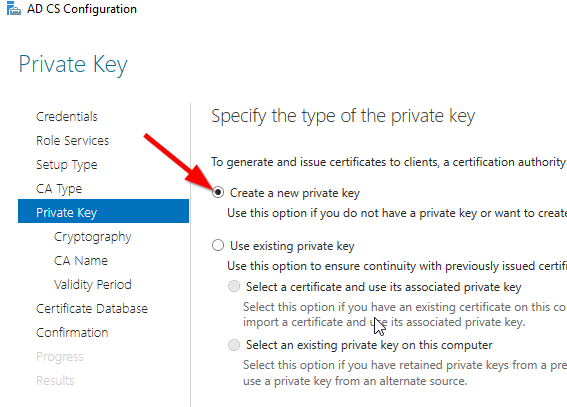
Select Create a new private key.

create_key

Select your preferred cryptographic provider, key length and hash algorithm

crypto_options

The Common Name and distinguished name suffix will be generated but you can enter your own name.

CA_CommonName

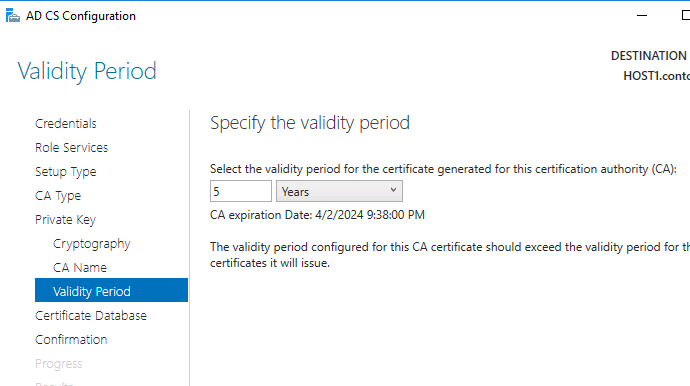
Select the validity period for the Certificate generated.

CA_Period

You can change certificate database and log path or let it remain at the default path

CA_DB-log

Confirm configuration settings of CA.

CA_result_page

Once the CA installation is complete, you can go to Server Manager –> Tools –> Certification Authority to view CA server in the MMC.