Veeam Replication Error – Unable to discover replica VM

There was an Veeam Backup & Replication job notification with the following error:

Discovering replica VM Error: Unable to find mapping target VmRef [vm-40195]
Error: Unable to find mapping target VmRef [vm-40195]

Based the above error line “unable to find mapping target” means that the replica VM is missing or the replica VM is not mapped to the particular source VM. To resolve this issue, you will need to make the changes to the Replication Job settings for this source VM.

Open the Veeam Backup & Replication console.

veeam_b_r_console

Select Replication and right click and select Edit to modify the properties of the selected job.

veeam_edit_replica_job

Under Describe you DR site, tick Low connection bandwidth (enable replica seeding). Note: This allows you get the additional options to check the original VMs mapping to the replica VMs.

veeam_low_connection

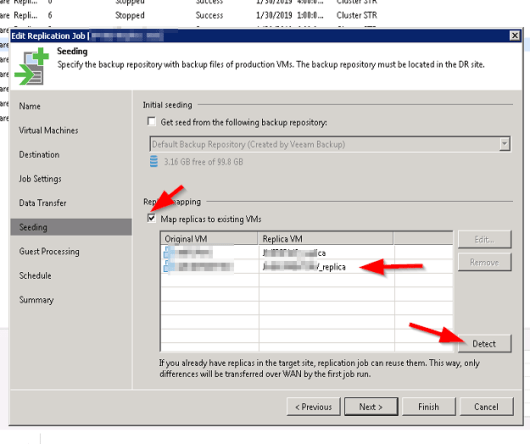
Select Seeding on the left side to go directly to the Replica mapping settings.
veeam_replica_displayed

Under Replica Mapping, tick Map replicas to existing VMs if not already ticked.

It will show all the original VMs and their respective replica VMs. If there is a replica VM beside the source VM with error, it means that the replica VM is missing.

Select the Detect button to let Veeam discover all the replica VMs associated with the original VMs in the database. If the replica VM is showing No mapping, it means that the replica VM is missing or it is unable to detect the replica VM.

veeam_detect_replica

The replica VM was can manually selected by highlighting the original VM and select Edit. browse the vCenter for the replica and select it (this is only if it exist but not mapping automatically using the Detection method).

Select Finish and retry the failed replica job. One thing to note is when the retry job option is used, only the failed VM replication job is executed.

Veeam Replication Job Trouble Ticket # 1

There was an email notification received from the Veeam B&R server stating that one of the VM replication job had failed with the following error:

Error: Failed to open VDDK disk [[Datastore_Name] VM_replica/VM2-000001.vmdk] ( is read-only mode – [false] ) Logon attempt with parameters [VC/ESX: [vCSA_Name];Port: 443;Login: [domain\account_name];VMX Spec: [moref=vm-40195];Snapshot mor: [snapshot-112166];Transports: [nbd];Read Only: [false]] failed because of the following errors: Failed to open disk for write. Failed to download disk. Reconnectable protocol device was closed. Failed to upload disk. Age

The first thing done was to log into the Veeam backup server and open the Veeam Backup & Replication console.   veeam_b_r_console

Under the Home, navigate to the Replicas, search for the VM. Then highlight it and right click and open the properties. It will show all the replica jobs which are snapshots on the replica VM in vSphere.


The two last replica job shows that they were incomplete. This sometimes indicate that there was a problem with the snapshot that was created. Logon to the vSphere web client and check the snapshot manager for the replica VM (the default naming convention is “VMName_replica“). Open the option Snapshots–>Manage Snapshots and you will expand the snapshots until you reach the last two set before “You are here”.

vsphere_snapshot

In the image, you will notice that the snapshot names “Veeam Replica Working Snapshot” which indicate that the snapshot was not completed. To eliminate the job continue failing is to delete all the snapshots with the title “Veeam Replica Working snapshot” and rerun the job from veeam so it can recreate the snapshot. If these snapshot are allowed to remain, the Veeam replica job will continue to fail.

I hope this help to resolve some of the veeam replication job failures.