CCNP Route 300-101 – PPPoE

PPPoE is the ability to negotiate a direct PPP link between multiple layer 3 devices
through a layer 2 switched infrastructure. This negotiation then allows the encapsulation of IP packets inside of PPP which is then encapsulated inside an Ethernet frame.

definition reference: https://learningnetwork.cisco.com/docs/DOC-27502

PPPoE Session Process

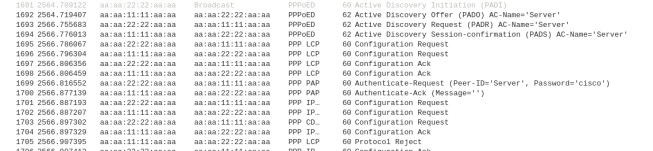
  1. PPPoED Active Discovery Initiation (PADI) – The PPPoE client sends a broadcast
  2. PPPoED Active Discovery Offer (PADO) – The PPPoE server reply with an session offer
  3. PPPoED Active Discovery Request (PADR) – The PPPoE client request to connect to session
  4. PPPoED Active Discovery Session-confirmation (PADS) – The PPPoE server confirms session connection

PPPoED Active Discovery Terminate (PADT) – the session is terminated  by client/server or due to configuration mismatch after it is shared between client and server.

The image below display a wireshark capture of the PPPoE session process mentioned above. Client MAC address contains 1111 and the Server contains 2222.
PPPoE_pcap

Configuring PPPoE Server

1. Configure the virtual template interfaces which allows server to set the configuration template for the each client virtual interface.

R(config)# interface virtual-template 1

R(config-if)# ip address [IP] [Mask]

!Configuring the MTU is necessary so that you don’t have packet fragmentation due to PPP use 2 Bytes and PPPoE uses 6 Bytes of the packet

R(config-if)# mtu 1492

!The peer command is optional if you want to assign an ip address to the clients from a static or DHCP pool

R(config-if)# peer default ip address [pool|dhcp|dhcp-pool] NAME

!The PPP Authentication is optional

R(config-if)# ppp authentication [pap|chap] callin

! After configuring the PAP/CHAP Authentication, you need to configure a username and password

R(config)# username [USER] password [PASSWORD]

2. Configure the Broadband Aggregation (BBA) Group which is used to spawn a virtual interface for each client that dials into the server and assign the virtual template.

R(config)# bba-group pppoe global
R(config-bba-group)#virtual-template 1

3. Configure the physical interface through which the clients will be connecting and assign it the bba group.

R(config)# interface [interface id]

R(config-if)#pppoe enable group global

R(config-if)# no shutdown

Configuring the PPPoE Client

1. Configure the interface Dialer

R(config)# interface Dialer 1

R(config-if)# encapsulation ppp

R(config-if)# ip address

R(config-if)#mtu 1492

R(config-if)#dialer pool 2

!Optional to configure authentication if server requires it

!PAP configuration to send username and password if needed by server

R(config-if ) ppp pap send-uername [USER] password [PASSWORD]

!CHAP configuration to send username(hostname) and password

R(config-f)ppp chap password [PASSWORD]

R(config-f)ppp chap hostname [USER]

2. Associate the physical interface with the dialer on which the PPPoE session will dial out.

R(config)# interface f0/0

R(config-if)# pppoe-client dial-pool-number 2

R(config-if)# no shutdown

Verify and Troubleshoot PPPoE

To verify pppoe is working, use the following commands:

1. Display the PPPoE session – show if the session is established

R# show pppoe session

2. Use debug to show PPPoE Events – displays PADI/PADO/PADR/PADR process

R#debug pppoe events

3. Use debug to show PPP negotiation – displays ppp configuration exchange

R#debug ppp negotiation

This is it for the PPPoE, I hope it helps in knowing how to configure PPPoE.

Veeam Replication Job Trouble Ticket # 1

There was an email notification received from the Veeam B&R server stating that one of the VM replication job had failed with the following error:

Error: Failed to open VDDK disk [[Datastore_Name] VM_replica/VM2-000001.vmdk] ( is read-only mode – [false] ) Logon attempt with parameters [VC/ESX: [vCSA_Name];Port: 443;Login: [domain\account_name];VMX Spec: [moref=vm-40195];Snapshot mor: [snapshot-112166];Transports: [nbd];Read Only: [false]] failed because of the following errors: Failed to open disk for write. Failed to download disk. Reconnectable protocol device was closed. Failed to upload disk. Age

The first thing done was to log into the Veeam backup server and open the Veeam Backup & Replication console.   veeam_b_r_console

Under the Home, navigate to the Replicas, search for the VM. Then highlight it and right click and open the properties. It will show all the replica jobs which are snapshots on the replica VM in vSphere.


The two last replica job shows that they were incomplete. This sometimes indicate that there was a problem with the snapshot that was created. Logon to the vSphere web client and check the snapshot manager for the replica VM (the default naming convention is “VMName_replica“). Open the option Snapshots–>Manage Snapshots and you will expand the snapshots until you reach the last two set before “You are here”.

vsphere_snapshot

In the image, you will notice that the snapshot names “Veeam Replica Working Snapshot” which indicate that the snapshot was not completed. To eliminate the job continue failing is to delete all the snapshots with the title “Veeam Replica Working snapshot” and rerun the job from veeam so it can recreate the snapshot. If these snapshot are allowed to remain, the Veeam replica job will continue to fail.

I hope this help to resolve some of the veeam replication job failures.

Computer blocked by Port Security

My colleague was working on an issue where a computer was communicating on the network through a Cisco switch that had port security enabled. As usually, he disables port security and re-enables it in an attempt to get the new mac address registered on the port. The computer (A) was now able to get an IP address from the DHCP server but unfortunately, the computer (A) still was not able to communicate with the server. In an effort to identify whether the problem was with computer (A) or the network port, another computer (B) was connected to the port which was successful. But when computer (A) was reconnected to the same port, there was still no communication. All network settings on Computer (A) were verified to be correct but still no break through. The same computer (A) was taken to another switch in another location and surprisingly it worked. So hhhmmm….what could be the problem? It was escalated to me to investigate further as he could not identify what was the root of the problem.

I started to ask the question “What is working?”

The responses were:

  1. Other devices were communicating when connected to the port
  2. The computer (A) is getting an IP address from the DHCP server
  3. The computer (A) is able to communicate on other switches

Next question, did they try the computer (A) on another port on the same switch? Response was No.

Anyways, everything was connected back to how it was before and then I started the troubleshooting.

The following observations were made:

  1. Port-security was enabled on the entire switch but disabled on this troubled port.
  2. The port duplex and speed was ok (Full/100)
  3. The computer (A) got an dynamic IP address from the DHCP server
  4. The computer (A) mac address was not showing on the port when I check the MAC address table for the problem port (f0/42)
  5. Port security sticky address listing showed that computer (A) mac address was tied to port f0/22

What do you think the root of the problem is?

The computer (A) is not able to communicate with anything on the network because the mac address of the computer (A) was tied to another port so when devices response to the packet, it is returning to the wrong port. so the solution was to remove the sticky address and allow the switch to relearn it over the new connected port (f0/42). Another question resonate in my mind was “How did it get an IP address from the DHCP server?”. But if you review how devices acquire an IP address, it is using broadcast. Therefore, the computer will always get an IP address but it would not be able to communicate with other devices.

I hope this troubleshooting scenario helps someone with understanding port-security on a Cisco switch.

VCP65-DCV – Objective 7.5 – Troubleshoot HA and DRS Configurations and Fault Tolerance

The following reference material from the vSphere 6.5 online documentation will assist you in covering the main information that is needed to know the topics in this objective:

  1. How vSphere HA works
  2. Troubleshooting vSphere HA host states
  3. Troubleshooting Availability
  4. Configure Proactive HA
  5. DRS troubleshooting information
  6. Migration with vMotion
  7. Migration with Storage vMotion
  8. Troubleshooting Storage DRS
  9. Providing Fault Tolerant for Virtual Machines
  10. Troubleshooting Fault Tolerant Virtual Machines
  11. DRS Cluster Validity
  12. Overview Performance Charts for Clusters

VCP65-DCV – Objective 7.2 – Troubleshoot vSphere Storage and Networking

The following reference material from the vSphere 6.5 online documentation will assist you in covering the main information that is needed to know the topics in this objective:

  1.  Know the commands
    1. esxtop
  2. Create a Datastore Cluster
  3. Setting the Aggressiveness Level for Storage DRS
  4. Troubleshooting Networking
  5. Troubleshooting Storage
  6. VMFS metadata Updates

VCP65-DCV – Objective 7.1 – Troubleshoot vCenter Server and ESXi Hosts

The following reference material from the vSphere 6.5 online documentation will assist you in covering the main information that is needed to know the topics in this objective:

  1. vSphere 6.5 VCSA appliance monitoring and management (brianjgraf.com)
  2. know the commands:
    • vimtop
    • service-control
  3. Manage Platform Service Controller from the vSphere Web Client
  4. Maintaining a vCenter Server Database
  5. Monitoring the vCenter Server Appliance
  6. Know the VAMI interface options for monitoring performance
  7. Monitoring Host Health Status
  8. Generating Diagnostic Bundles
  9. System Log files
  10. Viewing Log files with the Log Browser
  11. Collecting vCenter Server Log files
  12. ESXi log files Locations
  13. Troubleshooting Overview
  14. vSphere CLI command Overviews
  15. vSphere 6.5 Troubleshooting Guide
  16. Collecting Logs for Troubleshooting a vCener Server Installation or Upgrade
  17. Resources Allocation Shares
  18. VMware Tools Upgrade Fails if VMware Tools is not Installed
  19. Increase Network Latency Observed in FT Virtual Machines