CCNP Route 300-101 – SNMP

SNMP stands for Simple Network Management Protocol which is uses to manage your network devices by a management host.

There are three versions of SNMP:

  • SNMPv1
  • SNMPv2c
  • SNMPv3

SNMPv1 and SNMPv2c uses community-string as password which is sent in clear text.

On the other hand, SNMPv3 is able to provide both authentication and encryption to secure the communication. SNMPv3 uses users and groups to grant access which is applied using one of the three security levels.

The SNMPv3 Security Levels:

  • noAuthPriv (noauth)- provides no Authentication or Privacy (encryption)
  • AuthNoPriv (auth) – provides Authentication but no Privacy (encryption)
  • AuthPriv (priv) – provides Authentication and Privacy (encryption)

The authentication supports two algorithms: MD5 and SHA1, while encryption supports algorithms DES, 3DES and AES.

 Configuring SNMPv3

1. Configure the View

snmp-server view [VIEWNAME] iso included

2. Configure the Group

snmp-server group [GROUPNAME] v3 [noauth|auth|priv] [read RName] [write WName] [context CName] [notify NName] [access ACL]

3. Configure the User

snmp-server user [Username] [GroupName] v3 [encrypt] auth [md5|sha] [AuthPWD] priv [des|3des|aes] [PrivPassword] [access ACL]

4. Configure Traps

snmp-server host [IP] traps version [1|2|3] [noauth|auth|priv] [USER] [other_snmp_options]

Verify SNMPv3

show snmp user

snmpuser

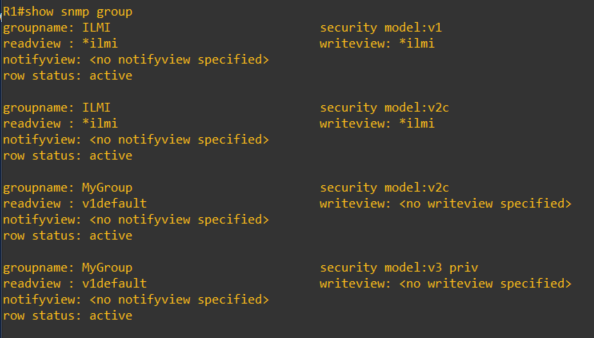
show snmp group

snmpgroup

This article covers some of the SNMP options and configuration of which I am covering in my CCNP studies. For further details, you can visit the Cisco documentations here.

Installing Windows Features using PowerShell

I was on a drive to enable SNMP feature on all our Windows 2012 R2 servers in order to monitor the CPU, Memory and Disk utilization through WMI.

Trying to do this manually using the Windows Roles and Features for over 40 servers was not practical as it was time consuming. As a result, I venture out to seek a way to do this on a widescale in the shortest possible time.

Now here comes Powershell, it has save the day with it’s easy-to-use cmdlets and remote execution from any Windows machine.

I am now going take this opportunity to show what I have done to complete this task.

The following cmdlet is what you will use to install any windows features from the server roles:

This cmdlet is used to get the Windows features that are currently installed on the server:

Get-WindowsFeature [FeatureName] -computerName [NameOfComputer]

You can include the Features name in the command in order to get the status of the particular feature.

This cmdlet is used to install the windows features:

Install-WindowsFeature [FeatureName] -computerName [NameOfComputer]

Using the cmdlets above, the following commands were executed to install the SNMP-Service feature:

PS C:\> Get-WindowsFeature SNMP-Service -ComputerName TestWinServer

results:

SNMP-GetFeature

Installing Windows features SNMP-Service for the 2012 R2 server TestWinServer

PS C:\> Install-WindowsFeature SNMP-Service -ComputerName TestWinServer

Results:

SNMP-InstallFeature

After installing this feature, I was able to configure the SNMP services and set my monitoring tool to pull the information from WMI using snmp.

I hope this article was helpful.