Configuring Domain Controller Cloning

Note: There is an Microsoft Hands-on Lab with code WS00148 that can be used to conduct this exercise. The environment may be required to do additional configuration to execute some of these steps since it is not the main aim and you can ignore the steps in that lab to do your own configuration.

Before cloning a virtual Domain Controller (DC), there are a few requirements that needs to exist in the environment.

The requirements are listed below:

  1. There must exist a DC with the FSMO role PDC Emulator running on atleast Windows Server 2012 which is accessible on the network.
  2. The virtual DC to be clone must be running on a hypervisor that supports the feature VM-GenerationID.
  3. The source virtual DC must be running atleast Windows Server 2012 and is a member of the AD group Cloneable Domain Controllers.
  4. There must be a DC Clone Configuration XML file (namely DCCloneConfig.xml) that holds the settings the clone DC will use to configure itself.

To start the process of cloning a DC, the DC needs to be added to the Cloneable Domain Controllers:

  1. Open Server Manager. server_mgr
  2. Then, go to the Active Directory Users and Computers (ADUC). aduc
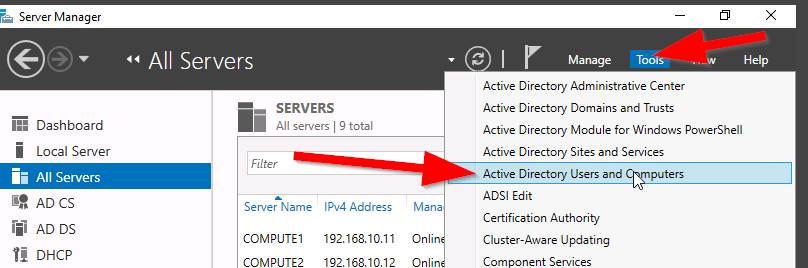
  3. Go to the Organization Unit (OU) Users,
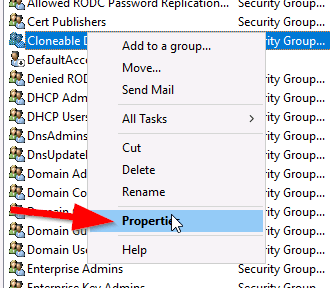
  4. Select the security group “Cloneable Domain Controllers“. cloneable_group
  5. Right click and select Properties. cloneable_properties
  6. Then go to Members Tab and Add the DC here. select member
  7. Save and Close the settings.


Alternately, PowerShell can be used to the previous step, see command:


ADGroupMember -Identity ‘Cloneable Domain Controllers’ -member (Get-ADComputer SRV1)

Next step is to check for excluded Application and generate a file using PowerShell:

Open an PowerShell console and use this command:

This command generates a list of excluded applications that are added to the allowed list and saves it to the C:\Windows\NTDS\.

Get-ADDCCloningExcludedApplicationList -GenerateXml

The next command is used to create the DC Cloning configuration XML file that is used to configure the virtual DC clone that you will import into the desired Hypervisor.

New-ADDCCloningConfigFile -CloneComputerName “DCCloneName” -IPv4Address 10.10.10.10 –IPv4DefaultGateway 10.10.10.1 –IPv4SubnetMask 255.255.255.0 –IPv4DNSResolver 10.10.10.100,10.10.10.102 –Static

Now shutdown the VM DC, export a copy of it and then import it as a copy generating a new VM ID. Once the copied VM is booted, you should see the cloning process initializing at boot up. When the process is completed, it will reboot and the new cloned DC is ready for use.


Reference: https://docs.microsoft.com/en-us/windows-server/identity/ad-ds/introduction-to-active-directory-domain-services-ad-ds-virtualization-level-100

Cert Exam Prep: Exam 70-742: Identity with Windows Server 2016 – Study notes

  1. Install and configure Active Directory Domain Services (AD DS) (20–25%)

Install Active Directory

Know the PowerShell commands:

– Add the binaries

Add-WindowsFeature -name ad-domain-services—lncludeManagementTools -Restart

– Add a new forest

Install-ADDSForest —DomainName ‘corp.contoso.com’

– Add a new domain in an existing forest

Install-ADDSDomain -NewDomainName amer ParentDomainName ‘corp.contoso.com’

– Add a new domain controller in an existing domain

Install-ADDSDomainController —DomainName ‘amer. corp.contoso.com’

– Perform a staged read-only domain controller (RODC) installation

Install-ADDSReadOnlyDomainControl|erAccount –DomainControllerAccountName RODC1 -DomainName amercorp contoso com -SiteName Boston

* Then on RODC1: add the ad-domain-services feature, and domain controller role


Transferring and seizing FSMO roles

Exam Topic – What you should know!

Transfer FSMO Roles

  • Perform this on a domain controller which will be down for maintenance for a period of time, to ensure there is no loss of the fsmo service
  • Move-ADDirectoryServerOperationMasterRo|e -Identity “Target-DC” -OperationMasterRole SchemaMaster,RlDMaster,InfrastructureMaster, DomainNamingMaster,PDCEmulator

Seize FSMO Roles

  • Perform this if a domain controller is down and cannot be recovered, to ensure there is no loss of the FSMO service
  • Move-ADDirectoryServerOperationMasterRole -ldentity “Target-DC’ -OperationMasterRole SchemaMaster,RIDMaster,InfrastructureMaster,DomainNamingMaster,PDCEmulator -Force

FSMO roles can be represented by numbers

  • Move-ADDirectoryServerOperationMasterRole -Identity “Target-DC” -OperationMasterRole 0,1,2,3,4 -Force

– 0: PDC Emulator

– 1: RID Master

– 2: Infrastructure Master

– 3: Schema Master

– 4: Domain Naming Master


Additional common active directory install functions

Install from media

  • Useful when the database is on a domain controller across a slow WAN link
  • Install-ADDSDomainController —DomainName ‘amer.corp.contoso.com” -lnstallationMediaPath C:\ADMedia

Configure a domain controller to not be global catalog server

  • InstalI-ADDSDomainController —DomainName ‘amer.corp.contoso.com” —NoGlobalCatalog

Move the Infrastructure Master FSMO role

  • Needed if the domain controller will be a global catalog server
  • Install-ADDSDomainController —DomainName ‘amer.corp.contoso.com” -MovelnfrastructureMasterRolelfNecessary

Uninstall active directory and demote to a server

  • Uninstall-ADDSDomainController

Time-limited Group Memberships

Users can be added to a security group with time-to-live (TTL)

  • When the TTL expires, the user’s membership in that group disappears

Kerberos token lifetime will be determined by TTL of the user’s memberships

  • TGT (Ticket Generated Ticket) based on shortest group membership
  • ST (Shortest time) based on TGT and resource local domain group membership

Requires new FFL (Force Functional Level)

  • Scavenger thread takes care of cleaning up group memberships


Way to join a computer to the domain

System Control Panel

  • System added to default container unless pre—staged

Windows PowerShell

  • Add-Computer -ComputerName ‘Server1′ -DomainName ‘amer.corp.contoso.com’ -Credential Get-Credential -Restart

  • System added to default container unless pre-staged

Desired State Configuration (DSC)

  • Joins a computer to the domain, and re-joins if it ‘falls out‘ of the domain
  • Uses Start-DscConfiguration cmdlet, and can be set to check compliance every x minutes

Offline domain join

  • Run djoin.exe on a domain controller to pre-stage the object and create provisioning file
  • Run djoin.exe on target computer and point to the provisioning file

Tips

  1. Know the PowerShell commands for installing and managing Active Directory
  2. Active Directory, FSMO Roles, DNS. Group Types and scopes haven’t really changed, but if you haven’t managed them lately, brush up
  3. Desired State Configuration (DSC) can be used to join a server to the domain and rejoin it if necessary


  1. Manage and Maintain AD DS (15-20%)

Configure service authentication

Service Accounts

  • Used to enhance security but the pain point is the password management and SPN mgmt.
  • Two types: Managed Service Accounts and Group Managed Service Accounts

Create/configure Managed Service Accounts

  • Used for a single computer or server
  • New-ADServiceAccount with the —RestrictToSingleComputer parameter
  • Not supported for scheduled tasks, Exchange, SQL

Create/configure Group Managed Service Accounts

  • Used for multiple servers
  • Minimum of one DC that runs at least Windows Server 2012
  • Before you begin, must create KDS Root Key: Add-KDSRootKey -Effectivelmmediately
  • New-ADServiceAccount and Set-ADServiceAccount

Configure Kerberos delegation

  • IIS may require the Trust this computer for delegation to any service (Kerberos only) option

Manage Service Principal Names (SPNs)

  • Use SetSPN <service type>/<instance name>:<port number>/<service name>