VMware VCP 6.7-DCV – Objective 1.8 – Differentiate between VDS and VSS

The following notes will assist you to prepare for this objective:

  • You will need to know the features set of both type of switch
    • Standard and Distributed switch
    • Select the appropriate switch given a scenario
    • Understand level of effort in administration
  • Don’t let questions mislead you on feature set
    • Standard switches have significant functionality
  • Learn what the standards actually mean
    • IEEE 802.1q / IEEE 802.3ad
  • Also be able to differentiate discovery protocols
    • When would you use LLDP or CDP?
    • Does that affect switch choice?
  • Be able to determine when a feature is appropriate
    • Health check
    • Beacon probing – detect uplink failure
    • Notify switches – switch cache mac address
    • Roll back
    • Traffic shaping
    • NIOC
  • Questions on NIC teaming rules are possible
  • Can you draw out how traffic flows given each load balancing algorithm is used?
    • Route based on originating virtual port
    • Route based on source MAC hash
    • Route based on source IP hash
    • Route based on physical NIC load
    • Explicit failover order

Reference:

vSphere Networking Guide pdf – Chapter 8 – Networking Policies

VMware VCP 6.7-DCV – Objective 1.9 – Describe the purpose of cluster and the features it provides

The following notes will assist you to prepare for this objective:

  • Be aware of additional features of both HA and DRS
    • HA provides option to enable VM fault tolerance
    • HA provides optional VM Component Protection
    • DRS rules control placement (affinity)
    • DRS provides optional DPM
  • Make sure you have read and experimented with admission control
    • Remember this is a gating of VM power on operations
    • What is slot size? Different from %?
  • Ultimately DRS is automating vMotion
    • So what stops vMotion from working?
    • Incompatible CPUs!
  • Ensure you have looked at Enhanced vMotion Compatibility (EVC)
    • Can you explain CPU masking?
    • Can you pick the appropriate use-case from implementation of either?
  • You need to have awareness of vMotion Encryption

Reference:

vSphere Availability Guide pdf – Chapter 2 – Creating and Using vSphere HA Clusters

vSphere Resource Management Guide pdf

  • Chapter 10 – Managing Resource Pools
  • Chapter 11 – Creating a DRS Cluster

vSphere Security Guide pdf – Chapter 6 – Encrypted vSphere vMotion

CCNP Route 300-101 – SNMP

SNMP stands for Simple Network Management Protocol which is uses to manage your network devices by a management host.

There are three versions of SNMP:

  • SNMPv1
  • SNMPv2c
  • SNMPv3

SNMPv1 and SNMPv2c uses community-string as password which is sent in clear text.

On the other hand, SNMPv3 is able to provide both authentication and encryption to secure the communication. SNMPv3 uses users and groups to grant access which is applied using one of the three security levels.

The SNMPv3 Security Levels:

  • noAuthPriv (noauth)- provides no Authentication or Privacy (encryption)
  • AuthNoPriv (auth) – provides Authentication but no Privacy (encryption)
  • AuthPriv (priv) – provides Authentication and Privacy (encryption)

The authentication supports two algorithms: MD5 and SHA1, while encryption supports algorithms DES, 3DES and AES.

 Configuring SNMPv3

1. Configure the View

snmp-server view [VIEWNAME] iso included

2. Configure the Group

snmp-server group [GROUPNAME] v3 [noauth|auth|priv] [read RName] [write WName] [context CName] [notify NName] [access ACL]

3. Configure the User

snmp-server user [Username] [GroupName] v3 [encrypt] auth [md5|sha] [AuthPWD] priv [des|3des|aes] [PrivPassword] [access ACL]

4. Configure Traps

snmp-server host [IP] traps version [1|2|3] [noauth|auth|priv] [USER] [other_snmp_options]

Verify SNMPv3

show snmp user

snmpuser

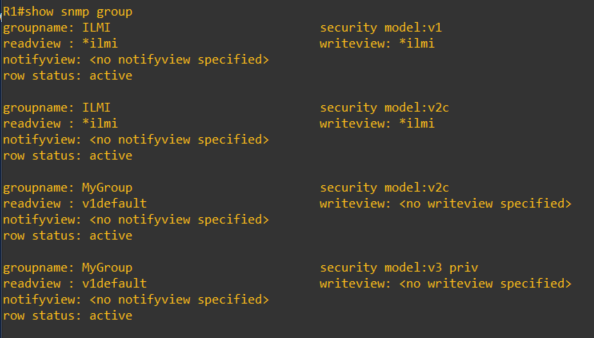
show snmp group

snmpgroup

This article covers some of the SNMP options and configuration of which I am covering in my CCNP studies. For further details, you can visit the Cisco documentations here.

CCNP Route 300-101 – ICMP Unreachable and Redirects

ICMP Destination Unreachable

The ICMP Destination Unreachable is a Type 3 message which is generated by the router to reflect device status being accessed.

ICMP Unreachable Type Code

0  – Network is unreachable

1 – Host is unreachable (telnet to unknown ip address on an existing interface)

2 – Protocol unreachable

3 – Port unreachable (use cisco trace route probe 1)

4 – Fragmentation need but DF set

5 – Source Routing

6 – 8 – unknown errors

9, 10, 13 – Admin Prohibited (telnet an interface with access-list filtering connection)

11, 12,14,15 – QoS, ToS, Precedence

ICMP Redirect

ICMP Redirect is a Type 5 message which routers use to advise source device of a better path.

ICMP Redirect Type Code:

  • 0 – Network
  • 1 – Host
  • 2 – Service & Network
  • 3 – Service & Host

I am covering these topics in my study preparation for CCNP and I will update this article as I go along.

VMware VCP 6.7-DCV – Objective 1.10 – Describe virtual machine (VM) file structure

The following notes will assist you to prepare for this objective:

  • You need to know the files that make up a VM and what they do
    • VMX, VMDK, VSWP, VMSD, VMSN, etc
  • You need to know their behaviour
    • What gets created if missing?
    • What is naming convention of files?
    • What is the snapshot naming behaviour?
    • Any differences between VMFS5 and VMFS6?
    • How do resources reservation affects files?
  • You should also be familiar with virtual disk types
  • Try in your home lab to create VMs with
    • Thin provisioned disk
    • Thick provisioned disk
    • Eager zero thick provisioned disk
    • Could you convert from one disk type to another? How exactly?
  • Get to a vSphere host command line and look at what gets created
    • Nothin like doing to lock this into your memory!

Reference: vSphere ESXi vCenter-Server 67 Virtual Machine Admin Guide pdf

Microsoft: Manipulating Windows Network Adapter using PowerShell

This article is about configuring the network adapter using PowerShell cmdlet:

To get a list of the names of physical network adapter, the following command was used:

Get-NetAdapter -Physical

To get the IP address assigned to the network adapter:

Get-NetIPAddress | Format-Table

To enable/disable the network adapter:

Enable-NetAdapter [-Name] “NetAdapterName”

Disable-NetAdapter [-Name] “NetAdapterName”

Restart-NetAdapter [-Name] “NetAdapterName”

To set dynamic IP address assignment for network adapter:

Set-NetIPAddress -AddressFamily IPv4 -PrefixOrigin Dhcp

To set static IP address for network adapter:

New-NetIPAddress -InterfaceIndex [NetAdapterIndex] -IPAddress 192.168.0.1 -PrefixLength 24 -DefaultGateway 192.168.0.5

Set-NetIPAddress -InterfaceIndex [index] -IPAddress 10.0.0.9 -PrefixLength 24

To set DNS IP address for network adapter:

Set-DnsClientServerAddress -InterfaceIndex 12 -ServerAddresses(“10.0.0.1”,“10.0.0.2”)

Or

Set-DnsClientServerAddress -InterfaceIndex 12 -ResetServerAddresses

For more commands and help on this topic, you can visit the Microsoft documentation site here.

Manipulating Windows Network Adapter using Network Shell

This adventure of configuring the network adapter started when I required admin rights to modify the settings because UAC (User Access Control) was disabled which prevented the prompting of admin privilege. The challenge was that I did not want to log off or switch user account hence I had to resort to using elevated privilege for the command prompt and utilize the network shell.

To get a list of the names of network adapter, the following command was used:

netsh interface show interface

To get the IP address assigned to the network adapter:

netsh interface ipv4 show addresses

To enable/disable the network adapter:

netsh interface set interface name=”NameOfInterface” admin=[ENABLED/DISABLED]

To set dynamic IP address assignment for network adapter:

netsh interface ipv4 set address source=dhcp

To set static IP address for network adapter:

netsh interface ipv4 set address static 10.0.0.9 255.255.255.0 10.0.0.1

To set DNS IP address for network adapter:

netsh interface ipv4 set dnsservers source=dhcp

Or

netsh interface ipv4 set dnsservers static 10.0.0.10 primary

For WLAN network adapter:

netsh wlan show interfaces

Show the Wireless networks broadcasting:

netsh wlan show networks

Show the WLAN profiles on computer:

netsh wlan show profiles

Connect to one of the WLAN profile configured on computer:

netsh wlan connect name=[ProfileName]

Disconnect from the currently connected WLAN SSID

network wlan disconnect name=[InterfaceName]

For more commands and help on this topic, you can visit the Microsoft documentation site here.

Simple Computer Security Tips

As a computer user, we sometimes take for granted the numerous threats that are out on the internet that can steal and even take over our computers without our permission. It is important that we are aware of the threats that can affects us by just browsing the internet.

I would like to share a few simple tips that will help any person to protect themselves from the various treats on the internet.

  1. Install an Anti-virus software on your computer – this is one of the most important task that any person can do to protect their computer from viruses or malware that can cause our computer to behave abnormal or render it unusable. There are a few paid anti-virus software I can recommend such as Norton Security, Kaspersky Anivirus, ESET Security and McAfee Antivirus. If you dont want to spend money on this then there are also good free antivirus software such as Avast, AVG and Microsoft Security Essential.
  2. Remove the admin privileges from your default user account – This is a very important task because a lot of persons don’t realize that when you have administrator right on your user account that you use daily any changes can be made to the compute without restriction. It is not good because if your computer does get infected then the malicious software can make unwanted changes and you will not have control over it. I recommend that you create a different account with admin rights, then change the user account you use daily to a standard user. See instructions here on how to do this on Windows 10.
  3. Ensure that windows firewall is enabled – This is especially important for person who connect to any and every open WiFi that comes there way. Having the firewall enabled can reduce the likelihood of a unauthorized person from connecting or access your computer from these free open networks. for steps on how to check or enable to windows firewall on your computer, go here. Note: that the latest windows come with the Windows firewall turned on by default.
  4. Backup documents to a secure cloud space – This tip might seem trivial but it is one of the most important task to do. This task does not only protect you from hackers wiping out your data but also protects the important information from devices fail or a computer crash. To accomplish this task you can use one of the free large cloud space such as Google Drive and OneDrive. Note that they also have a desktop sync tool that allows you to sync local folders to the cloud once you are connected to the internet.
  5. Don’t visit any websites that are labelled as unsecure or unsafe – Whether browsing the internet or searching for information to assist in doing a task, we will sometimes get a message from our browser warning us that this site is unsecure. It is best that we don’t continue unless we are absolutely sure that it is legitimate or safe. Current reputable browser such as Google Chrome, Internet Explorer (or Edge) or Firefox has built in Certification Authority that checks a website’s certificate for its authenticity. This is important because we can be visiting a website that is developed by a hacker to get access to our computer or retrieve information from it.

These are the tips in a nutshell but if there are any more, I will update this list. I just want remind you to keep safe and do as much as you can to protect your personal data.