Note: There is an Microsoft Hands-on Lab with code WS00148 that can be used to conduct this exercise. The environment may be required to do additional configuration to execute some of these steps since it is not the main aim and you can ignore the steps in that lab to do your own configuration.
Before cloning a virtual Domain Controller (DC), there are a few requirements that needs to exist in the environment.
The requirements are listed below:
- There must exist a DC with the FSMO role PDC Emulator running on atleast Windows Server 2012 which is accessible on the network.
- The virtual DC to be clone must be running on a hypervisor that supports the feature VM-GenerationID.
- The source virtual DC must be running atleast Windows Server 2012 and is a member of the AD group Cloneable Domain Controllers.
- There must be a DC Clone Configuration XML file (namely DCCloneConfig.xml) that holds the settings the clone DC will use to configure itself.
To start the process of cloning a DC, the DC needs to be added to the Cloneable Domain Controllers:
- Open Server Manager.

- Then, go to the Active Directory Users and Computers (ADUC).
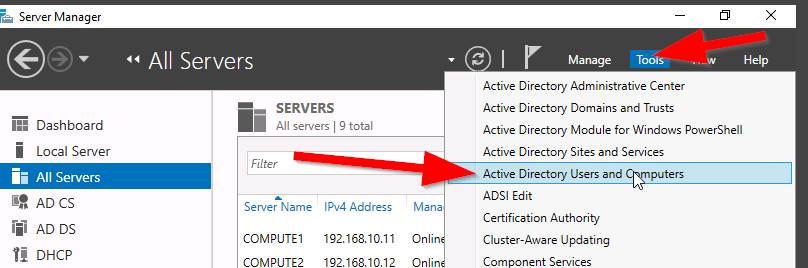
- Go to the Organization Unit (OU) Users,
- Select the security group “Cloneable Domain Controllers“.

- Right click and select Properties.
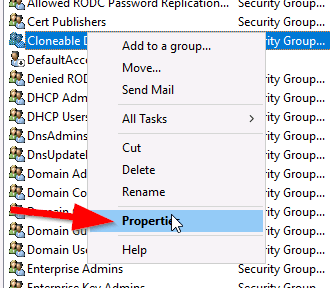
- Then go to Members Tab and Add the DC here.

- Save and Close the settings.
Alternately, PowerShell can be used to the previous step, see command:
ADGroupMember -Identity ‘Cloneable Domain Controllers’ -member (Get-ADComputer SRV1)
Next step is to check for excluded Application and generate a file using PowerShell:
Open an PowerShell console and use this command:
This command generates a list of excluded applications that are added to the allowed list and saves it to the C:\Windows\NTDS\.
Get-ADDCCloningExcludedApplicationList -GenerateXml
The next command is used to create the DC Cloning configuration XML file that is used to configure the virtual DC clone that you will import into the desired Hypervisor.
New-ADDCCloningConfigFile -CloneComputerName “DCCloneName” -IPv4Address 10.10.10.10 –IPv4DefaultGateway 10.10.10.1 –IPv4SubnetMask 255.255.255.0 –IPv4DNSResolver 10.10.10.100,10.10.10.102 –Static
Now shutdown the VM DC, export a copy of it and then import it as a copy generating a new VM ID. Once the copied VM is booted, you should see the cloning process initializing at boot up. When the process is completed, it will reboot and the new cloned DC is ready for use.
Reference: https://docs.microsoft.com/en-us/windows-server/identity/ad-ds/introduction-to-active-directory-domain-services-ad-ds-virtualization-level-100


 IT Wiz Technology Blog