CCNP Route 300-101 – IPv6 Knowledge

This article is to share the knowledge about IPv6 (Internet Protocol version 6) in a simple way.

The first important knowledge you will needed to know before understanding IPv6 is that it is a 128-bit address that is represented using Hexadecimal values and it will be beneficial to know the binary and decimal equivalent.

Please see below the table showing this information:

Hex Binary Decimal
0 0000 0
1 0001 1
2 0010 2
3 0011 3
4 0100 4
5 0101 5
6 0110 6
7 0111 7
8 1000 8
9 1001 9
A 1010 10
B 1011 11
C 1100 12
D 1101 13
E 1110 14
F 1111 15

The next aspect of IPv6 Addressing to understand is that it is similar to IPv4 address where the address is split up into Octet (10.10.10.1) separated by a dot (.), IPv6 address are split up into quartet (2000:ABCD:0000:0000:0000:0000:0000:0001) separated by a colon (:). Each quartet is made up of 4 Hexadecimal number.

An example of an IPv6 address is below along with the binary of the address:

Quartet Hexadecimal Binary
1st 2000 0010 0000 0000 0000
2nd ABCD 1010 1011 1100 1101
3rd 0000 0000 0000 0000 0000
4th 0000 0000 0000 0000 0000
5th 0000 0000 0000 0000 0000
6th 0000 0000 0000 0000 0000
7th 0000 0000 0000 0000 0000
8th 0001 0000 0000 0000 0001

Shortening the IPv6 Address

there are two methods we can use to shorten the IPv6 address to make it easier to write which is also applied by supported devices.

  1. Eliminating the leading zeros
  2. Using the double colon (::) to represents multiple quartet of zeros. this can only be applied once in an IPv6 address.

let me use an example IPv6 address 2000:ABC0:00ED:0000:0000:1234:0000:0001

Applying shortening rule 1 to eliminating the leading zeros which will be:

2000 : ABC0 : 00ED : 0000 : 0000 : 1234 : 0000 : 0001
2000 : ABC0 : ED : 0 : 0 : 1234 : 0 : 1

Then we are going to apply rule 2 which is to use the double colon (::) to replace multiple quartet of zeros:

2000 : ABC0 : 0 : 0 : 1234 : 0 : 1
2000 : ABC0 :: 1234 : 0 : 1

IPv6 Prefix

The IPv6 address has two main parts to the address:

  1. Prefix (Network ID)
  2. Interface ID (Host ID)

The IPv6 Prefix is denoted by the CIDR /XX. For example 2000::/3 where /3 tells you the network portion of the IPv6 address space.

There are also subdivision of the Prefix:

  1. Registry Prefix – assigned by IANA to an RIR
  2. ISP Prefix – assigned by an RIR to an ISP
  3. Site Prefix (Global Routing Prefix) – assigned by an ISP to customer
  4. Subnet Prefix – assigned by a customer engineer internally

RIR – Regional Internet Registry

IANA – Internet Assigned Numbers Authority

IPv6 Address Types

The unspecified address is an address used by an IPv6 node that has not gotten an IPv6 address.

The Global address is the address space reserved to be routed on the internet which is assigned by the IANA.

The Multicast address is joined by IPv6 nodes depending on the class the device is apart of which will be discussed later.

The Link-local is the address automatically assigned by the IPv6 node using the EUI-64 method once the IPv6 is enabled on an interface.

Types of Address Binary Reality IPv6 method
Unspecified 0000…0 ::/128
Loopback 0000…1 ::1/128
Global 001… (first 3) 2000::/3 (2000 – 3FFF)
Multicast 1111 1111 (first 8) FF00::/8
Link-local 1111 1110 10… (first 10) FE80::/10

There is another special type of address which is the Extended Unique Identifier (EUI-64) that uses the MAC address (48-bit) as part of the IPv6 Address. The challenge with the MAC address is that it is short 16-bit so to make it 64-bit, FFFE will be place in the middle of the MAC address. Another modification that is required to derive the EUI-64 address is that the 7th bit must be flipped. To better understand this address, let me list the rules in a table:

Steps Rule Address
1 Get the Mac Address AAAA.BBBB.CCCC
2 Insert FFFE in the middle of the MAC AAAABB FFFE BBCCCC
3 Flip the 7th bit by converting the first 2 Hex to binary, flipping the 7th bit and then converting it back to Hexidecimal AA = 1010 1010

1010 1000 = A8

A8AA:BB FF:FE BB:CCCC

4 Apply the network prefix. in the example using link-local FE80::/8 FE80:0000:0000:0000:A8AA:BBFF:FEBB:CCCC /64
5 Shorten the IPv6 Address FE80::A8AA:BBFF:FEBB:CCCC /64

Local Multicast Address

IPv6 Local Multicast Address Description
FF02::1 All-node
FF02::2 all-routers
FF02::5 all-OSPF routers
FF02::6 OSPF designated routers
FF02::9 All RIP
FF02::A All-EIGRP
FF02::1:FFxx:xxxx solicited-node where x is the last 6 Hex of the IPv6 unicast address

IPv6 Node Layer 2 Communication

When a IPv6 node needs to communicate at the Layer 2 after receiving a multicast packet, the IPv6 node uses the following Layer 2 (MAC) address format:

3333 : xxxx : xxx1

where X is the last 8 Hex of the MAC address but the 8th Hex is change to 1 as shown above.

For the solicited address after the 3333, we will insert FF and then add the last 6 Hex as shown below:

3333 : FFxx : xxxx

IPv6 Address Dynamic Assignment

Stateless Address Auto Configuration (SLAAC)

  • The IPv6 address is derived using the Network prefix and adding the MAC address to it (EUI-64)
  • It used the Stateless DHCP
  • The prefix must be /64
  • There should be no DHCP IP pool configured on router

Stateful DHCP

  • The IPv6 address is dynamically assigned to the host by the DHCP server along with DNS and gateway.

Domain Name System (DNS) – RF6106

IPv6 Neighbor Discovery Protocol (NDP)

Network Discovery Protocol is defined in the RF 4861.

NDP Message Types

  • Router Solicitation (ICMPv6 type 133)
    • Asking router for information
  • Router Advertisement (ICMPv6 type 134)
    • Router responding with information
  • Neighbor Solicitation (ICMPv6 type 135)
    • Asking the neighbor for information
  • Neighbor Advertisement (ICMPv6 type 136)
    • Neighbor responding with information
  • Redirect (ICMPv6 type 137)
    • redirect of a packet

Function of NDP

  • Duplicate Address Detection (DAD)
  • Router Discovery
  • Address Configuration
  • L2 (link-level) Resolution
  • Redirection of a Packet

Setup Cisco Router 1841 for NATing over two interface with Dynamic address.

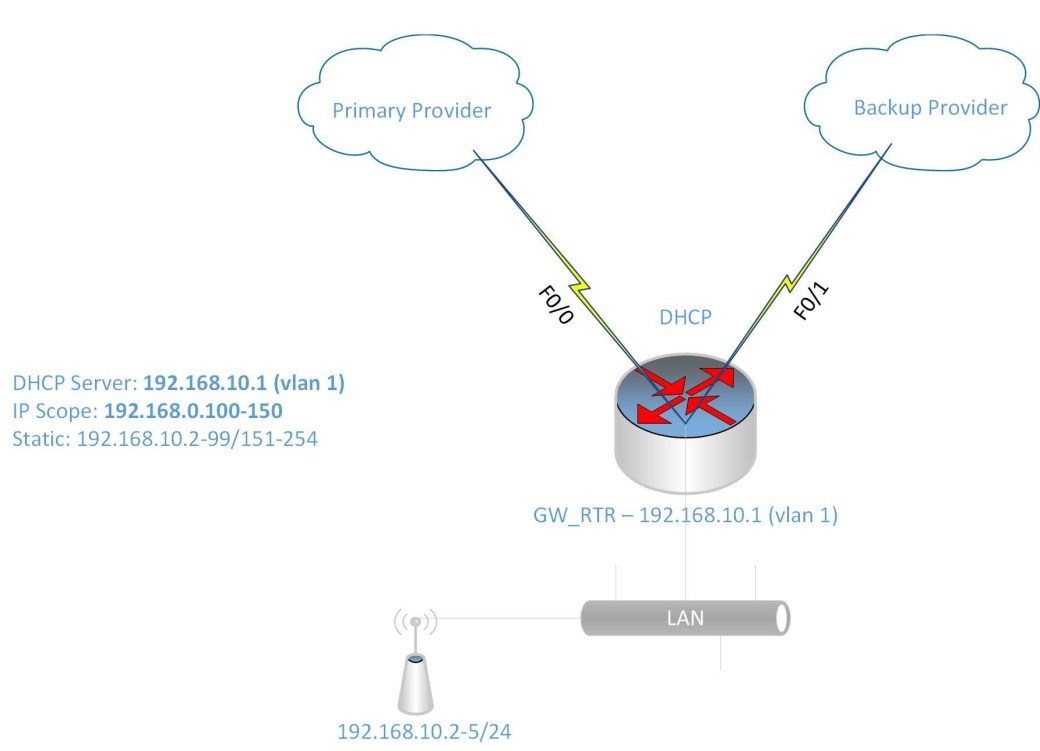
I was given the challenge to setup a Cisco 1841 router with two Fast Ethernet interface and a four Fast Ethernet-port switch module to configure redundancy across two Internet Service Providers (ISP).

RouterRedunantLink

I know that to accomplish this task, I will needĀ  to do the following:

  • Configure the interfaces to get DHCP IP address from the two ISPs
  • Configure NATing from the LAN to the two ISPs for internet access
  • Configure IP SLA or Tracking to detect when the primary link goes down
  • Configure DHCP for the LAN devices
  • Configure Switch Virtual Interface (SVI) as the gateway for the LAN
  • There are also other features included to make the configuration easier such as IP access-list and route-map to link the IP address to the ISP interface for the NATing process.

Configure IP SLA for detecting failure of primary ISP link:

ip sla monitor 1

type echo protocol ipIcmpEcho 8.8.8.8 source-interface f0/0

timeout 1000

threshold 1000

frequency 6

ip sla monitor schedule 1 life forever start-time now

track 10 rtr 1 reachability

delay up 10

The command track 10 rtr is similiar to track 10 ip sla in newer router IOS. If the rtr parameter is not listed then use ip sla. Also some router IOS may not have ip sla monitor, instead it only has ip sla with the monitor parameter.

Now to configure the ISP interfaces and set the primary link tracking:

interface Fa0/0

ip dhcp client route track 10

ip address dhcp

ip nat otside

no shutdown

description PrimaryLink

interface f0/1

ip address dhcp

ip nat outside

description BackupLink

no shutdown

Using the command ip dhcp client route track 10 helps to track the ISP network status using the IP SLA configured previously.

Creating the SVI for the LAN:

interface VLAN 1

ip address 192.168.10.1 255.255.255.0

ip nat inside

description LAN_GWY

SettingĀ  up the DHCP scope for the LAN (IP range 192.168.10.100-150):

ip dhcp pool LAN10

network 192.168.10.0 /24

default-router 192.168.10.1

dns-server 8.8.8.8 4.2.2.2

ip dhcp excluded-address 192.168.10.1 192.168.10.99

ip dhcp excluded-address 192.168.10.151 192.168.10.254

Setup the switch module ports as access ports for the LAN:

interface range f1/0 – 3

switchport mode access

Configure NATing for Internet access:

Please note that from previously entered command for the interfaces and SVI, there is an command ip nat inside and ip nat outside telling NAT which direction are the IP address translated.

Setup Access list for LAN Subnet (192.168.10.0/24)

ip access-list standard LAN-Subnet

permit 192.168.10.0 0.0.0.255

Setup Route-map to match LAN subnet to the two ISP interface:

route-map NAT_TO_PrimaryLink

match ip address LAN-Subnet

match interface f0/0

route-map NAT_TO_BackupLink

match ip address LAN-Subnet

match interface f0/1

Using route-map allows for the same source subnet to be map to two interfaces for the NATing.

Setup NATing for each ISP link to LAN Subnet

ip nat inside route-map NAT_TO_PrimaryLink interface f0/0 overload

ip nat inside route-map NAT_TO_BackupLink interface f0/1 overload

Change the administrative distance for Primary link

ip route 0.0.0.0 0.0.0.0 f0/0 dhcp 10

ip route 0.0.0.0 0.0.0.0 f0/1 dhcp 20

The default route 0.0.0.0 are set to ensure that they are setup with the specified administrative distance 10 and 20 for Primary and Backup link respectively.


Manipulating the DHCP Server using Powershell

This article will go through the cmdlet to successfully configure DHCP services on a Windows server using Powershell.

Firstly you can start a Powershell session on the DHCP server using the following command: It will prompt for the credential using the Get-Credential command.

Enter-PSSession -ComputerName [DHCPServerName] -Credential (Get-Credential)

Create an IPv4 DHCP Scope for 10.10.10.0 name Ground Floor with range 10-200 on server DC1.domain.com

Add-DhcpServerv4Scope -StartRange “10.10.10.10” -EndRange “10.10.10.200” -SubnetMask “255.255.255.0”-Name “Ground Floor” LeaseDuration [day.hrs:mins:secs]-ComputerName “DC1.domain.com” -Description “Subnet for Data VLAN on Ground Floor” -State [Active/InActive]

Configure the Scope 10.10.10.0 DHCP server DNS, Domain, Gateway, WINS and wpad settings

Add-DhcpServerv4OptionValue -ScopeId 10.10.10.0 -Router 10.10.10.1 -DnsDomain “domain.com” -DnsServer 10.10.10.250 WinsServer 10.10.10.251 -Wpad http://proxy.domain.com/wpad.dat” -ComputerName “DC1.domain.com”

Note: To configure the options above at the reservation level replace the parameter ReservedIP and for setting it at the server level, exclude both ReservedIP and ScopeId parameters.

Show the DHCP server IPv4 Scope

Get-DhcpServerv4Scope [-ComputerName “DC1.domain.com”] [[-ScopeId] 10.10.10.0]

Change a DHCP Server Scope Settings

Set-DhcpServerv4ScopeĀ [-TypeĀ [DHCP|Bootp|Both]] [-ScopeId] 10.10.10.0 [-Description Scope for data vlan for 10.10.10.0“] [-LeaseDurationĀ day.hrs:mins:secs] [-Name “Ground Floor”] Ā [-ComputerName “DC1.domain.com”]Ā Ā -StartRangeĀ 10.10.0.20Ā  -EndRange 10.10.10.200

Remove a DHCP server IPv4 Scope

Remove-DhcpServerv4Scope [-ScopeId] 10.10.10.0 [-Force] [-ComputerName “DC1.domain.com”]


Create a reservation for IP address 10.10.10.100 on DHCP server DC1.domain.com

Add-DhcpServerv4Reservation -ScopeId 10.10.10.0 -IPAddress 10.10.10.100 -ClientId [usually-MAC-address] -ComputerName DC1.domain.com -Description “Reservation for Kiosk PC”

Listing the DHCP Server Scope

Get-DhcpServerv4Scope -ComputerName [DHCPServerName] -ScopeId [IPAddress]

Get the List of DHCP Server Options

Get-DhcpServerv4OptionValue -ScopeId [IPAddress][-All -Brief] -ReservedIP [SpecificIP]

Note: Exclude the ReservedIP parameter to list the values at the scope level and exclude ScopeId parameter to list the values at the server level.

Get the interface and IP address that the DHCP server service is bound

Get-DhcpServerv4Binding -ComputerName “DC1.domain.com”

Set the interface that the DHCP server service will be bound

Set-DhcpServerv4Binding -ComputerName “DC1.domain.com” -BindingState $true -InterfaceAlias “Wired Ethernet Connection”

Set the Boot server Host Name (option id ) for the DHCP server scope of 192.168.0.0Ā 

Set-DhcpServerv4OptionValue -OptionId 3 -Value 192.168.0.1 -ScopeId 192.168.0.0

List the DHCP server IPv4 address lease

Get-DhcpServerv4Lease -ScopeId 10.10.10.0 [-IPAddress 10.10.10.25] [ClientId 00-00-fe-3e-b0-01] [-BadLeases] [-AllLeases] -ComputerName “DC1.domain.com”

Note: Using theĀ IPAddress parameter return lease for specific IP address. Using the ClientId parameter returns only lease for client mac. Using the BadLeases returns only bad leases. Using the AllLeases parameter includes all leases including Offered, Declined and Expired.


Removing a DHCP server IPv4 address lease

Remove-DhcpServerv4Lease -ScopeId 10.10.10.0 [-IPAddress 10.10.10.25] -ClientId [00-54-fe-ed-00] [-BadLeases] [-ComputerName “DC1.domain.com”]

Note: same rule applies as the Get cmdlet for this command.

Get ten (10) Free IP Address from the DHCP server from the scope 10.10.10.0 in the range 10.10.10.50-100

Get-DhcpServerv4FreeIPAddress -ScopeId 10.10.10.0 -NumAddress 10 -StartAddress 10.10.10.50 -EndAddress 10.10.10.100

Add a DHCP Scope of IPv4 Excluded Range

Add-DhcpServerv4ExclusionRange [-ComputerName “DC1.domain.com“] [-ScopeId] 10.10.10.0 [-StartRange] 10.10.10.200 [-EndRange] 10.10.10.250

Show the DHCP Scope of IPv4 Address Excluded Range

Get-DhcpServerv4ExclusionRange [-ComputerName “DC1.domain.com“] [[-ScopeId] 10.10.10.0]

Remove an DHCP Scope of IPv4 Address Excluded Range

Remove-DhcpServerv4ExclusionRange [-ComputerName “DC1.domain.com”] [-ScopeId] 10.10.10.0 [[-StartRange] 10.10.10.200] [[-EndRange] 10.10.10.250]


Retrieves the DHCP server scope statistics which includes Free, In Use, Reserved, Pending and Percentage in use IP address

Get-DhcpServerv4ScopeStatistics [[-ScopeId] 10.10.10.0] [-ComputerName “DC1.domain.com”] [-Failover]