VMware VCP 6.7-DCV – Objective 1.2 – Identify vCenter high availability (HA) requirements

The following notes will assist you to prepare for this objective:

  • Be very clear that this is vCenter availability management NOT host
  • Learn the topology of a vCenter HA deployment
    • Nodes
    • Roles of nodes
    • What can and can’t they do? Particularly witness
  • Set up vCenter HA in your lab, so much more interesting study than just reading
    • Easy to enable/disable
  • Make sure you read the vCenter HA section of the vSphere Availability Guide

Reference: vSphere 6.7 Availability Guide pdf – Chapter 4 – vCenter High Availability

VMware VCP 6.7-DCV – Objective 1.1 – Identify the pre-requisites and components for vSphere Implementation

The following notes will assist you to prepare for this objective:

  • Know your vSphere technologies and what they do and what they don’t
    • HA
    • DRS
    • FT
    • vCenter HA
    • vSAN
  • Don’t let questions mislead you on risks mitigated
    • For example does DRS maintain availability?
  • Learn the vSphere 6.7 resource pre-reqs
    • Minimum CPU & RAM
    • Why do you need the HCL?
  • Think about post-install procedures
    • Logging, scratch, dump collection
    • Authentication
  • Know your way around VAMI
    • Adding syslog, adding NTP, DNS settings

Reference: vSphere ESXi 672 Installation Setup Guide.pdf – Chapter 5

vCenter Server Installation and Setup pdf = Chapter 2

Manipulating VMware vSphere using PowerCLI

I enjoying using powershell so I started to explore the possibility of using it for manipulating vSphere. Low and behold, welcome to PowerCLI with similar syntax as powershell or it can be called powershell in vSphere.

Firstly, before the vCenter server can be manage, a connection is required. To do so, this command can be executed. It can also be used to connect to a single ESXi Host.

Connect-VIServer [vCenterServer or ESXiHost] -Credential(Get-Credential)

I prefer to use the Get-Credential cmdlet because it will prompt me with a windows dialog box requesting the username and password (It is a very useful cmdlet).

Once connected, to get the List of Cluster , VM or Host the following respective commands can be used:

Get-Cluster

Get-VM

Get-VMHost

To get specific details the name of the object can be added to the cmdlet. The pipe (|) can also be used to get details from specific area.

Example to retrieve all the Virtual machines within Cluster A

Get-Cluster ClusterA | Get-VM

To Get all VMs on ESXi Host A

Get-VMHost ESXiA | Get-VM

Putting an ESXi Host A in Maintenance mode

Set-VMHost ESXiA -State Maintenance

Shutting down the ESXi Host A

Stop-VMHost ESXiA-Force

Startup Virtual machine VM1 and VM2

Start-VM VM1,VM2

Exit Maintenance Mode for ESXi Host A

Set-VMHost ESXiA -State Connected

To get more cmdlet from the VMware PowerCLI, use the get-command [*keyword*] to list all commands with the keyword.

I will update this list as time progress.

Configuring Domain Controller Cloning

Note: There is an Microsoft Hands-on Lab with code WS00148 that can be used to conduct this exercise. The environment may be required to do additional configuration to execute some of these steps since it is not the main aim and you can ignore the steps in that lab to do your own configuration.

Before cloning a virtual Domain Controller (DC), there are a few requirements that needs to exist in the environment.

The requirements are listed below:

  1. There must exist a DC with the FSMO role PDC Emulator running on atleast Windows Server 2012 which is accessible on the network.
  2. The virtual DC to be clone must be running on a hypervisor that supports the feature VM-GenerationID.
  3. The source virtual DC must be running atleast Windows Server 2012 and is a member of the AD group Cloneable Domain Controllers.
  4. There must be a DC Clone Configuration XML file (namely DCCloneConfig.xml) that holds the settings the clone DC will use to configure itself.

To start the process of cloning a DC, the DC needs to be added to the Cloneable Domain Controllers:

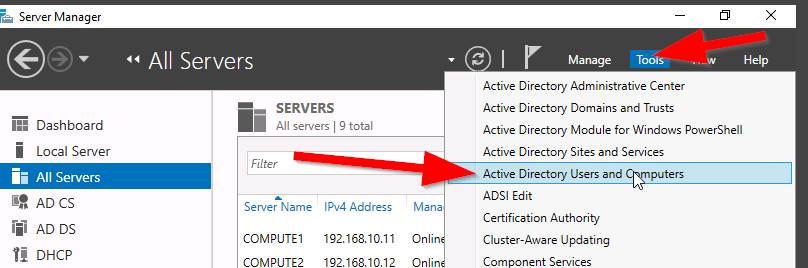
  1. Open Server Manager. server_mgr
  2. Then, go to the Active Directory Users and Computers (ADUC). aduc
  3. Go to the Organization Unit (OU) Users,
  4. Select the security group “Cloneable Domain Controllers“. cloneable_group
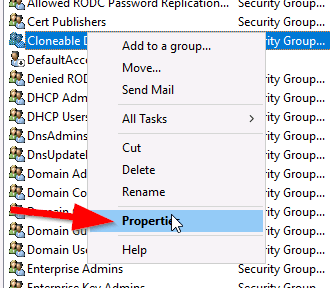
  5. Right click and select Properties. cloneable_properties
  6. Then go to Members Tab and Add the DC here. select member
  7. Save and Close the settings.


Alternately, PowerShell can be used to the previous step, see command:


ADGroupMember -Identity ‘Cloneable Domain Controllers’ -member (Get-ADComputer SRV1)

Next step is to check for excluded Application and generate a file using PowerShell:

Open an PowerShell console and use this command:

This command generates a list of excluded applications that are added to the allowed list and saves it to the C:\Windows\NTDS\.

Get-ADDCCloningExcludedApplicationList -GenerateXml

The next command is used to create the DC Cloning configuration XML file that is used to configure the virtual DC clone that you will import into the desired Hypervisor.

New-ADDCCloningConfigFile -CloneComputerName “DCCloneName” -IPv4Address 10.10.10.10 –IPv4DefaultGateway 10.10.10.1 –IPv4SubnetMask 255.255.255.0 –IPv4DNSResolver 10.10.10.100,10.10.10.102 –Static

Now shutdown the VM DC, export a copy of it and then import it as a copy generating a new VM ID. Once the copied VM is booted, you should see the cloning process initializing at boot up. When the process is completed, it will reboot and the new cloned DC is ready for use.


Reference: https://docs.microsoft.com/en-us/windows-server/identity/ad-ds/introduction-to-active-directory-domain-services-ad-ds-virtualization-level-100

Veeam Replication Error – Unable to discover replica VM

There was an Veeam Backup & Replication job notification with the following error:

Discovering replica VM Error: Unable to find mapping target VmRef [vm-40195]
Error: Unable to find mapping target VmRef [vm-40195]

Based the above error line “unable to find mapping target” means that the replica VM is missing or the replica VM is not mapped to the particular source VM. To resolve this issue, you will need to make the changes to the Replication Job settings for this source VM.

Open the Veeam Backup & Replication console.

veeam_b_r_console

Select Replication and right click and select Edit to modify the properties of the selected job.

veeam_edit_replica_job

Under Describe you DR site, tick Low connection bandwidth (enable replica seeding). Note: This allows you get the additional options to check the original VMs mapping to the replica VMs.

veeam_low_connection

Select Seeding on the left side to go directly to the Replica mapping settings.

veeam_replica_displayed

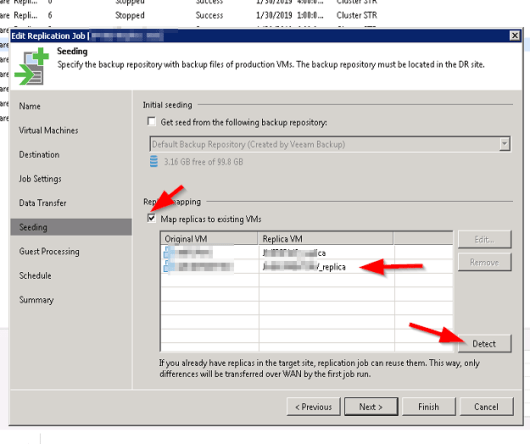
Under Replica Mapping, tick Map replicas to existing VMs if not already ticked.

It will show all the original VMs and their respective replica VMs. If there is a replica VM beside the source VM with error, it means that the replica VM is missing.

Select the Detect button to let Veeam discover all the replica VMs associated with the original VMs in the database. If the replica VM is showing No mapping, it means that the replica VM is missing or it is unable to detect the replica VM.

veeam_detect_replica

The replica VM was can manually selected by highlighting the original VM and select Edit. browse the vCenter for the replica and select it (this is only if it exist but not mapping automatically using the Detection method).

Select Finish and retry the failed replica job. One thing to note is when the retry job option is used, only the failed VM replication job is executed.

Veeam Replication Job Trouble Ticket # 1

There was an email notification received from the Veeam B&R server stating that one of the VM replication job had failed with the following error:

Error: Failed to open VDDK disk [[Datastore_Name] VM_replica/VM2-000001.vmdk] ( is read-only mode – [false] ) Logon attempt with parameters [VC/ESX: [vCSA_Name];Port: 443;Login: [domain\account_name];VMX Spec: [moref=vm-40195];Snapshot mor: [snapshot-112166];Transports: [nbd];Read Only: [false]] failed because of the following errors: Failed to open disk for write. Failed to download disk. Reconnectable protocol device was closed. Failed to upload disk. Age

The first thing done was to log into the Veeam backup server and open the Veeam Backup & Replication console.   veeam_b_r_console

Under the Home, navigate to the Replicas, search for the VM. Then highlight it and right click and open the properties. It will show all the replica jobs which are snapshots on the replica VM in vSphere.


The two last replica job shows that they were incomplete. This sometimes indicate that there was a problem with the snapshot that was created. Logon to the vSphere web client and check the snapshot manager for the replica VM (the default naming convention is “VMName_replica“). Open the option Snapshots–>Manage Snapshots and you will expand the snapshots until you reach the last two set before “You are here”.

vsphere_snapshot

In the image, you will notice that the snapshot names “Veeam Replica Working Snapshot” which indicate that the snapshot was not completed. To eliminate the job continue failing is to delete all the snapshots with the title “Veeam Replica Working snapshot” and rerun the job from veeam so it can recreate the snapshot. If these snapshot are allowed to remain, the Veeam replica job will continue to fail.

I hope this help to resolve some of the veeam replication job failures.

VCP65-DCV – Objective 7.5 – Troubleshoot HA and DRS Configurations and Fault Tolerance

The following reference material from the vSphere 6.5 online documentation will assist you in covering the main information that is needed to know the topics in this objective:

  1. How vSphere HA works
  2. Troubleshooting vSphere HA host states
  3. Troubleshooting Availability
  4. Configure Proactive HA
  5. DRS troubleshooting information
  6. Migration with vMotion
  7. Migration with Storage vMotion
  8. Troubleshooting Storage DRS
  9. Providing Fault Tolerant for Virtual Machines
  10. Troubleshooting Fault Tolerant Virtual Machines
  11. DRS Cluster Validity
  12. Overview Performance Charts for Clusters

VCP65-DCV – Objective 7.4 – Troubleshoot Virtual Machines

The following reference material from the vSphere 6.5 online documentation will assist you in covering the main information that is needed to know the topics in this objective:

  1. Overview Performance Charts
  2. Troubleshoot and Enhance Performance
  3. CPU Virtualization Basics
  4. Memory virtualization Basics
  5. Working with Advanced and Custom Charts
  6. Storage Device Panel
  7. know the commands:
    1. esxtop
  8. EVC requirements for Hosts
  9. Change the EVC mode for a Cluster

VCP65-DCV – Objective 7.3 – Troubleshoot vSphere Upgrades and Migrations

The following reference material from the vSphere 6.5 online documentation will assist you in covering the main information that is needed to know the topics in this objective:

  1. VMware KB 1011641 – vCenter server
  2. VMware KB 653 – ESXi Host
  3. Troubleshooting vCenter Server Installation or Deployment
  4. vCenter Server Upgrade Failed when unable to Stop tomcat service.
  5. Microsoft SQL Database set to unsupported compatibility Mode Causes vCenter server installations or Upgrade to Fail
  6. Export a vCenter server support bundle for troubleshooting
  7. Troubleshooting vCenter server
  8. Introduction to vSphere Upgrade
  9. Upgrade ESXi Hosts
  10. Configure logging options

VCP65-DCV – Objective 7.2 – Troubleshoot vSphere Storage and Networking

The following reference material from the vSphere 6.5 online documentation will assist you in covering the main information that is needed to know the topics in this objective:

  1.  Know the commands
    1. esxtop
  2. Create a Datastore Cluster
  3. Setting the Aggressiveness Level for Storage DRS
  4. Troubleshooting Networking
  5. Troubleshooting Storage
  6. VMFS metadata Updates