Disable IE Enhanced Security Configuration in Windows Server via script

I have always want to use a script to disable Internet Explorer Enhanced Security Configuration (IE ESC) in Windows Server. It is an annoying activity when it is required to perform tasked using the IE in older versions of windows servers.

It is important to note that IE ESC is very important to the security of legacy servers from common past vulnerabilities which is not a risk in current versions of server OS.

This activity must be taken with precaution and on servers with access restriction to the Internet. It is encouraged that IT professional implement all measures to secure the legacy application running on these servers that must be maintained in an segmented or isolated environment. It is the responsibility of the IT professional to use a secure alternative browser after this activity has been performed.

Now here is a batch script to the rescue taken from this Microsoft FAQ that can be runned on all your servers. Save the script in a batch file and run it from the command line.

The script must run as an administrator or a logon script to work since it is making changes to the registry.

Note: The script was created for Windows Server 2003 and 2008. However, it will work for other versions such as Windows Server 2019.

ECHO OFF
REM  IEHarden Removal Project
REM  HasVersionInfo: Yes
REM  Author: Axelr
REM  Productname: Remove IE Enhanced Security
REM  Comments: Helps remove the IE Enhanced Security Component of Windows 2003 and 2008(including R2)
REM  IEHarden Removal Project End
ECHO ON
::Related Article
::933991 Standard users cannot turn off the Internet Explorer Enhanced Security feature on a Windows Server 2003-based terminal server
::http://support.microsoft.com/default.aspx?scid=kb;EN-US;933991
:: Rem out if you like to Backup the registry keys
::REG EXPORT "HKEY_LOCAL_MACHINE\SOFTWARE\Microsoft\Active Setup\Installed Components\{A509B1A7-37EF-4b3f-8CFC-4F3A74704073}" "%TEMP%.HKEY_LOCAL_MACHINE.SOFTWARE.Microsoft.Active Setup.Installed Components.A509B1A7-37EF-4b3f-8CFC-4F3A74704073.reg"
::REG EXPORT "HKEY_LOCAL_MACHINE\SOFTWARE\Microsoft\Active Setup\Installed Components\{A509B1A7-37EF-4b3f-8CFC-4F3A74704073}" "%TEMP%.HKEY_LOCAL_MACHINE.SOFTWARE.Microsoft.Active Setup.Installed Components.A509B1A8-37EF-4b3f-8CFC-4F3A74704073.reg"
REG ADD "HKEY_LOCAL_MACHINE\SOFTWARE\Microsoft\Active Setup\Installed Components\{A509B1A7-37EF-4b3f-8CFC-4F3A74704073}" /v "IsInstalled" /t REG_DWORD /d 0 /f
REG ADD "HKEY_LOCAL_MACHINE\SOFTWARE\Microsoft\Active Setup\Installed Components\{A509B1A8-37EF-4b3f-8CFC-4F3A74704073}" /v "IsInstalled" /t REG_DWORD /d 0 /f
::x64
REG ADD "HKEY_LOCAL_MACHINE\SOFTWARE\Wow6432node\Microsoft\Active Setup\Installed Components\{A509B1A8-37EF-4b3f-8CFC-4F3A74704073}" /v "IsInstalled" /t REG_DWORD /d 0 /f
::Disables IE Harden for user if set to 1 which is enabled
REG ADD "HKEY_CURRENT_USER\Software\Microsoft\Windows\CurrentVersion\Internet Settings\ZoneMap" /v "IEHarden" /t REG_DWORD /d 0 /f
REG ADD "HKEY_LOCAL_MACHINE\Software\Microsoft\Windows\CurrentVersion\Internet Settings\ZoneMap" /v "IEHarden" /t REG_DWORD /d 0 /f
REG ADD "HKEY_CURRENT_USER\Software\Wow6432Node\Microsoft\Windows\CurrentVersion\Internet Settings\ZoneMap" /v "IEHarden" /t REG_DWORD /d 0 /f
::Removing line below as it is not needed for Windows 2003 scenarios. You may need to enable it for Windows 2008 scenarios
::Rundll32 iesetup.dll,IEHardenLMSettings
Rundll32 iesetup.dll,IEHardenUser
Rundll32 iesetup.dll,IEHardenAdmin
Rundll32 iesetup.dll,IEHardenMachineNow
::This apply to Windows 2003 Servers
REG DELETE "HKEY_LOCAL_MACHINE\SOFTWARE\Microsoft\Windows\CurrentVersion\Setup\OC Manager\Subcomponents" /v "iehardenadmin" /f /va
REG DELETE "HKEY_LOCAL_MACHINE\SOFTWARE\Microsoft\Windows\CurrentVersion\Setup\OC Manager\Subcomponents" /v "iehardenuser" /f /va
REG ADD "HKEY_LOCAL_MACHINE\SOFTWARE\Microsoft\Windows\CurrentVersion\Setup\OC Manager\Subcomponents" /v "iehardenadmin" /t REG_DWORD /d 0 /f
REG ADD "HKEY_LOCAL_MACHINE\SOFTWARE\Microsoft\Windows\CurrentVersion\Setup\OC Manager\Subcomponents" /v "iehardenuser" /t REG_DWORD /d 0 /f
::REG DELETE "HKEY_LOCAL_MACHINE\SOFTWARE\Microsoft\Active Setup\Installed Components\{A509B1A7-37EF-4b3f-8CFC-4F3A74704073}" /f /va
::REG DELETE "HKEY_LOCAL_MACHINE\SOFTWARE\Microsoft\Active Setup\Installed Components\{A509B1A8-37EF-4b3f-8CFC-4F3A74704073}" /f /va
:: Optional to remove warning on first IE Run and set home page to blank. remove the :: from lines below
:: 32-bit HKCU Keys
REG DELETE "HKEY_CURRENT_USER\Software\Microsoft\Internet Explorer\Main" /v "First Home Page" /f
REG ADD "HKEY_CURRENT_USER\Software\Microsoft\Internet Explorer\Main" /v "Default_Page_URL" /t REG_SZ /d "about:blank" /f
REG ADD "HKEY_CURRENT_USER\Software\Microsoft\Internet Explorer\Main" /v "Start Page" /t REG_SZ /d "about:blank" /f
:: This will disable a warning the user may get regarding Protected Mode being disable for intranet, which is the default.
:: See article http://social.technet.microsoft.com/Forums/lv-LV/winserverTS/thread/34719084-5bdb-4590-9ebf-e190e8784ec7
:: Intranet Protected mode is disable. Warning should not appear and this key will disable the warning
REG ADD "HKEY_CURRENT_USER\Software\Microsoft\Internet Explorer\Main" /v "NoProtectedModeBanner" /t REG_DWORD /d 1 /f
:: Removing Terminal Server Shadowing x86 32bit
REG DELETE "HKEY_LOCAL_MACHINE\SOFTWARE\Microsoft\Windows NT\CurrentVersion\Terminal Server\Install\Software\Microsoft\Windows\CurrentVersion\Internet Settings\ZoneMap" /v "IEHarden" /f
:: Removing Terminal Server Shadowing Wow6432Node
REG DELETE "HKEY_LOCAL_MACHINE\SOFTWARE\Wow6432Node\Microsoft\Windows NT\CurrentVersion\Terminal Server\Install\Software\Microsoft\Windows\CurrentVersion\Internet Settings\ZoneMap" /v "IEHarden" /f

The script may display errors for some commands depending on the versions of Windows servers due the registry keys not used in that versions.

Most importantly, ensure to verify the settings changed for the Internet Explorer ESC.

Microsoft Certification Learning Resources

This article was created for me to keep track of the Microsoft Learning resources available to acquire the knowledge needed to prepare for the Microsoft Certifications.

The material includes preparation for following certifications:

  • AZ-900
  • AZ-104
  • AZ-800/AZ-801
  • AZ-500
  • AZ-700
  • AZ-305
  • AZ-400
  • AZ-140
  • SC-300
  • MS-900
  • MS-500 (expires June 30, 2023)
  • MS-100/ MS-101 (expires July 31, 2023) / MS-102
  • AI-900
  • AI-102
  • DP-900
  • DP-420
  • DP-300

Microsoft Learn
https://learn.microsoft.com/en-us/

Microsoft Learning Lab Exercises
https://github.com/MicrosoftLearning

Microsoft Azure Connected Learning Experience (CLX)
https://clx.cloudevents.ai/events/39366311-ad15-4b90-9364-0252213842fa

Microsoft Partner Training
https://partner.microsoft.com/en-us/training/training-events

MS365 Lab Resources for Microsoft Partner
https://transform.microsoft.com/modernwork/partner

Microsoft Learn Lab Exercise
https://microsoftlearning.github.io/AZ500-AzureSecurityTechnologies/
https://microsoftlearning.github.io/MS-500-Microsoft-365-Security/
https://microsoftlearning.github.io/SC-300-Identity-and-Access-Administrator/
https://microsoftlearning.github.io/AZ-104-MicrosoftAzureAdministrator/

https://microsoftlearning.github.io/AZ-305-DesigningMicrosoftAzureInfrastructureSolutions/

https://microsoftcloudworkshop.com/

https://microsoftlearning.github.io/AZ500-AzureSecurityTechnologies/

https://microsoftlearning.github.io/AZ-140-Configuring-and-Operating-Microsoft-Azure-Virtual-Desktop/

https://microsoftlearning.github.io/AZ400-DesigningandImplementingMicrosoftDevOpsSolutions/

Microsoft Simulation Guide

https://mslearn.cloudguides.com/en-us/guides/AZ-900%20Exam%20Guide%20-%20Azure%20Fundamentals
https://mslabs.cloudguides.com/guides/DP-900%20Exam%20Guide%20-%20Azure%20Data%20Fundamentals
https://mslabs.cloudguides.com/guides/AI-900%20Exam%20Guide%20-%20Azure%20AI%20Fundamentals

https://mslabs.cloudguides.com/guides/AZ-104%20Exam%20Guide%20-%20Microsoft%20Azure%20Administrator

https://mslabs.cloudguides.com/guides/AZ-700%20Lab%20Simulations%20-%20Designing%20and%20implementing%20Microsoft%20Azure%20networking%20solutions

https://mslabs.cloudguides.com/guides/AZ-800%20Lab%20Simulations%20-%20Administering%20Windows%20Server%20Hybrid%20Core%20Infrastructure

https://mslabs.cloudguides.com/guides/AZ-801%20Lab%20Simulations%20-%20Configuring%20Windows%20Server%20Hybrid%20Advanced%20Services

https://mslabs.cloudguides.com/guides/DP-300%20Lab%20Simulations%20-%20Administering%20Microsoft%20Azure%20SQL%20solutions

https://mslabs.cloudguides.com/guides/AI-102%20Lab%20Simulations%20-%20Designing%20and%20implementing%20a%20Microsoft%20Azure%20AI%20solution

https://mslabs.cloudguides.com/guides/DP-420%20Lab%20Simulations%20-%20Designing%20and%20implementing%20cloud-native%20applications%20using%20Microsoft%20Azure%20Cosmos%20DB

Third party resources:

John Savill – https://learn.onboardtoazure.com/

Susanth Sutheesh – https://www.aguidetocloud.com/

Microsoft Azure Paid Labs environment and Training – ACloudGuru.com

I will update this list as times progresses and the information changes.

Disclaimer: all information is provided as is and if there are any changes Microsoft website is the ultimate authority and the respective producers.

AZ-104 – Microsoft Azure Administrator : Managing Identities and Governance- Manage Azure Active Directory (Azure AD) objects

This article will show the configuration commands required to complete the objectives on the exam guide for the AZ-104. The article information is updated as I complete the respective tasks.

Manage Azure Active Directory (Azure AD) objects

  • Create users and groups

Azure CLI

# Create user

az ad user create –display-name “Full Name” –user-principal-name “Firstname.lastname@domain.com”

# Create user group

az ad group create –display-name “Group Name” –mail-nickname “GroupName”

PowerShell

# Create user

New-AzADuser -DisplayName “Full Name” -UserPrincipalName “Firstname.lastname@domain.com” -MailNickName “FullName”

#Create Group

New-AzADGroup -DisplayName “Group Name” -MailNickName “Groupname”

  • Create administrative units

Azure CLI

# Comment

az noun verb –name variable

PowerShell

# Create a Administrative Unit

New-AzureADMSAdministrativeUnit -DisplayName “NameOfAdminUnit” -Descrption “DescriptionOfAdminUnit”

# Remove a Administrative Unit

Remove-AzureADMSAdministrativeUnit –

  • Manage user and group properties

Azure CLI

# Comment

az noun verb –name variable

PowerShell

# Comment

Verb-Noun -Parameters variable

  • Perform bulk user updates

Azure CLI

# Comment

az noun verb –name variable

PowerShell

# Comment

Verb-Noun -Parameters variable

  • Manage device settings

Azure CLI

# Comment

az noun verb –name variable

PowerShell

# Comment

Verb-Noun -Parameters variable

  • configure Azure AD join

Azure CLI

# Comment

az noun verb –name variable

PowerShell

# Comment

Verb-Noun -Parameters variable

  • Configure self-services password reset

Azure CLI

# Comment

az noun verb –name variable

PowerShell

# Comment

Verb-Noun -Parameters variable

AZ-104 – Microsoft Azure Administrator : Manage Azure Identities and Governance – Manage Role-based access control (RBAC)

This article will show the configuration commands required to complete the objectives on the exam guide for the AZ-104. The article information is updated as I complete the respective tasks.

Manage Role-based Access Control (RBAC)

  • Create a custom role

Azure CLI

# Comment

az noun verb –name variable

PowerShell

# Comment

Verb-Noun -Parameters variable

  • Provide access to Azure resources by assigning roles at different scopes

Azure CLI

# Assigning role Owner to subscription scope

az role assignment create \

–assignee “rbacuser@domain.com” \

–role “Owner” \

— scope “scope_name_or_id”

#Assign role Contributor to resource level

az role assignment create \

–assignee “user@domain.com” \

–scope “/subscriptions/[subid]/resourceGroups/[rgid]/provider/Microsoft.Compute/virtualMachines/[myVM1” \

–role “Contributor”

#Delete role assignment

az role assignment delete \

–assignee “deleteuser@domain.com” \

–scope “scope_name_or_id” \

–role “Owner”

#view all role assignment

az role assignment list –all

PowerShell

# Assigned Owner role at scope level

New -AzRoleAssignment -SignInName “rbacuser@domain.com” `

-RoleDefinitionName “Owner” -scope “scope_name_or_id”

#Delete role assignment

Remove-RoleAssignment -SignInName “user@domain.com” `

-Scope “scope_name_or_id” `

-RoleDefinitionName “Reader”

#List all the Role assignment

Get-AzRoleAssignment

  • Interpret access assignments

Azure CLI

# Comment

az noun verb –name variable

PowerShell

# Comment

Verb-Noun -Parameters variable

Method of Changing the SID of a Windows Server 2016 VM

In a virtual environment, there are scenarios where you would want to clone an existing Windows server virtual machine to provide redundancy for whatever application.

Having the ability to create duplicate virtual machines by cloning it is a great feature but it creates a problem in a Windows Active Directory environment. There is a unique identifier called Security ID also known as SID which is created during installation to identify each machine in a Windows environment.

Active Directory has a big problem when it discovers two machines with the same SID because it identify them as the same object. If the computer with the same SID attempts to join the same domain, it will generate an error and terminate the process. No worries, there is a solution for the Windows computer.

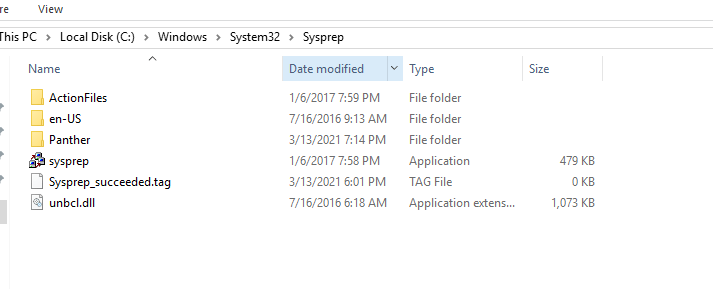
Microsoft has included a tool called Sysprep which is natively installed on Windows server which is located in the folder path:

%systemroot%\System32\Sysprep

To start the process, you will navigate to the folder and follow the steps below:

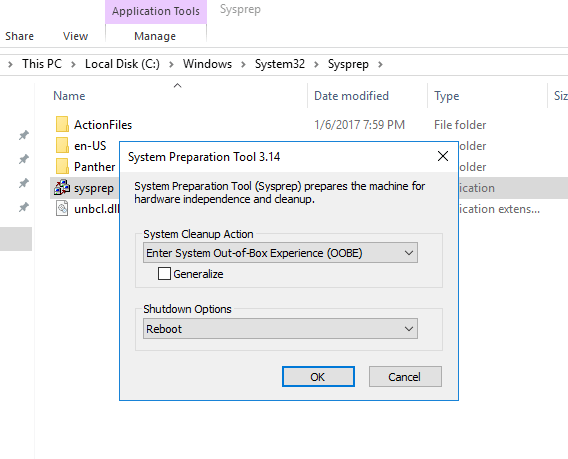
  • Right click and Run the System Preparation Tool (Sysprep.exe) as an administrator
  • Select the option Enter System Out-of-Box Experience (OOBE) for System Cleanup Action with the option Generalize ticked.
  • Select the Shutdown option: Reboot
  • Then select OK.

Once the virtual machine reboots, it will prompt to select the usually Microsoft settings during initialization, accept the EULA and to set the Administrator password.

Note that this method does not remove any installed applications except device drivers. It also removes the usually windows configuration such as IP address and machine name.

The SysPrep will work in other versions of Windows.

reference: https://docs.microsoft.com/en-us/windows-hardware/manufacture/desktop/sysprep–generalize–a-windows-installation

CCNP Route 300-101 – IPv6 Knowledge

This article is to share the knowledge about IPv6 (Internet Protocol version 6) in a simple way.

The first important knowledge you will needed to know before understanding IPv6 is that it is a 128-bit address that is represented using Hexadecimal values and it will be beneficial to know the binary and decimal equivalent.

Please see below the table showing this information:

Hex Binary Decimal
0 0000 0
1 0001 1
2 0010 2
3 0011 3
4 0100 4
5 0101 5
6 0110 6
7 0111 7
8 1000 8
9 1001 9
A 1010 10
B 1011 11
C 1100 12
D 1101 13
E 1110 14
F 1111 15

The next aspect of IPv6 Addressing to understand is that it is similar to IPv4 address where the address is split up into Octet (10.10.10.1) separated by a dot (.), IPv6 address are split up into quartet (2000:ABCD:0000:0000:0000:0000:0000:0001) separated by a colon (:). Each quartet is made up of 4 Hexadecimal number.

An example of an IPv6 address is below along with the binary of the address:

Quartet Hexadecimal Binary
1st 2000 0010 0000 0000 0000
2nd ABCD 1010 1011 1100 1101
3rd 0000 0000 0000 0000 0000
4th 0000 0000 0000 0000 0000
5th 0000 0000 0000 0000 0000
6th 0000 0000 0000 0000 0000
7th 0000 0000 0000 0000 0000
8th 0001 0000 0000 0000 0001

Shortening the IPv6 Address

there are two methods we can use to shorten the IPv6 address to make it easier to write which is also applied by supported devices.

  1. Eliminating the leading zeros
  2. Using the double colon (::) to represents multiple quartet of zeros. this can only be applied once in an IPv6 address.

let me use an example IPv6 address 2000:ABC0:00ED:0000:0000:1234:0000:0001

Applying shortening rule 1 to eliminating the leading zeros which will be:

2000 : ABC0 : 00ED : 0000 : 0000 : 1234 : 0000 : 0001
2000 : ABC0 : ED : 0 : 0 : 1234 : 0 : 1

Then we are going to apply rule 2 which is to use the double colon (::) to replace multiple quartet of zeros:

2000 : ABC0 : 0 : 0 : 1234 : 0 : 1
2000 : ABC0 :: 1234 : 0 : 1

IPv6 Prefix

The IPv6 address has two main parts to the address:

  1. Prefix (Network ID)
  2. Interface ID (Host ID)

The IPv6 Prefix is denoted by the CIDR /XX. For example 2000::/3 where /3 tells you the network portion of the IPv6 address space.

There are also subdivision of the Prefix:

  1. Registry Prefix – assigned by IANA to an RIR
  2. ISP Prefix – assigned by an RIR to an ISP
  3. Site Prefix (Global Routing Prefix) – assigned by an ISP to customer
  4. Subnet Prefix – assigned by a customer engineer internally

RIR – Regional Internet Registry

IANA – Internet Assigned Numbers Authority

IPv6 Address Types

The unspecified address is an address used by an IPv6 node that has not gotten an IPv6 address.

The Global address is the address space reserved to be routed on the internet which is assigned by the IANA.

The Multicast address is joined by IPv6 nodes depending on the class the device is apart of which will be discussed later.

The Link-local is the address automatically assigned by the IPv6 node using the EUI-64 method once the IPv6 is enabled on an interface.

Types of Address Binary Reality IPv6 method
Unspecified 0000…0 ::/128
Loopback 0000…1 ::1/128
Global 001… (first 3) 2000::/3 (2000 – 3FFF)
Multicast 1111 1111 (first 8) FF00::/8
Link-local 1111 1110 10… (first 10) FE80::/10

There is another special type of address which is the Extended Unique Identifier (EUI-64) that uses the MAC address (48-bit) as part of the IPv6 Address. The challenge with the MAC address is that it is short 16-bit so to make it 64-bit, FFFE will be place in the middle of the MAC address. Another modification that is required to derive the EUI-64 address is that the 7th bit must be flipped. To better understand this address, let me list the rules in a table:

Steps Rule Address
1 Get the Mac Address AAAA.BBBB.CCCC
2 Insert FFFE in the middle of the MAC AAAABB FFFE BBCCCC
3 Flip the 7th bit by converting the first 2 Hex to binary, flipping the 7th bit and then converting it back to Hexidecimal AA = 1010 1010

1010 1000 = A8

A8AA:BB FF:FE BB:CCCC

4 Apply the network prefix. in the example using link-local FE80::/8 FE80:0000:0000:0000:A8AA:BBFF:FEBB:CCCC /64
5 Shorten the IPv6 Address FE80::A8AA:BBFF:FEBB:CCCC /64

Local Multicast Address

IPv6 Local Multicast Address Description
FF02::1 All-node
FF02::2 all-routers
FF02::5 all-OSPF routers
FF02::6 OSPF designated routers
FF02::9 All RIP
FF02::A All-EIGRP
FF02::1:FFxx:xxxx solicited-node where x is the last 6 Hex of the IPv6 unicast address

IPv6 Node Layer 2 Communication

When a IPv6 node needs to communicate at the Layer 2 after receiving a multicast packet, the IPv6 node uses the following Layer 2 (MAC) address format:

3333 : xxxx : xxx1

where X is the last 8 Hex of the MAC address but the 8th Hex is change to 1 as shown above.

For the solicited address after the 3333, we will insert FF and then add the last 6 Hex as shown below:

3333 : FFxx : xxxx

IPv6 Address Dynamic Assignment

Stateless Address Auto Configuration (SLAAC)

  • The IPv6 address is derived using the Network prefix and adding the MAC address to it (EUI-64)
  • It used the Stateless DHCP
  • The prefix must be /64
  • There should be no DHCP IP pool configured on router

Stateful DHCP

  • The IPv6 address is dynamically assigned to the host by the DHCP server along with DNS and gateway.

Domain Name System (DNS) – RF6106

IPv6 Neighbor Discovery Protocol (NDP)

Network Discovery Protocol is defined in the RF 4861.

NDP Message Types

  • Router Solicitation (ICMPv6 type 133)
    • Asking router for information
  • Router Advertisement (ICMPv6 type 134)
    • Router responding with information
  • Neighbor Solicitation (ICMPv6 type 135)
    • Asking the neighbor for information
  • Neighbor Advertisement (ICMPv6 type 136)
    • Neighbor responding with information
  • Redirect (ICMPv6 type 137)
    • redirect of a packet

Function of NDP

  • Duplicate Address Detection (DAD)
  • Router Discovery
  • Address Configuration
  • L2 (link-level) Resolution
  • Redirection of a Packet

Microsoft: Print Management using Powershell

I was having an issue RDPing to a print server and the only other way was to using Server Management tools to manipulate the print services.

I was curious to find out if this was possible using Powershell and I research it and these are the commands I discovered.

Note: There was no direct Powershell command to execute a Test Print Page so this feature has to be manipulated using  Invoke-CimMethod using WMI print class which can be found here.


Add-Printer Adds a printer to the specified computer.
Add-PrinterDriver Installs a printer driver on the specified computer.
Add-PrinterPort Installs a printer port on the specified computer.
Get-PrintConfiguration Gets the configuration information of a printer.
Get-PrintJob Retrieves a list of print jobs in the specified printer.
Get-Printer Retrieves a list of printers installed on a computer.
Get-PrinterDriver Retrieves the list of printer drivers installed on the specified computer.
Get-PrinterPort Retrieves a list of printer ports installed on the specified computer.
Get-PrinterProperty Retrieves printer properties for the specified printer.
Read-PrinterNfcTag Reads information about printers from an NFC tag.
Remove-PrintJob Removes a print job on the specified printer.
Remove-Printer Removes a printer from the specified computer.
Remove-PrinterDriver Deletes printer driver from the specified computer.
Remove-PrinterPort Removes the specified printer port from the specified computer.
Rename-Printer Renames the specified printer.
Restart-PrintJob Restarts a print job on the specified printer.
Resume-PrintJob Resumes a suspended print job.
Set-PrintConfiguration Sets the configuration information for the specified printer.
Set-Printer Updates the configuration of an existing printer.
Set-PrinterProperty Modifies the printer properties for the specified printer.
Suspend-PrintJob Suspends a print job on the specified printer.
Write-PrinterNfcTag Writes printer connection data to an NFC tag.

For more information, please refer to the Microsoft documentation here.

Error: Microsoft SharePoint is not supported with version 4.0.30319.42000 of the Microsoft .Net Runtime

My colleague was trying to run the PowerShell command Get-SPSite to get information about the SharePoint 2010 sites on the server.

He came across this error:

sharepointerror

It was discovered that the server Windows 2012 R2 has Microsoft .Net 4.0 installed on the box and as a result the SharePoint was not functioning with Powershell version 4.0.

To verify the version installed on the box:

$ver = $host | select version

$ver.Version

Solution

I had to run the opened PowerShell version 2 and then run the commands again.

To do this execute the following command from dos prompt:

powershell.exe -version 2

once the PowerShell opens run the commands again:

Add-PSSnapin Microsoft.SharePoint.PowerShell

Get-SPSite

Get-SPFarm

Get-SPWeb [SPSiteName]

Problem solved. I hope this was helpful.