Blog

Microsoft Powershell – Install and Configure AD Certificate Services (Windows Server 2016)

This article will demonstrate how to install and configure the Active Directory Certificate Services (AD CS) and the Certification Authority (CA) using both the Server Manager and corresponding Powershell cmdlet.

Using Powershell method

Check if the Active Directory Certificate Service is installed

Get-WindowsFeature AD-Certificate


To install the Certification Authority features, run the following cmdlet:

Install-WindowsFeature ADCS-Cert-Authority -IncludeManagementTools


Configuring the Active Directory Certificate Services with a Standalone Root CA on Host1.

Install-ADcsCertificationAuthority –Credential (Get-Credential) -CAType [StandaloneRootCA]CACommonName“domain-Host1-CA-1”CADistinguishedNameSuffix “DC=domain,DC=com” CryptoProviderName“RSA#Microsoft Software Key Storage Provider” -KeyLength 2048 HashAlgorithmName SHA1 ValidityPeriod Years ValidityPeriodUnits3DatabaseDirectory “C:\windows\system32\certLog”LogDirectory “c:\windows\system32\CertLog”Force

You can select the CA Type by setting the parameter for –CA Type to either StandaloneRootCA, StandaloneSubordinateCA, EnterpriseRootCA or EnterpriseSubordinateCA. For the CA options like the Cryptographic Provider, Hash Algorithm and Key length will have to be known so that it is selected correctly.

Example for the key length, the values can be 512, 1024, 2048, 4096 which has to be typed out.

For Hash Algorithm, the options are: SHA256, SHA384, SHA512, SHA1, MD5, MD4, MD2.

For the Cryptographic Provider, the parameter -CryptoProviderName can be:

  • RSA#Microsoft Software Key Storage Provider
  • ECDSA_P521#Microsoft Software Key Storage Provider
  • ECDSA_P256#Microsoft Software Key Storage Provider
  • ECDSA_P384#Microsoft Software Key Storage Provider
  • DSA#Microsoft Software Key Storage Provider

and any other…


Removing the AD CS and CA feature from the server.

Remove-WindowsFeature ADCS-Cert-Authority


Using the Server Manager


Go to Server Manager–> Manage –> Add Role and Features

servermgr

Select Role-based or feature-based installation

role-based

Select the Server to install it on

server

Tick the Active Directory Certificate Services

adcs_server_role

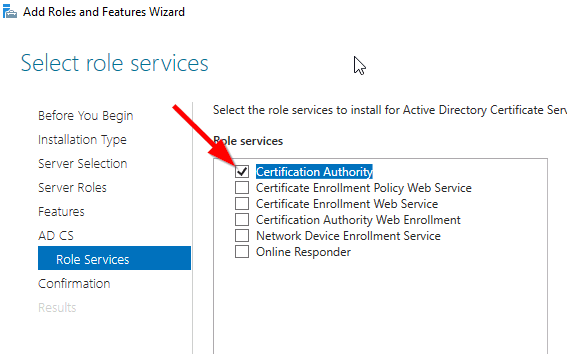
Tick the Certification Authority

CA_role

The feature will be installed and then you can select Configure Active Directory Certificate Services to setup the CA.

configure_ADCS_CA

Enter the Credential that have permission to configure the CA. Note the following:

For Standalone CA: you need local administrator rights

For Enterprise CA: you need Enterprise Admin rights

ca_credential

Select  role services: Certification Authority (CA)

configure_CA

select Standalone CA. Once you know how to configure Standalone CA then you can easily configure Enterprise CA.
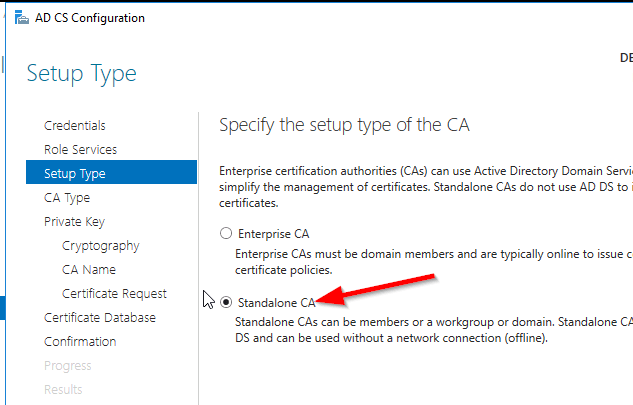
select_StandaloneCA

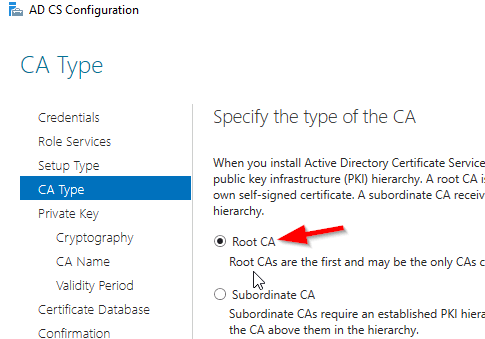
Select Root CA (this is the first CA)
select_RootCA

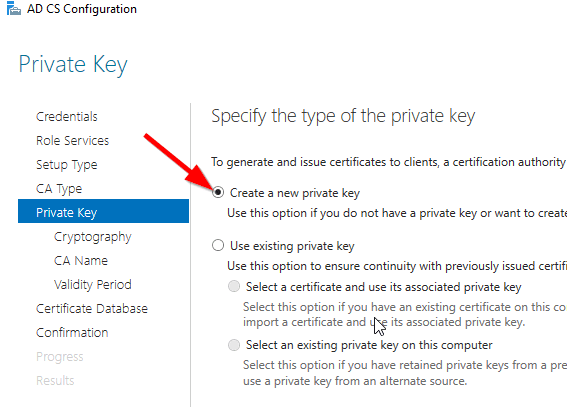
Select Create a new private key.

create_key

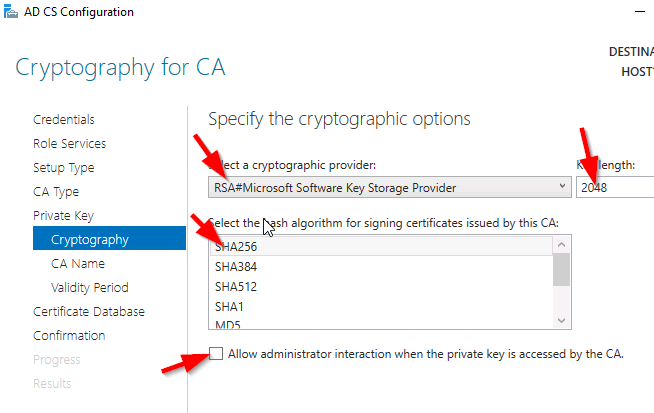
Select your preferred cryptographic provider, key length and hash algorithm
crypto_options

The Common Name and distinguished name suffix will be generated but you can enter your own name.

CA_CommonName

Select the validity period for the Certificate generated.

CA_Period

You can change certificate database and log path or let it remain at the default path

CA_DB-log

Confirm configuration settings of CA.

CA_result_page

Once the CA installation is complete, you can go to Server Manager –> Tools –> Certification Authority to view CA server in the MMC.


Cisco 2960 Error: %ILPOWER-3-CONTROLLER_PORT_ERR: Controller port error: Power Controller reports power supply VEE under voltage and lockout

I got a report that all our VoIP phone were down in a particular area that were connected to a Cisco 2960 switch. Upon investigation,

Initially, I ran the following show commands to check the status of the ports and power:

show power inline

The switch output:

showpowerinline

It was indicating that there was no device drawing power from the switch which was strange because there were VoIP phones connected to this switch.

With further checks, I came across these errors in the event logs:

poe_error

This error was telling me either the switch power module failed or some device caused a surge in power that causes the port power module to overload.

My resolution: Restart the switch which restored the switch to normal operations.

Being curious about the error, I researched it and came across this Cisco report:

https://quickview.cloudapps.cisco.com/quickview/bug/CSCsw18530

It was stating that this error is due to a bug in a particular version of IOS for 2960 switches.

The solution is:

Workaround:

Longer cable (>50ft) seems to fix the issue in most cases.

Solution

This issue is fixed in 12,2(55)SE3 , 12.2(58)SE1 and later releases. The
following interface configuration commands have to be applied to resolve the
issue,

Switch(config)# int x/y
Switch(config-if)# power inline port 2x-mode
Switch(config-if)# shut
Switch(config-if)# no shut

The fix is present in the following platforms :

3750-E,3560-E, 3750-X, 3560-X, 3560-C, 2960S, 2960,2960C,2960X

The other platforms do not support 2X power mode and the workaround would be to
use a longer cable.

PowerShell: Get a List of AD Groups a specific user is a member of

Powershell is very versatile and with this wonderful tool, I will share how to get the subject result.

There are two ways of doing this:

  1. Using the cmdlet

Get-ADPrincipalGroupMembership [username] | Format-Table Name -AutoSize

I used the cmdlet with Format-table to output property Name in a table format

2. Using the cmdlet

Get-ADUser [username] -Properties memberof | Select -ExpandProperty memberof | Get-ADGroup | Format-Table Name -AutoSize

I used the additional parameter -Properties to get the variable MemberOf then use the Select cmdlet to expand the array then pipe it to the Get-ADGroup to get the name of group to list it in a table format.

Manipulating VMware vSphere using PowerCLI

I enjoying using powershell so I started to explore the possibility of using it for manipulating vSphere. Low and behold, welcome to PowerCLI with similar syntax as powershell or it can be called powershell in vSphere.

Firstly, before the vCenter server can be manage, a connection is required. To do so, this command can be executed. It can also be used to connect to a single ESXi Host.

Connect-VIServer [vCenterServer or ESXiHost] -Credential(Get-Credential)

I prefer to use the Get-Credential cmdlet because it will prompt me with a windows dialog box requesting the username and password (It is a very useful cmdlet).

Once connected, to get the List of Cluster , VM or Host the following respective commands can be used:

Get-Cluster

Get-VM

Get-VMHost

To get specific details the name of the object can be added to the cmdlet. The pipe (|) can also be used to get details from specific area.

Example to retrieve all the Virtual machines within Cluster A

Get-Cluster ClusterA | Get-VM

To Get all VMs on ESXi Host A

Get-VMHost ESXiA | Get-VM

Putting an ESXi Host A in Maintenance mode

Set-VMHost ESXiA -State Maintenance

Shutting down the ESXi Host A

Stop-VMHost ESXiA-Force

Startup Virtual machine VM1 and VM2

Start-VM VM1,VM2

Exit Maintenance Mode for ESXi Host A

Set-VMHost ESXiA -State Connected

To get more cmdlet from the VMware PowerCLI, use the get-command [*keyword*] to list all commands with the keyword.

I will update this list as time progress.

Setup Cisco Router 1841 for NATing over two interface with Dynamic address.

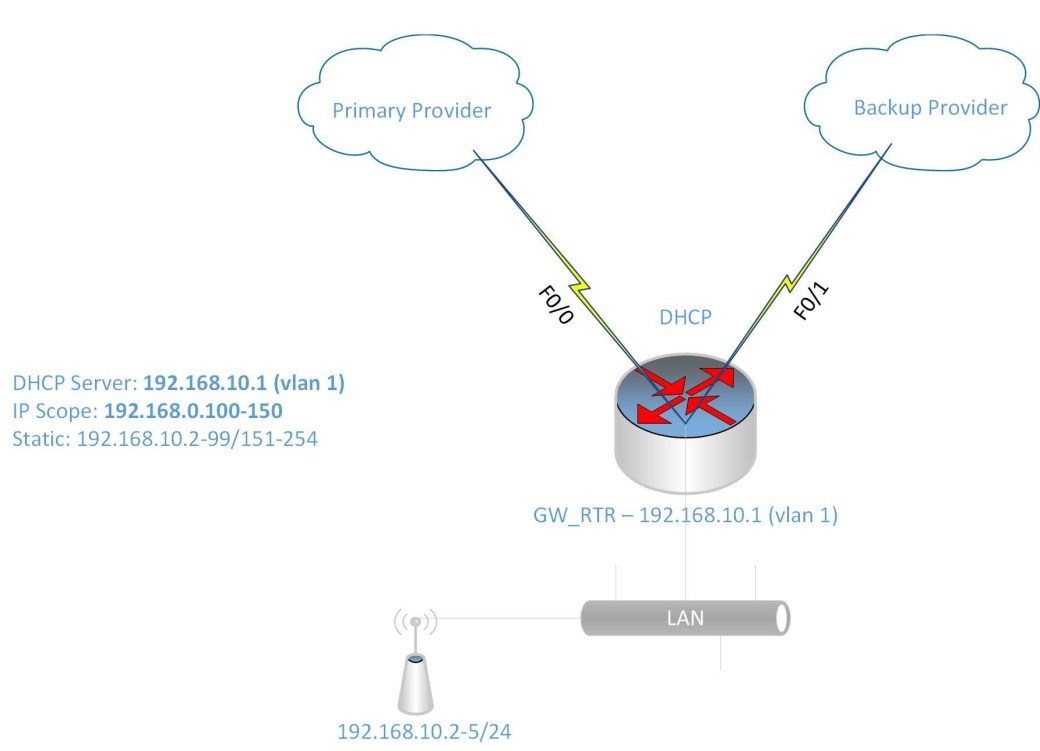
I was given the challenge to setup a Cisco 1841 router with two Fast Ethernet interface and a four Fast Ethernet-port switch module to configure redundancy across two Internet Service Providers (ISP).

RouterRedunantLink

I know that to accomplish this task, I will need  to do the following:

  • Configure the interfaces to get DHCP IP address from the two ISPs
  • Configure NATing from the LAN to the two ISPs for internet access
  • Configure IP SLA or Tracking to detect when the primary link goes down
  • Configure DHCP for the LAN devices
  • Configure Switch Virtual Interface (SVI) as the gateway for the LAN
  • There are also other features included to make the configuration easier such as IP access-list and route-map to link the IP address to the ISP interface for the NATing process.

Configure IP SLA for detecting failure of primary ISP link:

ip sla monitor 1

type echo protocol ipIcmpEcho 8.8.8.8 source-interface f0/0

timeout 1000

threshold 1000

frequency 6

ip sla monitor schedule 1 life forever start-time now

track 10 rtr 1 reachability

delay up 10

The command track 10 rtr is similiar to track 10 ip sla in newer router IOS. If the rtr parameter is not listed then use ip sla. Also some router IOS may not have ip sla monitor, instead it only has ip sla with the monitor parameter.

Now to configure the ISP interfaces and set the primary link tracking:

interface Fa0/0

ip dhcp client route track 10

ip address dhcp

ip nat otside

no shutdown

description PrimaryLink

interface f0/1

ip address dhcp

ip nat outside

description BackupLink

no shutdown

Using the command ip dhcp client route track 10 helps to track the ISP network status using the IP SLA configured previously.

Creating the SVI for the LAN:

interface VLAN 1

ip address 192.168.10.1 255.255.255.0

ip nat inside

description LAN_GWY

Setting  up the DHCP scope for the LAN (IP range 192.168.10.100-150):

ip dhcp pool LAN10

network 192.168.10.0 /24

default-router 192.168.10.1

dns-server 8.8.8.8 4.2.2.2

ip dhcp excluded-address 192.168.10.1 192.168.10.99

ip dhcp excluded-address 192.168.10.151 192.168.10.254

Setup the switch module ports as access ports for the LAN:

interface range f1/0 – 3

switchport mode access

Configure NATing for Internet access:

Please note that from previously entered command for the interfaces and SVI, there is an command ip nat inside and ip nat outside telling NAT which direction are the IP address translated.

Setup Access list for LAN Subnet (192.168.10.0/24)

ip access-list standard LAN-Subnet

permit 192.168.10.0 0.0.0.255

Setup Route-map to match LAN subnet to the two ISP interface:

route-map NAT_TO_PrimaryLink

match ip address LAN-Subnet

match interface f0/0

route-map NAT_TO_BackupLink

match ip address LAN-Subnet

match interface f0/1

Using route-map allows for the same source subnet to be map to two interfaces for the NATing.

Setup NATing for each ISP link to LAN Subnet

ip nat inside route-map NAT_TO_PrimaryLink interface f0/0 overload

ip nat inside route-map NAT_TO_BackupLink interface f0/1 overload

Change the administrative distance for Primary link

ip route 0.0.0.0 0.0.0.0 f0/0 dhcp 10

ip route 0.0.0.0 0.0.0.0 f0/1 dhcp 20

The default route 0.0.0.0 are set to ensure that they are setup with the specified administrative distance 10 and 20 for Primary and Backup link respectively.


Microsoft: Manipulating Windows Network Adapter using PowerShell

This article is about configuring the network adapter using PowerShell cmdlet:

To get a list of the names of physical network adapter, the following command was used:

Get-NetAdapter -Physical

To get the IP address assigned to the network adapter:

Get-NetIPAddress | Format-Table

To enable/disable the network adapter:

Enable-NetAdapter [-Name] “NetAdapterName”

Disable-NetAdapter [-Name] “NetAdapterName”

Restart-NetAdapter [-Name] “NetAdapterName”

To set dynamic IP address assignment for network adapter:

Set-NetIPAddress -AddressFamily IPv4 -PrefixOrigin Dhcp

To set static IP address for network adapter:

New-NetIPAddress -InterfaceIndex [NetAdapterIndex] -IPAddress 192.168.0.1 -PrefixLength 24 -DefaultGateway 192.168.0.5

Set-NetIPAddress -InterfaceIndex [index] -IPAddress 10.0.0.9 -PrefixLength 24

To set DNS IP address for network adapter:

Set-DnsClientServerAddress -InterfaceIndex 12 -ServerAddresses(“10.0.0.1”,“10.0.0.2”)

Or

Set-DnsClientServerAddress -InterfaceIndex 12 -ResetServerAddresses

For more commands and help on this topic, you can visit the Microsoft documentation site here.

Manipulating Windows Network Adapter using Network Shell

This adventure of configuring the network adapter started when I required admin rights to modify the settings because UAC (User Access Control) was disabled which prevented the prompting of admin privilege. The challenge was that I did not want to log off or switch user account hence I had to resort to using elevated privilege for the command prompt and utilize the network shell.

To get a list of the names of network adapter, the following command was used:

netsh interface show interface

To get the IP address assigned to the network adapter:

netsh interface ipv4 show addresses

To enable/disable the network adapter:

netsh interface set interface name=”NameOfInterface” admin=[ENABLED/DISABLED]

To set dynamic IP address assignment for network adapter:

netsh interface ipv4 set address source=dhcp

To set static IP address for network adapter:

netsh interface ipv4 set address static 10.0.0.9 255.255.255.0 10.0.0.1

To set DNS IP address for network adapter:

netsh interface ipv4 set dnsservers source=dhcp

Or

netsh interface ipv4 set dnsservers static 10.0.0.10 primary

For WLAN network adapter:

netsh wlan show interfaces

Show the Wireless networks broadcasting:

netsh wlan show networks

Show the WLAN profiles on computer:

netsh wlan show profiles

Connect to one of the WLAN profile configured on computer:

netsh wlan connect name=[ProfileName]

Disconnect from the currently connected WLAN SSID

network wlan disconnect name=[InterfaceName]

For more commands and help on this topic, you can visit the Microsoft documentation site here.

Manipulating the DHCP Server using Powershell

This article will go through the cmdlet to successfully configure DHCP services on a Windows server using Powershell.

Firstly you can start a Powershell session on the DHCP server using the following command: It will prompt for the credential using the Get-Credential command.

Enter-PSSession -ComputerName [DHCPServerName] -Credential (Get-Credential)

Create an IPv4 DHCP Scope for 10.10.10.0 name Ground Floor with range 10-200 on server DC1.domain.com

Add-DhcpServerv4Scope -StartRange “10.10.10.10” -EndRange “10.10.10.200” -SubnetMask “255.255.255.0”-Name “Ground Floor” LeaseDuration [day.hrs:mins:secs]-ComputerName “DC1.domain.com” -Description “Subnet for Data VLAN on Ground Floor” -State [Active/InActive]

Configure the Scope 10.10.10.0 DHCP server DNS, Domain, Gateway, WINS and wpad settings

Add-DhcpServerv4OptionValue -ScopeId 10.10.10.0 -Router 10.10.10.1 -DnsDomain “domain.com” -DnsServer 10.10.10.250 WinsServer 10.10.10.251 -Wpad http://proxy.domain.com/wpad.dat” -ComputerName “DC1.domain.com”

Note: To configure the options above at the reservation level replace the parameter ReservedIP and for setting it at the server level, exclude both ReservedIP and ScopeId parameters.

Show the DHCP server IPv4 Scope

Get-DhcpServerv4Scope [-ComputerName “DC1.domain.com”] [[-ScopeId] 10.10.10.0]

Change a DHCP Server Scope Settings

Set-DhcpServerv4Scope [-Type [DHCP|Bootp|Both]] [-ScopeId] 10.10.10.0 [-Description Scope for data vlan for 10.10.10.0“] [-LeaseDuration day.hrs:mins:secs] [-Name “Ground Floor”]  [-ComputerName “DC1.domain.com”]  -StartRange 10.10.0.20  -EndRange 10.10.10.200

Remove a DHCP server IPv4 Scope

Remove-DhcpServerv4Scope [-ScopeId] 10.10.10.0 [-Force] [-ComputerName “DC1.domain.com”]


Create a reservation for IP address 10.10.10.100 on DHCP server DC1.domain.com

Add-DhcpServerv4Reservation -ScopeId 10.10.10.0 -IPAddress 10.10.10.100 -ClientId [usually-MAC-address] -ComputerName DC1.domain.com -Description “Reservation for Kiosk PC”

Listing the DHCP Server Scope

Get-DhcpServerv4Scope -ComputerName [DHCPServerName] -ScopeId [IPAddress]

Get the List of DHCP Server Options

Get-DhcpServerv4OptionValue -ScopeId [IPAddress][-All -Brief] -ReservedIP [SpecificIP]

Note: Exclude the ReservedIP parameter to list the values at the scope level and exclude ScopeId parameter to list the values at the server level.

Get the interface and IP address that the DHCP server service is bound

Get-DhcpServerv4Binding -ComputerName “DC1.domain.com”

Set the interface that the DHCP server service will be bound

Set-DhcpServerv4Binding -ComputerName “DC1.domain.com” -BindingState $true -InterfaceAlias “Wired Ethernet Connection”

Set the Boot server Host Name (option id ) for the DHCP server scope of 192.168.0.0 

Set-DhcpServerv4OptionValue -OptionId 3 -Value 192.168.0.1 -ScopeId 192.168.0.0

List the DHCP server IPv4 address lease

Get-DhcpServerv4Lease -ScopeId 10.10.10.0 [-IPAddress 10.10.10.25] [ClientId 00-00-fe-3e-b0-01] [-BadLeases] [-AllLeases] -ComputerName “DC1.domain.com”

Note: Using the IPAddress parameter return lease for specific IP address. Using the ClientId parameter returns only lease for client mac. Using the BadLeases returns only bad leases. Using the AllLeases parameter includes all leases including Offered, Declined and Expired.


Removing a DHCP server IPv4 address lease

Remove-DhcpServerv4Lease -ScopeId 10.10.10.0 [-IPAddress 10.10.10.25] -ClientId [00-54-fe-ed-00] [-BadLeases] [-ComputerName “DC1.domain.com”]

Note: same rule applies as the Get cmdlet for this command.

Get ten (10) Free IP Address from the DHCP server from the scope 10.10.10.0 in the range 10.10.10.50-100

Get-DhcpServerv4FreeIPAddress -ScopeId 10.10.10.0 -NumAddress 10 -StartAddress 10.10.10.50 -EndAddress 10.10.10.100

Add a DHCP Scope of IPv4 Excluded Range

Add-DhcpServerv4ExclusionRange [-ComputerName “DC1.domain.com“] [-ScopeId] 10.10.10.0 [-StartRange] 10.10.10.200 [-EndRange] 10.10.10.250

Show the DHCP Scope of IPv4 Address Excluded Range

Get-DhcpServerv4ExclusionRange [-ComputerName “DC1.domain.com“] [[-ScopeId] 10.10.10.0]

Remove an DHCP Scope of IPv4 Address Excluded Range

Remove-DhcpServerv4ExclusionRange [-ComputerName “DC1.domain.com”] [-ScopeId] 10.10.10.0 [[-StartRange] 10.10.10.200] [[-EndRange] 10.10.10.250]


Retrieves the DHCP server scope statistics which includes Free, In Use, Reserved, Pending and Percentage in use IP address

Get-DhcpServerv4ScopeStatistics [[-ScopeId] 10.10.10.0] [-ComputerName “DC1.domain.com”] [-Failover]

Using Powershell to manipulate File Server Resource Manager

This article is to share information on how to use PowerShell to manipulate the File Server Resource Manager (FSRM) which is used to do quota management on a file server.

Setting the FSRM Quota for a shared path

Set-FsrmQuota -Path ‘U:\PathOFShare‘ -Description “Soft Limit set on to 10 GB” -Size 10GB [-SoftLimit] [-Threshold (New-FsrmQuotaThreshold -Percentage 85)] [-Disabled]

Set-FsrmQuota

View the File Server Resource Manager (FSRM) information for a shared path

Get-FsrmQuota -PathU:\UserPAthName

Creating a new FSRM Quota Template

new-FsrmQuotaTemplate -Name “Test” -Threshold (New-FsrmQuotaThreshold -Percentage 85) -Description “Test” -Size 10Gb

New-FsrmFileScreen -Path ”U:\PathToShare” [-Active] -Description “Screen Files for videos and music” -IncludeGroup “Audio and Video Files”