Blog

VMware VCP 6.7-DCV – Objective 1.1 – Identify the pre-requisites and components for vSphere Implementation

The following notes will assist you to prepare for this objective:

  • Know your vSphere technologies and what they do and what they don’t
    • HA
    • DRS
    • FT
    • vCenter HA
    • vSAN
  • Don’t let questions mislead you on risks mitigated
    • For example does DRS maintain availability?
  • Learn the vSphere 6.7 resource pre-reqs
    • Minimum CPU & RAM
    • Why do you need the HCL?
  • Think about post-install procedures
    • Logging, scratch, dump collection
    • Authentication
  • Know your way around VAMI
    • Adding syslog, adding NTP, DNS settings

Reference: vSphere ESXi 672 Installation Setup Guide.pdf – Chapter 5

vCenter Server Installation and Setup pdf = Chapter 2

CCNP Route 300-101 – IPv6 Knowledge

This article is to share the knowledge about IPv6 (Internet Protocol version 6) in a simple way.

The first important knowledge you will needed to know before understanding IPv6 is that it is a 128-bit address that is represented using Hexadecimal values and it will be beneficial to know the binary and decimal equivalent.

Please see below the table showing this information:

Hex Binary Decimal
0 0000 0
1 0001 1
2 0010 2
3 0011 3
4 0100 4
5 0101 5
6 0110 6
7 0111 7
8 1000 8
9 1001 9
A 1010 10
B 1011 11
C 1100 12
D 1101 13
E 1110 14
F 1111 15

The next aspect of IPv6 Addressing to understand is that it is similar to IPv4 address where the address is split up into Octet (10.10.10.1) separated by a dot (.), IPv6 address are split up into quartet (2000:ABCD:0000:0000:0000:0000:0000:0001) separated by a colon (:). Each quartet is made up of 4 Hexadecimal number.

An example of an IPv6 address is below along with the binary of the address:

Quartet Hexadecimal Binary
1st 2000 0010 0000 0000 0000
2nd ABCD 1010 1011 1100 1101
3rd 0000 0000 0000 0000 0000
4th 0000 0000 0000 0000 0000
5th 0000 0000 0000 0000 0000
6th 0000 0000 0000 0000 0000
7th 0000 0000 0000 0000 0000
8th 0001 0000 0000 0000 0001

Shortening the IPv6 Address

there are two methods we can use to shorten the IPv6 address to make it easier to write which is also applied by supported devices.

  1. Eliminating the leading zeros
  2. Using the double colon (::) to represents multiple quartet of zeros. this can only be applied once in an IPv6 address.

let me use an example IPv6 address 2000:ABC0:00ED:0000:0000:1234:0000:0001

Applying shortening rule 1 to eliminating the leading zeros which will be:

2000 : ABC0 : 00ED : 0000 : 0000 : 1234 : 0000 : 0001
2000 : ABC0 : ED : 0 : 0 : 1234 : 0 : 1

Then we are going to apply rule 2 which is to use the double colon (::) to replace multiple quartet of zeros:

2000 : ABC0 : 0 : 0 : 1234 : 0 : 1
2000 : ABC0 :: 1234 : 0 : 1

IPv6 Prefix

The IPv6 address has two main parts to the address:

  1. Prefix (Network ID)
  2. Interface ID (Host ID)

The IPv6 Prefix is denoted by the CIDR /XX. For example 2000::/3 where /3 tells you the network portion of the IPv6 address space.

There are also subdivision of the Prefix:

  1. Registry Prefix – assigned by IANA to an RIR
  2. ISP Prefix – assigned by an RIR to an ISP
  3. Site Prefix (Global Routing Prefix) – assigned by an ISP to customer
  4. Subnet Prefix – assigned by a customer engineer internally

RIR – Regional Internet Registry

IANA – Internet Assigned Numbers Authority

IPv6 Address Types

The unspecified address is an address used by an IPv6 node that has not gotten an IPv6 address.

The Global address is the address space reserved to be routed on the internet which is assigned by the IANA.

The Multicast address is joined by IPv6 nodes depending on the class the device is apart of which will be discussed later.

The Link-local is the address automatically assigned by the IPv6 node using the EUI-64 method once the IPv6 is enabled on an interface.

Types of Address Binary Reality IPv6 method
Unspecified 0000…0 ::/128
Loopback 0000…1 ::1/128
Global 001… (first 3) 2000::/3 (2000 – 3FFF)
Multicast 1111 1111 (first 8) FF00::/8
Link-local 1111 1110 10… (first 10) FE80::/10

There is another special type of address which is the Extended Unique Identifier (EUI-64) that uses the MAC address (48-bit) as part of the IPv6 Address. The challenge with the MAC address is that it is short 16-bit so to make it 64-bit, FFFE will be place in the middle of the MAC address. Another modification that is required to derive the EUI-64 address is that the 7th bit must be flipped. To better understand this address, let me list the rules in a table:

Steps Rule Address
1 Get the Mac Address AAAA.BBBB.CCCC
2 Insert FFFE in the middle of the MAC AAAABB FFFE BBCCCC
3 Flip the 7th bit by converting the first 2 Hex to binary, flipping the 7th bit and then converting it back to Hexidecimal AA = 1010 1010

1010 1000 = A8

A8AA:BB FF:FE BB:CCCC

4 Apply the network prefix. in the example using link-local FE80::/8 FE80:0000:0000:0000:A8AA:BBFF:FEBB:CCCC /64
5 Shorten the IPv6 Address FE80::A8AA:BBFF:FEBB:CCCC /64

Local Multicast Address

IPv6 Local Multicast Address Description
FF02::1 All-node
FF02::2 all-routers
FF02::5 all-OSPF routers
FF02::6 OSPF designated routers
FF02::9 All RIP
FF02::A All-EIGRP
FF02::1:FFxx:xxxx solicited-node where x is the last 6 Hex of the IPv6 unicast address

IPv6 Node Layer 2 Communication

When a IPv6 node needs to communicate at the Layer 2 after receiving a multicast packet, the IPv6 node uses the following Layer 2 (MAC) address format:

3333 : xxxx : xxx1

where X is the last 8 Hex of the MAC address but the 8th Hex is change to 1 as shown above.

For the solicited address after the 3333, we will insert FF and then add the last 6 Hex as shown below:

3333 : FFxx : xxxx

IPv6 Address Dynamic Assignment

Stateless Address Auto Configuration (SLAAC)

  • The IPv6 address is derived using the Network prefix and adding the MAC address to it (EUI-64)
  • It used the Stateless DHCP
  • The prefix must be /64
  • There should be no DHCP IP pool configured on router

Stateful DHCP

  • The IPv6 address is dynamically assigned to the host by the DHCP server along with DNS and gateway.

Domain Name System (DNS) – RF6106

IPv6 Neighbor Discovery Protocol (NDP)

Network Discovery Protocol is defined in the RF 4861.

NDP Message Types

  • Router Solicitation (ICMPv6 type 133)
    • Asking router for information
  • Router Advertisement (ICMPv6 type 134)
    • Router responding with information
  • Neighbor Solicitation (ICMPv6 type 135)
    • Asking the neighbor for information
  • Neighbor Advertisement (ICMPv6 type 136)
    • Neighbor responding with information
  • Redirect (ICMPv6 type 137)
    • redirect of a packet

Function of NDP

  • Duplicate Address Detection (DAD)
  • Router Discovery
  • Address Configuration
  • L2 (link-level) Resolution
  • Redirection of a Packet

CCNP R&S Switch: First Hop Redundancy Protocol Inner Workings

This article is to identify the important information to know about the the three (3) First Hop Redundancy Protocols (FHRP) supported on a Cisco devices.

The three FHRP are:

  • HSRP – Hot Standby Redundancy Protocol
  • VRRP – Virtual Router Redundancy Protocol
  • GLBP – Gateway Load Balancing Protocol

HSRP

  • The virtual mac address are as follows based on version:
    • v1: 0000.0c07.acXX
    • v2 : 0000.0c9f.f000 – 0000.0c9f.ffff
  • sends hello message every 3 seconds to multicast address on port UDP 1985:
    • 224.0.0.2 (v1)
    • 224.0.0.102 (v2)
  • Preemption is disabled by default
  • The HSRP virtual IP address cannot be the same as any of the devices in the group
  • The group number can be the same on the different interfaces on a device
    • v1 group range 0 – 255
    • v2 group range 0 – 4095
  •  If the priority is equal on all devices in a group, the device with the highest IP address wins.
  • v1 and v2 are not interoperable
  • Router state are either Active or Standby

VRRP

  • This protocol is an IEEE standard
  • The virtual mac address is 0000.5e00.01RR (R represents the virtual router identifier)
  • sends hello message every 1 second to multicast address 224.0.0.18 via IP protocol 112
  • Preemption is enabled by default
  • Router state are either Master or Backup
  • Protocol has the option to learn timer from the Master
    • vrrp # timer learn

GLBP

  • the virtual MAC address is 0007.b400.GGFF (G is the GLBP group number and R is the AVF number)
  • sends hello message every 3 seconds to multicast address on port UDP 3222:
    • 224.0.0.102
  • All devices will be an AVF (Active Virtual Forwarder)
  • Only one AVG (Active Virtual Gateway) will be elected
  • The AVG assign a virtual MAC address to the AVF
  • AVG is responsible for responding to ARP requests for the virtual IP address
  • load balancing methods
    • round-robin (default)
    • host-dependent
    • weighted
  • preemption is disabled by default
  • GLBP uses 3 packet types: Hello, Request and Reply

The detail listed is not exhausted but it will be updated in the future.

Passing my CCNP Switch 300-115 Exam

I am on a journey to certify my networking experience after years in the field by targeting the CCNP Routing & Switching certification. It is a challenging and tedious journey especially with information relating to some aspect of routing or switching which is not usually known and you will just research it on Google.

After acquiring my CCNA R&S in 2009, I decided to take a break. I ended up waiting until the certification almost expired in 2012 when I attempted the CCNA R&S composite exam on the last day in an effort to renew it but I failed miserable (which I totally regret). The expired status forced me to redo the entire CCNA R&S track ICND1 and ICND2.

I was advised not to do the composite exam because it is skills against time which will put me under pressure. I took the advise and did the exams in two parts and I was successful within one year.

With the enthusiasm after passing and achieving my CCNA R&S certification, I started on the CCNP track by tackling the CCNP R&S Switch first. After 1 month of studying and with the CCNA knowledge fresh in my mind, I took the exam and failed by a few points off. Man, this was heart rending. I decide No, this is not going to deter me. I went back after two months and did it again. Wow, the same result. This journey continued for seven (7) attempts and final I passed the exam with flying colors on November 8, 2019.

After reviewing the topics and objectives of the CCNP R&S switch 300-115 exam and seven (7) times exam experience, I formulated the following recommendations for preparing for the CCNP R&S Switch 300-115 which can apply to any Cisco exam:

  1. Know the protocol inner workings.
  2. Know the compatibility of more than one protocols working together e.g. Private-VLAN with SPAN or STP with Protected Port.
  3. Know the scenarios or cases that the features will best fit. for example Private-VLAN is good for using one IP address subnet and separating customers from each other like in an ISP case.
  4. Pay attention to the percentage or weight of each topics or sections on the blueprint and focus more on those features.
  5. Read the Cisco documentation for in dept information of each feature that is missing from other resources. this information will also help with cases or scenarios application.
  6.  Lab and practice with real gears: my recommendation:
    1. Cisco 3750: for stacking
    2. Cisco 3560 : private vlans, SVI
    3. Cisco 2960: PVLAN not supported and SVI
  7. Practice test (measureup is good)
  8. Set your Exam Date and workout a schedule from that date and stick to it.
  9. Create a Study Schedule of each topic on the exam blueprint

The resources I used to prepare:

  1. Cisco CCNP SWITCH 300-115 Hands-on Labs Exam Prep  (CBTNUggets)
  2. Cisco CCNP Routing and Switching 300-115 SWITCH
  3. CCNP Switching (300-115) Cert Prep: 1 Layer 2 Technologies – Linked Learning
  4. CCNP Switching (300-115) Cert Prep: 2 Infrastructure Security and Services – Linked Learning
  5. Cisco 3750 switch configuration guide (from Cisco docs)
  6. CCNP Routing and Switching SWITCH 300-115 Official Cert Guide (Pearson IT Certification)

I have  study notes that I will share in the coming weeks for those who are preparing for CCNP R&S Switch 300-115 exam. Although Cisco is changing their exams on February 24, 2020 , I am still aiming at completing my CCNP R&S certification before the time in which I will also earn the CCNP Enterprise certification, a plus for me.

My Exam Schedule – CCNP R&S

CCNP R&S Route – December 2019

CCNP R&S TShoot – February 2020


Cisco Stackwise – Stack Master Election

I was study the topic on Stackwise under the CCNP R&S Switch and saw some discrepancies on the order of the stack Master Election.

I had to resort to the Cisco 3750X configuration guide to get some clarification and this is what I discovered:

The Stack master election is done in this order:

  1. The switch that is currently the stack master
  2. The switch with the highest stack member priority
  3. The switch that is not using the default interface configuration
  4.  The switch with the highest IOS feature
    1. IP services
    2. IP based
  5. The switch uptime
  6. The switch with the lowest MAC address

I hope this clarify the stack master election.


Microsoft: Print Management using Powershell

I was having an issue RDPing to a print server and the only other way was to using Server Management tools to manipulate the print services.

I was curious to find out if this was possible using Powershell and I research it and these are the commands I discovered.

Note: There was no direct Powershell command to execute a Test Print Page so this feature has to be manipulated using  Invoke-CimMethod using WMI print class which can be found here.


Add-Printer Adds a printer to the specified computer.
Add-PrinterDriver Installs a printer driver on the specified computer.
Add-PrinterPort Installs a printer port on the specified computer.
Get-PrintConfiguration Gets the configuration information of a printer.
Get-PrintJob Retrieves a list of print jobs in the specified printer.
Get-Printer Retrieves a list of printers installed on a computer.
Get-PrinterDriver Retrieves the list of printer drivers installed on the specified computer.
Get-PrinterPort Retrieves a list of printer ports installed on the specified computer.
Get-PrinterProperty Retrieves printer properties for the specified printer.
Read-PrinterNfcTag Reads information about printers from an NFC tag.
Remove-PrintJob Removes a print job on the specified printer.
Remove-Printer Removes a printer from the specified computer.
Remove-PrinterDriver Deletes printer driver from the specified computer.
Remove-PrinterPort Removes the specified printer port from the specified computer.
Rename-Printer Renames the specified printer.
Restart-PrintJob Restarts a print job on the specified printer.
Resume-PrintJob Resumes a suspended print job.
Set-PrintConfiguration Sets the configuration information for the specified printer.
Set-Printer Updates the configuration of an existing printer.
Set-PrinterProperty Modifies the printer properties for the specified printer.
Suspend-PrintJob Suspends a print job on the specified printer.
Write-PrinterNfcTag Writes printer connection data to an NFC tag.

For more information, please refer to the Microsoft documentation here.

Link Aggregation (LAG) Port (EtherChannel – Cisco)

In the field of networking, there is a concept called Link Aggregation (LAG) which is a technology of combining more than one physical link together to make one logical link. This technology is usually implemented to support link redundancy and in some case higher throughput depending on the vendor. This technology is used mostly to connect servers to switches with multiple network cards. LAG ports are mostly connected in pairs of 2 e.g. 4, 8.

in this article, we are going to focus on the vendor Cisco who calls this technology by a different name, “Etherchannel”.

There are two protocols used on the Cisco switches to support Etherchannel:

  • LACP – Link Aggregation Control Protocol (Cisco proprietary)
  • PAgP – Port Aggregation Protocol (IEEE standard)

LACP protocol

  • Active
  • Passive

PAgP protocol

  • Auto
  • Desirable

Manual – On

Etherchannel configuration

switch(config-if-range)# channel-protocol [lacp/pagp]

switch(config-if-range)# channel-group # mode [protocol]

Etherchannel load-balance

  • src-mac (default)
  • dst-mac
  • src-ip
  • dst-ip
  • src-dst-mac
  • src-dst-ip

Loadbalance configuration

switch(config)# port-channel loadbalance [balance-option]

Layer 3 Etherchannel

an Etherchannel port become layer 3 (routing) port once your disable switchport on the portchannel

switch(config)# interface port-channel 1

switch(config-if)# no switchport

Show summary of the etherchannel

Tips:

  • Configurations applied to the port-channel interface is also applied to all the physical interfaces assigned to the port-channel group.
  • Layer 3 EtherChannel interface is not allowed on LAN based switches.
  • The following ethernet port settings must be the same when configuring the EtherChannel:
    • Speed
    • Duplex
    • native VLAN
    • VLAN range
    • trunking status
    • trunking type
  • When configuring the EtherChannel modes, one side must be in an active negotiating state (Desirable or Active)
  • Maximum interface support in one etherchannel is 8 and the maximum portchannel support on a switch is 64 depending on the switch model.
  • PAgP not supported on cross stack switches.


Setting up Skype For Business (SFB) to connect to Skype

I was asked by a user if Skype For Business (SFB) can connect with external persons using Skype. I know in the past, this interconnection was not possible but I can now positively advise that it is possible.

I am going to demonstrate how you configure the SFB to connect to Skype using email address.

Skype For Business Client

First, open SFB.

Select the tab NEW

Select the Add Contact iconsfb1

Select option Add a Contact Not in My Organization

sfb2

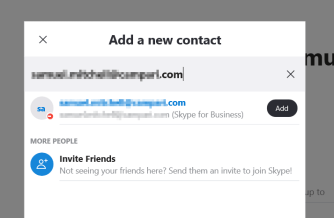
Enter the email of the recipient in the search box:

You will select the recipient from the result list that shows up

sfb3

Double click the persons identified and select Add this contact.

sfb4

It will prompt to send a request to the person and show up in the contact list.

Skype Client

Select Contacts –> Select +Contacts

skype1

The recipient will do the same from Skype and enter the persons SFB email address.

skype2

select Add, to send request and then it will show up in the contact list.

Try sending each other messages and then it will show the status.

Recovering from a BitLocker System Lockout after a BIOS Update

We had a user who was not abiding by the rules to store all the company data on the network drives to ensure it is protected and backed up by our systems.

The user’s laptop got a BIOS upgrade and unfortunately the laptop was rebooting requesting Bitlocker password. In our environment, Bitlocker passwords are registered in Active Directory upon activation but for some reason unknown to us, it was not there for this particular laptop.

Our colleague at the site, research a way to overcome this challenge and found the following solution:

  1. Download an Application that will allow you to build a bootable USB drive in DOS 32-bit. E.g. RUFUS
  2. Execute your selected application to build bootable USB drive (You might have to first format USB drive at 32-bit).
  3. Download all BIOS updates for the computer model from the vendor support site. (If you remember the previously installed BIOS version, you can download that version from the site)
  4. Boot up the computer with the bootable USB drive and run each BIOS from the command prompt (At this point, you are trying to find the BIOS version before the update was done, if you already know the version just install it).
  5. After updating the BIOS, reboot the computer to verify if Windows boots up successfully.
  6. If unsuccessful, go back to Step 4 and execute the next BIOS version file.
  1.  

    NOTE: Execute your BIOS from the latest to the oldest.

Error: Microsoft SharePoint is not supported with version 4.0.30319.42000 of the Microsoft .Net Runtime

My colleague was trying to run the PowerShell command Get-SPSite to get information about the SharePoint 2010 sites on the server.

He came across this error:

sharepointerror

It was discovered that the server Windows 2012 R2 has Microsoft .Net 4.0 installed on the box and as a result the SharePoint was not functioning with Powershell version 4.0.

To verify the version installed on the box:

$ver = $host | select version

$ver.Version

Solution

I had to run the opened PowerShell version 2 and then run the commands again.

To do this execute the following command from dos prompt:

powershell.exe -version 2

once the PowerShell opens run the commands again:

Add-PSSnapin Microsoft.SharePoint.PowerShell

Get-SPSite

Get-SPFarm

Get-SPWeb [SPSiteName]

Problem solved. I hope this was helpful.